
1. შესავალი
This manual provides essential information for the installation, operation, and maintenance of your Intel Pentium D 915 Dual-Core CPU. The Intel Pentium D 915 is a dual-core processor designed for Socket 775 motherboards, offering a clock speed of 2.8 GHz and a 4 MB L2 cache. It is engineered to enhance your computer's processing capabilities for various applications.
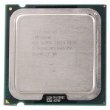
სურათი 1: Intel Pentium D 915 Dual-Core CPU. This image displays the top view of the processor, showing the Intel logo and model number, with the heat spreader visible.
2. ძირითადი მახასიათებლები
- პროცესორის ტიპი: Intel Pentium D 915 Desktop Dual-Core Processor
- CPU სიჩქარე: 2.8 გჰც
- ავტობუსის სიჩქარე: 800 MHz
- L2 ქეში: 4 MB (2 x 2MB)
- სოკეტის ტიპი: Socket 775 (LGA 775)
- ტtage დიაპაზონი: 1.225V - 1.325V VID
- ტექნოლოგია: Enhanced Intel Speedstep Technology, Intel EM64T, Enhanced Halt State (C1E), Execute Disable Bit
3. დაყენება და ინსტალაცია
Installing a CPU requires careful handling and adherence to safety procedures. It is recommended that installation be performed by a qualified technician. Always consult your motherboard's manual for specific installation instructions, as procedures may vary.
3.1 უსაფრთხოების ზომები
- Გამორთვა: Ensure the computer is completely powered off and unplugged from the wall outlet before beginning installation.
- სტატიკური გამონადენი: Wear an anti-static wrist strap or frequently touch a grounded metal object to prevent electrostatic discharge (ESD), which can damage components.
- სიფრთხილით მოპყრობა: Hold the CPU by its edges. Avoid touching the gold contacts or the underside of the processor.
3.2 ინსტალაციის ნაბიჯები (ზოგადი)
- დედაპლატის მომზადება: Open the CPU socket lever on your motherboard.
- პროცესორის გასწორება: Carefully align the CPU with the socket. Look for a small triangle or notch on the CPU and the socket to ensure correct orientation. Do not force the CPU into the socket; it should drop in easily.
- უსაფრთხო CPU: Once the CPU is seated correctly, close the socket lever to secure the processor.
- წაისვით თერმული პასტა: Apply a small amount of high-quality thermal paste to the center of the CPU's heat spreader.
- პროცესორის გამაგრილებელი მოწყობილობის დაყენება: Mount the CPU cooler according to its manufacturer's instructions, ensuring proper contact with the CPU and secure attachment to the motherboard.
- ვენტილატორის შეერთება: შეაერთეთ პროცესორის გამაგრილებლის ვენტილატორის კაბელი დედა დაფაზე მითითებულ CPU_FAN ჰედერთან.
4. ოპერაცია
Once installed, the Intel Pentium D 915 CPU will operate automatically within your system. Its dual-core architecture allows for efficient multitasking and improved performance in applications that can utilize multiple processing threads. The 2.8 GHz clock speed and 4 MB L2 cache contribute to faster data access and processing.
The Enhanced Intel Speedstep Technology dynamically adjusts the processor's voltage and frequency, optimizing power consumption and heat generation based on system load. Intel EM64T enables the processor to run 64-bit operating systems and applications, while the Execute Disable Bit provides enhanced security against certain types of malicious software.
5. მოვლა
The Intel Pentium D 915 CPU itself requires no direct maintenance. However, maintaining the overall cooling system of your computer is crucial for its longevity and stable performance.
- მტვრის მოცილება: Regularly clean dust from your CPU cooler's heatsink and fan, as well as other case fans, using compressed air. Dust buildup can impede airflow and lead to overheating.
- თერმო პასტა: Over several years, thermal paste can dry out. If you notice consistently high CPU temperatures, consider reapplying fresh thermal paste after carefully cleaning the old paste from the CPU and heatsink. This procedure should be done by an experienced user or technician.
- ჰაერის ნაკადი: Ensure your computer case has adequate airflow. Keep intake and exhaust vents clear of obstructions.
6. Დიაგნოსტიკა
If you encounter issues after installing or while using your Intel Pentium D 915 CPU, consider the following common troubleshooting steps:
- სისტემა არ იტვირთება:
- Verify the CPU is correctly seated in the socket and the lever is fully closed.
- Ensure the CPU cooler is properly installed and its fan is connected to the motherboard.
- შეამოწმეთ დედაპლატთან და კომპონენტებთან დაკავშირებული ყველა კვების კავშირი.
- Confirm your motherboard BIOS supports the Pentium D 915 CPU. An older BIOS version might require an update.
- გადახურება:
- Ensure the CPU cooler is making good contact with the CPU and is securely mounted.
- დარწმუნდით, რომ თერმოპასტა სწორად და თანაბრად არის წასმული.
- Clean any dust from the CPU cooler heatsink and fan.
- Check case airflow and fan operation.
- სისტემის არასტაბილურობა/გაჭედვა:
- Ensure the CPU is not overclocked beyond its stable limits. The Pentium D 915 is not recommended for overclocking due to its voltagე მახასიათებლები.
- Check RAM modules for proper seating and functionality.
- Update motherboard drivers and BIOS to the latest versions.
If problems persist, consult your motherboard's manual or contact Intel support for further assistance.
7. ტექნიკური მახასიათებლები
| ფუნქცია | დეტალი |
|---|---|
| ბრენდი | ინტელი |
| CPU მწარმოებელი | ინტელი |
| CPU მოდელი | Pentium D 915 |
| CPU სიჩქარე | 2.8 გჰც |
| CPU სოკეტი | LGA 775 |
| პროცესორის სერია | პენტიუმი |
| მეორადი ქეში | 4 მბ |
| Cache Memory Installed Size | 4 მბ |
| პროცესორის რაოდენობა | 1 (ორბირთვიანი) |
| მოდელის ნომერი | 915 |
| ნივთის წონა | 3.36 უნცია |
| UPC | 683728207793 |
| ASIN | B003BLU8IO |
8. გარანტია და მხარდაჭერა
For information regarding the warranty of your Intel Pentium D 915 CPU, please refer to the official Intel warranty documentation provided with your purchase or visit the official Intel website. Intel provides various support resources, including technical documentation, drivers, and customer service, to assist with product-related inquiries.
You can typically find support information and contact details on the official Intel support webსაიტი: ინტელის მხარდაჭერა