
1. შესავალი
The D-Link GO-SW-5G is a 5-Port Unmanaged Gigabit Desktop Switch designed for home and small office environments. This device provides a simple and cost-effective solution to expand your network connectivity, offering high-speed Gigabit Ethernet ports for reliable data transfer. It incorporates D-Link's Green Technology for energy efficiency, reduced heat generation, and extended product lifespan.
This switch is a plug-and-play device, requiring no complex configuration or software installation, making it easy to integrate into an existing network.
2. პაკეტის შიგთავსი
გთხოვთ, დარწმუნდეთ, რომ ქვემოთ ჩამოთვლილი ყველა ნივთი შედის თქვენს პაკეტში:
- D-Link GO-SW-5G 5-Port Gigabit Desktop Switch
- დენის ადაპტერი
- სწრაფი ინსტალაციის სახელმძღვანელო
თუ რომელიმე ნივთი დაკარგულია ან დაზიანებულია, დახმარებისთვის დაუკავშირდით თქვენს გამყიდველს.
3. დაყენების ინსტრუქციები
The D-Link GO-SW-5G switch is designed for easy plug-and-play installation. Follow these steps to set up your device:
3.1. შეაერთეთ დენის ადაპტერი
- Locate the power input port on the side of the D-Link GO-SW-5G switch.
- ამ პორტს მიუერთეთ მოწოდებული კვების ადაპტერი.
- დენის ადაპტერის მეორე ბოლო სტანდარტულ ელექტროგადამცემში შეაერთეთ.
- The power LED on the front of the switch will illuminate, indicating that the device is receiving power.

სურათი 1: მხარე view of the D-Link GO-SW-5G switch with the power input port.
3.2. დაუკავშირდით თქვენს ქსელს
- Using a standard Ethernet cable (RJ45), connect one end to an available LAN port on your router (not your modem).
- Connect the other end of this Ethernet cable to any of the five available ports on the back of the D-Link GO-SW-5G switch.
- The corresponding LED on the front of the switch will light up, indicating an active connection.
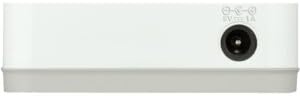
სურათი 2: უკანა view of the D-Link GO-SW-5G switch with five Ethernet ports.
3.3. Connect Network Devices
- Connect your network devices (e.g., computers, gaming consoles, network printers, smart TVs) to the remaining available Ethernet ports on the D-Link GO-SW-5G switch using Ethernet cables.
- Each connected device will have its corresponding LED on the front of the switch illuminate, confirming a successful connection.

სურათი 3: წინა view of the D-Link GO-SW-5G switch showing active port LEDs.
4. საოპერაციო ინსტრუქციები
The D-Link GO-SW-5G is an unmanaged switch, meaning it operates automatically without requiring user configuration. Once connected as described in the Setup section, it will begin forwarding network traffic between connected devices.
- ავტომატური მოლაპარაკება: The switch automatically detects the network speed (10/100/1000 Mbps) and duplex mode (half/full) of connected devices and adjusts accordingly.
- ავტომატური MDI/MDIX: All ports support automatic MDI/MDIX crossover, eliminating the need for crossover cables when connecting to other switches or hubs.
- LED ინდიკატორები: Each port has an LED indicator on the front panel. A lit LED indicates an active link, and blinking indicates network activity.
5. მოვლა
To ensure optimal performance and longevity of your D-Link GO-SW-5G switch, consider the following maintenance guidelines:
- განთავსება: გადამრთველი მოათავსეთ გრილ, მშრალ ადგილას, მოარიდეთ მზის პირდაპირ სხივებს, სითბოს წყაროებს და ჭარბ ტენიანობას. უზრუნველყავით მოწყობილობის გარშემო საკმარისი ვენტილაცია.
- დასუფთავება: Use a soft, dry cloth to clean the exterior of the switch. Avoid using liquid or aerosol cleaners, as they may damage the device.
- საკაბელო მენეჯმენტი: Keep Ethernet cables neatly organized to prevent tangles and accidental disconnections.
- დენის ციკლი: თუ ქსელთან დაკავშირებულ პრობლემებს წააწყდებით, მცირე პრობლემების გადაჭრა ხშირად მარტივი ჩართვის ციკლით (კვების ადაპტერის 10 წამით გამორთვით და შემდეგ ხელახლა შეერთებით) შეგიძლიათ.
6. Დიაგნოსტიკა
If you encounter issues with your D-Link GO-SW-5G switch, refer to the following common troubleshooting steps:
- კვების LED ინდიკატორი არ არის:
- დარწმუნდით, რომ კვების ადაპტერი საიმედოდ არის დაკავშირებული როგორც ჩამრთველთან, ასევე მოქმედ ელექტროგადამცემთან.
- შეამოწმეთ, რომ ელექტროგადამცემი ფუნქციონირებს სხვა მოწყობილობის ჩართვით.
- No Link/Activity LED for a Connected Device:
- შეამოწმეთ, რომ Ethernet კაბელი საიმედოდ არის შეერთებული როგორც კომუტატორის პორტში, ასევე ქსელურ მოწყობილობაში.
- გაუმართავი კაბელის გამოსარიცხად სცადეთ სხვა Ethernet კაბელი.
- დარწმუნდით, რომ დაკავშირებული მოწყობილობა ჩართულია და მისი ქსელის ადაპტერი სწორად მუშაობს.
- სცადეთ მოწყობილობის დაკავშირება გადამრთველზე სხვა პორტთან.
- ნელი ქსელის სიჩქარე:
- Verify that all connected devices and cables support Gigabit Ethernet (1000 Mbps) for optimal performance. The switch will operate at the lowest common speed.
- Ensure your router and internet service provider (ISP) plan support the desired speeds.
- Perform a power cycle on the switch and your router.
- წყვეტილი კავშირი:
- შეამოწმეთ ფხვიერი საკაბელო კავშირები.
- Ensure the switch is not overheating; provide adequate ventilation.
- ტესტირება სხვადასხვა Ethernet კაბელებით.
7. სპეციფიკაციები
| ბრენდი | დ-ლინკი |
| მოდელის ნომერი | GO-SW-5G/B |
| პორტების რაოდენობა | 5 |
| გადამრთველის ტიპი | უმართავი |
| მონაცემთა გადაცემის სიჩქარე | 1 გიგაბიტი წამში (10/100/1000 Mbps) |
| ინტერფეისი | RJ45 |
| ფერი | თეთრი |
| ნივთის წონა | 0.22 ფუნტი |
| ტtage | 100-240 ვოლტი |
| თავსებადი მოწყობილობები | PC, Mac, and other Ethernet-enabled devices |
| გადართვის ქსოვილი | 10 გბიტი/წმ |
| UPC | 790069365669 |
8. გარანტია და მხარდაჭერა
შეზღუდული გარანტია: The D-Link GO-SW-5G switch comes with a 3-year limited warranty. For detailed terms and conditions, please refer to the warranty information included in your package or visit the official D-Link webსაიტი.
ტექნიკური მხარდაჭერა: For technical assistance, product registration, or to download the latest firmware and documentation, please visit the D-Link მხარდაჭერა Webსაიტი or contact D-Link customer service.