
შესავალი
The Acer SB220Q bi 21.5" Widescreen LCD IPS display offers a 1920 x 1080 Full HD resolution, combining ultra-thin design with vibrant visuals. Featuring an incredible 100,000,000:1 contrast ratio and a rapid 4ms response time, this monitor is designed for a high-definition viewing experience. It includes multiple input options for broad compatibility and a Kensington lock slot for security.
რა არის ყუთში
- ჩვენების განყოფილება
- მონიტორის სტენდი
- VGA კაბელი
დაყენების სახელმძღვანელო
1. მონიტორის ასამბლეა
Carefully remove all components from the packaging. Attach the monitor stand to the display unit. Ensure the connection is secure. The stand is designed for easy, tool-free assembly.

სურათი 1: გვერდითი პროfile illustrating the ultra-thin design of the monitor.

Figure 2: Diagram highlighting the ultra-thin aspect of the monitor.
2. მოწყობილობასთან დაკავშირება
The Acer SB220Q bi monitor supports both HDMI and VGA connections. Choose the appropriate cable for your device (computer, laptop, etc.).
- HDMI კავშირი: Connect one end of an HDMI cable to the HDMI port on the monitor and the other end to the HDMI output port on your computer.
- VGA კავშირი: Connect one end of the provided VGA cable to the VGA port on the monitor and the other end to the VGA output port on your computer.
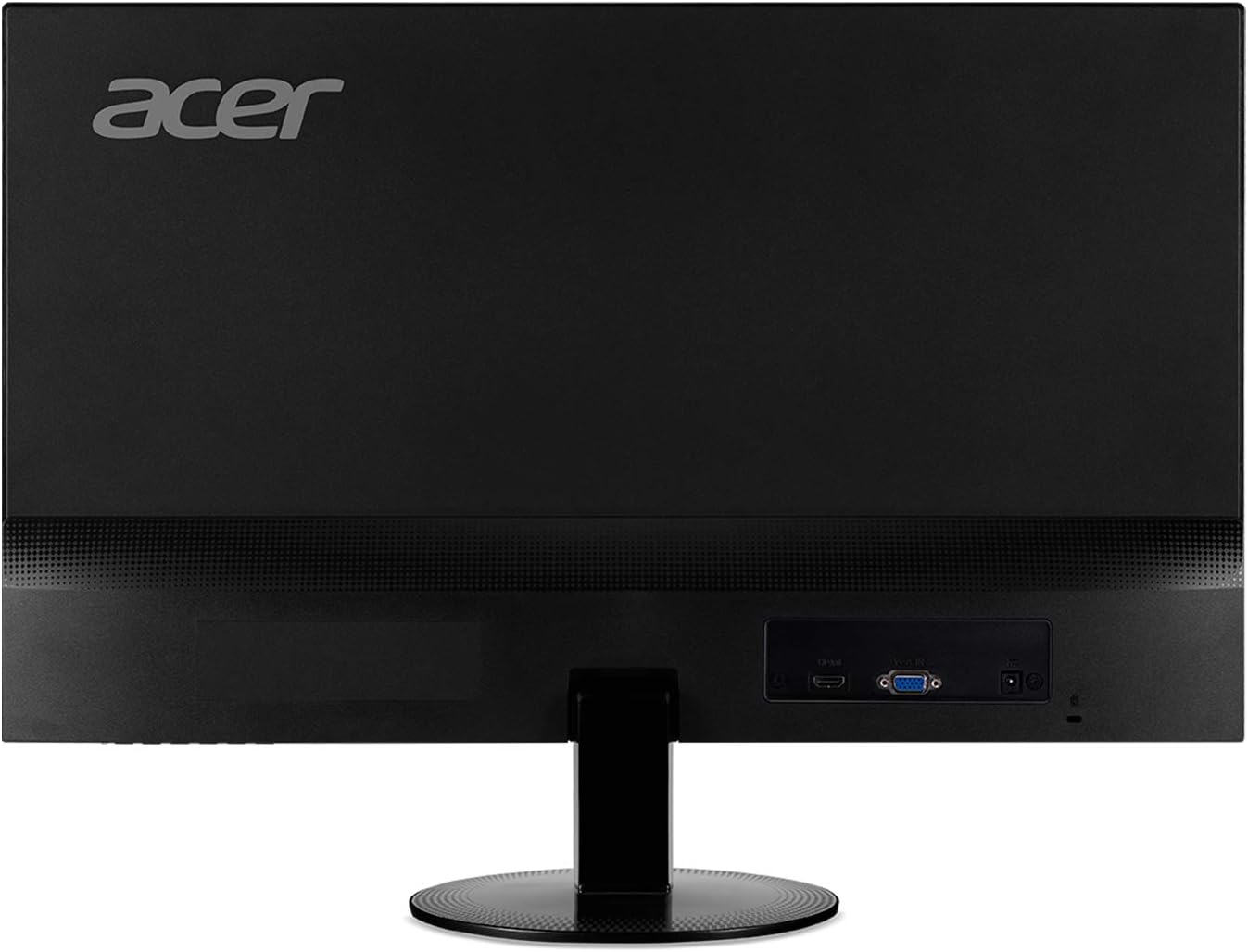
სურათი 3: უკანა view of the monitor displaying the HDMI and VGA input ports.
Once connected, ensure your computer's display settings are configured to output to the external monitor.
3. დენის კავშირი
Connect the power adapter to the monitor's power input port. Plug the other end of the power adapter into a standard electrical outlet. The monitor will typically power on automatically or can be turned on using the power button located on the bottom bezel.
ოპერაციული ინსტრუქციები
1. ჩართვა/გამორთვა
Press the power button located on the bottom right side of the monitor to turn it on or off. A small LED indicator will show the power status.
2. ეკრანის პარამეტრების რეგულირება
The monitor features intuitive controls on the bottom bezel to access the On-Screen Display (OSD) menu. From here, you can adjust various settings:
- სიკაშკაშე და კონტრასტი: Optimize the display's luminosity and color depth.
- ფერის პარამეტრები: Fine-tune color temperature, gamma, and saturation for accurate color reproduction.
- შეყვანის შერჩევა: Manually switch between HDMI and VGA inputs if auto-detection does not occur.
- თამაშის მახასიათებლები: Enable features like AMD Radeon FreeSync for tear-free gaming (when connected to a compatible AMD graphics card) and adjust response time.
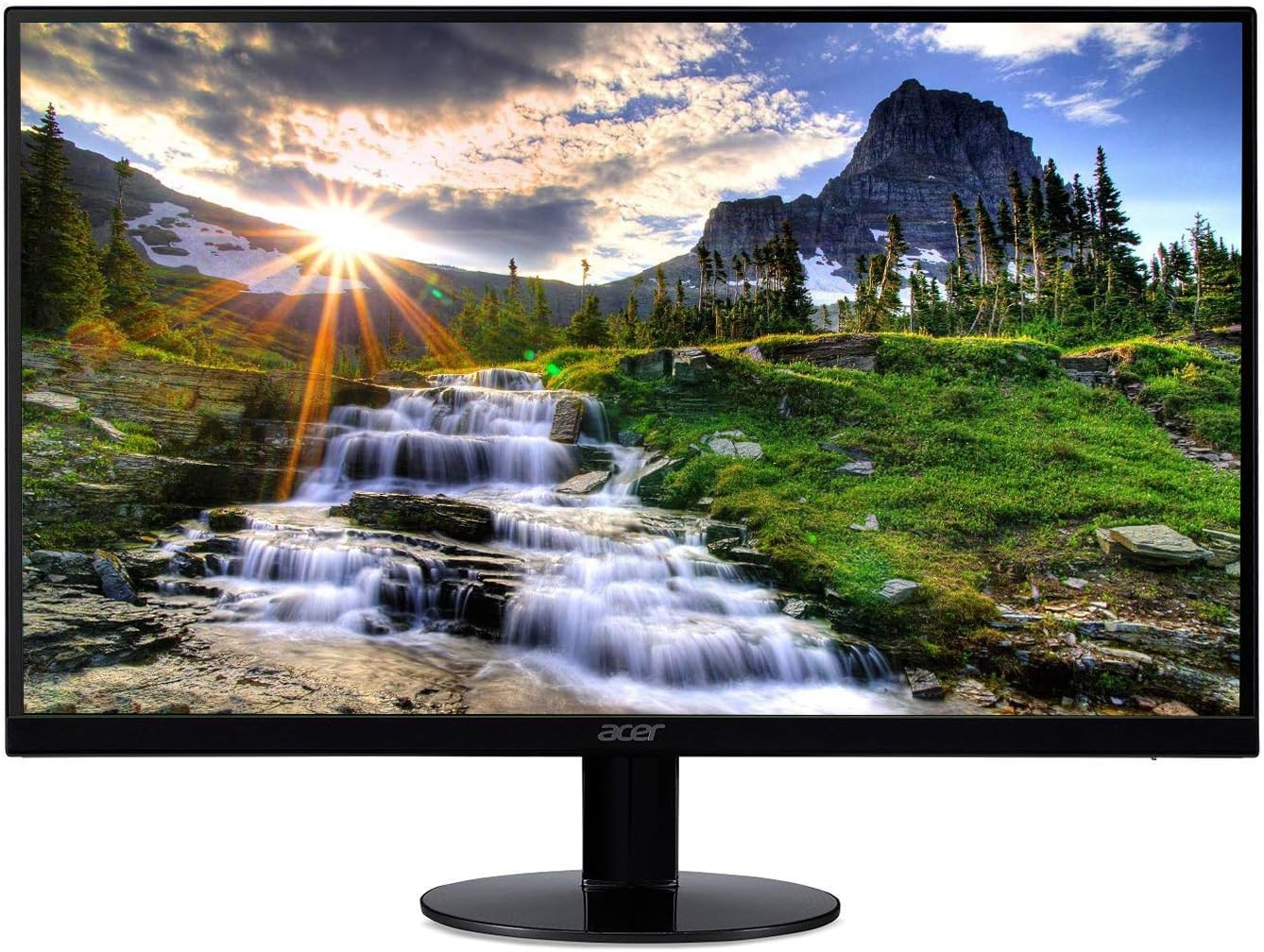
Figure 4: The Acer monitor showcasing its Full HD IPS display.
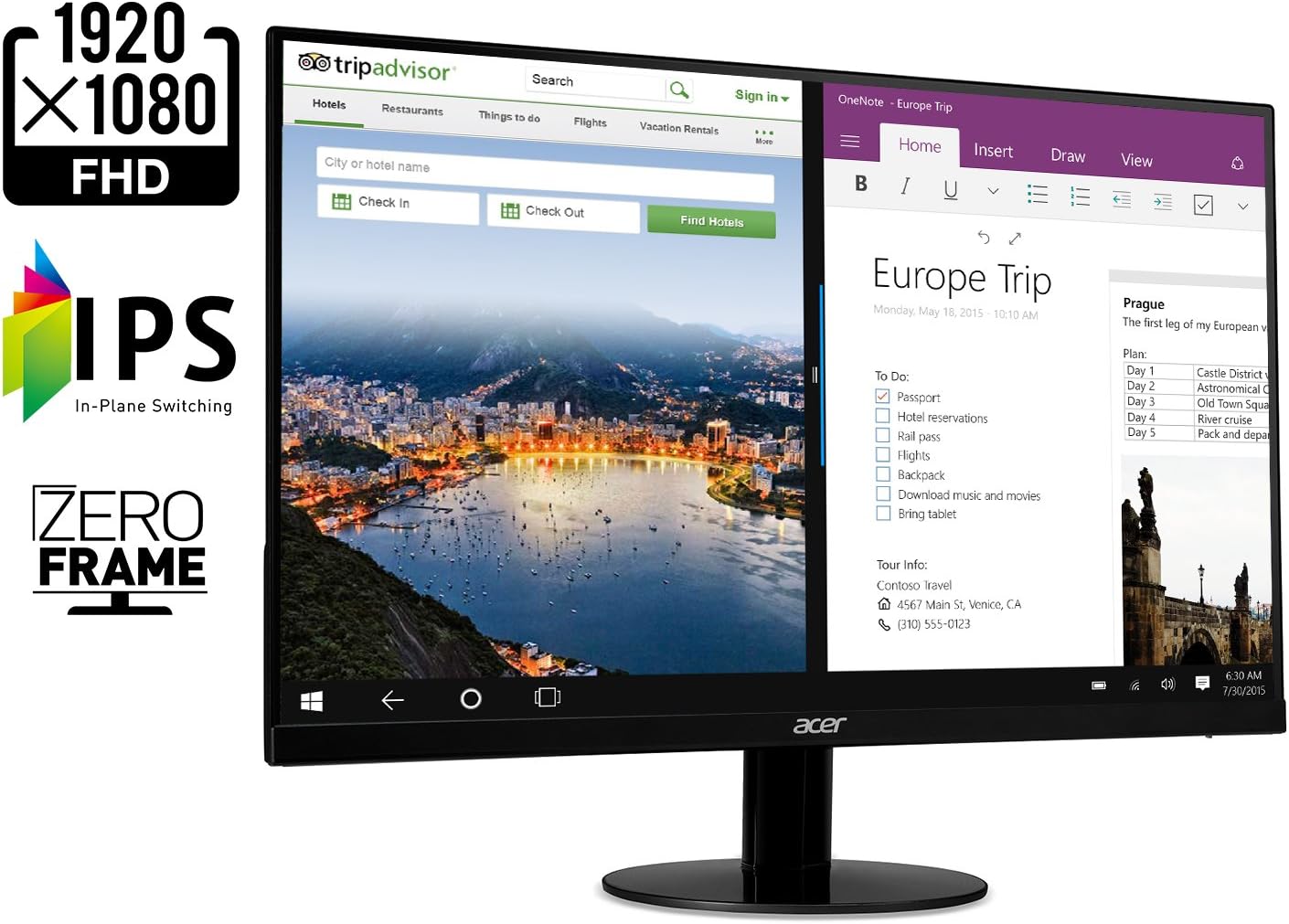
Figure 5: The monitor's IPS panel provides wide viewing angles and vibrant colors, complemented by its Zero Frame design for an immersive experience.
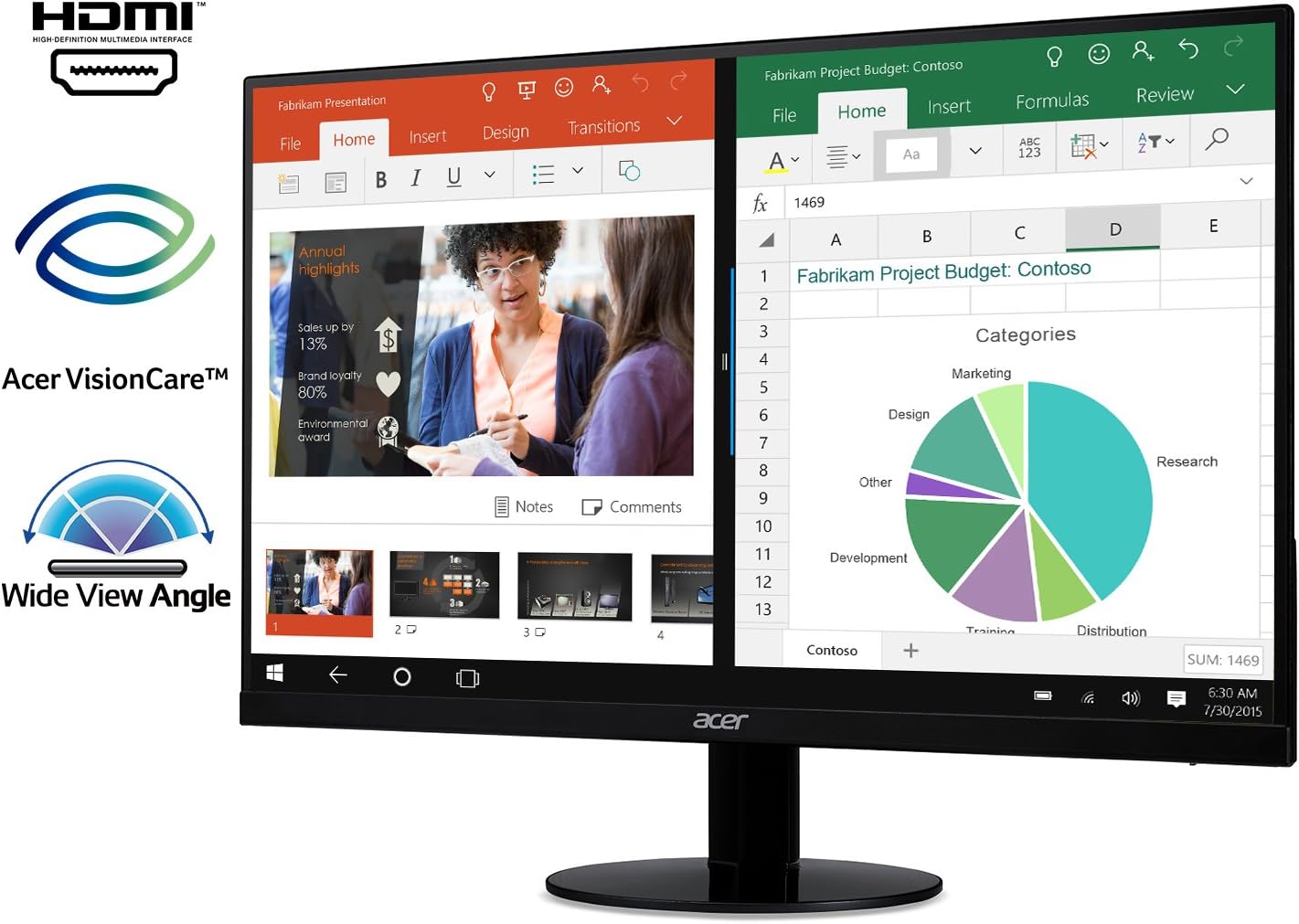
Figure 6: The monitor's wide viewing angle ensures consistent image quality from various positions, ideal for collaborative work.
მოვლა
თქვენი Acer მონიტორის ხანგრძლივი მომსახურებისა და ოპტიმალური მუშაობის უზრუნველსაყოფად, დაიცავით შემდეგი ტექნიკური მომსახურების ინსტრუქციები:
- ეკრანის გაწმენდა: გამოიყენეთ რბილი, უბინავის ქსოვილი ოდნავ დampგარეცხეთ წყლით ან არააბრაზიული ეკრანის საწმენდი საშუალებით. მოერიდეთ უხეში ქიმიკატების ან აბრაზიული მასალების გამოყენებას.
- C-ს გაწმენდაasing: მონიტორის ზედაპირი გაწმინდეთasinგ რბილი, მშრალი ქსოვილით.
- ვენტილაცია: გადახურების თავიდან ასაცილებლად, დარწმუნდით, რომ მონიტორის ვენტილაციის ღიობები თავისუფალია და არ არის დაბლოკილი.
- გამორთვა, როდესაც არ გამოიყენება: ენერგიის დაზოგვისა და მისი მომსახურების ვადის გახანგრძლივების მიზნით, გამორთეთ მონიტორი, როდესაც მას დიდი ხნის განმავლობაში არ იყენებთ.
პრობლემების მოგვარება
If you encounter issues with your Acer monitor, refer to the following common troubleshooting steps:
| პრობლემა | შესაძლო მიზეზი | გამოსავალი |
|---|---|---|
| No image on screen / "Cable Not Connected" message | Loose or incorrect cable connection; incorrect input selected. | Ensure HDMI or VGA cable is securely connected to both the monitor and the computer. Use the OSD menu to select the correct input source. |
| დენის LED გამორთულია | Monitor is not receiving power. | Check if the power cable is securely connected to the monitor and the electrical outlet. Verify the outlet is functional. |
| სურათი ბუნდოვანი ან დამახინჯებულია | Incorrect resolution; faulty cable; graphics driver issue. | Set the display resolution to 1920 x 1080. Try a different cable. Update your computer's graphics drivers. |
| ეკრანის ციმციმი | Refresh rate mismatch; interference. | Ensure the refresh rate is set to 75Hz (via HDMI). Check for nearby electronic devices causing interference. |
სპეციფიკაციები
| ფუნქცია | დეტალი |
|---|---|
| მდგარი ეკრანის დისპლეის ზომა | 21.5 ინჩი |
| ეკრანის გარჩევადობა | 1920x1080 (სრული HD) |
| ეკრანის მაქსიმალური გარჩევადობა | 1920 x 1080 პიქსელი |
| სერიალი | SB220Q |
| საქონლის მოდელის ნომერი | SB220Q bi |
| ნივთის წონა | 5.6 ფუნტი |
| პროდუქტის ზომები | 8.3 x 19.6 x 15.1 ინჩი |
| ფერი | IPS 75 ჰც |
| ტtage | 110 |
| განახლების სიხშირე | 75 Hertz (via HDMI) |
| რეაგირების დრო | 4 ms |
| პანელის ტიპი | IPS |
| პორტები | 1 x HDMI & 1 x VGA |
| ასპექტის თანაფარდობა | 16:9 |
| მხარდაჭერილი ფერები | 16.7 მილიონი ფერი |
| სიკაშკაშე | 250 nit |
| დახრის კუთხე | -5 გრადუსიდან 15 გრადუსამდე |
| Viewing კუთხე | 178 degrees (Horizontal/Vertical) |
| განსაკუთრებული თვისებები | Zero-Frame Design, Ultra-Thin, AMD Radeon FreeSync Technology |
გარანტია და მხარდაჭერა
For detailed warranty information and technical support, please refer to the official Acer documentation.
An electronic version of the User Manual can be found აქ.
დამატებითი დახმარებისთვის ეწვიეთ Acer-ის მაღაზია Amazon-ზე.