
1. შესავალი
Thank you for choosing the X.Cell M100 Wireless Mouse. This manual provides essential information for setting up, operating, and maintaining your new wireless mouse. Please read these instructions carefully before use to ensure optimal performance and longevity of your device.
2. პაკეტის შიგთავსი
დარწმუნდით, რომ თქვენს პაკეტში ყველა ნივთია:
- X.Cell M100 Wireless Mouse
- USB ნანო მიმღები
- AA ელემენტი (შეიძლება წინასწარ იყოს დამონტაჟებული ან ცალკე მოყვეს)
- მომხმარებლის სახელმძღვანელო (ეს დოკუმენტი)
3. დაყენება
- ბატარეის ჩასმა: Locate the battery compartment on the underside of the mouse. Open the cover and insert the provided AA battery, ensuring correct polarity (+/-). Close the battery compartment cover.
- შეაერთეთ USB მიმღები: Remove the USB Nano Receiver from its storage slot, usually located inside the battery compartment or near it. Plug the receiver into an available USB port on your computer (PC or Mac).
- ჩართვა: Turn on the mouse using the power switch, typically located on the underside. The mouse is designed for plug-and-play functionality, meaning it should automatically connect to your computer within a few seconds.
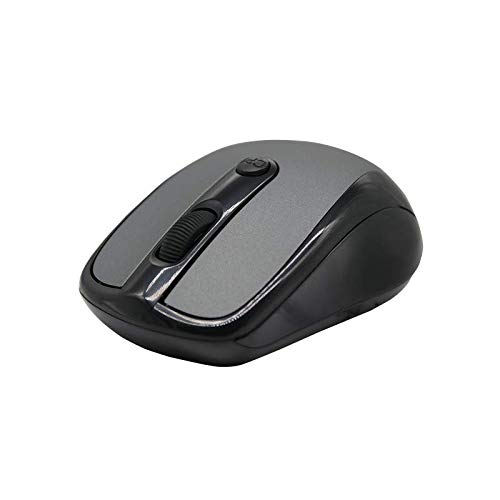
This image shows the X.Cell M100 Wireless Mouse from a top-down perspective, highlighting its ergonomic design and button layout.
4. საოპერაციო ინსტრუქციები
The X.Cell M100 Wireless Mouse utilizes 2.4 GHz wireless technology, providing a stable connection with an operating range of up to 10 meters. It is compatible with both PC and Mac systems.
- მარცხენა ღილაკი: ძირითადი დაწკაპუნების ფუნქცია ელემენტების ასარჩევად, გასახსნელად fileს და ა.შ.
- მარჯვენა ღილაკი: კონტექსტური მენიუებისა და დამატებითი ვარიანტებისთვის მეორადი დაწკაპუნების ფუნქცია.
- გადახვევის ბორბალი: Roll up or down to navigate documents and web გვერდები. გადახვევის ბორბალი ასევე შუა დაწკაპუნების ღილაკის ფუნქციას ასრულებს.
- DPI Button (if present): Some models may include a DPI button to adjust cursor sensitivity. Refer to the mouse's physical design for this feature.

A hand demonstrates the comfortable grip and usage of the X.Cell M100 Wireless Mouse during operation.
5. მოვლა
- დასუფთავება: მაუსის გასაწმენდად გამოიყენეთ რბილი, მშრალი ქსოვილი. ჯიუტი ჭუჭყის შემთხვევაში, ოდნავampქსოვილი წყლით დაასველეთ. მოერიდეთ უხეში ქიმიკატების ან აბრაზიული მასალების გამოყენებას.
- ბატარეის გამოცვლა: When the mouse performance degrades or it stops responding, replace the AA battery. Follow the steps in the 'Setup' section for battery insertion. The mouse is designed for approximately 12 months of battery life under typical usage.
- შენახვა: When not in use for extended periods, turn off the mouse to conserve battery life. Store the USB Nano Receiver in its designated slot to prevent loss.
6. Დიაგნოსტიკა
| პრობლემა | გამოსავალი |
|---|---|
| მაუსი არ პასუხობს |
|
| კურსორის მოძრაობა არასტაბილურია ან ნელია |
|
| კავშირის პრობლემები |
|
7. სპეციფიკაციები
- მოდელი: XL-M-100-BLK
- დაკავშირება: 2.4 GHz უკაბელო
- ოპერაციული დიაპაზონი: 10 მეტრამდე
- თავსებადობა: პერსონალური კომპიუტერი და Mac
- დენის წყარო: 1 x AA ბატარეა
- ბატარეის სავარაუდო ხანგრძლივობა: 12 თვე
- ზომები (L x W x H): 2.4 x 6.4 x 4.6 სმ
- წონა: 80 გრამი
- ფერი: შავი
8. გარანტია და მხარდაჭერა
Specific warranty details and direct support contact information are not provided in the product description. Please refer to the product packaging or the official X.Cell website for the most current warranty policy and customer support options. Keep your purchase receipt as proof of purchase for any warranty claims.