
1. შესავალი
This manual provides comprehensive instructions for the Huawei P Smart Plus 2019 smartphone. It covers essential information regarding product features, setup, operation, maintenance, and troubleshooting to ensure optimal use of your device. Please read this manual thoroughly before using your smartphone.
2. პროდუქტი დასრულდაview
Familiarize yourself with the physical components of your Huawei P Smart Plus 2019 smartphone.
სურათი 2.1: უკანა view of the Huawei P Smart Plus 2019 smartphone, showing the triple camera module, fingerprint sensor, and HUAWEI branding.
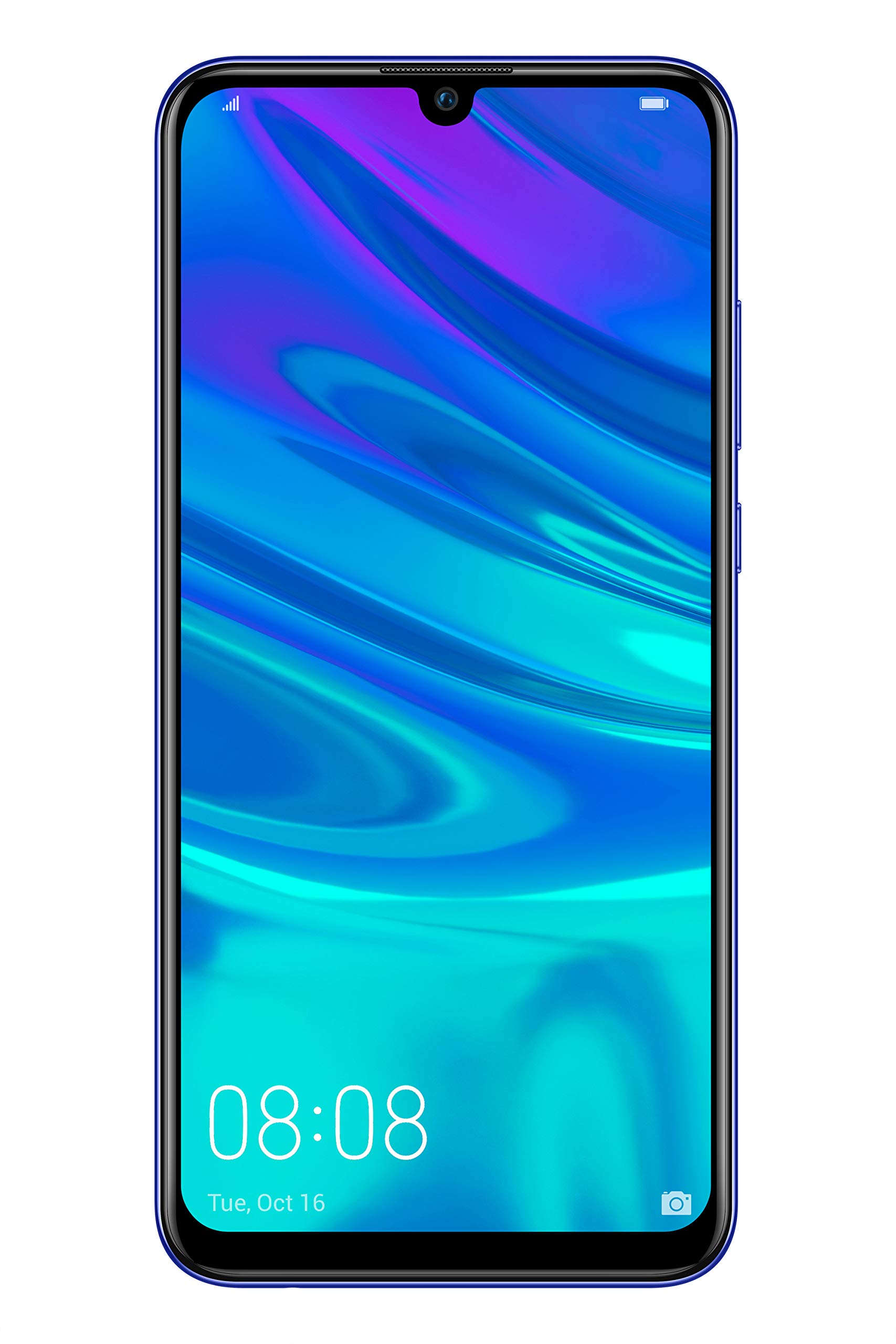
სურათი 2.2: წინა view of the Huawei P Smart Plus 2019 smartphone, displaying the 6.21-inch screen with a small notch for the front camera.

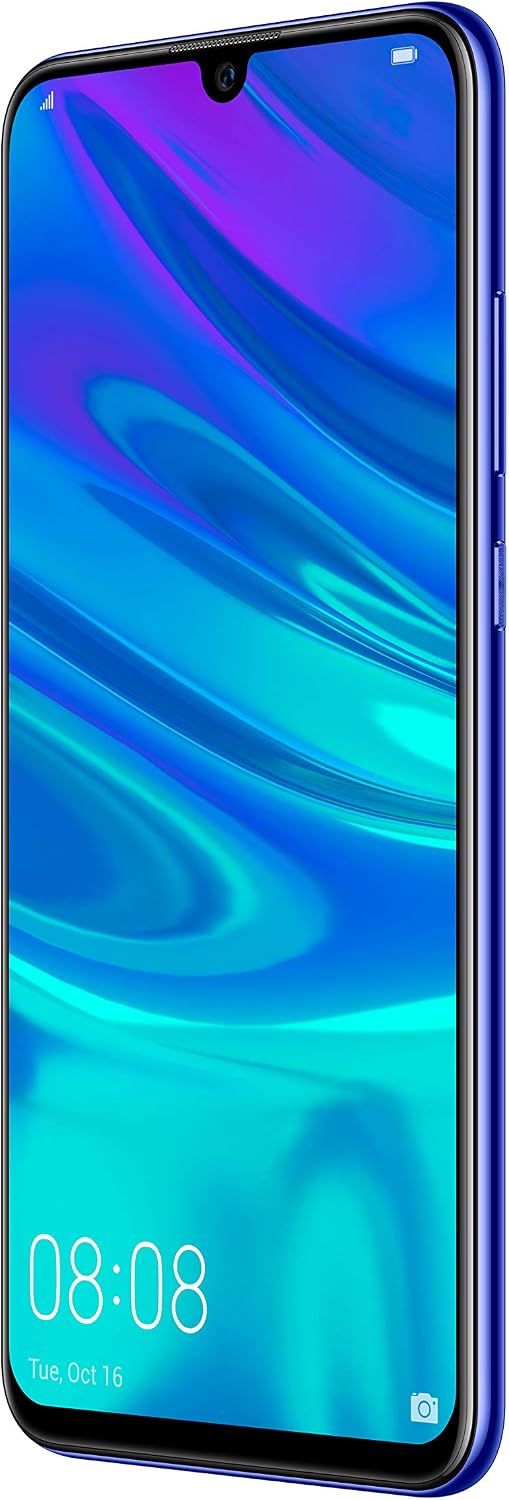
სურათი 2.3: მხარე view of the Huawei P Smart Plus 2019 smartphone, highlighting the power and volume buttons.
ძირითადი კომპონენტები:
- ჩვენება: 6.21-inch FHD+ LCD screen.
- წინა კამერა: მდებარეობს ეკრანის ჭრილში.
- უკანა კამერები: Triple camera module on the back.
- თითის ანაბეჭდის სენსორი: Circular sensor on the rear panel.
- დენის ღილაკი: მოწყობილობის მარჯვენა მხარეს.
- ხმის ღილაკები: Above the power button on the right side.
- SIM/MicroSD ბარათის სლოტი: Typically on the left side or top edge.
- დატენვის პორტი: USB Type-C, usually at the bottom.
- დინამიკი/მიკროფონი: მდებარეობს ბოლოში.
3. დაყენება
3.1 SIM და MicroSD ბარათების ჩასმა
- იპოვეთ SIM ბარათის უჯრა თქვენი მოწყობილობის გვერდზე.
- გასახსნელად, უჯრის გვერდით არსებულ პატარა ხვრელში ჩადეთ SIM ბარათის ამოსაღები ხელსაწყო.
- Place your Nano-SIM card(s) and/or microSD card into the tray, ensuring correct orientation as indicated on the tray. This device supports Dual SIM functionality and expandable storage up to 512GB.
- ფრთხილად ჩასვით უჯრა ისევ ჭრილში, სანამ ის მოწყობილობას არ გაუსწორდება.
3.2 პირველადი ჩართვა და დატენვა
- To power on, press and hold the Power button until the HUAWEI logo appears.
- საწყისი დაყენების დასასრულებლად, მათ შორის ენის შერჩევის, Wi-Fi კავშირისა და Google ანგარიშის დაყენების ჩათვლით, მიჰყევით ეკრანზე გამოტანილ მითითებებს.
- Before first use, it is recommended to fully charge the device. Connect the provided USB Type-C cable to the phone's charging port and the other end to a power adapter.
4. საოპერაციო ინსტრუქციები
4.1 ძირითადი ფუნქციები
- Power On/Off/Restart: Press and hold the Power button. Select the desired option from the menu.
- ეკრანის დაბლოკვა/განბლოკვა: Press the Power button to lock/unlock the screen. Use Face Recognition or the Fingerprint Sensor for secure unlocking.
- Calls and Messages: Use the Phone and Messaging applications for communication.
- ქსელთან დაკავშირება: Access Wi-Fi settings from the Quick Settings panel or Settings app. Enable mobile data for internet access via your SIM card.
4.2 კამერის გამოყენება
The Huawei P Smart Plus 2019 features a versatile camera system.
- უკანა კამერა: The triple camera setup includes a 24MP main sensor, a 16MP ultra-wide sensor, and a 2MP bokeh sensor. Open the Camera app and select modes like Automatic, Portrait, or Sport.
- წინა კამერა: An 8MP front camera is available for selfies and video calls. Switch to the front camera within the Camera app.
- AI მახასიათებლები: The camera utilizes AI to optimize scene recognition and enhance photo quality.
4.3 შენახვა და მეხსიერება
Your device comes with 64GB of internal storage, which can be expanded up to 512GB using a microSD card. It has 3GB of RAM for smooth multitasking.
4.4 ბატარეის მართვა
The device is equipped with a 3400 mAh Lithium-Polymer battery. To optimize battery life, manage background apps, adjust screen brightness, and utilize power-saving modes available in the Settings app.
4.5 ოპერაციული სისტემა
The smartphone runs on Android 9 (Pie) with Huawei's EMUI 9 interface, offering a range of features and customization options.
5. მოვლა
5.1 თქვენი მოწყობილობის გაწმენდა
ტელეფონის ეკრანი და კორპუსი ნაზად გაწმინდეთ რბილი, უბუშტო ქსოვილით. მოერიდეთ უხეში ქიმიკატების ან აბრაზიული მასალების გამოყენებას, რამაც შეიძლება დააზიანოს მოწყობილობის საფარი ან ეკრანის საფარი.
5.2 პროგრამული უზრუნველყოფის განახლებები
Regularly check for and install software updates to ensure your device has the latest features, security patches, and performance improvements. You can usually find this option in Settings > System > Software update.
5.3 ბატარეის მოვლა
To prolong battery lifespan, avoid extreme temperatures. Do not leave the phone fully charged or fully discharged for extended periods. Use only approved chargers and cables.
5.4 მონაცემთა სარეზერვო
რეგულარულად შეინახეთ თქვენი მნიშვნელოვანი მონაცემების (ფოტოების, კონტაქტების, დოკუმენტების) სარეზერვო ასლი ღრუბლოვან სერვისში ან კომპიუტერში, რათა თავიდან აიცილოთ მონაცემების დაკარგვა.
6. Დიაგნოსტიკა
This section addresses common issues you might encounter with your Huawei P Smart Plus 2019.
6.1 მოწყობილობა არ ირთვება
- დარწმუნდით, რომ აკუმულატორი დატენილია. შეაერთეთ დამტენი და ჩართვის მცდელობამდე დაელოდეთ რამდენიმე წუთი.
- გადატვირთვის იძულებით დასაწყებად დააჭირეთ და გეჭიროთ ჩართვის ღილაკი მინიმუმ 10-15 წამის განმავლობაში.
6.2 ბატარეის დაბალი ხანგრძლივობა
- დახურეთ ფონზე გაშვებული გამოუყენებელი აპლიკაციები.
- შეამცირეთ ეკრანის სიკაშკაშე და დააყენეთ ეკრანის გამორთვის უფრო მოკლე დრო.
- გამორთეთ Wi-Fi, Bluetooth და GPS, როდესაც არ იყენებთ.
- ენერგომოხმარების მქონე აპლიკაციების ამოსაცნობად, შეამოწმეთ ბატარეის გამოყენება პარამეტრებში.
6.3 Network Issues (No Signal/Wi-Fi Disconnection)
- გადატვირთეთ თქვენი მოწყობილობა.
- Ensure your SIM card is correctly inserted and your mobile data plan is active.
- For Wi-Fi, try restarting your router. Forget the network on your phone and reconnect.
6.4 აპლიკაციების გათიშვა ან გაყინვა
- იძულებით დახურეთ აპლიკაცია და ხელახლა გახსენით.
- აპლიკაციის ქეშისა და მონაცემების გასუფთავება პარამეტრებიდან > აპლიკაციებიდან.
- დარწმუნდით, რომ აპლიკაცია განახლებულია უახლეს ვერსიამდე.
- თუ პრობლემა კვლავ მოგვარდება, განიხილეთ აპლიკაციის დეინსტალაცია და ხელახლა ინსტალაცია.
6.5 ქარხნული პარამეტრების აღდგენა (უკიდურესი საშუალება)
If other troubleshooting steps fail, a factory reset may resolve persistent issues. გაფრთხილება: This will erase all data on your device. Back up your data before proceeding. Go to Settings > System > Reset > Factory data reset.
7. სპეციფიკაციები
| ფუნქცია | დეტალი |
|---|---|
| მოდელის ნომერი | POT-LX1T, 51093RVX |
| ჩვენება | 6.21 inches, LCD, FHD+ (2340 x 1080 pixels), 415 PPI |
| პროცესორი | Kirin 710 Octa-core (4 x 2.2 GHz, 4 x 1.7 GHz) |
| ოპერატიული მეხსიერება | 3 GB |
| შიდა საცავი | 64 GB |
| გაფართოებადი საცავი | MicroSD 512 გბ-მდე |
| უკანა კამერა | Triple: 24 MP (main) + 16 MP (ultra-wide) + 2 MP (bokeh) |
| წინა კამერა | 8 დეპუტატი |
| ბატარეა | 3400 mAh ლითიუმ-პოლიმერი |
| ოპერაციული სისტემა | Android 9 (Pie) with EMUI 9 |
| SIM ბარათის ტიპი | ნანო-სიმ (ორმაგი SIM ბარათის მხარდაჭერა) |
| დაკავშირება | LTE, GSM, Wi-Fi, Bluetooth, USB Type-C |
| ბიომეტრიული უსაფრთხოება | Fingerprint Sensor, Face Recognition |
| ზომები | 8 x 155 x 73 მმ |
| წონა | 160 გრამი |
| ბატარეის საშუალო ხანგრძლივობა | 25 საათი |
8. უსაფრთხოების ინფორმაცია
Please observe the following safety guidelines to prevent injury or damage to your device:
- არ დაუშვათ მოწყობილობის ექსპრეს ტემპერატურა, მზის პირდაპირი სხივები ან ტენიანობა.
- გამოიყენეთ მხოლოდ დამტკიცებული დამტენები და აქსესუარები.
- მოერიდეთ მოწყობილობის დავარდნას ან მის ძლიერ დარტყმას.
- არ სცადოთ მოწყობილობის დამოუკიდებლად დაშლა ან შეკეთება. მიმართეთ უფლებამოსილ სერვის პერსონალს.
- ჩარევის თავიდან ასაცილებლად, მოწყობილობა სამედიცინო მოწყობილობებისგან მოშორებით შეინახეთ.
- მოწყობილობა და მისი ბატარეა პასუხისმგებლობით გადააგდეთ ადგილობრივი რეგულაციების შესაბამისად.
9. გარანტია და მხარდაჭერა
Your Huawei P Smart Plus 2019 smartphone is covered by a limited warranty. For detailed warranty terms and conditions, please refer to the warranty card included in the product packaging or visit the official HUAWEI webსაიტი.
For technical support, service, or further assistance, please contact HUAWEI customer service or visit an authorized service center. Contact information can typically be found on the official HUAWEI support webსაიტი.


