
1. შესავალი
Thank you for choosing the Targus W620 Wireless Optical Mouse. This manual provides detailed instructions for setting up, operating, and maintaining your mouse to ensure optimal performance and longevity. The Targus W620 offers reliable 2.4 GHz wireless connectivity, a precise 1600 DPI optical sensor, and a compact design suitable for both office and mobile use.
2. პაკეტის შიგთავსი
გთხოვთ, შეამოწმოთ შეფუთვა შემდეგი ნივთებისთვის:
- Targus W620 Wireless Optical Mouse
- USB მიმღები
- 2 x AAA ბატარეები
3. პროდუქტი დასრულდაview
Familiarize yourself with the components of your Targus W620 Wireless Optical Mouse.
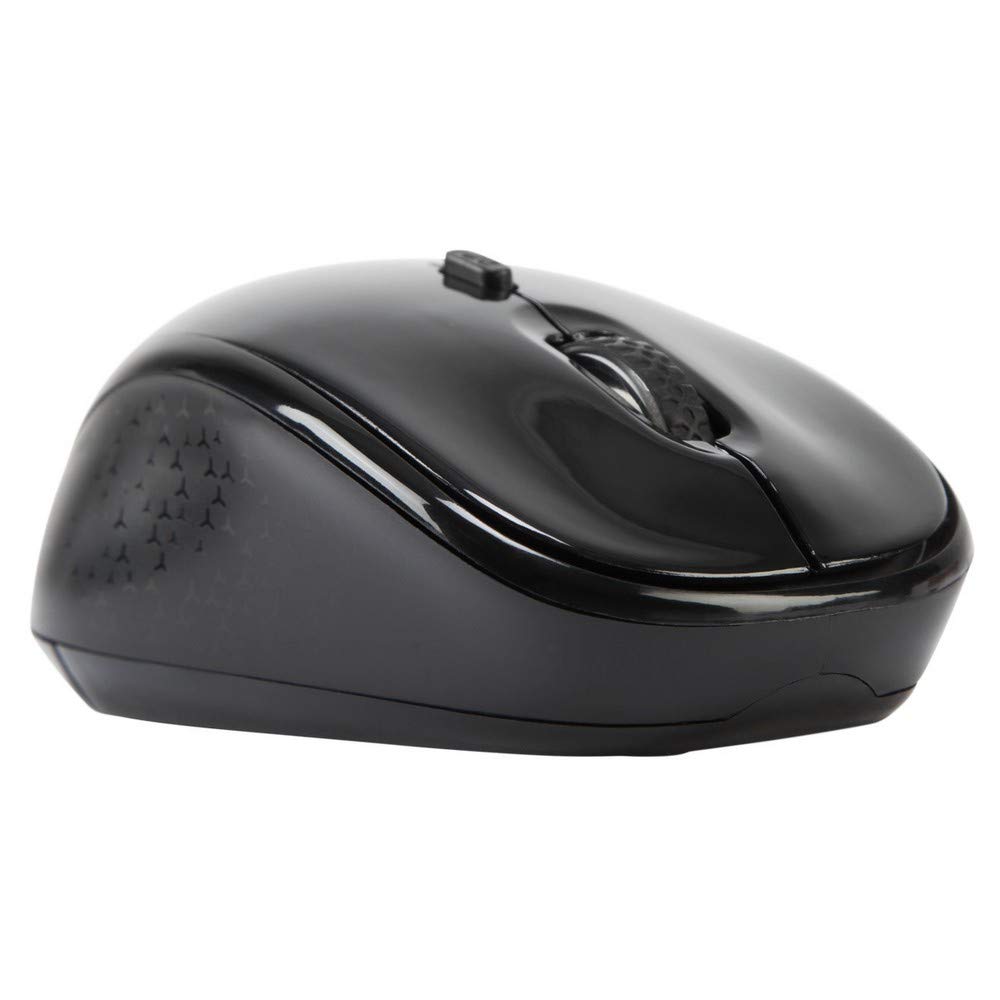
სურათი 3.1: ზედა view of the Targus W620 Wireless Optical Mouse. This image displays the primary buttons and scroll wheel.
- მარცხენა დაწკაპუნების ღილაკი: სტანდარტული პირველადი დაწკაპუნების ფუნქცია.
- მარჯვენა ღილაკით დაწკაპუნება: სტანდარტული მეორადი დაწკაპუნების ფუნქცია.
- გადახვევის ბორბალი: ვერტიკალური გადახვევისა და შუა დაწკაპუნების ფუნქციისთვის.
- DPI ღილაკი: არეგულირებს მაუსის მგრძნობელობას (DPI).
- ოპტიკური სენსორი: Located on the bottom, detects mouse movement.
- ბატარეის განყოფილება: Located on the bottom, holds two AAA batteries.
- USB მიმღების მეხსიერება: A dedicated slot on the bottom for storing the USB receiver when not in use.

სურათი 3.2: ქვედა view of the mouse, highlighting the battery compartment and optical sensor.
4. დაყენების ინსტრუქციები
Follow these steps to set up your Targus W620 Wireless Optical Mouse:
- დააინსტალირეთ ბატარეები:
- იპოვეთ ბატარეის განყოფილების საფარი მაუსის ქვედა ნაწილში.
- გაასრიალეთ საფარი ღია.
- ჩადეთ ორი AAA ელემენტი, დარწმუნდით, რომ სწორი პოლარობა (+/-) გაქვთ.
- უსაფრთხოდ დახურეთ ბატარეის განყოფილების საფარი.
- შეაერთეთ USB მიმღები:
- The USB receiver is typically stored in a slot on the bottom of the mouse for transport. Gently remove it.
- შეაერთეთ USB მიმღები თქვენს კომპიუტერში არსებულ USB პორტში.

სურათი 4.1: The mouse with its USB receiver, ready for connection.
- ჩართვა:
- There is no explicit power switch on this model; the mouse activates upon movement and connection.
- თქვენმა კომპიუტერმა ავტომატურად უნდა აღმოაჩინოს და დააინსტალიროს საჭირო დრაივერები. ამას შეიძლება რამდენიმე წუთი დასჭირდეს.
- Once drivers are installed, the mouse is ready for use.
5. საოპერაციო ინსტრუქციები
The Targus W620 Wireless Optical Mouse is designed for intuitive use. Here are its primary functions:
- ძირითადი ნავიგაცია: ეკრანზე კურსორის სამართავად, მაუსი ბრტყელ ზედაპირზე გადაიტანეთ.
- მარცხენა დაწკაპუნება: Use for selecting items, opening files, ან ფუნქციების გააქტიურება.
- დააწკაპუნეთ მარჯვენა ღილაკით: Use for accessing context menus or secondary functions.
- გადახვევის ბორბალი: Rotate the wheel to scroll vertically through documents and web pages. Press the scroll wheel for a middle-click function, often used for opening links in new tabs or auto-scrolling.
- DPI რეგულირება: Press the DPI button (located behind the scroll wheel) to cycle through the available DPI settings (800, 1200, 1600 DPI). This changes the sensitivity of the mouse cursor. A higher DPI means the cursor moves further with less physical mouse movement.
6. მოვლა
Proper maintenance ensures the longevity and performance of your mouse.
- დასუფთავება: მაუსის გარე ზედაპირის გასაწმენდად გამოიყენეთ რბილი, მშრალი, ბუსუსებისგან თავისუფალი ქსოვილი. ჯიუტი ჭუჭყის შემთხვევაში, ოდნავ გაწმინდეთ.ampქსოვილი წყლით დაასველეთ. მოერიდეთ უხეში ქიმიკატების ან აბრაზიული საწმენდი საშუალებების გამოყენებას.
- ოპტიკური სენსორი: ზუსტი თვალყურის დევნების უზრუნველსაყოფად, მაუსის ქვედა ნაწილში ოპტიკური სენსორის არე სუფთად და მტვრისა და ნარჩენებისგან თავისუფალი შეინახეთ.
- ბატარეის გამოცვლა: When the mouse performance degrades or stops responding, it is likely time to replace the batteries. Follow the steps in Section 4.1 to replace the two AAA batteries.
- შენახვა: When transporting or storing the mouse, always place the USB receiver back into its dedicated storage slot on the bottom of the mouse to prevent loss.
7. Დიაგნოსტიკა
If you encounter issues with your Targus W620 mouse, try the following solutions:
| პრობლემა | შესაძლო გამოსავალი |
|---|---|
| Mouse not responding or cursor not moving. |
|
| კურსორის მოძრაობა არასტაბილური ან ნახტომისებურია. |
|
| DPI button not changing sensitivity. |
|
| უკაბელო კავშირის პრობლემები. |
|
8. სპეციფიკაციები
| ბრენდი | ტარგუსი |
| მოდელის ნომერი | AMW620AP |
| დაკავშირების ტექნოლოგია | 2.4 GHz Wireless (Radio Frequency) |
| მოძრაობის გამოვლენის ტექნოლოგია | Optical (BlueTrace Technology) |
| DPI დონეები | 800 / 1200 / 1600 DPI (რეგულირებადი) |
| ღილაკების რაოდენობა | 4 (Left, Right, Scroll Wheel, DPI) |
| ხელის ორიენტაცია | Right (Comfortable for ambidextrous use) |
| დენის წყარო | 2 x AAA ბატარეები (შედის) |
| ნივთის წონა | 26 გრამი |
| ოპერაციული სისტემის თავსებადობა | Linux, Windows XP (Compatible with modern Windows and macOS) |
| აპარატურის პლატფორმა | Mac, PC |
| ფერი | შავი |
9. გარანტია და მხარდაჭერა
საგარანტიო ინფორმაცია: The Targus W620 Wireless Optical Mouse comes with a 3 წლიანი მწარმოებლის გარანტია შეძენის დღიდან. ეს გარანტია ფარავს მასალებისა და დამუშავების დეფექტებს ნორმალური გამოყენების პირობებში. გთხოვთ, შეინახოთ შეძენის დამადასტურებელი საბუთი გარანტიის მოთხოვნებისთვის.
მომხმარებელთა მხარდაჭერა: For technical assistance, troubleshooting beyond this manual, or warranty inquiries, please visit the official Targus website or contact their customer support service. Refer to the contact information provided with your product packaging or on the Targus official webსაიტი.


