
1. შესავალი
This manual provides detailed instructions for the proper use and maintenance of your Tzone Temperature Humidity Data Logger, Model TempU07B. This device is designed for accurate and reliable monitoring and recording of temperature and humidity data in various industrial and cold chain applications, including freezers, refrigerators, greenhouses, and laboratories. Please read this manual thoroughly before operating the device.

Image 1.1: The Tzone TempU07B Temperature Humidity Data Logger, featuring an external temperature and humidity probe, an LCD display, and a detachable magnetic mounting bracket.
2. პროდუქტის მახასიათებლები
- ინდუსტრიული ხარისხი: Designed for robust performance in demanding environments, featuring an IP65 waterproof rating.
- გარე ზონდი: Equipped with a 1.5-meter external temperature and humidity probe for measuring data in hard-to-reach or enclosed spaces.
- High Data Capacity: Stores up to 34,560 groups of temperature and humidity data.
- ავტომატური ანგარიშის გენერირება: Generates PDF and CSV reports automatically upon connection to a computer via USB, requiring no special software for basic report viewინგ.
- ფართო გაზომვის დიაპაზონი: Temperature range of -40 ℉ to 185 ℉ (-40 ℃ to 85 ℃) and humidity range of 5% to 95% RH.
- ხარისხის სერთიფიკატი: Complies with FDA CFR Part 21 requirements.
- კონფიგურირებადი პარამეტრები: Allows setting of alarm ranges, logging intervals, startup modes, and calibration via dedicated Windows software.
- ციფრული LCD ეკრანი: Shows real-time, maximum (MAX), and minimum (MIN) temperature and humidity values.
- Ძალის შენახვა: LCD screen automatically turns off after 1 minute of inactivity to conserve battery life.
- მოსახერხებელი მონტაჟი: Features a wall-mounted bracket with a magnet for easy installation and space-saving placement.
3. პაკეტის შიგთავსი
მიღებისთანავე, გთხოვთ, შეამოწმოთ პაკეტის შიგთავსი, რათა დარწმუნდეთ, რომ ყველა ნივთი ადგილზეა:
- 1 x Tzone Temperature and Humidity Data Logger (Model TempU07B)
- 1 x მომხმარებლის სახელმძღვანელო (ეს დოკუმენტი)
- 1 x CR2032 Battery (pre-installed or included separately)
- 1 x Magnetic Wall-Mounted Bracket
4. სპეციფიკაციები

Image 4.1: Key specifications of the TempU07B data logger.
| პარამეტრი | ღირებულება |
|---|---|
| მოდელის ნომერი | TempU07B |
| ტემპერატურის გაზომვის დიაპაზონი | -40 ℉ to 185 ℉ (-40 ℃ to 85 ℃) |
| ტენიანობის საზომი დიაპაზონი | 5%-დან 95%-მდე RH |
| ტემპერატურის სიზუსტე | ±0.3 ℃ (0-60 ℃) |
| ტენიანობის სიზუსტე | ±3% RH (10%-90%) |
| მონაცემთა მოცულობა | 34,560 ჯგუფი |
| მოხსენების ფორმატი | PDF & CSV (automatic generation) |
| დაკავშირება | USB |
| ბატარეის ტიპი | 1 x CR2032 (შედის) |
| ბატარეის ხანგრძლივობა | Approx. 2 years (at 25 ℃) |
| წყალგაუმტარი რეიტინგი | IP65 |
| ზომები | Approx. 100mm x 43mm (main unit) |
| მოყვება კომპონენტები | Data Logger, User Manual |
5. მოწყობილობის განლაგება

სურათი 5.1: დასრულდაview of the TempU07B data logger's components and approximate dimensions.
The Tzone TempU07B features a clear LCD display, two control buttons (START and STOP), a USB port for data transfer, and an integrated external probe for temperature and humidity sensing. The device also comes with a magnetic bracket for flexible placement.
6. საწყისი დაყენება
6.1 ბატარეის დაყენება
The device typically comes with a CR2032 battery pre-installed. If not, or if replacement is needed, carefully open the battery compartment and insert a new CR2032 battery, ensuring correct polarity.
6.2 მოწყობილობის დამონტაჟება
The TempU07B includes a magnetic wall-mounted bracket for convenient placement.
- Attach the bracket to a suitable surface using screws or its magnetic backing.
- Securely place the data logger into the bracket. The magnetic design ensures it stays in place.
6.3 ზონდის განთავსება

Image 6.1: The external probe allows for monitoring conditions inside a freezer or refrigerator without opening the door.
Position the 1.5-meter external probe in the area where temperature and humidity need to be monitored. Ensure the probe tip is not obstructed and is exposed to the environment you wish to measure. The main unit can remain outside the monitored area, allowing for easy viewმონაცემების დამუშავება.
7. ძირითადი ოპერაცია
7.1 ჟურნალირების დაწყება და შეჩერება
- To Start Logging: დააჭირეთ დაწყება button to wake the unit. Then, press and hold the დაწყება button until the logging indicator appears on the LCD.
- To Stop Logging: დააჭირეთ და გააჩერეთ STOP button until the logging indicator disappears. Alternatively, logging can be stopped automatically if a pre-set stop time is configured via the software.
7.2 LCD ეკრანის ინფორმაცია

Image 7.1: Explanation of LCD display icons and values.
LCD ეკრანი აჩვენებს სხვადასხვა ინფორმაციას:
- Real-time Values: Current temperature and humidity.
- მაქსიმალური/მინიმალური მნიშვნელობები: დააჭირეთ დაწყება button briefly to cycle through real-time, maximum, and minimum recorded values.
- განგაშის ინდიკატორები: Icons will appear if temperature or humidity exceeds pre-set alarm thresholds (H1/H2 for high, L1/L2 for low).
- Logging Status: An icon indicates if the device is actively recording data.
- ბატარეის ინდიკატორი: აჩვენებს ბატარეის მიმდინარე დონეს.
The screen will automatically turn off after 1 minute of no operation to save battery life. Press any button to reactivate the display.
8. Advanced Settings & Data Management
8.1 Automatic Report Generation
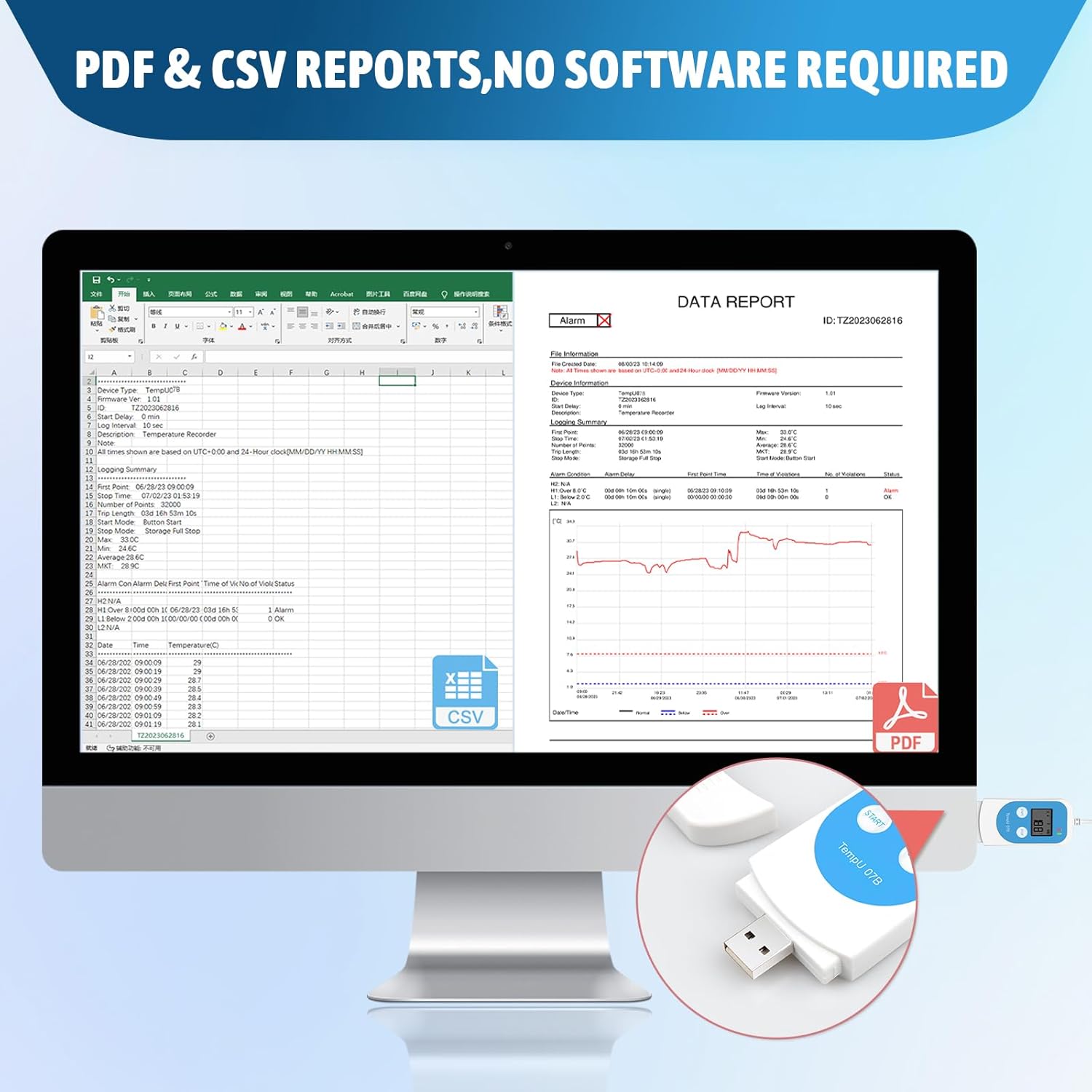
სურათი 8.1: ყოფილიample of automatically generated PDF and CSV reports.
After logging is complete, connect the data logger to a computer's USB port. The device will automatically generate PDF and CSV reports containing the recorded data. No special software installation is required to view these basic reports.
8.2 Using the Data Management Software (Windows Only)

Image 8.2: Workflow for setting parameters using the Tzone software.
For advanced configuration and detailed data analysis, download the free data management software from the official Tzone webსაიტი (როგორც წესი www.tzonedigital.com). This software is compatible with Windows operating systems.
- ჩამოტვირთეთ და დააინსტალირეთ: Obtain the software from the Tzone webსაიტი და მიჰყევით ინსტალაციის ინსტრუქციას.
- მოწყობილობის დაკავშირება: Plug the data logger into your computer's USB port.
- პარამეტრების კონფიგურაცია: Use the software to set various parameters, including:
- Temperature and humidity alarm ranges (high and low)
- ჟურნალის ინტერვალი
- Startup mode (manual, timed)
- კალიბრაციის პარამეტრები
- Password protection for reports
- პარამეტრების შენახვა: After configuring, save the parameters to the device. You can also save parameter templates for future use.
- მონაცემთა ანალიზი: The software supports data graph comparison across multiple loggers, aiding in comprehensive data analysis.
9. მოვლა
9.1 დასუფთავება
The device is designed to be freezer safe and can be wiped clean. Use a soft, damp cloth to clean the exterior of the data logger. Do not use abrasive cleaners or immerse the device in water.
9.2 ბატარეის გამოცვლა
When the battery indicator shows low power, replace the CR2032 battery. Ensure the device is not actively logging data before replacing the battery. Dispose of old batteries according to local regulations.
10. Დიაგნოსტიკა
- Device not starting/displaying: შეამოწმეთ ბატარეის დონე. საჭიროების შემთხვევაში შეცვალეთ.
- No data report generated: Ensure the device has completed logging. Connect securely to a USB port. Try a different USB port or computer.
- Cannot change settings: Parameter changes require the dedicated Windows software. Ensure the software is correctly installed and the device is connected.
- არასწორი მაჩვენებლები: Ensure the probe is correctly positioned and not obstructed. Consider recalibrating using the software if discrepancies persist.
- Magnet detached from bracket: Reattach the magnet to the bracket using a suitable adhesive if it has come loose.
11. მხარდაჭერა და გარანტია
For technical support, warranty information, or further inquiries, please refer to the official Tzone website or contact Tzone customer service. Keep your purchase receipt for warranty claims.