
1. შესავალი
Thank you for choosing the JSAUX USB C Docking Station Stand. This 5-in-1 multiport hub is designed to enhance your mobile device experience by providing expanded connectivity, including video output, high-speed data transfer, and power delivery, all while serving as a stable phone stand. This manual provides detailed instructions for setup, operation, and maintenance to ensure optimal performance.
2. პროდუქტი დასრულდაview
The JSAUX 5-Port Docking Station Stand integrates multiple essential ports into a compact design, allowing you to connect various peripherals to your USB-C enabled smartphone or tablet.
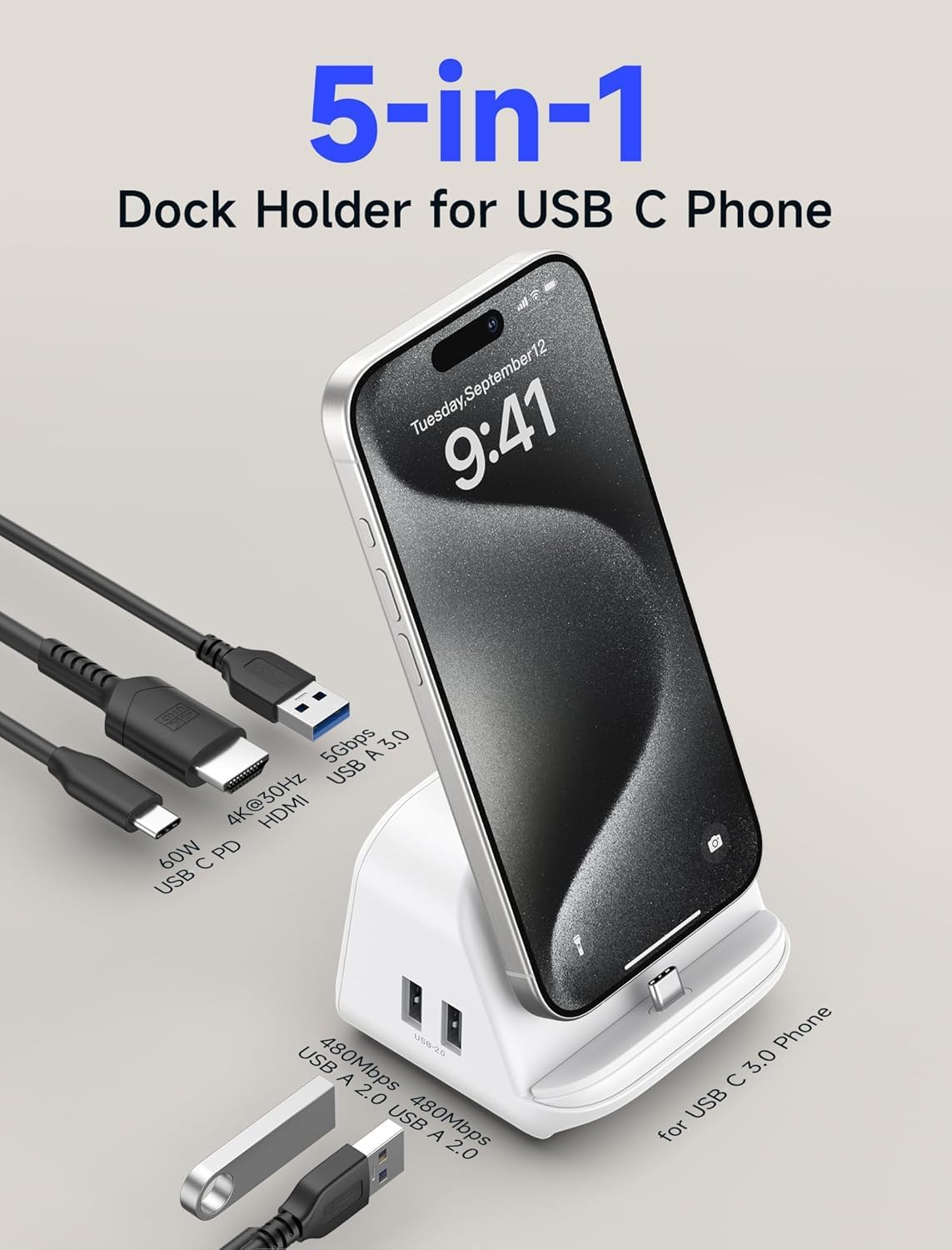
სურათი 1: წინა და უკანა მხარეები view of the JSAUX 5-in-1 USB C Docking Station Stand, highlighting its various ports including USB-C PD, HDMI, USB 3.0, and USB 2.0.
ძირითადი მახასიათებლები:
- 5-1-ში დაკავშირებადობა: Combines essential ports for versatile use.
- 4K HDMI გამომავალი: Supports video output up to 4K@30Hz for external displays.
- USB 3.0 მონაცემთა გადაცემა: One USB-A 3.0 port for high-speed data transfer up to 5Gbps.
- USB 2.0 მონაცემთა გადაცემა: Two USB-A 2.0 ports for standard data transfer up to 480Mbps, ideal for peripherals.
- 60W სიმძლავრის მიწოდება (PD): USB-C PD port for fast charging your device while in use.
- ინტეგრირებული ტელეფონის სადგამი: Provides a stable and convenient viewing angle for your device.
- SD/TF ბარათების სლოტები: For direct access to memory cards.
3. პაკეტის შიგთავსი
- JSAUX USB C Docking Station Stand (5-Port)
- USB-C to USB-C კაბელი
- Power Adapter (Charging Brick)
- Adjustable Pads (for phone case thickness)
- ინსტრუქციის სახელმძღვანელო (ეს დოკუმენტი)
4. დაყენება
Follow these steps to set up your docking station:
- დაკავშირება ძალა: Plug the provided USB-C to USB-C cable into the USB-C PD port on the docking station and connect the other end to the power adapter. Plug the power adapter into a wall outlet. Ensure the power adapter is rated over 30W for 60W fast charging support.
- Prepare Phone Stand: The docking station includes adjustable pads to accommodate different phone case thicknesses. Refer to the guide on the dock for proper pad placement:

Image 2: The phone stand section of the dock, illustrating how to place the included pads for bare phones (3mm pad) and phones with cases (1mm pad) to ensure stability. Note: Only supports phone cases with a thickness of 3mm or less.
- ტელეფონის ჩასმა: Carefully place your USB-C enabled phone onto the stand, aligning its USB-C port with the connector on the dock. Ensure a secure connection. A blue indicator light on the dock will illuminate to confirm a proper connection.

Image 3: Close-up of the dock's base, showing a blue light indicating a proper connection and the absence of light for an incorrect connection.
5. საოპერაციო ინსტრუქციები
5.1. დისპლეისთან (HDMI) დაკავშირება
Connect an HDMI cable (not included) from the HDMI port on the docking station to your monitor, TV, or projector. The dock supports 4K@30Hz video output, allowing you to mirror or extend your phone's display to a larger screen for presentations, video streaming, or gaming.

Image 4: A smartphone docked and connected to an external monitor via the HDMI port, showcasing 4K video output.
5.2. Data Transfer (USB & Card Slots)
- USB 3.0 პორტი: Use the blue USB-A 3.0 port for connecting external storage devices like hard drives or USB flash drives. This port offers data transfer speeds up to 5Gbps, ideal for quickly moving large files.

Image 5: A smartphone docked, with a USB drive connected to the USB A 3.0 port, illustrating 5Gbps data transfer speeds.
- USB 2.0 პორტები: The two black USB-A 2.0 ports are suitable for connecting peripherals such as keyboards, mice, or game controllers. These ports provide data transfer speeds up to 480Mbps.

Image 6: A smartphone docked and connected to a monitor, with a gamepad connected to a USB A 2.0 port for gaming.
- SD/TF ბარათების სლოტები: Insert your SD or TF (MicroSD) cards into the corresponding slots for direct access to files on your phone or computer.
5.3. Charging (60W PD)
The USB-C PD port allows you to charge your connected device at up to 60W while simultaneously using other functions of the docking station. This ensures your device remains powered during extended use.

Image 7: A smartphone docked and charging via the 60W Power Delivery port, with the charging status visible on the phone screen.
5.4. თავსებადობის შენიშვნები
- iPhone 15 Plus: When an HDMI connection is active, the USB 3.0 port may not function.
- Samsung S21 / Samsung Note20 Ultra: A USB drive must be connected to the dock before connecting the phone. Additionally, the USB drive and Power Delivery (PD) cannot be used simultaneously.
- Phone Case Thickness: For optimal stability and connection, the dock only supports phone cases with a thickness of 3mm or less.

Image 8: Visual representation of compatible phone models, including iPhone 15 series, Google Pixel, Samsung Galaxy S23/S22/S21/S20 series, OnePlus 9/8 series, Xiaomi Mi 10 series, Huawei P40 series, and Huawei Mate 40 series.
6. მოვლა
To ensure the longevity and proper functioning of your docking station, follow these maintenance guidelines:
- დასუფთავება: Use a soft, dry cloth to wipe the surface of the docking station. Avoid using harsh chemicals or abrasive cleaners.
- პორტის მოვლა: Keep all ports free of dust and debris. Use compressed air if necessary to clear any blockages.
- შენახვა: როდესაც არ იყენებთ, შეინახეთ დოკ-სადგური გრილ, მშრალ ადგილას, მოარიდეთ მზის პირდაპირ სხივებს და ექსტრემალურ ტემპერატურას.
- დამუშავება: Avoid dropping or subjecting the device to strong impacts, as this can damage internal components.
7. Დიაგნოსტიკა
If you encounter issues with your JSAUX USB C Docking Station Stand, please refer to the following common solutions:
- არ მიეწოდება ენერგია/დატენვა:
- Ensure the power adapter is securely plugged into both the wall outlet and the dock's USB-C PD port.
- Verify that the power adapter is functioning correctly and provides sufficient wattage (over 30W for 60W PD).
- Check the connection between your phone and the dock's USB-C connector. The blue indicator light should be on.
- No Video Output via HDMI:
- დარწმუნდით, რომ HDMI კაბელი საიმედოდ არის დაკავშირებული როგორც დოკთან, ასევე ეკრანთან.
- Verify the display input source is set to the correct HDMI port.
- For iPhone 15 Plus users, note that the USB 3.0 port may not work when HDMI is active. Try disconnecting any USB 3.0 devices.
- Test with a different HDMI cable or display if possible.
- USB მოწყობილობები არ არის ამოცნობილი:
- Ensure USB devices are properly inserted into the correct USB-A ports.
- For Samsung S21/Note20 Ultra, connect the USB drive before docking the phone. Also, avoid using USB drive and PD simultaneously.
- Some high-power USB devices may require external power or may not be fully supported.
- Phone Not Stable on Stand:
- Ensure the correct adjustable pads are used based on your phone's case thickness (or lack thereof).
- The dock supports phone cases with a maximum thickness of 3mm. Thicker cases may prevent a stable connection.
If the issue persists, please contact JSAUX customer support for further assistance.
8. სპეციფიკაციები
| ფუნქცია | სპეციფიკაცია |
|---|---|
| მოდელი | 5-პორტი |
| კონექტორის ტიპი | HDMI, USB-C, USB-A, SD, TF |
| HDMI გამომავალი | 4K@30Hz |
| USB-A 3.0 მონაცემთა გადაცემის სიჩქარე | 5 გბიტ/წმ-მდე |
| USB-A 2.0 მონაცემთა გადაცემის სიჩქარე | 480 Mbps-მდე |
| USB-C დენის მიწოდება | 60 ვტ-მდე |
| თავსებადი მოწყობილობები | Cellular Phones (USB-C enabled) |
| თავსებადი ტელეფონის მოდელები | iPhone 15 Series, Google Pixel, Samsung S24/23/21/20, OnePlus 9/8, Xiaomi Mi 10, Huawei P40/Mate 40 series |
| მასალა | პლასტიკური |
| ნივთის წონა | 10.5 უნცია (297.67 გრამი) |
| პაკეტის ზომები | 5.87 x 4.8 x 3.23 ინჩი |
| დენის წყარო | კაბელიანი ელექტრო |
9. გარანტია და მხარდაჭერა
JSAUX products are designed and manufactured to the highest quality standards. For specific warranty information, please refer to the warranty card included with your purchase or visit the official JSAUX website. If you require technical support, have questions about product functionality, or need assistance with troubleshooting, please contact JSAUX customer service through their official channels. Please have your product model and purchase details ready when contacting support.