
Thomson TDF-1001P
THOMSON 10.1-inch Digital Photo Frame User Manual
Model: TDF-1001P
1. შესავალი
This user manual provides comprehensive instructions for setting up, operating, and maintaining your THOMSON 10.1-inch WiFi Digital Photo Frame. Please read this manual carefully before using the device to ensure proper functionality and longevity.
2. პროდუქტი დასრულდაview
The THOMSON Digital Photo Frame is designed to display your cherished memories with ease. It features a high-definition IPS touchscreen and WiFi connectivity for convenient photo sharing.
ძირითადი მახასიათებლები:
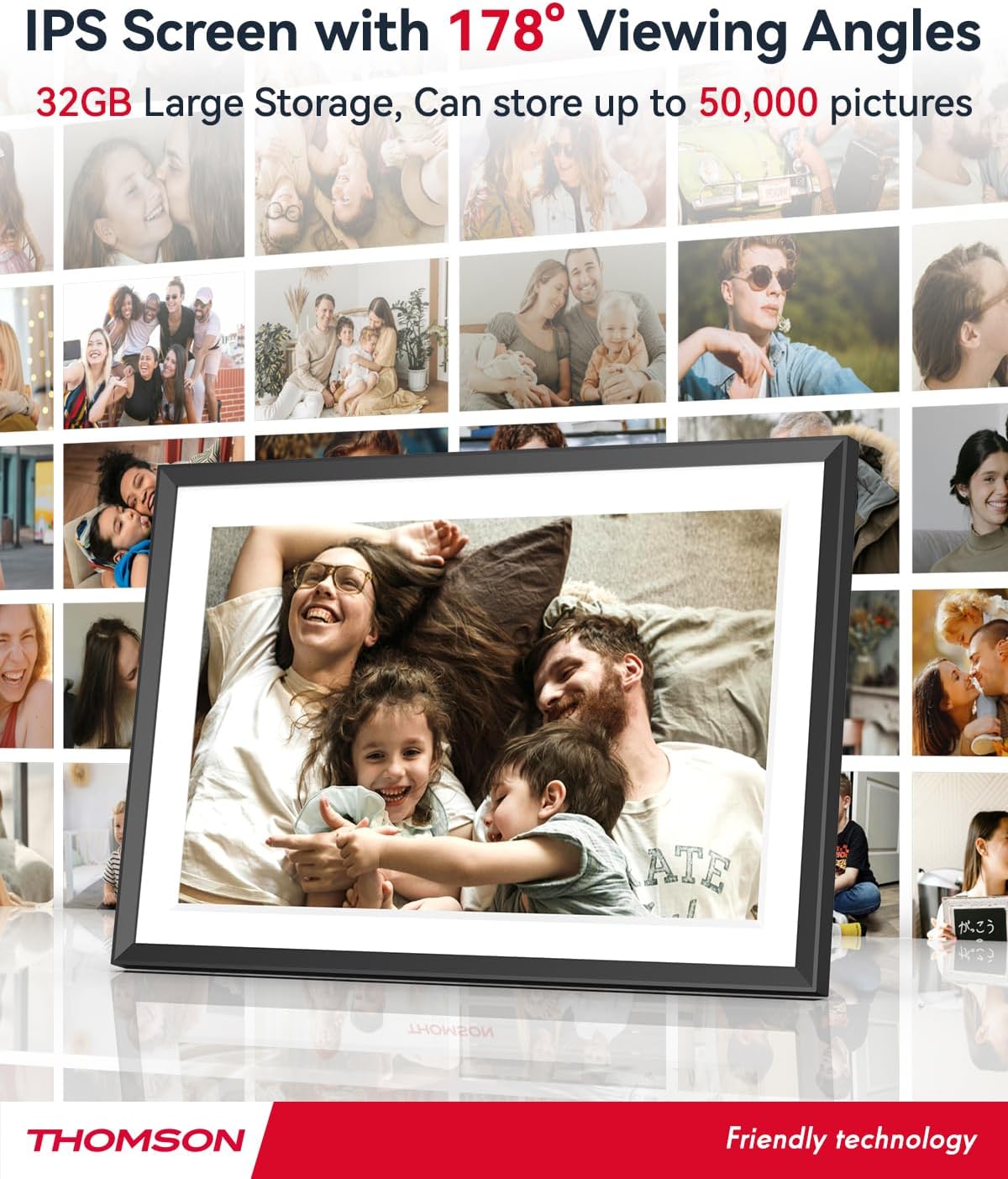
- 32GB Internal Memory: Stores approximately 50,000 photos. Supports SD Card/SDHC Card/MMC Card/USB Drive expansion up to 256GB.
- მარტივი დაყენება: Connects to WiFi, automatically sets local date and time.
- 10.1-inch 1280x800 HD IPS Screen: Provides clear image viewing with a 180° viewing კუთხე
- მრავალი ინტერფეისი: Supports DC-4.0, Type-C, SD, 3.5mm Jack, and USB.
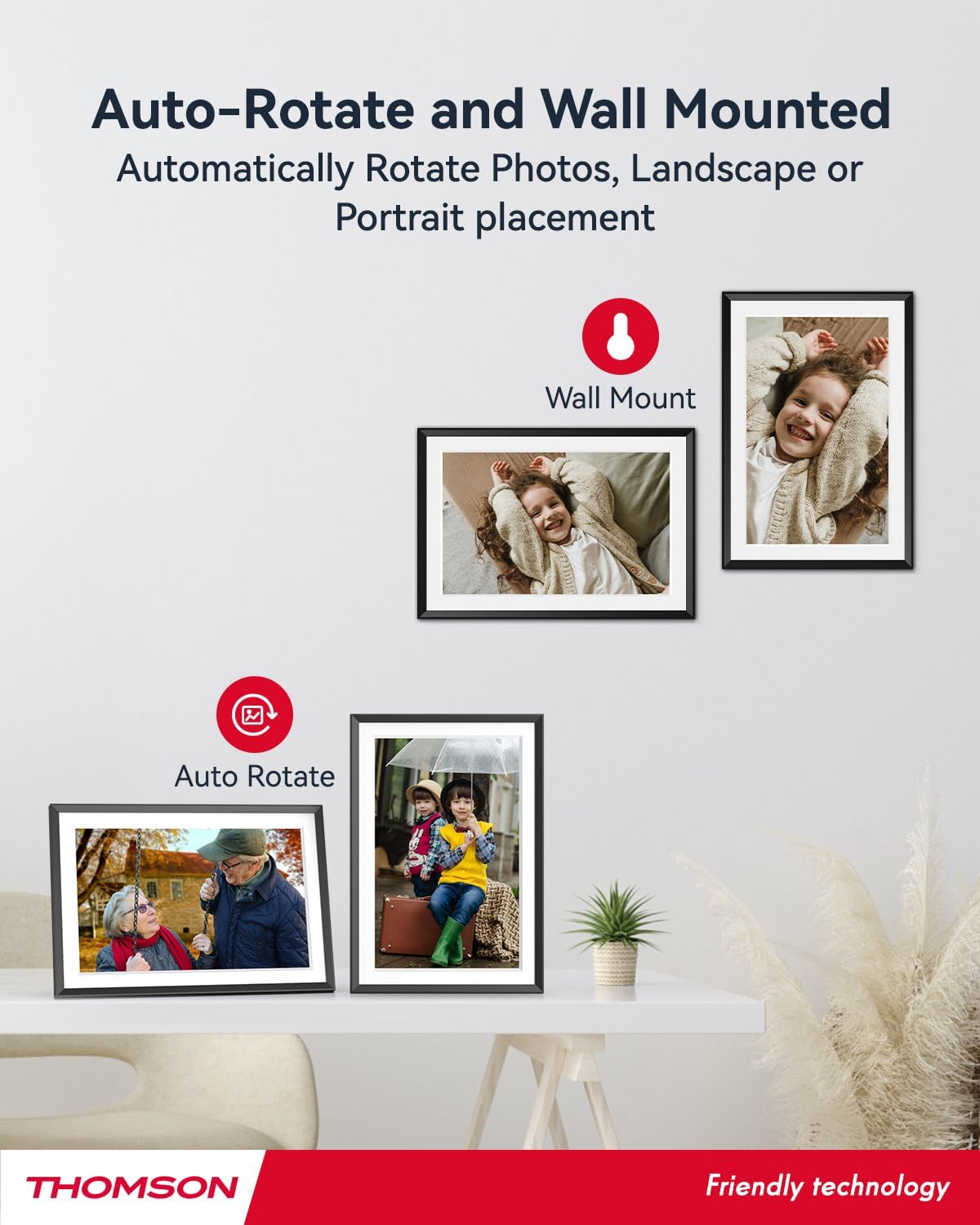
- ავტომატური როტაცია: Displays photos correctly in any orientation.
- ფონის მუსიკა: Play music during slideshows.
- Google Photo Support: Send photos directly from Google Photos.




3. დაყენება
3.1 გახსნა და პირველადი შემოწმება
- ფრთხილად ამოიღეთ ყველა კომპონენტი შეფუთვიდან.
- Verify that all items listed in the 'Product Overview' section are present.
- Inspect the frame for any signs of damage. If damaged, do not proceed and contact customer support.
3.2 დენის კავშირი
- Connect the power adapter to the DC-4.0 port on the back of the photo frame.
- შეაერთეთ კვების ადაპტერი სტანდარტულ ელექტრო განყოფილებაში.
- The frame will power on automatically.
3.3 ქსელური კავშირი (Wi-Fi)
- On the frame's touchscreen, navigate to 'Settings' or 'Wi-Fi Settings'.
- ხელმისაწვდომი ქსელების სიიდან აირჩიეთ სასურველი Wi-Fi ქსელი.
- შეიყვანეთ Wi-Fi პაროლი ეკრანის კლავიატურის გამოყენებით.
- Confirm the connection. Once connected, the frame will automatically synchronize the date and time.
3.4 App Installation (Thomson Smart Frame)
To share photos wirelessly from your smartphone, download the 'Thomson Smart Frame' app:
- For Android devices, search for 'Thomson Smart Frame' on the Google Play Store.
- For iOS devices, search for 'Thomson Smart Frame' on the Apple App Store.
- Follow the on-screen instructions within the app to pair it with your digital photo frame.
4. საოპერაციო ინსტრუქციები
4.1 ფოტოებისა და ვიდეოების დამატება
- Via Thomson Smart Frame App: Use the paired smartphone app to wirelessly send photos and videos to the frame.
- Via SD Card/USB Drive: Insert a compatible SD card or USB drive into the respective slot. The frame will detect the media, and you can import files to the internal memory or play directly.
- Via Google Photos: The frame supports integration with Google Photos for direct photo sharing. Refer to the frame's on-screen instructions for linking your Google Photos account.
4.2 სენსორული ეკრანის ნავიგაცია
The frame features an intuitive touchscreen interface. Tap to select, swipe to scroll, and pinch to zoom (if supported by the specific function).
4.3 Slideshow Settings
Customize your photo slideshow experience:
- Slideshow Speed: Adjust the duration each photo is displayed.
- Transition Effects: Choose from various transition styles between photos.
- ფონის მუსიკა: აირჩიეთ აუდიო files to play during the slideshow.
4.4 ავტომატური როტაცია
The frame automatically detects its orientation (landscape or portrait) and adjusts the displayed photos accordingly. Ensure the auto-rotate function is enabled in the settings if you wish to utilize this feature.
4.5 Multi-User Connection
Multiple users can connect to the same frame via the Thomson Smart Frame app, allowing family and friends to share their photos to your frame from different locations.
5. მოვლა
5.1 ეკრანის გაწმენდა
- Turn off the photo frame and unplug it from the power source.
- ეკრანის ნაზად გასაწმენდად გამოიყენეთ რბილი, უბუშტო ქსოვილი (მაგალითად, მიკროფიბრის ქსოვილი).
- ჯიუტი ლაქებისთვის, ოდნავ შეიზილეთampen the cloth with water or a screen-cleaning solution specifically designed for electronic displays. Do not spray liquid directly onto the screen.
5.2 ზოგადი მოვლა
- Avoid exposing the frame to extreme temperatures, direct sunlight, or high humidity.
- ჩარჩო წყლისა და სხვა სითხეებისგან მოშორებით შეინახეთ.
- Do not block the ventilation openings on the frame.
- Handle the frame with care to prevent drops or impacts.
6. Დიაგნოსტიკა
| პრობლემა | შესაძლო მიზეზი | გამოსავალი |
|---|---|---|
| ჩარჩო არ ირთვება. | დენის ადაპტერი არ არის შეერთებული ან სოკეტი გაუმართავია. | დარწმუნდით, რომ კვების ადაპტერი საიმედოდ არის დაკავშირებული ჩარჩოსთან და მოქმედ ელექტროგადამცემთან. სცადეთ სხვა გამანაწილებელი. |
| Wi-Fi-თან დაკავშირება შეუძლებელია. | არასწორი პაროლი, სუსტი სიგნალი ან ქსელის პრობლემა. | Double-check Wi-Fi password. Move frame closer to router. Restart router and frame. |
| ფოტოები არ არის ნაჩვენები. | მხარდაუჭერელია file format, no photos loaded, or storage issue. | Ensure photos are in supported formats (e.g., JPEG, PNG). Verify photos are loaded onto the frame's internal memory or connected storage. Check storage space. |
| სენსორული ეკრანი არ რეაგირებს. | დროებითი პროგრამული უზრუნველყოფის გაუმართაობა. | გადატვირთეთ ჩარჩო კვების ადაპტერის გამორთვით და ხელახლა შეერთებით. |
7. სპეციფიკაციები
| ფუნქცია | დეტალი |
|---|---|
| ბრენდი | ტომსონი |
| მოდელის ნომერი | TDF-1001P |
| ეკრანის ზომა | 10.1 ინჩი |
| ჩვენების გარჩევადობა | 1280 x 800 HD |
| ჩვენების ტიპი | IPS სენსორული ეკრანი |
| შიდა მეხსიერება | 32 GB |
| გაფართოებადი მეხსიერება | SD Card/SDHC Card/MMC Card/USB Drive (up to 256GB) |
| დაკავშირების ტექნოლოგია | Wi-Fi |
| თავსებადი მოწყობილობები | Android და iOS სმარტფონები |
| დენის წყარო | კაბელიანი ელექტრო |
| ასპექტის თანაფარდობა | 16:10 |
| ჩარჩო მასალა | პლასტიკური |
| პროდუქტის ზომები (L x W x H) | 26.5 x 18.4 x 2.51 სმ |
| პროდუქტის წონა | 530 გრამი |
8. გარანტია და მხარდაჭერა
For warranty information or technical support, please refer to the documentation included with your purchase or visit the official Thomson website. You may also contact Thomson customer service directly for assistance with product issues or inquiries.
დაკავშირებული დოკუმენტები - TDF-1001P
 |
Thomson TDF-1001P ციფრული ფოტოჩარჩოს მომხმარებლის სახელმძღვანელო Thomson TDF-1001P ციფრული ფოტოჩარჩოს ყოვლისმომცველი მომხმარებლის სახელმძღვანელო, დეტალური ინფორმაცია დაყენების, მუშაობის, Frameo აპლიკაციის ინტეგრაციის, ფოტოების ჩვენების ვარიანტების, პარამეტრების და FCC-ის შესაბამისობის შესახებ. |
 |
THOMSON Neo 10.1"-ის მომხმარებლის სახელმძღვანელო: მახასიათებლები, მუშაობა და პრობლემების მოგვარება THOMSON Neo 10.1" ნოუთბუქის ყოვლისმომცველი მომხმარებლის სახელმძღვანელო, რომელიც მოიცავს მოწყობილობის ფუნქციებს, დაყენებას, მუშაობას, სენსორული პანელისა და კლავიატურის გამოყენებას, Windows 10-ზე მეტი ვერსიისთვის.view, დაკავშირებადობა, სისტემის აღდგენა და პრობლემების მოგვარების რჩევები. |
 |
Thomson NEO 14.1" User Manual: Setup, Features, and Troubleshooting Guide Detailed user manual for the Thomson NEO 14.1" laptop, covering initial setup, Windows 10 features, connectivity options (Wi-Fi, Bluetooth), touchpad and keyboard usage, troubleshooting common issues, safety precautions, and regulatory compliance. |
 |
Manuel d'utilisation Thomson THRACPIER3 : Raclette 4 en 1 Guide d'utilisation pour la raclette Thomson THRACPIER3. Ce manuel fournit des instructions de sécurité, des détails sur le produit, des conseils d'utilisation, d'entretien et de mise au rebut. |
 |
Thomson Smart TV-ის ინსტალაციის სახელმძღვანელო: დაყენებისა და მონტაჟის ინსტრუქციები Thomson Smart TV-ის დაყენების ყოვლისმომცველი სახელმძღვანელო, რომელიც მოიცავს ეკრანის ზომის თავსებადობას, შეფუთვის შიგთავსს, VESA კედელზე დამონტაჟებას, პორტების შეერთებებს, სადგამის დაყენებას და დისტანციური მართვის პულტით მუშაობას. |
 |
THOMSON UHD/QLED Smart TV Installation Guide Comprehensive installation instructions for THOMSON UHD/QLED Smart TVs featuring Google TV. This guide covers unboxing, TV mounting, VESA wall mount compatibility, connectivity options, and remote control usage. |
Ask a question about this manual
Ask about setup, troubleshooting, compatibility, parts, safety, or missing instructions. Manuals+ will review the question and use this page’s manual context to help answer it.