
1. შესავალი და თავსებადობა
This manual provides detailed instructions for the installation, operation, and maintenance of your Surakey Android 13 Car Stereo Radio. Please read this manual thoroughly before installation and use to ensure proper function and safety.
თავსებადობის მნიშვნელოვანი შენიშვნა: This car stereo is designed for Dodge Ram 1500 and 3500 models from 2013 to 2019. Before purchasing or installing, it is crucial to verify compatibility with your specific vehicle's year and model. We recommend carefully measuring your dashboard and comparing it with the product dimensions. If uncertain, please provide a complete image of the plugs on the back of your center console and the on-board main unit to your supplier for confirmation and to determine if any additional wiring harnesses or adapters are required.

Figure 1.1: Dashboard compatibility examples. Ensure your vehicle's dashboard matches the compatible design for proper fitment.
2. პროდუქტი დასრულდაview და მასში შემავალი კომპონენტები
The Surakey Android 13 Car Stereo Radio features a 9.7-inch touch screen, offering advanced navigation, entertainment, and connectivity options for your vehicle.
2.1 ძირითადი მახასიათებლები:
- 9.7-inch HD 2.5D Tempered Glass Mirror Touch Screen
- Android 13 ოპერაციული სისტემა
- Wireless & Wired Apple CarPlay and Android Auto
- ჩაშენებული GPS ნავიგაცია
- Integrated Wi-Fi Connectivity
- Bluetooth with A2DP, Hands-Free Calling, and Phone Book
- FM/RDS Radio Tuner
- DSP Function for High-Fidelity Audio
- Support for AHD Backup Camera Input
- საჭის კონტროლის თავსებადობა
- Double USB Interface
- Multi-language Support (up to 40 national languages)
2.2 პაკეტის შიგთავსი:
გთხოვთ, შეამოწმოთ, რომ თქვენს პაკეტში შედის ყველა შემდეგი კომპონენტი:
- Surakey Android Car Stereo Unit
- დენის კაბელი
- RCA შემავალი/გამომავალი კაბელები
- USB კაბელები (x2)
- კამერის შეყვანის კაბელი
- რადიო ადაპტერის კაბელი
- GPS ანტენა
- ინსტრუქციის სახელმძღვანელო
- External Microphone ('Wheat head')
- Canbus Box
- Car Compass

სურათი 2.1: პროდუქტის ზომები და თანდართული აქსესუარები.
3. დაყენება და ინსტალაცია
Professional installation is highly recommended for this product. Incorrect wiring or installation can damage the unit or your vehicle's electrical system. Always disconnect the vehicle's battery before beginning installation.
3.1 Pre-Installation Check:
- დარწმუნდით, რომ ავტომობილის ანთება გამორთულია და აკუმულატორი გათიშულია.
- Confirm dashboard compatibility and dimensions.
- Identify all existing wiring harnesses in your vehicle.
3.2 გაყვანილობის კავშირები:
Refer to the wiring diagram provided in the included instruction manual for specific connections. General connections include:
- დენის კაბელი: Connect to vehicle's power, ground, and accessory wires.
- RCA Input/Output: გარესთვის amplifiers, subwoofers, or video output.
- USB კაბელები: Connect to the unit for media playback, phone charging, and CarPlay/Android Auto (wired).
- კამერის შეყვანა: Connect your AHD backup camera here.
- Radio Adapter Cable: Connect to the vehicle's antenna.
- GPS ანტენა: დაამონტაჟეთ გამჭვირვალე ადგილას view ცის ოპტიმალური სიგნალის მიღებისთვის.
- გარე მიკროფონი: Plug in for improved hands-free call quality.
- კანბუსის ყუთი: Connect as per vehicle-specific instructions for steering wheel controls and other vehicle data integration.

სურათი 3.1: უკანა view of the car stereo unit with wiring connections.
3.3 Post-Installation:
- ხელახლა შეაერთეთ ავტომობილის აკუმულატორი.
- Turn on the ignition and power on the stereo.
- Perform initial setup and test all functions (radio, Bluetooth, GPS, etc.).
4. საოპერაციო ინსტრუქციები
This section details the primary functions and how to operate your Surakey Android 13 Car Stereo.
4.1 Power On/Off and Basic Interface:
- დააჭირეთ დენის ღილაკს, რომ ჩართოთ ან გამორთოთ მოწყობილობა.
- The 9.7-inch capacitive touch screen allows for easy navigation through the Android interface.
4.2 Apple CarPlay & Android Auto:
The unit supports both wireless and wired Apple CarPlay (for iOS devices) and Android Auto (for Android devices).
- Apple CarPlay-სთვის: Connect your iPhone via Bluetooth for wireless connection or via USB for wired connection. Use the ZLINK APP on the stereo. This integrates your iOS device for navigation, calls, messages, and music.
- Android Auto-სთვის: Connect your Android phone via Bluetooth for wireless connection or via USB for wired connection. Ensure the Android Auto APP is installed on your phone. This integrates your Android device for navigation, calls, messages, and music.

Figure 4.1: Apple CarPlay connection exampლე.
4.3 GPS Navigation:
The unit comes with built-in offline maps. For online navigation, connect to Wi-Fi to use Google Maps or other navigation applications downloaded from the Play Store.
4.4 Wi-Fi Connectivity:
Connect the stereo to a Wi-Fi hotspot (e.g., from your smartphone) to access online features, download apps, and use online maps.
4.5 Bluetooth Functionality:
Pair your smartphone via Bluetooth for hands-free calling, Bluetooth music streaming (A2DP), and automatic phonebook loading.
4.6 FM/RDS Radio:
Access the FM radio tuner. The RDS function displays station information where available. You can save up to 18 preset stations.
4.7 Steering Wheel Controls:
If properly connected via the Canbus box, you can control various functions of the stereo directly from your vehicle's steering wheel controls for convenience and safety.
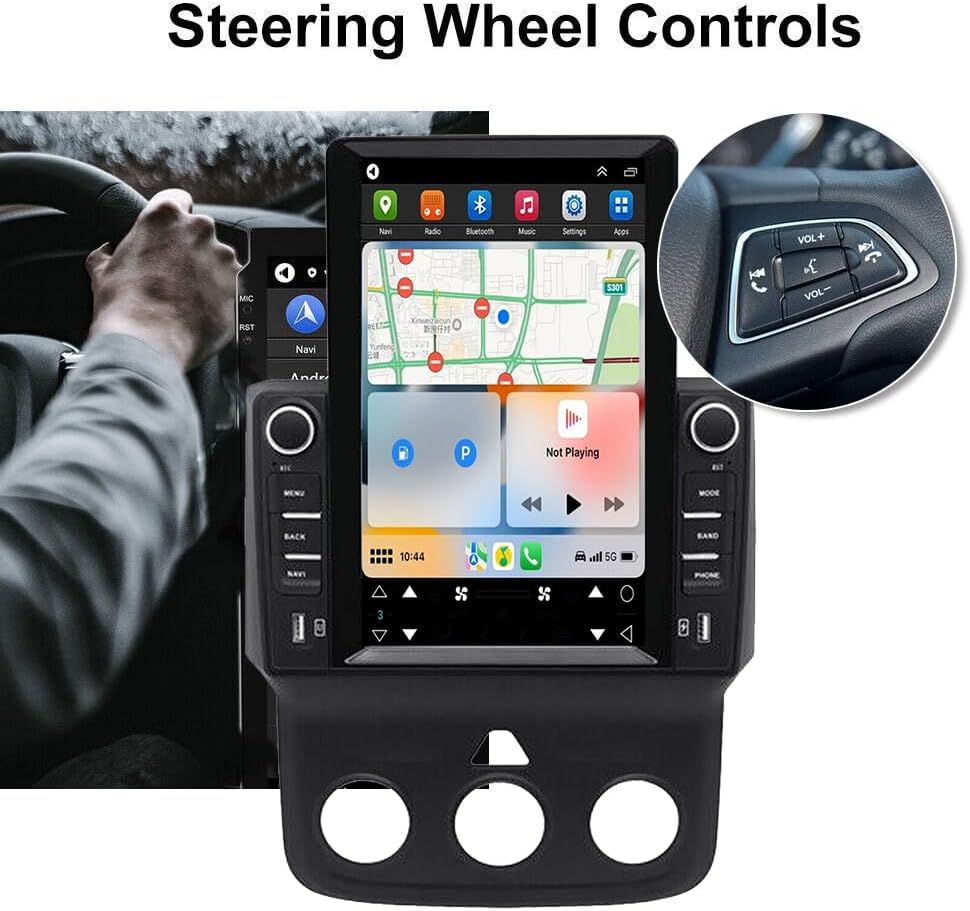
სურათი 4.2: საჭის მართვის ინტეგრაცია.
4.8 DSP Function:
The Digital Sound Processor (DSP) ensures high-fidelity audio reproduction, closely matching the original sound quality.
4.9 Rear Camera Input:
Connect an AHD backup camera to the CVBS input. The display will automatically switch to the camera view უკუქცევისას.
4.10 File Manager & Apps:
ჩაშენებული file manager allows you to browse, download, install, and delete Android applications. You can access the Google Play Store (with Wi-Fi connected) to expand the stereo's functionality.
4.11 დროის დაყენება:
The date and time can be set automatically via network or GPS, or adjusted manually through the system settings.
5. მოვლა
სათანადო მოვლა უზრუნველყოფს თქვენი მანქანის სტერეოს ხანგრძლივობას და ოპტიმალურ მუშაობას.
- ეკრანის გაწმენდა: სენსორული ეკრანი ფრთხილად გაწმინდეთ რბილი, უბუშტო ქსოვილით. ჯიუტი ლაქების შემთხვევაში, ოდნავ გაწმინდეთ.ampგაწმინდეთ ქსოვილი წყლით ან ეკრანისთვის უსაფრთხო საწმენდი საშუალებით. მოერიდეთ უხეში ქიმიკატების ან აბრაზიული მასალების გამოყენებას.
- პროგრამული განახლებები: Periodically check for system software updates to ensure optimal performance and access to new features. Updates can usually be found in the system settings menu.
- ტემპერატურა: Avoid exposing the unit to extreme temperatures for extended periods. The operating temperature range is -20℃ to 75℃.
- კავშირები: დარწმუნდით, რომ ყველა კაბელი საიმედოდ არის დაკავშირებული. შეერთებების შეფერხებამ შეიძლება პერიოდულად პრობლემები გამოიწვიოს.
6. Დიაგნოსტიკა
This section addresses common issues you might encounter. If you experience problems not listed here, please contact customer support.
- ძალა არ არის:
- შეამოწმეთ ყველა კვების კავშირი და დაუკრავენი.
- Ensure the vehicle's battery is charged.
- ხმა არ არის:
- შეამოწმეთ დინამიკების კავშირები.
- შეამოწმეთ ხმის დონე და დადუმების პარამეტრები.
- დარწმუნდით, რომ სწორი აუდიო წყაროა შერჩეული.
- GPS სიგნალის დაკარგვა:
- დარწმუნდით, რომ GPS ანტენა სწორად არის დამონტაჟებული და აქვს გამჭვირვალე view ცის.
- Check antenna cable connection.
- Bluetooth კავშირის პრობლემები:
- დარწმუნდით, რომ Bluetooth ჩართულია როგორც სტერეო სისტემაზე, ასევე თქვენს ტელეფონზე.
- წაშალეთ წინა დაწყვილებები და სცადეთ ხელახლა დაწყვილება.
- გადატვირთეთ ორივე მოწყობილობა.
- CarPlay/Android Auto არ უკავშირდება:
- სადენიანი კავშირისთვის, სცადეთ სხვა USB კაბელი.
- For wireless, ensure Bluetooth and Wi-Fi are enabled on your phone.
- Verify the correct app (ZLINK for CarPlay, Android Auto app for Android Auto) is running.
- Unit Freezes or Responds Slowly:
- Perform a soft reset (refer to the specific reset procedure in the included manual, or hold the power button for 10 seconds).
- დახურეთ არასაჭირო ფონური აპლიკაციები.
Factory Settings Keyword: If prompted for a factory setting keyword, try 8888 or 3368.
7. სპეციფიკაციები
| ფუნქცია | სპეციფიკაცია |
|---|---|
| სისტემა | Android 13 |
| ჩიპსეტი | 8227L-DEMO |
| ეკრანის ზომა | 9.7 ინჩი |
| ეკრანის გარჩევადობა | 1024x768 |
| მეხსიერება (RAM+ROM) | 2 GB ოპერატიული მეხსიერება + 32 GB ROM |
| რადიო ჩიპი | MT6625 |
| დენის გამომავალი | 4x45W |
| სამუშაო ტემპერატურა | -20℃-დან 75℃-მდე |
| ძალაუფლება Ampმაცხოვრის ჩიპი | TDA7388 |
| რადიო ბენდი | FM/RDS |
| ვიდეო გამომავალი | მხარდაჭერილი |
| შეყვანის უკუქცევა | CVBS |
| გარე მიკროფონი | მხარდაჭერილი |
| გაყოფილი ეკრანი | მხარდაჭერილი |
| რუკები | Built-in offline maps (internet required for data download) |
| Wi-Fi | მხარდაჭერილი |
| USB ინტერფეისი | ორმაგი USB |
| აუდიო ფორმატები | APE/FLAC/WAV/MP3/WMA etc. |
| ვიდეო ფორმატები | MKV/RMVB/AVI/MP4/MDV etc. |
| სურათის ფორმატები | PNG/JPEG/JPG/GIF/WBMP/BNP etc. |
| Factory Setting Keyword | 8888 ან 3368 |
| მხარდაჭერილი ენები | Chinese/English/French/Italian/Korean/Japanese/Arabic/Spanish/Portuguese/Russian/Turkish/Vietnamese/Hebrew/Polish/German (up to 40 national languages) |
| ავტომობილის სერვისის ტიპი | სატვირთო მანქანა |
| დაკავშირების ტექნოლოგია | USB |
| რუქის ტიპი | ჩრდილოეთ ამერიკა |
| აუდიო გამოყვანის რეჟიმი | სტერეო |
| სენსორული ეკრანის ტიპი | ტევადი |
| ჩვენების ტიპი | სენსორული ეკრანი |
| ადამიანის ინტერფეისის შეყვანა | სენსორული ეკრანი |
| კონტროლის მეთოდი | შეეხეთ |
| მხარდაჭერილი სატელიტური სანავიგაციო სისტემა | GPS |
| ნივთის წონა | 1875 გრამი |
| მოდელის ნომერი | JIAQI-QA1572X-WYQ-2412 |
8. გარანტია და მხარდაჭერა
For warranty information and technical support, please refer to the specific warranty card included with your product or contact your retailer. Keep your purchase receipt as proof of purchase.