
1. შესავალი
Thank you for choosing the PAUL B Wireless Keyboard Case. This product is designed to enhance your iPad experience by providing a protective case and a comfortable typing solution. Please read this manual carefully before use to ensure proper operation and longevity of your device.
თავსებადობა
ეს კლავიატურის ქეისი თავსებადია iPad-ის შემდეგ მოდელებთან:
- iPad 10th Generation (10.9-inch, 2022) - Models: A2696, A2757, A2777
- iPad 11th Generation (11-inch, 2025) - Models: A3354, A3355, A3356
Please verify your iPad model number (found on the back of your tablet) to ensure compatibility.
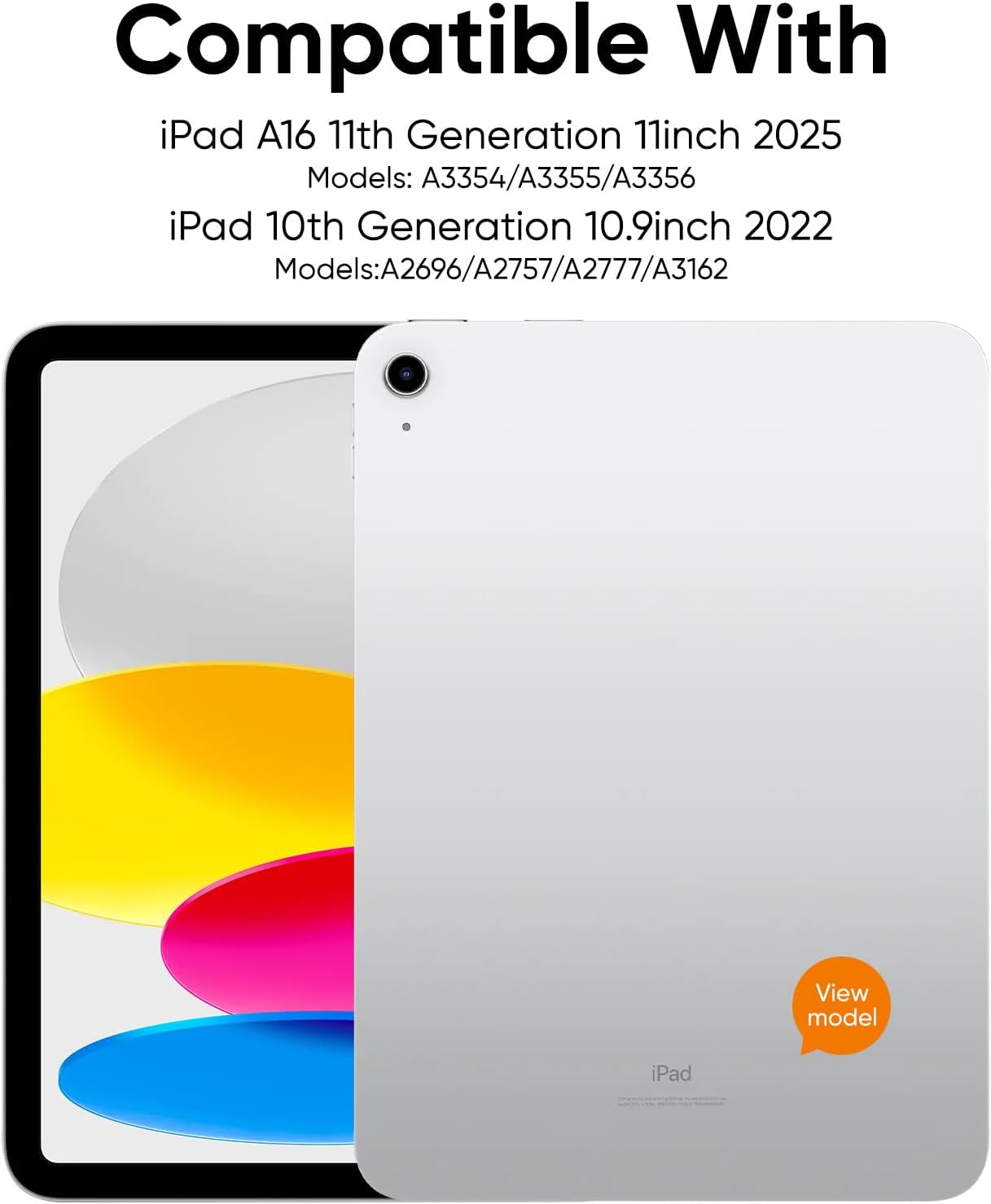
Figure 1: Compatible iPad Models
პაკეტის შიგთავსი
პაკეტში შედის:
- 1 x PAUL B Wireless Keyboard Case
- 1 x USB-C დამტენი კაბელი
- 1 x მომხმარებლის სახელმძღვანელო
Note: Apple iPad and charging plug are not included.
2. დაყენება
კლავიატურის დატენვა
The keyboard features a built-in 800mAh rechargeable Li-polymer battery. Before first use, fully charge the keyboard.
- იპოვეთ USB-C დამტენის პორტი კლავიატურაზე.
- Connect the provided USB-C cable to the keyboard's charging port and a suitable USB power adapter (not included).
- The battery indicator lights will show the charging status. A full charge typically takes about 2 hours.
A full charge provides up to 140 days of use, thanks to Bluetooth Low Energy technology and a smart power-saving mode that activates after 20 minutes of inactivity.

სურათი 2: USB-C დამტენი პორტი
Bluetooth დაწყვილება
Follow these steps to connect your keyboard case to your iPad:
- დარწმუნდით, რომ კლავიატურა დატენულია.
- Turn on the keyboard by pressing and holding the power button. The power indicator light will illuminate.
- Press and hold the Bluetooth pairing button on the keyboard until the Bluetooth indicator light starts flashing. This indicates the keyboard is in pairing mode.
- თქვენს iPad-ზე გადადით პარამეტრები > Bluetooth and turn Bluetooth ON.
- Your iPad will search for available devices. Select "Paul B Keyboard" from the list.
- A pairing request may appear. Confirm the pairing on your iPad.
- Once connected, the Bluetooth indicator light on the keyboard will stop flashing and remain solid, or turn off, depending on the model.
3. საოპერაციო ინსტრუქციები
კლავიატურის გამოყენებით
The keyboard features ergonomic mechanical scissor-switch keys for a comfortable and quiet typing experience. It includes a full row of multi-function keys for quick access to media controls, volume, and other iPad functions.

Figure 3: Keyboard Layout and Features
Integrated Pencil Holder
The case includes a built-in slot designed to securely hold your Apple Pencil, allowing for easy access and storage.

Figure 4: Apple Pencil Holder
Kickstand Functionality
The case features a magnetic kickstand that allows you to prop up your iPad for comfortable viewing and typing angles. The magnetic design ensures the iPad stays securely in place.

Figure 5: Kickstand in Use
Automatic Sleep/Wake
The case supports the iPad's automatic sleep/wake function. Closing the case will put your iPad to sleep, and opening it will wake it up, conserving battery life.
ყოვლისმომცველი დაცვა
Crafted from durable PU material, the case resists scratches and stains while cushioning against bumps and spills. It offers full protection for your iPad, including precise cutouts for all ports, buttons, and the camera.

Figure 6: Precise Cutouts for Ports and Camera
4. მოვლა
დასუფთავება
To clean the keyboard case, gently wipe it with a soft, damp cloth. Avoid using harsh chemicals or abrasive cleaners, as these may damage the material or electronic components.
ბატარეის მოვლა
To maximize battery life, fully charge the keyboard regularly. The smart power-saving mode helps conserve power by putting the device to sleep after 20 minutes of inactivity. If you plan not to use the keyboard for an extended period, it is recommended to fully charge it and then turn it off.
5. Დიაგნოსტიკა
Keyboard Not Pairing
- დარწმუნდით, რომ კლავიატურა სრულად დატენილია.
- Make sure the keyboard is turned on and in pairing mode (Bluetooth indicator flashing).
- Turn off and then turn on your iPad's Bluetooth.
- Forget the device in your iPad's Bluetooth settings and try pairing again.
- Ensure your iPad is within the Bluetooth range (typically 10 meters or 33 feet).
გასაღებები არ პასუხობს
- Check if the keyboard is connected to your iPad via Bluetooth.
- დარწმუნდით, რომ კლავიატურას საკმარისი ბატარეა აქვს დატენული.
- გადატვირთეთ როგორც iPad, ასევე კლავიატურა.
iPad Not Entering Sleep/Wake Mode
- დარწმუნდით, რომ iPad სწორად არის ჩასმული ქეისში და საფარი სრულად დახურულია.
- Check your iPad settings to ensure "Lock/Unlock" is enabled under Display & Brightness.
6. სპეციფიკაციები
| ფუნქცია | დეტალი |
|---|---|
| მოდელის ნომერი | L1153 |
| პაკეტის ზომები | 12.77 x 8.62 x 1.65 ინჩი |
| ნივთის წონა | 1.59 ფუნტი |
| მწარმოებელი | PAUL B |
| ბატარეები | 1 AAAA batteries required (included) |
| თავსებადი მოწყობილობები | iPad 10th Gen (10.9-inch), iPad 11th Gen (11-inch) |
| დაკავშირების ტექნოლოგია | Bluetooth |
| კლავიატურის აღწერა | მოქნილი |
| რეკომენდებული გამოყენება | ბიზნესი |
| სპეციალური ფუნქცია | საქმე |
| ფერი | წითელი |
| სტილი | კლასიკური |
| მასალა | პოლიურეთანი (PU) |
7. გარანტია და მხარდაჭერა
PAUL B is committed to providing 100% satisfactory solutions and a hassle-free shopping experience. If you encounter any issues with your purchase, please feel free to contact us. We offer 24-hour customer service support to assist you.
For customer service inquiries, please refer to the contact information provided on the product packaging or the official PAUL B webსაიტი.