
შესავალი
This manual provides essential information for the setup, operation, maintenance, and troubleshooting of your Onn 22 inch 1080P 100 Hz FHD LED Monitor. Please read this guide thoroughly before using the product to ensure optimal performance and safety.
The Onn 22 inch FHD LED Monitor is designed for a variety of applications, offering a vivid 1920x1080 resolution, a 100Hz refresh rate, and a 6.5ms response time for efficient performance. Its slim profile and T-shaped base are ideal for saving desk space.
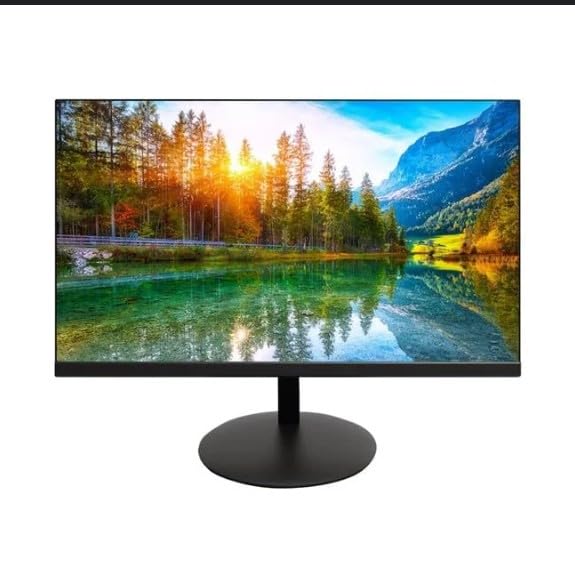
The image shows the Onn 22 inch FHD LED Monitor, highlighting its 100Hz refresh rate and 1080p resolution. The monitor features a slim design and a T-shaped base.
დაყენების ინსტრუქციები
- შეფუთვა: Carefully remove the monitor and all accessories from the packaging. Ensure all components are present: monitor, T-shaped base, HDMI cable, and power adapter.
- სტენდის აწყობა: Attach the T-shaped base to the monitor. The design is screw-less for easy assembly. Ensure it is securely fastened.
- მოწყობილობასთან დაკავშირება:
The monitor supports both HDMI and VGA inputs. Connect the provided HDMI cable from your computer's HDMI output to the HDMI IN port on the monitor. Alternatively, use a VGA cable for VGA input.

This image displays the rear panel of the Onn monitor, illustrating the available input ports: HDMI IN, VGA IN, and the DC 12V power input. These ports are essential for connecting the monitor to a computer or other devices.
- დენის კავშირი: Connect the power adapter to the DC 12V input port on the monitor, then plug the adapter into a power outlet.
- მონიტორის რეგულირება: The monitor is capable of swivel, tilt, rotation, and height adjustment. Adjust the screen to your preferred viewკუთხე ერგონომიული კომფორტისთვის.
- ორმაგი მონიტორის დაყენება: This monitor is suitable for a fully functioning dual monitor setup. Connect a second monitor using the appropriate cables and configure your operating system's display settings.
ოპერაციული ინსტრუქციები
- ჩართვა/გამორთვა: Press the power button, usually located on the bottom or back of the monitor, to turn it on or off.
- შეყვანის შერჩევა: If the monitor does not automatically detect the input source, use the On-Screen Display (OSD) menu buttons to manually select between HDMI and VGA inputs.
- OSD მენიუს ნავიგაცია: Use the physical buttons on the monitor (typically on the back or bottom edge) to navigate the OSD menu. This allows you to adjust settings such as brightness, contrast, color temperature, and input source.
- გარჩევადობა და განახლების სიხშირე: The monitor supports a native resolution of 1920x1080 at a 100Hz refresh rate. Ensure your computer's display settings are configured to these specifications for the best visual experience.
- ადაპტური სინქრონიზაცია: The monitor features Adaptive Sync for gaming, which helps to reduce screen tearing and stuttering. Ensure this feature is enabled in your graphics card settings if supported.
მოვლა
- ეკრანის გაწმენდა: ფრთხილად გაწმინდეთ ეკრანი რბილი, უბუშტო ქსოვილით. ჯიუტი ლაქების შემთხვევაში, მსუბუქად გაწმინდეთ.ampen the cloth with water or a non-abrasive, monitor-specific cleaning solution. Avoid spraying liquids directly onto the screen.
- C-ს გაწმენდაasing: მონიტორის გასაწმენდად გამოიყენეთ რბილი, მშრალი ქსოვილი casing. Do not use strong detergents or solvents, as they may damage the finish.
- ვენტილაცია: გადახურების თავიდან ასაცილებლად, დარწმუნდით, რომ მონიტორის ვენტილაციის ღიობები არ არის დაბლოკილი.
- შენახვა: ხანგრძლივი პერიოდის განმავლობაში არ გამოყენების შემთხვევაში, შეინახეთ მონიტორი გრილ, მშრალ ადგილას, მოარიდეთ მზის პირდაპირ სხივებს და ექსტრემალურ ტემპერატურას.
პრობლემების მოგვარება
- ძალა არ არის:
- შეამოწმეთ, არის თუ არა დენის კაბელი უსაფრთხოდ დაკავშირებული მონიტორთან და დენის განყოფილებასთან.
- დარწმუნდით, რომ დენის განყოფილება სწორად მუშაობს.
- არანაირი სიგნალი:
- დარწმუნდით, რომ ვიდეო კაბელი (HDMI ან VGA) მყარად არის დაკავშირებული როგორც მონიტორთან, ასევე კომპიუტერთან.
- მონიტორის OSD მენიუს გამოყენებით აირჩიეთ სწორი შეყვანის წყარო.
- შეამოწმეთ, ჩართულია თუ არა თქვენი კომპიუტერი და არა ძილის რეჟიმში.
- Flickering Screen or Poor Image Quality:
- შეამოწმეთ ვიდეო კაბელი დაზიანების ან ფხვიერი შეერთებების არსებობაზე.
- თქვენს კომპიუტერზე გარჩევადობისა და განახლების სიხშირის პარამეტრები შეცვალეთ მონიტორის სპეციფიკაციებთან (1920x1080, 100Hz).
- მონიტორის პარამეტრების ქარხნულ პარამეტრებზე აღდგენა OSD მენიუს მეშვეობით.
- ღილაკები არ პასუხობენ:
- Unplug the monitor from the power outlet, wait for 30 seconds, and then plug it back in.
If problems persist, please refer to the support information provided in the "Support and Warranty" section.
სპეციფიკაციები
| ბრენდი | ონ |
| მოდელის ნომერი | 100140681 |
| მოდელის სახელი | ოტო |
| ეკრანის ზომა | 21.5 ინჩი |
| ჩვენების ტიპი | LED, LCD |
| რეზოლუცია | 1920 x 1080 (FHD 1080p) |
| განახლების სიხშირე | 100 ჰც |
| რეაგირების დრო | 6.5 მილიწამი |
| აპარატურა ინტერფეისი | HDMI, VGA |
| განსაკუთრებული თვისებები | სიმაღლის რეგულირება |
| Viewing კუთხე | 160 გრადუსი |
| ასპექტის თანაფარდობა | 16:9 |
| პროდუქტის ზომები | 49.2 x 20 x 37.2 სმ; 3.24 კგ |
მხარდაჭერა და გარანტია
For technical support, product inquiries, or warranty information, please visit the official Onn support webსაიტზე ან დაუკავშირდით მათ მომხმარებელთა მომსახურებას.
- ოფიციალური მხარდაჭერა Webსაიტი: onnsupport.ca
- გარანტია: Specific warranty details may vary by region and purchase date. Please refer to the documentation included with your product or visit the support webსაიტი უახლესი გარანტიის ინფორმაციისთვის.