
1. შესავალი
This manual provides instructions for setting up, operating, and maintaining your Origimagic Mini PC C4. Please read this manual carefully before using the device.
The Origimagic Mini PC C4 is a compact desktop computer designed for various tasks, from office work and multimedia consumption to light gaming and creative applications. It features an AMD Ryzen 5 3550H processor, integrated Radeon Vega 8 graphics, and versatile connectivity options.
2. პაკეტის შიგთავსი
დარწმუნდით, რომ შეფუთვაში ყველა ნივთია:
- Origimagic Mini PC C4
- DC Power Adapter (19V/3.42A)
- VESA მთა
- HDMI Cable (1 meter)
- მომხმარებლის სახელმძღვანელო
3. მოწყობილობა დასრულდაview
Familiarize yourself with the ports and components of your Mini PC.

სურათი: წინა და გვერდითი view of the Origimagic Mini PC C4, showing USB ports, power button, and audio jack.

სურათი: უკანა view of the Origimagic Mini PC C4, displaying DC power input, dual LAN ports, HDMI, DisplayPort, and additional USB ports.

სურათი: ზედა view of the Origimagic Mini PC C4, showing the textured surface.
4. დაყენების ინსტრუქციები
4.1 პერიფერიული მოწყობილობების შეერთება
- ეკრანის დაკავშირება: Connect your monitor(s) to the Mini PC using the HDMI, DisplayPort (DP), or USB-C video output ports. The device supports up to three displays simultaneously.
- კლავიატურისა და მაუსის დაკავშირება: Plug your USB keyboard and mouse into the available USB ports.
- ქსელთან დაკავშირება (არასავალდებულო): For a wired internet connection, connect an Ethernet cable to one of the dual RJ45 LAN ports. For wireless, ensure Wi-Fi is enabled in the operating system.
- დაკავშირება ძალა: Plug the DC power adapter into the DC-in port on the Mini PC, then connect the adapter to a power outlet.
4.2 ჩართვა
Press the power button located on the front of the Mini PC. The power indicator light will illuminate.
5. Operating System and Initial Setup
The Mini PC comes pre-installed with OS11 Pro 24H2 and is compatible with Ubuntu.
5.1 პირველი ჩატვირთვა
Upon first boot, follow the on-screen instructions to complete the operating system setup, including language, region, network connection, and user account creation.
5.2 დისპლეის კონფიგურაცია
To configure multiple displays:
- In OS11 Pro, right-click on the desktop and select "Display settings" to arrange and extend your displays.
- The Mini PC supports 4K resolution at 60Hz via HDMI and DP, and 1080p at 60Hz via USB-C.

Image: A desktop setup showing the Origimagic Mini PC C4 connected to three displays, demonstrating its triple screen display capability for work and entertainment.
6. სპეციფიკაციები
| კომპონენტი | დეტალი |
|---|---|
| პროცესორი | AMD Ryzen 5 3550H (4 ბირთვი, 8 ნაკადი, 3.7 გჰც-მდე) |
| გრაფიკა | Integrated Radeon Vega 8 Graphics (up to 1200 MHz) |
| ოპერატიული მეხსიერება | 16 GB DDR4 (გაფართოვდება 32 გბ-მდე) |
| შენახვა | 512GB M.2 NVMe PCIe 3.0 x4 SSD |
| ვიდეო გამომავალი | 1x HDMI 2.0 (4K@60Hz), 1x DisplayPort (4K@60Hz), 1x USB 3.2 Gen2 Type-C (1080p 4K@60Hz) |
| USB პორტები | 3x USB 3.2 Gen2 (10Gbps), 1x USB 3.2 Gen2 Type-C (5Gbps) |
| ქსელი | Dual RJ45 Gigabit Ethernet, Wi-Fi 5 (802.11ac), Bluetooth 5.0 |
| ოპერაციული სისტემა | Pre-installed OS11 Pro 24H2, compatible with Ubuntu |
| ზომები | 128 x 127.1 x 42.8 მმ |

სურათი: აფეთქებული view diagram of the Origimagic Mini PC C4, showing internal components like the cooling bracket, heat sink, CPU, motherboard, M.2 NVMe SSD, and SO-DIMM DDR4 RAM.
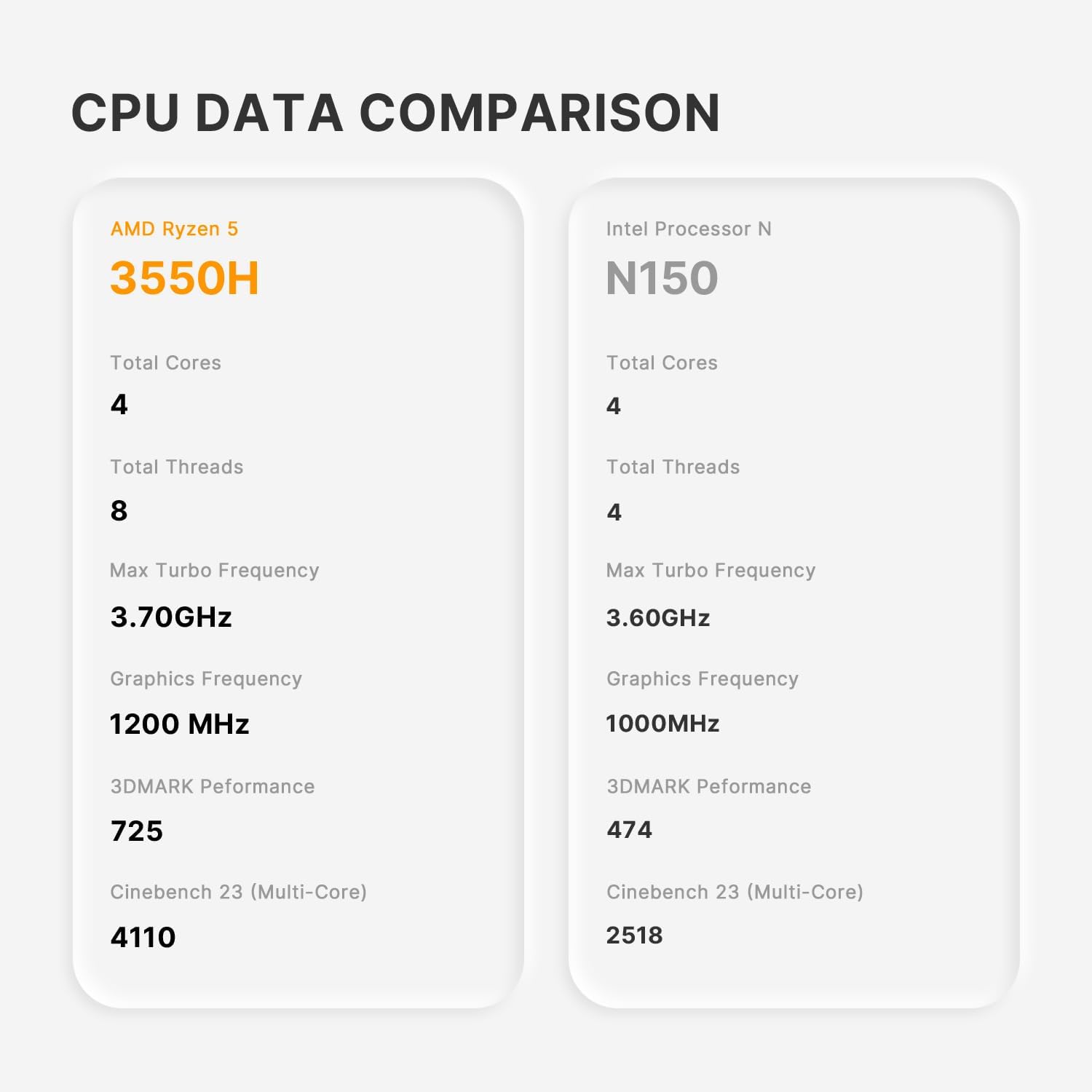
Image: Close-up of the M.2 NVMe SSD and DDR4 SODIMM RAM modules, highlighting the storage and memory components.
7. მოვლა
7.1 დასუფთავება
Regularly clean the exterior of the Mini PC with a soft, dry cloth. Avoid using liquid cleaners or abrasive materials. Ensure ventilation openings are free from dust and obstructions to maintain optimal cooling.
7.2 პროგრამული უზრუნველყოფის განახლებები
Keep your operating system and drivers updated to ensure optimal performance and security. Refer to the operating system's documentation for update procedures.
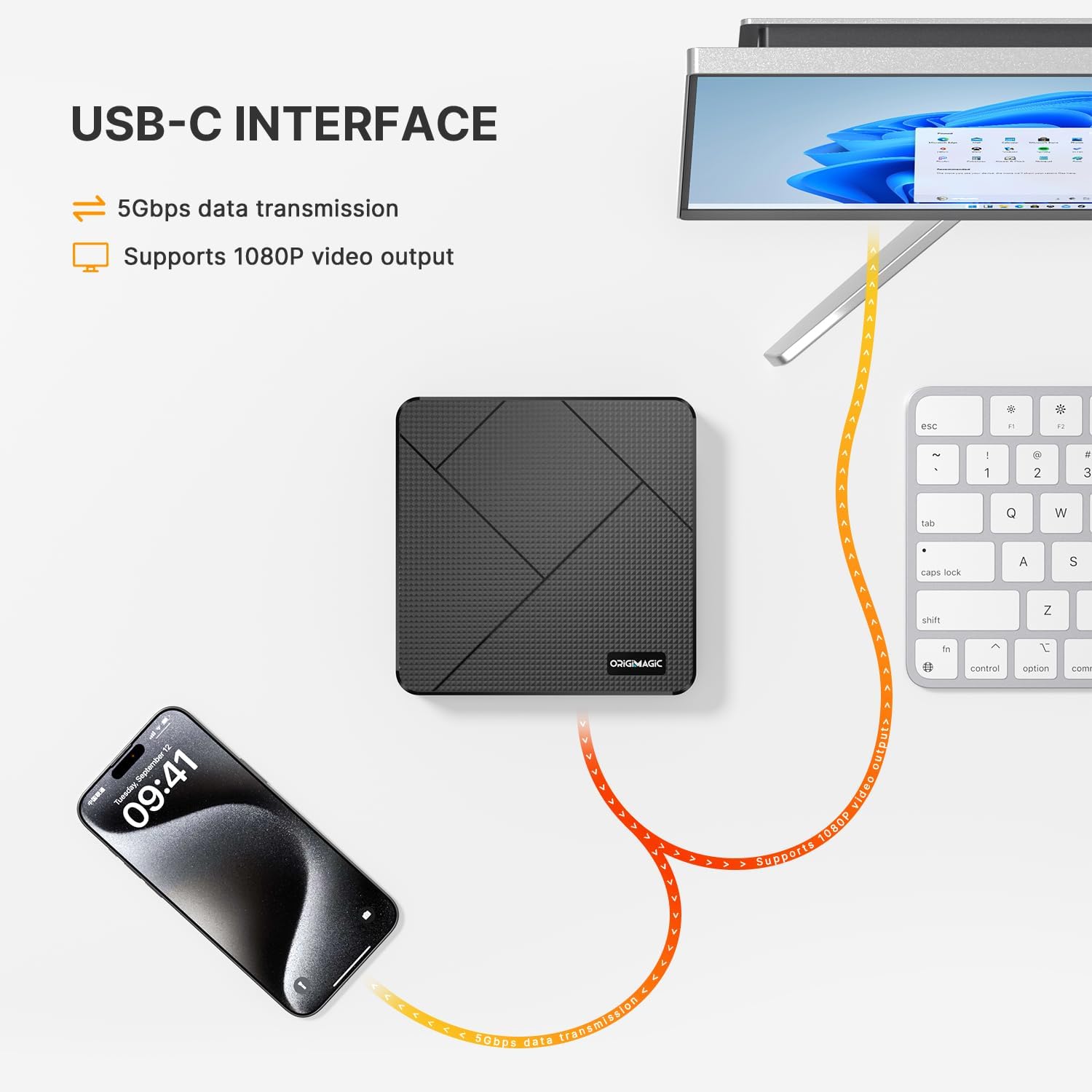
Image: Diagram illustrating the powerful wireless connectivity of the Mini PC C4, showing Wi-Fi 5 and Bluetooth 5.0 signals reaching various devices within a home or office environment.
8. Დიაგნოსტიკა
8.1 ძალა არ არის
- დარწმუნდით, რომ კვების ადაპტერი საიმედოდ არის დაკავშირებული როგორც მინი კომპიუტერთან, ასევე მოქმედ დენის წყაროსთან.
- შეამოწმეთ, რომ დენის წყარო ფუნქციონირებს სხვა მოწყობილობის ჩართვით.
8.2 ჩვენების გარეშე
- Check all display cable connections (HDMI, DP, USB-C) between the Mini PC and the monitor(s).
- დარწმუნდით, რომ მონიტორი ჩართულია და სწორი შეყვანის წყაროზეა დაყენებული.
- Try connecting to a single monitor to isolate the issue.
8.3 ქსელთან დაკავშირების პრობლემები
- სადენიანი კავშირი: Ensure the Ethernet cable is properly connected to both the Mini PC and the router/modem. Check router status.
- უკაბელო კავშირი: Verify Wi-Fi is enabled in the operating system settings. Check if the correct Wi-Fi network is selected and the password is entered correctly.
8.4 გადახურება
- Ensure the Mini PC is placed in a well-ventilated area and that its vents are not blocked.
- Avoid placing the Mini PC on soft surfaces that can obstruct airflow.

Image: Illustration of the USB-C interface on the Mini PC C4, demonstrating its capability for 5Gbps data transmission and 1080p video output to an external portable monitor.
9. გარანტია და მხარდაჭერა
The Origimagic Mini PC C4 comes with a 1-year warranty. For technical assistance or warranty claims, please contact customer support.
მხარდაჭერის ელფოსტა: support@origimagic.com
You can also log in to your Amazon buyer account, find your order, and click "Get Help" for assistance.
10. პროდუქტის ვიდეოები
ვიდეო: ოვერview of the Origimagic Mini PC C4, showcasing its design, internal components, and connectivity options. This video highlights the compact size and various features of the device.
ვიდეო: მოკლე წინასწარი მიმოხილვაview video demonstrating the triple display setup of the Origimagic Mini PC C4, showing multiple monitors connected and functioning simultaneously.