
1. პროდუქტი დასრულდაview
The origimagic C4 Mini PC is a compact and efficient desktop computer powered by the AMD Ryzen 5 3550H processor. Designed for versatile use, it supports triple display output, high-speed network connectivity, and offers expandable storage and memory options. This manual provides essential information for setting up, operating, maintaining, and troubleshooting your device.
Video: C4 Mini PC Product Overviewეს ვიდეო ზოგად წარმოდგენას იძლევაview of the origimagic C4 Mini PC, highlighting its design and key features.
2. რა შედის ფასში
Please check the package contents upon arrival to ensure all items are present:
- 1x origimagic C4 Mini PC
- 1x კვების ადაპტერი
- 1x მომხმარებლის სახელმძღვანელო
- 1x VESA mount with screws
- 1x HDMI კაბელი
3. პროდუქტის სპეციფიკაციები
Key technical specifications of the origimagic C4 Mini PC:
| ფუნქცია | სპეციფიკაცია |
|---|---|
| პროცესორი | AMD Ryzen 5 3550H (3.7 GHz, 4 Cores, 8 Threads) |
| ოპერატიული მეხსიერება | 8 GB DDR4 (გაფართოება 32 GB-მდე) |
| შენახვა | 256GB M.2 NVMe PCIe 3.0 X1 SSD (Expandable up to 4TB) |
| გრაფიკა | Radeon Vega 8 Graphics (Integrated) |
| ვიდეო გამომავალი | HDMI 2.0 (4K@60Hz), USB Type-C (4K@60Hz), DisplayPort (1080p@60Hz) - Triple Display Support |
| ქსელი | Dual 1000Mbps RJ45 LAN, WiFi 5 (802.11ac), Bluetooth 5.0 |
| პორტები | 3x USB 3.2, 1x USB 2.0, 1x USB Type-C, 1x HDMI 2.0, 1x DisplayPort, 2x RJ45, 1x 3.5mm Audio |
| ოპერაციული სისტემა | Windows 11 Pro (Pre-installed) |
| ზომები | 5.04 x 5 x 1.69 ინჩი (128 x 127.1 x 42.8 მმ) |
| წონა | 2.16 ფუნტი |
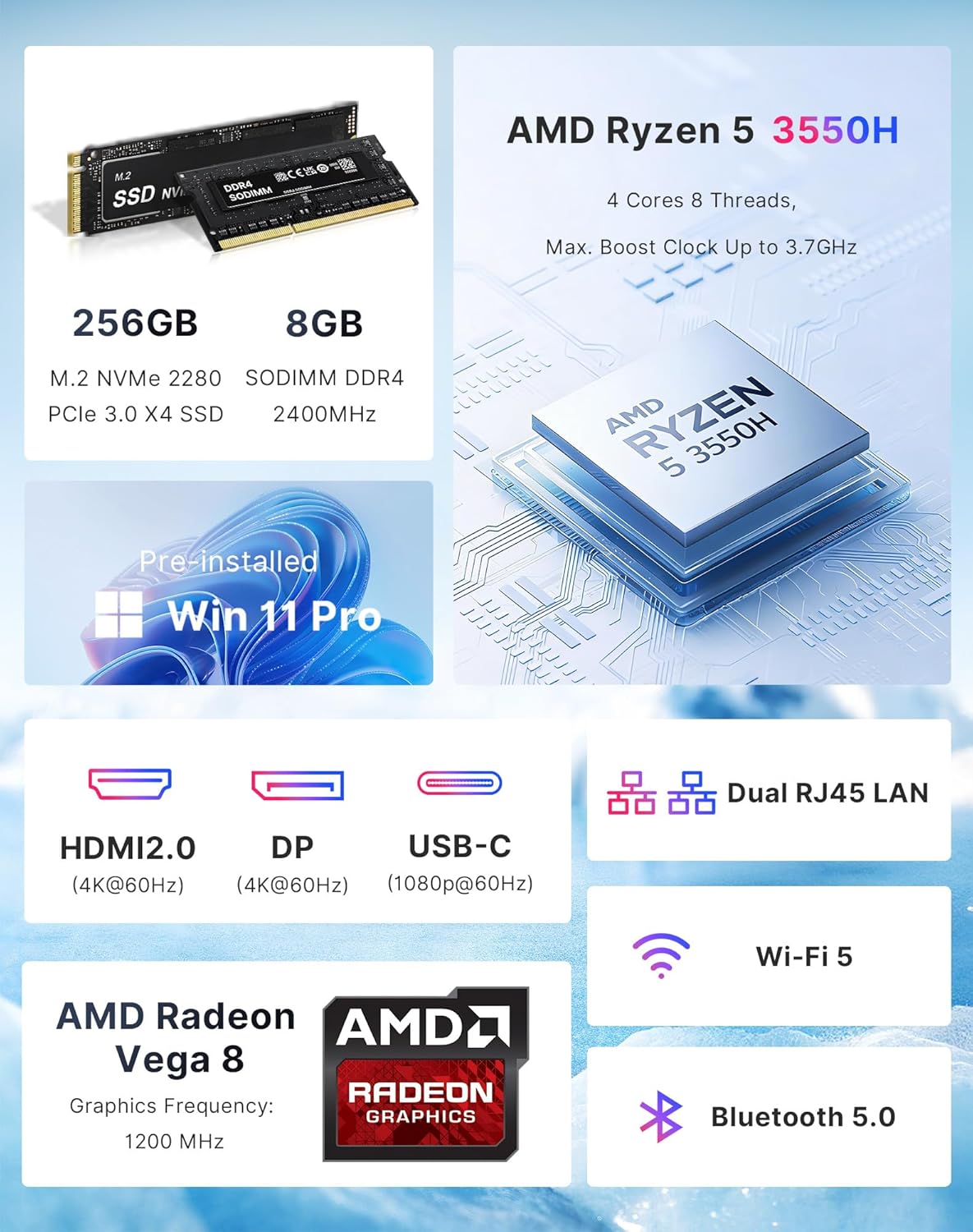
Image: Key specifications of the origimagic C4 Mini PC, including processor, memory, storage, and connectivity options.

სურათი: დეტალური view of the versatile ports available on the origimagic C4 Mini PC, including USB, HDMI, DP, USB-C, and Dual RJ45 LAN.
4. აპარატურის დაყენება
Follow these steps for initial hardware setup:
- პერიფერიული მოწყობილობების დაკავშირება: Connect your keyboard, mouse, and monitor(s) to the appropriate ports on the Mini PC. Use the provided HDMI cable for one display, and additional HDMI, DisplayPort, or USB-C cables for multiple monitors.
- დაკავშირება ძალა: Plug the power adapter into the DC input port on the Mini PC, then plug the adapter into a power outlet.
- ჩართვა: დააჭირეთ მინი კომპიუტერის წინა მხარეს არსებულ ჩართვის ღილაკს. სისტემა ჩაირთვება.
- Windows-ის საწყისი დაყენება: Windows 11 Pro-ს დაყენების დასასრულებლად მიჰყევით ეკრანზე მოცემულ ინსტრუქციებს.
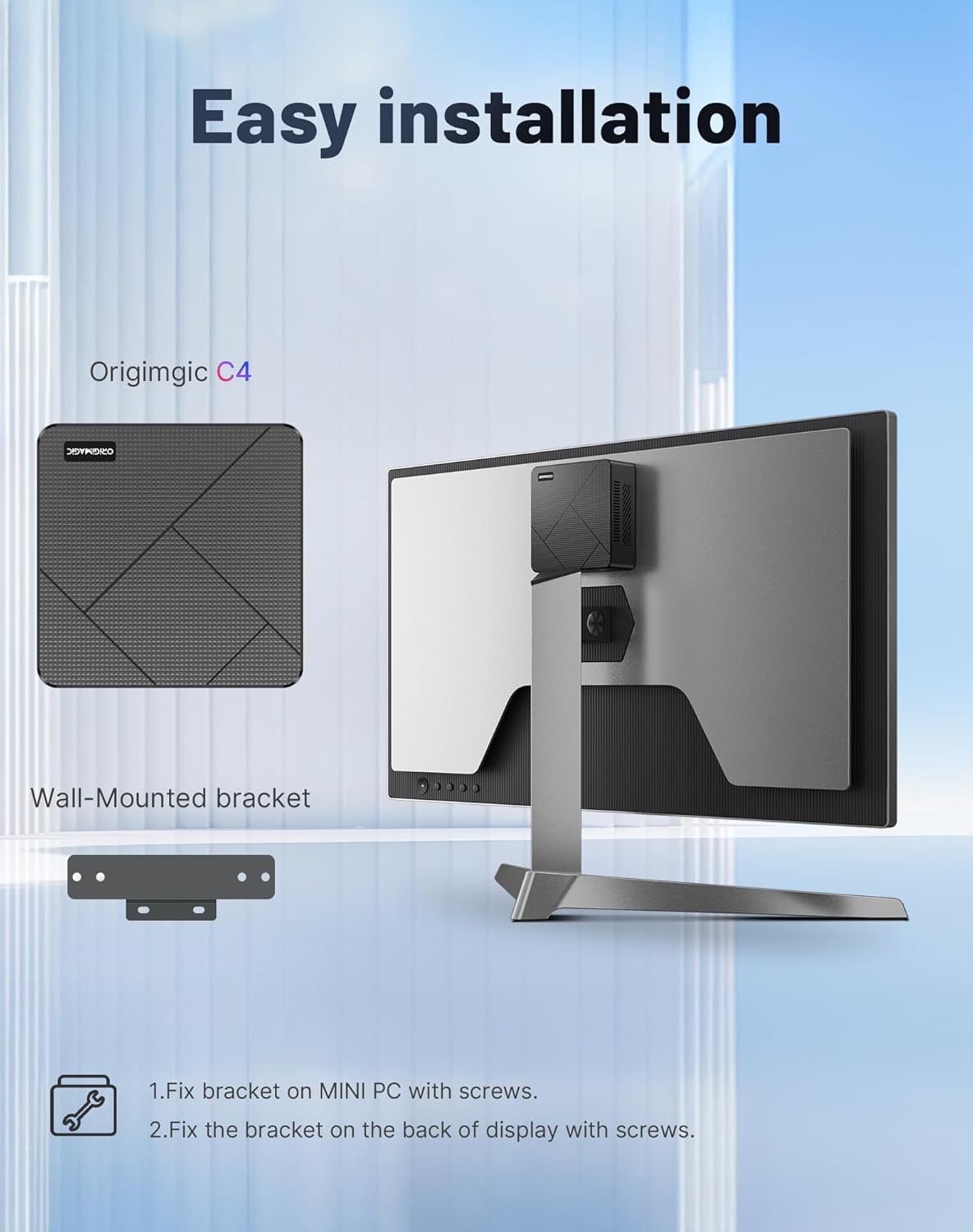
Image: Instructions for installing the VESA mount bracket to attach the Mini PC to the back of a compatible monitor.
5. საოპერაციო ინსტრუქციები
5.1 სამმაგი ეკრანის დაყენება
The C4 Mini PC supports connecting up to three displays simultaneously for enhanced productivity and entertainment. Use the HDMI 2.0, USB Type-C, and DisplayPort outputs.
Video: Triple Display Setup on ORIGIMAGIC 3550H Mini PC. This video demonstrates how to connect and configure three monitors for a multi-tasking setup.

Image: A visual representation of the C4 Mini PC supporting a triple screen display setup for work and entertainment.
5.2 ქსელთან დაკავშირება
The Mini PC offers robust network options:
- Dual 1000Mbps LAN: Connect to a wired network for stable and high-speed internet access or for soft routing applications.
- WiFi 5: Connect wirelessly to your network.
- Bluetooth 5.0: Connect wireless peripherals such as keyboards, mice, and speakers.

Image: Illustration of the C4 Mini PC's comprehensive connectivity options, including Wi-Fi 5, Bluetooth 5.0, and Dual RJ45 LAN.
6. BIOS Settings
The BIOS (Basic Input/Output System) allows you to configure fundamental system settings. To enter BIOS setup, press the DEL გაშვების დროს არაერთხელ დააჭირეთ ღილაკს.
6.1 Auto Power On
This feature allows the Mini PC to automatically power on when connected to power. This is useful for kiosk applications or remote management.
- Enter BIOS setup by pressing DEL during boot.
- ნავიგაცია გაფართოებული ჩანართი.
- იპოვნეთ ავტო ჩართვა დაყენება.
- Change the setting from 'Power Off' to 'Power On'.
- Save changes and exit BIOS.
Video: Power-on Wake-up Setting on ORIGIMAGIC 3550H Mini PC. This video guides you through enabling the Auto Power On feature in the BIOS.
7. მოვლა
7.1 Storage and Memory Upgrade
The origimagic C4 Mini PC allows for easy upgrades of its RAM and M.2 NVMe SSD to enhance performance or expand storage capacity. The RAM can be expanded up to 32GB, and the SSD storage capacity can be expanded up to 4TB.
- Გამორთვა: დარწმუნდით, რომ მინი კომპიუტერი სრულად გამორთულია და გათიშულია კვების ადაპტერიდან.
- Remove Bottom Cover: Carefully unscrew the screws on the bottom cover and remove it.
- Replace/Install RAM: Gently unclip the existing RAM module (if any) and replace it with a new one, or install an additional module into the available slot. Ensure it is seated correctly.
- Replace/Install SSD: Unscrew the retaining screw for the M.2 SSD. Carefully remove the existing SSD (if any) and insert the new M.2 NVMe SSD. Secure it with the screw.
- ხელახლა შეკრება: Place the bottom cover back on and secure it with the screws.
Video: Replace Memory and Hard Drive on 3550H Mini Gaming PC. This video demonstrates the process of upgrading or replacing the RAM and SSD in your Mini PC.

სურათი: შიდა view of the Mini PC highlighting the 8GB DDR4 RAM and 256GB M.2 NVMe SSD, with expansion capabilities up to 32GB RAM and 4TB SSD.
8. პრობლემების მოგვარება და მხარდაჭერა
If you encounter any issues with your origimagic C4 Mini PC, please refer to the following common solutions or contact support.
8.1 საერთო საკითხები
- ჩვენების გარეშე: Ensure all display cables (HDMI, DP, USB-C) are securely connected to both the Mini PC and the monitor. Verify the monitor input source is correctly selected.
- ძალა არ არის: Check that the power adapter is correctly connected to the Mini PC and the power outlet. Try a different power outlet.
- ნელი შესრულება: Ensure sufficient free storage space. Close unnecessary applications. Consider upgrading RAM or SSD if performance issues persist.
- ქსელთან დაკავშირების პრობლემები: For wired connections, check LAN cables. For Wi-Fi, ensure drivers are installed and the network is selected correctly. Restart your router and the Mini PC.
8.2 გარანტია და მხარდაჭერა
All origimagic mini PCs come with a 2-year limited warranty and 24/7 after-sales support. For any usage or technical issues, please visit the ORIGIMAGIC official website's technical support page to get professional assistance. Your satisfaction is our priority!
საკონტაქტო ინფორმაცია:
- ამაზონის მხარდაჭერა: Log in to your Amazon account, go to 'Your Orders', and select 'Ask Product Question'.
- გაყიდვების შემდგომი მხარდაჭერა: ელ.წერილის გაგზავნა support@origimagic.com.