
შესავალი
მადლობა შენაძენისთვისasing the UPERFECT 23.8-inch 120Hz Portable Touch Monitor. This device is designed to enhance your productivity and entertainment experience with its large display, high refresh rate, and versatile connectivity. Please read this manual carefully before use to ensure proper operation and to maximize the monitor's potential.
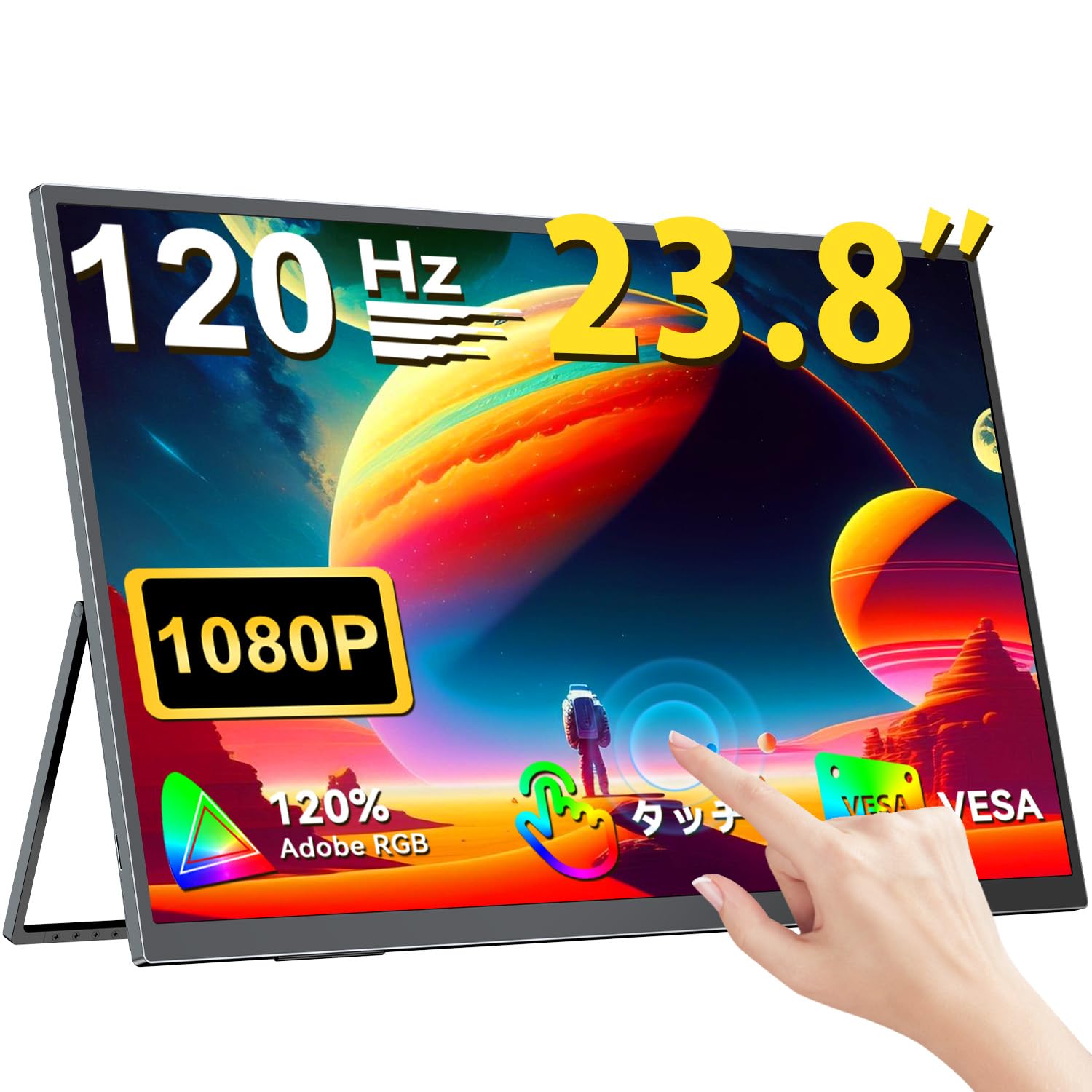
The UPERFECT 23.8-inch 120Hz Portable Touch Monitor.
უსაფრთხოების ინფორმაცია
დაზიანების თავიდან ასაცილებლად და უსაფრთხო მუშაობის უზრუნველსაყოფად, დაიცავით შემდეგი უსაფრთხოების ზომები:
- მონიტორი არ დატოვოთ წვიმის, ტენიანობის ან ექსტრემალური ტემპერატურის ზემოქმედების ქვეშ.
- მოერიდეთ მონიტორზე მძიმე საგნების განთავსებას.
- გამოიყენეთ მხოლოდ მოწოდებული დენის ადაპტერი და კაბელები.
- მონიტორის დამოუკიდებლად დაშლას ან შეკეთებას ნუ ეცდებით. დახმარებისთვის დაუკავშირდით მომხმარებელთა მხარდაჭერის სამსახურს.
- უზრუნველყოს სათანადო ვენტილაცია მონიტორის გარშემო გადახურების თავიდან ასაცილებლად.
- When adjusting the stand, ensure the monitor is stable to prevent tipping.

Recommended ergonomic viewing angles for comfortable use. Avoid upward viewing angles to prevent tipping and eye strain.
პაკეტის შიგთავსი
დარწმუნდით, რომ შეფუთვაში ყველა ნივთია:
- UPERFECT 23.8-inch Portable Touch Monitor
- დენის ადაპტერი
- USB Type-C Cable (Full-featured)
- მინი HDMI to HDMI კაბელი
- USB-A to USB-C Cable (for power/OTG)
- მომხმარებლის სახელმძღვანელო
პროდუქტი დასრულდაview
მონიტორის მახასიათებლები
- 23.8 დიუმიანი IPS პანელი: Large display with 178° wide viewing კუთხეები.
- 120 ჰც განახლების სიხშირე: Provides smooth visuals, ideal for gaming and fast-paced content.
- 10-Point Multi-Touch: Intuitive interaction with supported devices.
- 120% sRGB ფერთა გამა: Delivers vibrant and accurate colors.
- ინტეგრირებული სადგამი: Adjustable from 0° to 180° for flexible viewპოზიციები.
- VESA Mount თავსებადი: Supports 75x75mm VESA standard for alternative mounting options.
- Non-Glare Screen: Reduces reflections for comfortable long-term use.
- ჩამონტაჟებული დინამიკები: აუდიო გამოსასვლელად.
პორტები და ღილაკები

დასრულდაview of the monitor's ports and control buttons.
- ყურსასმენის ჯეკი: 3.5 მმ აუდიო გამომავალი.
- მენიუს ღილაკი: ეკრანზე ჩვენების (OSD) მენიუზე წვდომა.
- Plus/Minus Buttons: Navigate OSD menu, adjust volume/brightness.
- დენის ინდიკატორი: აჩვენებს დენის სტატუსს.
- ჩართვის/დაბრუნების ღილაკი: Powers the monitor on/off, or returns to previous OSD menu.
- Type-C პორტები (x2): Full-featured USB-C for power, video, and touch signal.
- მინი HDMI პორტი: ვიდეო შეყვანა.
- Micro USB-B OTG Port: For connecting peripherals like mouse or keyboard.
დაყენება
მოწყობილობებთან დაკავშირება
The monitor supports various devices including laptops, desktops, smartphones, and gaming consoles (PS4, PS5, Xbox, Nintendo Switch).

The monitor can be connected to various devices using a single Type-C cable for power and display, provided the device supports DP Alt Mode.
- USB Type-C კავშირი: Connect a full-featured USB Type-C cable from your device (laptop, smartphone, Switch) to one of the monitor's Type-C ports. If your device supports DP Alt Mode, a single cable can transmit video, audio, touch, and power. If your device does not support DP Alt Mode, or for stable power delivery, connect the included power adapter to the other Type-C port.
- მინი HDMI კავშირი: Connect a Mini HDMI to HDMI cable from your device (PC, game console) to the monitor's Mini HDMI port. For power, connect the included power adapter to one of the monitor's Type-C ports.
- OTG პორტი: Use the Micro USB-B OTG port to connect a mouse or keyboard for enhanced control, especially when using the monitor with a smartphone in desktop mode.
მნიშვნელოვანი შენიშვნა:
- For optimal performance, especially when increasing contrast, brightness, or color saturation, always connect the monitor to an external power source using the provided power adapter.
- If your device's USB-C port does not support DP Alt Mode, a Type-C cable alone cannot transmit video. Refer to your device's specifications for compatibility.
Stand Adjustment and VESA Mounting

The monitor features a smart integrated stand for flexible positioning and VESA compatibility for arm mounts.
- ინტეგრირებული სადგამი: The monitor features a durable aluminum alloy integrated stand. Adjust the viewing angle freely within a 0° to 180° range. The base includes anti-slip rubber pads for stability.
- VESA მონტაჟი: The monitor is compatible with VESA 75x75mm mounts (M4*4mm screw holes). This allows for attachment to monitor arms or wall brackets for a customized setup.
ოპერაციული ინსტრუქციები
ჩართვა/გამორთვა
Press the Power/Return button to turn the monitor on or off.
ეკრანზე ჩვენების (OSD) მენიუ
Press the Menu button to access the OSD menu. Use the Plus/Minus buttons to navigate and adjust settings such as brightness, contrast, color temperature, and input source.
შეეხეთ ფუნქციონალურობას

The monitor supports 10-point multi-touch gestures for intuitive control. For MacBook connections, 2-point gestures (pinch zoom/rotate) are supported.
The monitor supports 10-point multi-touch for Windows and Android devices. For MacBook connections, 2-point gestures (pinch zoom/rotate) are fully supported. This allows for direct interaction with the screen for tasks like sketching, document navigation, and presentations.
ჩვენების რეჟიმები

Easily switch between horizontal (landscape) and vertical (portrait) display modes to suit your content and workflow. Portrait mode settings are configured on your PC.
მონიტორი მხარს უჭერს სხვადასხვა ჩვენების რეჟიმებს თქვენი საჭიროებების შესაბამისად:
- გახანგრძლივებული რეჟიმი: Extend your PC desktop across both screens for increased workspace.
- დუბლიკატის რეჟიმი: Mirror your PC screen for presentations or shared viewინგ.
- პორტრეტის რეჟიმი: Rotate the monitor vertically for document review or coding. (Settings for portrait mode are typically configured on the connected PC).
თამაშის მახასიათებლები

The monitor supports FreeSync technology to eliminate screen tearing and stuttering during gaming.
- 120 ჰც განახლების სიხშირე: Experience smoother gameplay and action sequences compared to standard 60Hz displays.
- FreeSync მხარდაჭერა: Compatible with FreeSync technology to reduce screen tearing and stuttering, providing a more fluid gaming experience.
- სწრაფი რეაგირების დრო: Enjoy a quick response time of 1ms, minimizing motion blur.
მოვლა
Follow these guidelines to maintain your monitor:
- ეკრანის გაწმენდა: ფრთხილად გაწმინდეთ ეკრანი რბილი, ბუსუსების გარეშე ქსოვილით. ჯიუტი ლაქების შემთხვევაში, ოდნავ გაწმინდეთampქსოვილი წყლით ან ეკრანის საწმენდი ხსნარით დაასველეთ. სითხე პირდაპირ ეკრანზე არ შეასხუროთ.
- C-ს გაწმენდაasing: მონიტორის გასაწმენდად გამოიყენეთ რბილი, მშრალი ქსოვილი casinზ. მოერიდეთ აბრაზიული საწმენდი საშუალებების ან გამხსნელების გამოყენებას.
- შენახვა: ხანგრძლივი პერიოდის განმავლობაში არ გამოყენების შემთხვევაში, შეინახეთ მონიტორი გრილ, მშრალ ადგილას, მოარიდეთ მზის პირდაპირ სხივებს და ექსტრემალურ ტემპერატურას.
- Fingerprint Resistance: The screen features an anti-fingerprint coating to help maintain cleanliness in business environments.
პრობლემების მოგვარება
თუ პრობლემებს წააწყდებით, იხილეთ შემდეგი გავრცელებული პრობლემები და მათი გადაჭრის გზები:
| პრობლემა | შესაძლო მიზეზი | გამოსავალი |
|---|---|---|
| ეკრანი არ არის/სიგნალი არ არის | Incorrect input source selected; Cable not connected properly; Device not outputting signal; Insufficient power. | Check cable connections; Select correct input source via OSD; Ensure device is powered on and configured to output to external display; Connect external power adapter to monitor. |
| შეხების ფუნქცია არ მუშაობს | USB-C cable not full-featured; Device does not support touch output; Driver issue (Windows); Cable connection issue. | Ensure a full-featured USB-C cable is used; Verify device compatibility with touch output; Reconnect USB-C cable; For Windows, ensure touch drivers are installed (usually automatic). |
| Screen flickering/Unstable image | Cable issue; Graphics card issue; Refresh rate mismatch; Insufficient power. | Try a different cable; Update graphics drivers; Adjust refresh rate in device settings; Ensure external power is connected. |
| No audio from monitor speakers | ხმა ძალიან დაბალია; გამორთულია; მოწყობილობაზე არასწორი აუდიო გამომავალია არჩეული. | Adjust monitor volume via OSD; Check device's audio output settings. |
| Monitor keeps restarting | არასაკმარისი სიმძლავრე. | Ensure the monitor is connected to the provided power adapter for stable power delivery. |
სპეციფიკაციები
| ფუნქცია | სპეციფიკაცია |
|---|---|
| ბრენდი | სრულყოფა |
| მოდელის ნომერი | M238T02 |
| ეკრანის ზომა | 23.8 ინჩი |
| რეზოლუცია | FHD 1080p (1920 x 1080) |
| ასპექტის თანაფარდობა | 16:9 |
| პანელის ტიპი | IPS LCD |
| ეკრანის ზედაპირი | არაგაბრწყინებული |
| კონტრასტის თანაფარდობა | 1000:1 |
| განახლების სიხშირე | 120 ჰც |
| რეაგირების დრო | 1 ms |
| Viewing კუთხე | 178 გრადუსი |
| ფერთა გამის მნიშვნელობა | 120% sRGB |
| დაკავშირება | 2x USB Type-C (Full-featured), 1x Mini HDMI, 1x Micro USB-B (OTG), 1x 3.5mm Audio Jack |
| VESA თავსებადობა | 75x75mm (M4*4mm screws) |
| ზომები (D x W x H) | 1.7 x 54.5 x 32.7 სმ |
| ადაპტური სინქრონიზაცია | FreeSync |
გარანტია და მხარდაჭერა
UPERFECT provides comprehensive support for your product:
- მწარმოებლის გარანტია: ამ პროდუქტს მოყვება მწარმოებლის 2 წლიანი გარანტია.
- 90-დღიანი კმაყოფილების გარანტია: If you are not completely satisfied within 90 days, a full refund is available.
- თავდადებული მხარდაჭერა: Contact our dedicated support team for any questions or issues.
- Free Accessory Replacement: Genuine cables and adapters are provided free of charge for life.
- PSE Certified: The product is PSE certified, ensuring safety standards.
For any inquiries or if you encounter an initial defect within the warranty period, please contact us through your order history. We are committed to providing the best possible assistance.