
შესავალი
Thank you for choosing the ProtoArc KM310 Wireless Mechanical Keyboard and Mouse. This combo offers a responsive typing experience with low-profile linear red switches and versatile multi-device connectivity. The ergonomic mouse is designed for comfort and precision. This manual provides detailed instructions for setup, operation, maintenance, and troubleshooting to ensure optimal performance.
რა არის ყუთში

Image: Contents of the ProtoArc KM310 package, including the keyboard, mouse, charging cable, and user manual.
- ProtoArc KM310 Wireless Mechanical Keyboard
- ProtoArc Wireless Mouse
- USB-C დამტენი კაბელი
- მომხმარებლის სახელმძღვანელო
პროდუქტი დასრულდაview
კლავიატურის მახასიათებლები

სურათი: ახლო ხედი view of the ProtoArc KM310 keyboard, highlighting its low-profile keys and linear red switches.
- დაბალი პროfile მექანიკური გასაღებები: Equipped with linear red switches for a smooth, quiet, and responsive typing experience.
- Aluminum Top Case: Provides durability and a sleek, modern aesthetic.
- რეგულირებადი დახრის ფეხები: Ergonomically designed with 2-stage foot mats offering 6° and 9° tilt options for comfortable typing.
- სრული ზომის განლაგება: A 108-key layout suitable for office and business use.
მაუსის მახასიათებლები

Image: The ProtoArc KM310 mouse being held, showcasing its ergonomic design for a natural grip.
- 63G Ultra-Lightweight: Reduces hand fatigue during extended use and enhances portability.
- ერგონომიული დიზაინი: Contoured shape for a comfortable and natural grip.
- რეგულირებადი DPI: Three DPI levels (1000/1600/2400) for tailored control and precision.
- ჩუმი დაწკაპუნება: შექმნილია ჩუმი მუშაობისთვის.
- წინ/უკან გადასვლის ღილაკები: Integrated for seamless browsing.
კავშირი და სიმძლავრე
- მრავალ მოწყობილობასთან დაკავშირება: Connects up to 3 devices via 2.4G USB receiver or Dual Bluetooth (BT1, BT2).
- დატენვადი: Both keyboard and mouse feature Type-C charging. The mouse's USB receiver is stored on its bottom.
- ბატარეის ხანგრძლივი ხანგრძლივობა: Up to 150-200 days standby time; 2-3 hours for a full charge.
დაყენების ინსტრუქციები
1. მოწყობილობების დატენვა

Image: The keyboard and mouse are shown connected to power sources via USB-C cables for charging.
- Connect the provided USB-C charging cable to the charging port on the keyboard (located on the top edge) and the mouse (located on the front edge).
- Plug the other end of the cable into a USB power source (e.g., computer USB port, USB wall adapter).
- The indicator lights will show charging status. Allow 2-3 hours for a full charge.
2. მოწყობილობებთან დაკავშირება

Image: A desk setup showing the ProtoArc KM310 keyboard and mouse connected to a laptop, monitor, and tablet, illustrating multi-device capability.
The KM310 combo supports three connection modes: 2.4G wireless via USB receiver, Bluetooth 1 (BT1), and Bluetooth 2 (BT2).
2.1. 2.4G უსადენო კავშირი
- იპოვეთ USB მიმღები, რომელიც მაუსის ქვედა ნაწილში მდებარე განყოფილებაშია შენახული.
- შეაერთეთ USB მიმღები თქვენს კომპიუტერში არსებულ USB პორტში.
- ჩართეთ კლავიატურა და მაუსი მათი შესაბამისი ჩართვის გადამრთველების გამოყენებით.
- The devices should connect automatically.
2.2. Bluetooth კავშირი (BT1 / BT2)
- ჩართეთ კლავიატურა და მაუსი.
- კლავიატურაზე დააჭირეთ ღილაკს BT1 or BT2 key (usually located on the number pad, indicated by orange keycaps) to select the desired Bluetooth channel. The indicator light will flash.
- On your device (computer, tablet, etc.), go to Bluetooth settings and search for "ProtoArc KM310 Keyboard" and "ProtoArc KM310 Mouse".
- Select the devices to pair. The indicator light will stop flashing once connected.
- Repeat for a second Bluetooth device using the other BT channel.
2.3. მოწყობილობებს შორის გადართვა
To switch between connected devices, simply press the corresponding connection key on the keyboard (2.4G, BT1, or BT2) and the channel switch button on the bottom of the mouse.
ოპერაციული ინსტრუქციები
კლავიატურის გამოყენება
- აკრეფა: დაბალი პროfile linear red switches provide a responsive and quiet typing experience.
- ოპერაციული სისტემის თავსებადობა: The keyboard is compatible with Windows and Mac OS. Keys like 'Win' and 'Alt' also show 'Option' and 'Cmd' for Mac users.
- დახრის რეგულირება: Use the adjustable tilt legs on the underside of the keyboard to set your preferred typing angle (6° or 9°).
მაუსის გამოყენება
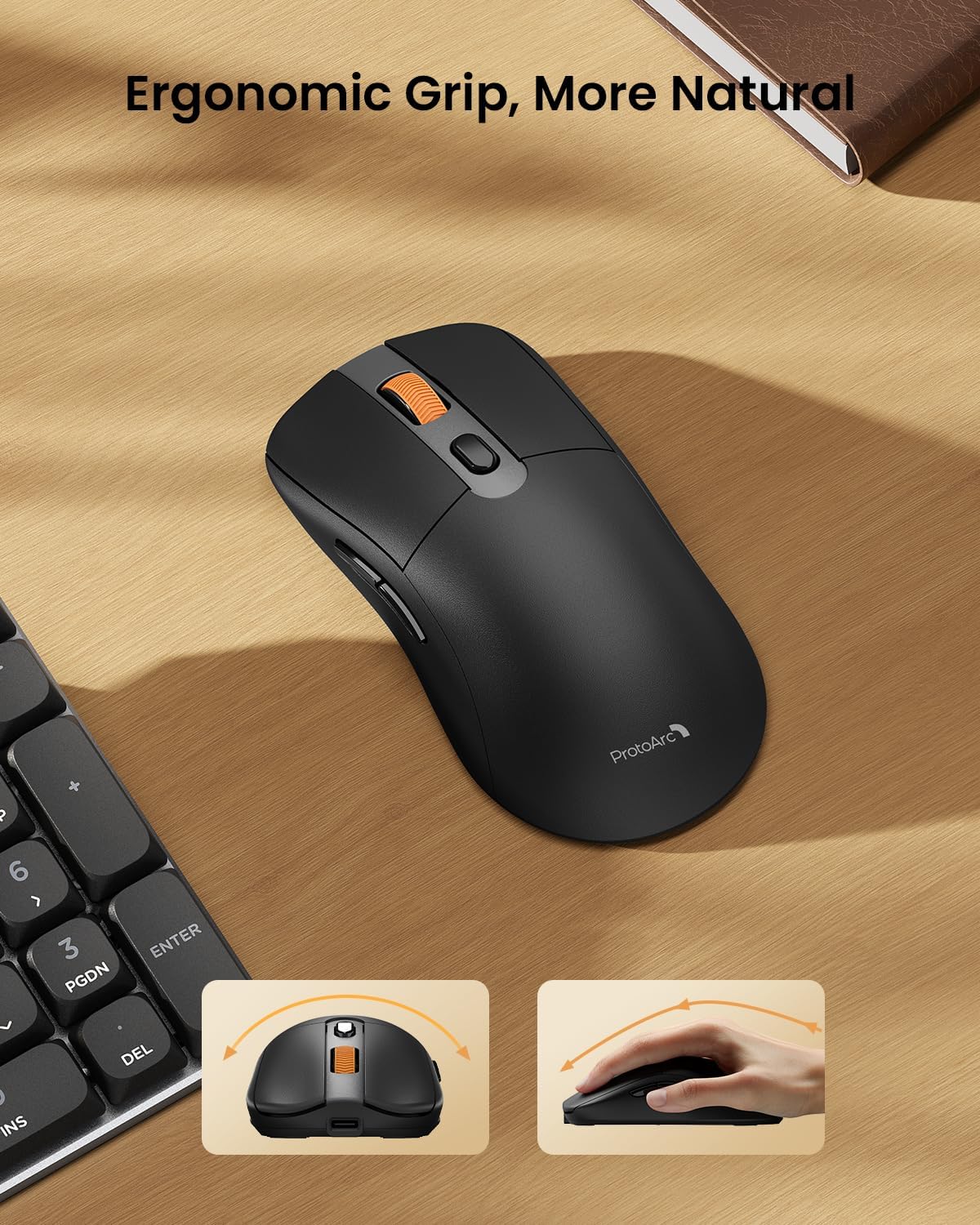
Image: A close-up of the ProtoArc KM310 mouse, illustrating the three adjustable DPI settings (1000, 1600, 2400).
- DPI რეგულირება: Press the DPI switch button (usually located near the scroll wheel) to cycle through the 3 DPI levels (1000/1600/2400) to match your preference for cursor speed and precision.
- ნავიგაციის ღილაკები: Use the forward and backward buttons on the side of the mouse for quick navigation in web ბრაუზერები ან file მკვლევარები.
- ჩუმი დაწკაპუნებები: მაუსს აქვს ჩუმი დაწკაპუნების ღილაკები მშვიდი სამუშაო გარემოსთვის.
მოვლა
- დასუფთავება: კლავიატურისა და მაუსის გასაწმენდად გამოიყენეთ რბილი, მშრალი ქსოვილი. ჯიუტი ჭუჭყის შემთხვევაში, ოდნავamp შეგიძლიათ გამოიყენოთ რბილი საპნის მქონე ქსოვილი, რათა დარწმუნდეთ, რომ სითხე არ მოხვდება მოწყობილობაში.
- ბატარეის მოვლა: Recharge the devices when the battery indicator is low. Avoid prolonged exposure to extreme temperatures.
- შენახვა: When not in use for extended periods, turn off the devices to conserve battery life. Store the USB receiver inside the mouse to prevent loss.
პრობლემების მოგვარება
Keyboard/Mouse Not Turning On or Stopping Working
- შეამოწმეთ ბატარეა: Ensure both the keyboard and mouse are sufficiently charged. Connect them to a power source using the USB-C cable.
- მოწყობილობების ხელახლა დაწყვილება:
- For 2.4G connection, ensure the USB receiver is securely plugged in and the devices are set to 2.4G mode.
- For Bluetooth connection, ensure the devices are set to the correct BT channel (BT1 or BT2) and re-pair them through your device's Bluetooth settings.
- სცადეთ სხვა კაბელი: If charging issues persist, try using a different USB-C cable to rule out a faulty cable.
- ჩარევა: მოწყობილობები კომპიუტერთან უფრო ახლოს ან სხვა უკაბელო მოწყობილობებისგან მოშორებით გადაიტანეთ, რამაც შეიძლება ჩარევა გამოიწვიოს.
- დაუკავშირდით მხარდაჭერას: If the issue persists, please contact ProtoArc customer support for further assistance.
სპეციფიკაციები
| მოდელის ნომერი | KM310 |
| ბრენდი | პროტოარკი |
| ფერი | კოსმოსური ნაცრისფერი |
| დაკავშირების ტექნოლოგია | Bluetooth, USB (2.4G Wireless) |
| განსაკუთრებული თვისებები | დაბალი პროfile Keys, Linear Red Switches, Ergonomic Design, Ultra-Light Mouse, Ergonomic Mouse |
| თავსებადი მოწყობილობები | Laptop, Personal Computer, Tablet (Windows 7/8/10, Mac OS X 10.12, Android 4.3 or higher) |
| ნივთის წონა | 2.31 ფუნტი |
| პაკეტის ზომები | 17.68 x 8.07 x 2.05 ინჩი |
გარანტია და მხარდაჭერა
The ProtoArc KM310 Mechanical Keyboard and Mouse combo comes with a 2 წლიანი გარანტია.
For any questions, technical support, or warranty claims, please contact ProtoArc customer service:
- ელფოსტა: support@protoarc.com
- ტელეფონი: +1 866-287-8188
ოფიციალური პროდუქტის ვიდეო
ვიდეო: პროდუქტის ოფიციალური ვიდეო ჩვენებაasing the features and design of the ProtoArc KM310 Aluminum Mechanical Keyboard and Mouse.