
BOSGAME P4 Ultra
BOSGAME P4 Ultra Mini PC Ryzen 7 7730U Instruction Manual
მოდელი: P4 Ultra
1. შესავალი
This manual provides detailed instructions for setting up, operating, and maintaining your BOSGAME P4 Ultra Mini PC. Please read this manual thoroughly before using the device to ensure optimal performance and longevity.
2. რა არის ყუთში
Upon unboxing your BOSGAME P4 Ultra Mini PC, you should find the following items:
- 1 × P4 Ultra Mini PC
- 1 × HDMI კაბელი
- 1 × დენის ადაპტერი
- 1 × VESA Mount & Screws
- 1 × მომხმარებლის სახელმძღვანელო (ეს დოკუმენტი)


3. დაყენების გზამკვლევი
3.1 საწყისი კავშირი
- Place the Mini PC on a stable surface or mount it using the provided VESA mount.
- Connect your monitor(s) to the Mini PC using the HDMI, DisplayPort, or USB Type-C ports.
- შეაერთეთ თქვენი კლავიატურა და მაუსი არსებულ USB პორტებთან.
- Plug the power adapter into the Mini PC and then into a power outlet.
- მინი კომპიუტერის ჩასართავად დააჭირეთ ჩართვის ღილაკს მის წინა მხარეს.
3.2 ოპერაციული სისტემის დაყენება (Windows 11 Pro)
Your BOSGAME P4 Ultra Mini PC comes with Windows 11 Pro pre-installed. Follow the on-screen instructions to complete the initial setup.
- Select your country, region, and language.
- For the fastest and cleanest first-time setup, it is recommended to skip connecting to Wi-Fi during the initial setup. To do this, press ცვლა + F10 on your keyboard to open a command window. Type
oobe\bypassnroდა დააჭირეთ შედი. The PC will restart. - Once restarted, you can proceed with the offline setup by selecting "I don't have internet" when prompted.
- შექმენით მომხმარებლის ანგარიში და პაროლი.
- Adjust privacy settings as desired.
The system is 100% clean, fast, and secure, with no bloatware.
4. საოპერაციო ინსტრუქციები
4.1 ჩართვა/გამორთვა
- To power on, press the red power button on the front panel.
- To power off, click the Start menu in Windows and select "Power" then "Shut down." Alternatively, press and hold the power button for 5 seconds.
4.2 სამმაგი ეკრანის დაყენება
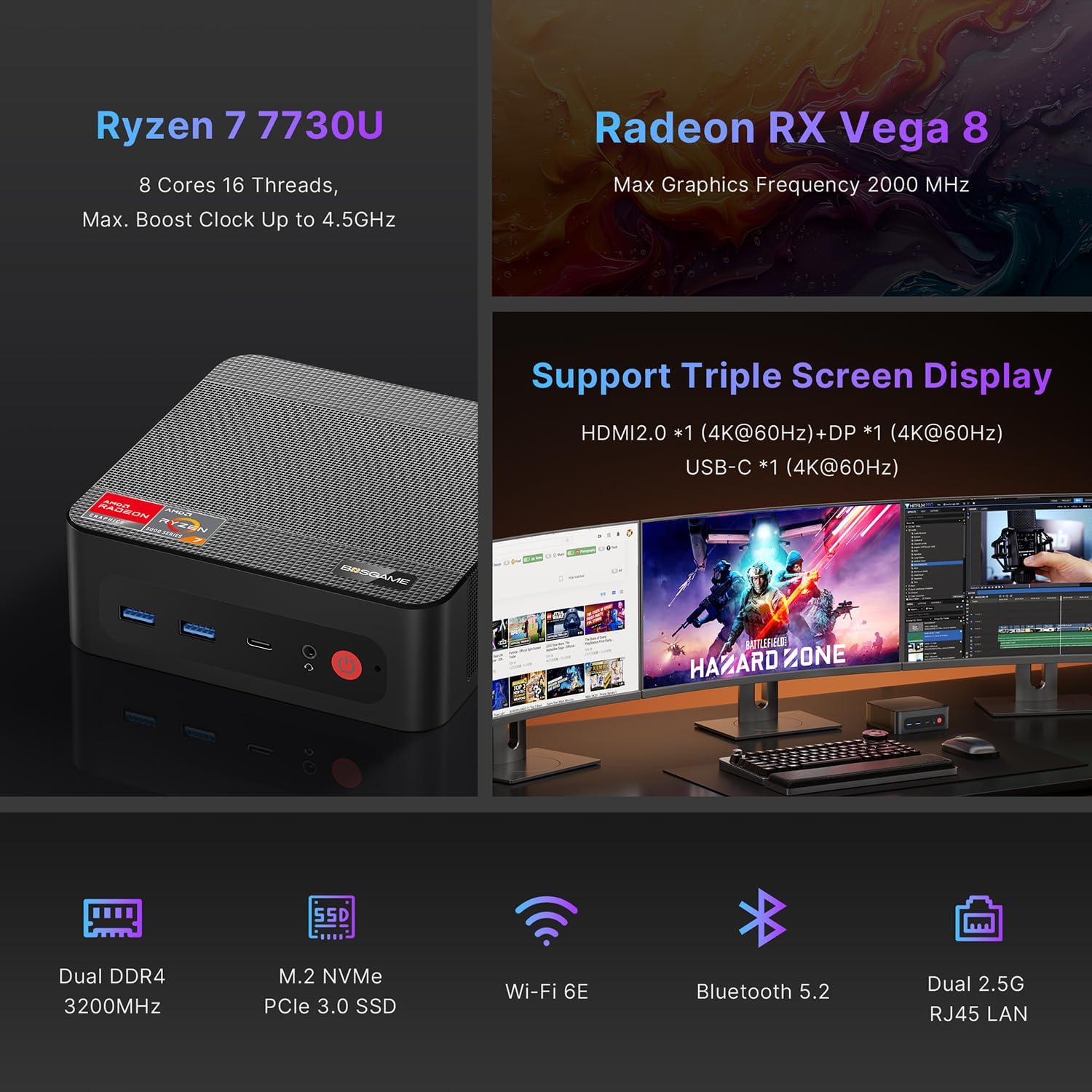
The BOSGAME P4 Ultra supports simultaneous output to three 4K monitors via HDMI 2.0, DisplayPort, and Full-Function USB Type-C.
- Connect the DisplayPort cable to the first monitor.
- Connect the HDMI cable to the second monitor.
- Connect the USB Type-C cable to the third monitor.
- Ensure all monitors are powered on and set to the correct input source.


5. დაკავშირება
5.1 პორტი მეტიview
| ინტერფეისი | რაოდენობა | აღწერა |
|---|---|---|
| USB3.2 Gen2 (4K 60Hz) | 1 | Full-function USB Type-C for data, 4K video, and Power Delivery 3.0 |
| HDMI (2.0 @4K 60Hz) | 1 | ვიდეო გამომავალი მონიტორზე |
| USB3.2 Gen1 | 2 | მონაცემთა მაღალსიჩქარიანი გადაცემა |
| 5.5*2.5mm DC Jack | 1 | დენის შეყვანა |
| USB2.0 | 2 | Standard USB ports |
| 3.5 მმ კომბინირებული ჯეკი | 1 | აუდიო შეყვანა/გამომავალი |
| DP (4K 60Hz) | 1 | DisplayPort ვიდეო გამომავალი |
| 2.5G RJ45 ლოკალური ქსელი | 2 | Dual 2.5 Gigabit Ethernet ports |

5.2 უსადენო კავშირი
- Wi-Fi 6E: For high-speed, lag-free wireless internet.
- Bluetooth 5.2: For instant pairing with peripherals like keyboards, mice, and headphones.

6. Performance & Expansion
The BOSGAME P4 Ultra Mini PC is powered by an AMD Ryzen 7 7730U processor, offering robust performance for various tasks.
- პროცესორი: AMD Ryzen 7 7730U (8 Cores, 16 Threads, Max. Boost Clock up to 4.5GHz)
- გრაფიკა: Radeon RX Vega 8 (Max Graphics Frequency 2000 MHz)
- მეხსიერება: 16GB DDR4 3200MHz SODIMM (expandable up to 32GB)
- შენახვა: 1TB NVMe PCIe 3.0 x4 SSD (expandable up to 4TB via additional M.2 2280 slot)

6.1 Storage and RAM Upgrade
You can upgrade the RAM and SSD to enhance performance or storage capacity.
- Remove the screws from the base plate.
- Carefully open the base plate.
- Move the system fan to access the RAM and SSD slots.
- Replace the RAM and/or SSD as needed.

6.2 Graphics Dock Expansion
The Mini PC supports graphics dock expansion via its full-featured USB Type-C port, allowing for enhanced graphics performance for demanding applications or gaming.
7. მოვლა
7.1 გაგრილების სისტემა
The Mini PC features an advanced thermal design and a low-noise fan system to ensure stable operation and efficient heat dissipation, even under load.


8. Დიაგნოსტიკა
8.1 BIOS პარამეტრები
To access and modify BIOS settings, press the წაშლა key repeatedly during boot-up.
- ავტომატური ჩართვა: ნავიგაცია გაფართოებული → ავტო ჩართვა. დააჭირეთ შედი, აირჩიეთ ჩართვა, შემდეგ დააჭირეთ F4 გადარჩენა.
- Wake On LAN: ნავიგაცია გაფართოებული → Wake On LAN. დააჭირეთ შედი, აირჩიეთ ჩართულია, შემდეგ დააჭირეთ F4 გადარჩენა.
- UMA Frame Buffer Size: ნავიგაცია გაფართოებული → UMA ჩარჩო ბუფერის ზომა. დააჭირეთ შედი, select the desired size (e.g., 8G), შემდეგ დააჭირეთ F4 to save. This allocates system memory to graphics for higher-level tasks.
- S5 RTC Wake Settings: ნავიგაცია გაფართოებული → S5 RTC Wake პარამეტრები. დააჭირეთ შედი, აირჩიეთ ფიქსირებული დრო or დინამიური დრო, შემდეგ დააჭირეთ F4 to save. This allows the system to wake from S5 (soft off) at a scheduled time.
მნიშვნელოვანია: The BIOS is locked by default, and overclocking is not recommended as it may damage the computer. Please be aware.
9. სპეციფიკაციები
| ფუნქცია | დეტალი |
|---|---|
| ბრენდი | ბოსგეიმი |
| მოდელის სახელი | P4 Ultra |
| ოპერაციული სისტემა | Windows 11 Pro (pre-installed), compatible with Linux |
| CPU მოდელი | Ryzen 7 7730U |
| CPU სიჩქარე | 2 GHz (Base), 4.5 GHz (Max Boost) |
| CPU Cores/Threads | 8 ბირთვი, 16 ნაკადი |
| ქეშის ზომა | 16 მბ |
| გრაფიკული ბარათი | Integrated Radeon Graphics (Radeon RX Vega 8) |
| Graphics Frequency | 2000 MHz (მაქს) |
| მეხსიერება (RAM) | 16 GB DDR4 3200MHz SODIMM (Max 32 GB) |
| შენახვა | 1 TB NVMe PCIe 3.0 x4 SSD (Max 4 TB, 2x M.2 2280 slots) |
| ვიდეო გამომავალი | HDMI (4K@60Hz), DisplayPort (4K@60Hz), USB Type-C (4K@60Hz) |
| LAN | Dual 2.5G RJ45 Ethernet |
| უსადენო კავშირი | Wi-Fi 6E, Bluetooth 5.2 |
| USB პორტები | 2x USB 3.2 Gen1, 2x USB 2.0, 1x USB 3.2 Gen2 Type-C (Full-function) |
| აუდიო | 3.5 მმ კომბინირებული ჯეკი |
| ენერგიის მოხმარება | 15 Watts (Default TDP) |
| ზომები | 5.12 x 4.72 x 1.73 ინჩი (129 x 123 x 44 მმ) |
| წონა | 514 გრამი (1.13 ფუნტი) |
| გაგრილების მეთოდი | ფანი |
| VESA მთა | შედის |

10. გარანტია და დახმარება
BOSGAME is committed to quality and customer satisfaction.
- გარანტია: The BOSGAME P4 Ultra Mini PC comes with a 12-month warranty for the entire machine and a 3-year warranty for parts.
- მომხმარებელთა მომსახურება: For any questions or support regarding your purchase, please contact BOSGAME customer service.
როგორ დაუკავშირდეთ მხარდაჭერას:
- დაგვიკავშირდით ამაზონზე: Log in to your Amazon buyer's account, find your order, click 'Get help'.
- Send E-mail to After-sales Support Team: You can also reach out via email for assistance.


Ask a question about this manual
Ask about setup, troubleshooting, compatibility, parts, safety, or missing instructions. Manuals+ will review the question and use this page’s manual context to help answer it.