
1. შესავალი
The Huawei OptiXstar K251a-21 is a sub-FTTR (Fiber to the Room) unit designed to extend the high-speed network provided by the Huawei FTTR OptiXstar F50 Plus main unit. This device supports ultra-Gigabit high-speed access via upstream fiber optic lines and delivers Ultra Gigabit dual-band Wi-Fi and ultra-Gigabit network ports to users. It integrates next-generation Wi-Fi 7 technology for higher speeds and lower latency, ensuring a superior home network experience.
2. უსაფრთხოების ინფორმაცია
Please read and understand all safety instructions before using this device. Failure to follow these instructions may result in injury, damage to the device, or property damage.
- გამოიყენეთ მხოლოდ მოწყობილობასთან მიწოდებული კვების ადაპტერი.
- არ დაუშვათ მოწყობილობის წყალზე, ტენიანობაზე ან ექსტრემალურ ტემპერატურაზე ზემოქმედება.
- მოერიდეთ მოწყობილობის განთავსებას სითბოს წყაროებთან ან მზის პირდაპირ შუქზე.
- უზრუნველყოს სათანადო ვენტილაცია გადახურების თავიდან ასაცილებლად.
- Do not attempt to open or repair the device yourself. Contact qualified service personnel for assistance.
- შეინახეთ მოწყობილობა ბავშვებისა და შინაური ცხოველებისგან შორს.
3. პაკეტის შიგთავსი
დარწმუნდით, რომ თქვენს პაკეტში ყველა ნივთია:
- Huawei OptiXstar K251a-21 Sub FTTR Device
- დენის კაბელი
- სწრაფი დაწყების სახელმძღვანელო (თუ შედის)
4. პროდუქტი დასრულდაview
Familiarize yourself with the device's components and indicators.
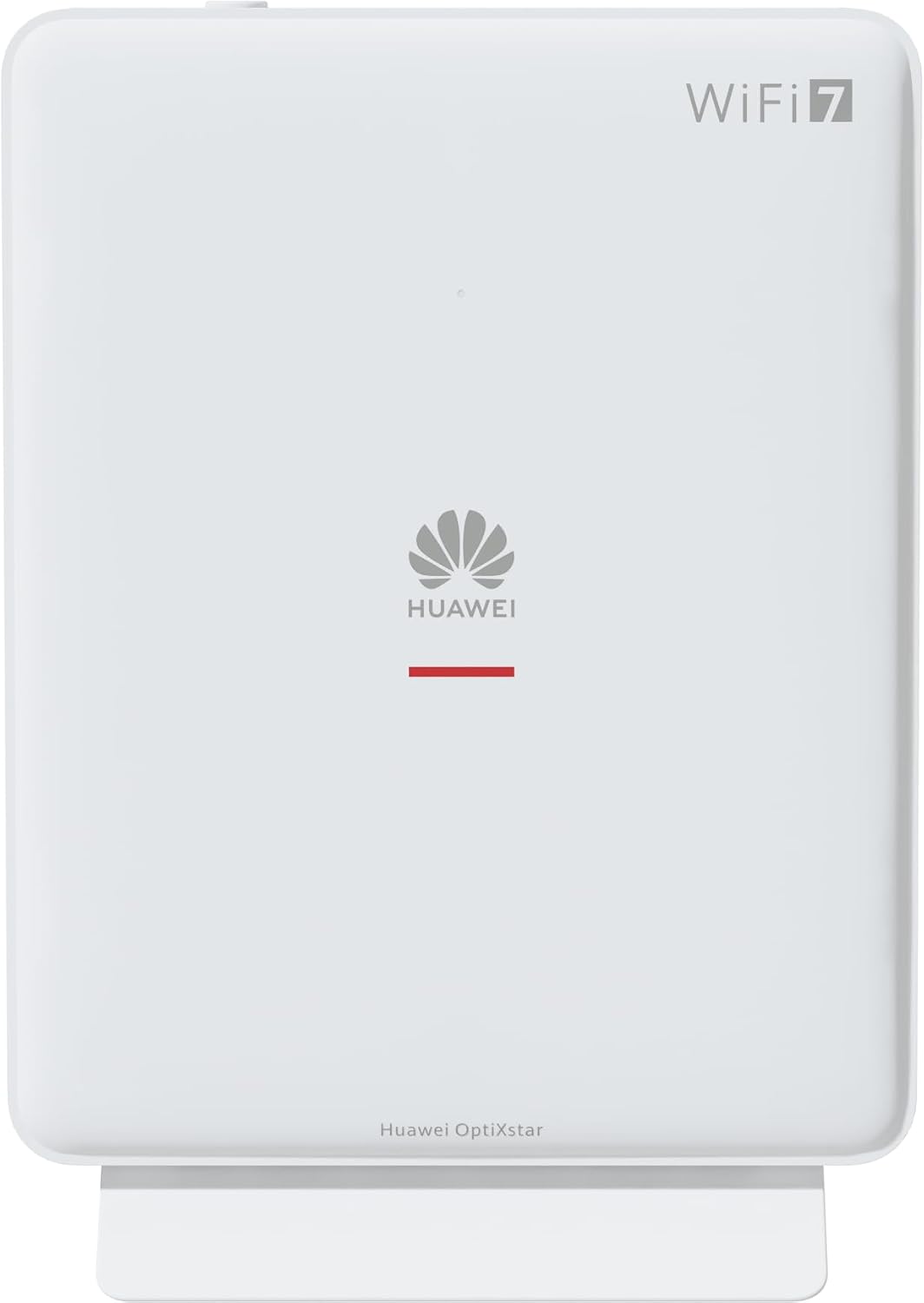
სურათი 1: წინა view of the Huawei OptiXstar K251a-21 Sub FTTR device, showing the Huawei logo and "WiFi 7" branding.

Figure 2: Angled front-side view of the Huawei OptiXstar K251a-21 Sub FTTR, highlighting its sleek design and ventilation.

სურათი 3: უკანა view of the Huawei OptiXstar K251a-21 Sub FTTR, displaying the ports (Reset, 2-GE, 1-2.5GE, Power, FTTR) and mounting options.

სურათი 4: გვერდითი პროfile of the Huawei OptiXstar K251a-21 Sub FTTR, showing its slim form factor and ventilation grilles.

სურათი 5: დახრილი უკანა მხარე view of the Huawei OptiXstar K251a-21 Sub FTTR, providing a clear look at the port labels and layout.

სურათი 6: ზედა view of the Huawei OptiXstar K251a-21 Sub FTTR, featuring the WPS/LED button.
პორტები და ღილაკები:
- FTTR Port: Connects to the main FTTR unit via a fiber optic cable.
- 1-2.5GE Port: Gigabit Ethernet port for high-speed wired connections.
- 2-GE Port: Gigabit Ethernet port for wired connections.
- დენის პორტი: უერთდება კვების ადაპტერს.
- გადატვირთვის ღილაკი: Used to restore factory settings (press and hold for 5-10 seconds).
- WPS/LED Button: Initiates Wi-Fi Protected Setup (WPS) for easy device connection and controls LED indicators.
5. დაყენება
Follow these steps to set up your Huawei OptiXstar K251a-21 Sub FTTR device:
- განთავსება: Choose a central location in your home for optimal Wi-Fi coverage. The device is suitable for various installation scenarios, including vertical placement on a desk, wall-mounting, plugging into a power strip, or mounting in an 86mm junction box with a bracket.
- ბოჭკოვანი ოპტიკური კაბელის შეერთება: Connect one end of the fiber optic cable to the FTTR port on the Sub FTTR unit and the other end to the corresponding FTTR port on your Huawei FTTR OptiXstar F50 Plus main unit or wall outlet. Ensure the connection is secure.
- დაკავშირება ძალა: Plug the power adapter into the Power port on the Sub FTTR unit, then plug the other end into a power outlet.
- ჩართვა: The device will automatically power on. Wait for the indicator lights to stabilize, typically indicating a successful connection to the main FTTR unit and active Wi-Fi.
- Wired Connections (Optional): For wired devices, connect an Ethernet cable from the 1-2.5GE or 2-GE ports on the Sub FTTR to your computer, gaming console, or other network devices.
6. მოქმედებს
Once set up, your OptiXstar K251a-21 provides seamless Wi-Fi 7 connectivity.
- Wi-Fi კავშირი: ძიება the Wi-Fi network name (SSID) broadcast by your FTTR system on your devices (smartphones, laptops, etc.). Enter the Wi-Fi password. The system's unique SRCN (Seamless Roaming Coordinate Network) technology ensures seamless roaming throughout your home.
- C-WAN Architecture: The C-WAN architecture centrally controls and coordinates network-wide Wi-Fi resources via the Main FTTR, providing an ultra-Gigabit high-speed experience.
- IoT Casing: The device features an IoT casing designed to protect home network security and privacy.
- WPS ფუნქცია: Press the WPS/LED button briefly to use Wi-Fi Protected Setup (WPS) for quick connection of compatible devices without entering the password.
- LED ინდიკატორები: The LED indicators provide status information. Refer to the main FTTR unit's manual or the device's specific documentation for detailed LED status meanings.
7. მოვლა
Regular maintenance helps ensure optimal performance and longevity of your device.
- დასუფთავება: Gently wipe the device with a soft, dry cloth. Do not use liquid cleaners or abrasive materials.
- Firmware განახლებები: Huawei periodically releases firmware updates to improve performance and security. These updates are typically managed through the main FTTR unit or a dedicated mobile application. Ensure your system is always running the latest firmware.
- ვენტილაცია: დარწმუნდით, რომ ვენტილაციის ღიობები არ არის დაბლოკილი, რათა თავიდან აიცილოთ გადახურება.
- საკაბელო მენეჯმენტი: Keep fiber optic and power cables neatly organized and free from kinks or excessive bending.
8. Დიაგნოსტიკა
თუ პრობლემები შეგექმნათ, სცადეთ პრობლემების მოგვარების შემდეგი ნაბიჯები:
- ძალა არ არის: Check if the power cable is securely connected to both the device and the power outlet. Try a different outlet.
- Არ არის ინტერნეტ კავშირი:
- Verify that the fiber optic cable is correctly connected to the FTTR port.
- Check the status indicators on both the Sub FTTR and the main FTTR unit.
- Restart both the Sub FTTR and the main FTTR unit by unplugging them from power for 30 seconds and then plugging them back in.
- Ensure your main FTTR unit has an active internet connection.
- ნელი Wi-Fi სიჩქარე:
- Ensure the device is placed optimally, away from obstructions and interference sources.
- Check if too many devices are connected to the network.
- Update the firmware of your FTTR system.
- Consider using a wired connection for bandwidth-intensive tasks.
- Wi-Fi-თან დაკავშირება შეუძლებელია:
- დარწმუნდით, რომ Wi-Fi-ს სწორ პაროლს შეიყვანთ.
- Try using the WPS button to connect.
- Restart your device and the Sub FTTR unit.
- ქარხნის გადაყენება: If issues persist, you may need to perform a factory reset. With the device powered on, use a pointed object (like a paperclip) to press and hold the Reset button for 5-10 seconds until the indicators change. Note that this will erase all custom settings.
9. სპეციფიკაციები
| ფუნქცია | სპეციფიკაცია |
|---|---|
| ბრენდი | HUAWEI |
| მოდელის ნომერი | K8M251a-21G02 |
| ზომები (პაკეტი) | 24.5 x 23.7 x 7.4 სმ |
| წონა (პაკეტი) | 300 გრამი |
| სპეციალური ფუნქცია | ინტერნეტ უსაფრთხოება |
| სიხშირის ჯგუფის კლასი | ორმაგი ბენდი |
| უსადენო კომუნიკაციის სტანდარტი | 802.11ax (Wi-Fi 7 Generation) |
| თავსებადი მოწყობილობები | პერსონალური კომპიუტერი |
| რეკომენდებული გამოყენება | მთავარი |
| მოყვება კომპონენტები | დენის კაბელი |
| დაკავშირების ტექნოლოგია | Ethernet, FTTR, Wi-Fi, Fiberglass |
| ფერი | თეთრი |
| პორტების რაოდენობა | 4 (FTTR, 1-2.5GE, 2-GE, Power) |
| მონაცემთა გადაცემის სიჩქარე | 1 Gigabits per second |
| ჭკვიანი სახლის თავსებადობა | Compatible with smart home systems |
| ინტერნეტთან დაკავშირება | დიახ |
| დაკავშირების პროტოკოლი | Wi-Fi |
10. გარანტია და მხარდაჭერა
გარანტიის შესახებ ინფორმაციისა და ტექნიკური მხარდაჭერისთვის, გთხოვთ, იხილოთ Huawei-ს ოფიციალური ვებგვერდი. website or contact your local Huawei customer service. Keep your purchase receipt for warranty claims.
ონლაინ რესურსები: Visit the official Huawei support webსაიტი ხშირად დასმული კითხვებისთვის, განახლებული სახელმძღვანელოებისა და პროგრამული უზრუნველყოფის ჩამოსატვირთად.
მომხმარებელთა მომსახურება: Contact details for customer support can typically be found on the Huawei website or in the documentation provided with your main FTTR unit.