
Samsung SM-X230
Samsung Galaxy Tab A11+ SM-X230 User Manual
მოდელი: SM-X230
1. შესავალი
This manual provides essential information for setting up, operating, maintaining, and troubleshooting your Samsung Galaxy Tab A11+ SM-X230 tablet. Please read this manual carefully to ensure safe and optimal use of your device.
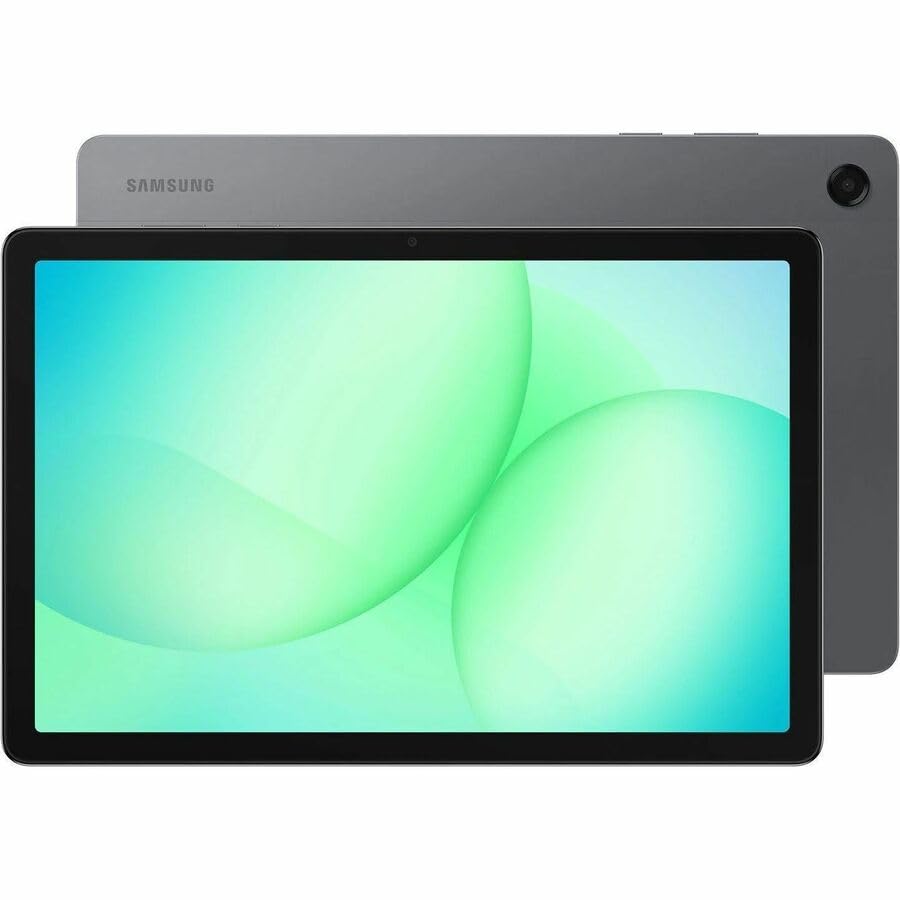
Image: Samsung Galaxy Tab A11+ tablet, showcasing its sleek design and available colors.
The Samsung Galaxy Tab A11+ SM-X230 is an 11-inch WUXGA tablet powered by a MediaTek Dimensity 7300 Octa-core processor, offering 6 GB of RAM and 128 GB of internal storage, expandable via microSD. It features a modern design, a vibrant 90 Hz display, and Dolby-engineered Quad Speakers for an immersive experience.
2. დაწყება (დაყენება)
2.1 ყუთის გახსნა და პირველადი შემოწმება
Carefully remove all components from the packaging. Verify that all items are present: the Samsung Galaxy Tab A11+ tablet, a USB-C charging cable, and any included documentation. Inspect the tablet for any physical damage before proceeding.
2.2 მოწყობილობის დატენვა
Before first use, fully charge your tablet. The device is equipped with a 7040 mAh battery and supports 25W Super Fast Charging.
- შეაერთეთ USB-C კაბელი პლანშეტის დამტენ პორტთან.
- Connect the other end of the cable to a compatible power adapter (not always included) and plug it into a wall outlet.
- The charging indicator will appear on the screen. Allow the tablet to charge until the battery icon shows a full charge.

Image: Visual representation of the tablet charging, highlighting its 7040mAh battery and 25W Super Fast Charging capability.
2.3 ჩართვა/გამორთვა
- ჩართვა: დააჭირეთ და გეჭიროთ ჩართვის ღილაკი (მდებარეობს გვერდზე) სანამ Samsung-ის ლოგო არ გამოჩნდება.
- გამორთვა: დააჭირეთ და გააჩერეთ ჩართვის ღილაკი, შემდეგ ეკრანზე გამოჩენილი ვარიანტებიდან აირჩიეთ „გამორთვა“.
2.4 საწყისი დაყენების ოსტატი
Upon first power-on, the tablet will guide you through an initial setup process:
- აირჩიეთ თქვენთვის სასურველი ენა.
- დაუკავშირდით Wi-Fi ქსელს.
- Review და დაეთანხმეთ საბოლოო მომხმარებლის ლიცენზიის შეთანხმებას და კონფიდენციალურობის პოლიტიკას.
- შედით თქვენი Google ანგარიშით ან შექმენით ახალი. ეს აუცილებელია Google Play Store-სა და Google-ის სხვა სერვისებზე წვდომისთვის.
- ეკრანის დაბლოკვის დაყენება (PIN კოდი, ნიმუში, პაროლი).
- Follow any additional prompts to customize your device settings.
2.5 microSD ბარათის ჩასმა
The Galaxy Tab A11+ supports microSD cards up to 2 TB for expanded storage.
- იპოვეთ SIM/microSD ბარათის უჯრა ტაბლეტის გვერდზე.
- Insert the ejection pin (if provided, or a paperclip) into the small hole on the tray to eject it.
- მოათავსეთ microSD ბარათი უჯრაში ოქროსფერი კონტაქტებით ქვემოთ.
- ფრთხილად ჩასწიეთ უჯრა ისევ ჭრილში, სანამ არ დააწკაპუნებს თავის ადგილზე.
3. თქვენი პლანშეტის მართვა
3.1 სენსორული ეკრანის ნავიგაცია
The tablet's primary interface is its 11-inch WUXGA (1920 x 1200 pixels) touchscreen with a 90 Hz refresh rate for smooth interactions.
- შეეხეთ: აირჩიეთ ნივთი ან გახსენით აპლიკაცია.
- შეეხეთ და გააჩერეთ: კონტექსტურ მენიუებზე წვდომა ან ელემენტების გადატანა.
- დარტყმა: Navigate through screens, scroll lists, or dismiss notifications.
- მასშტაბირება თითებით: გადიდება ან შემცირება view სურათებისა და web გვერდები.
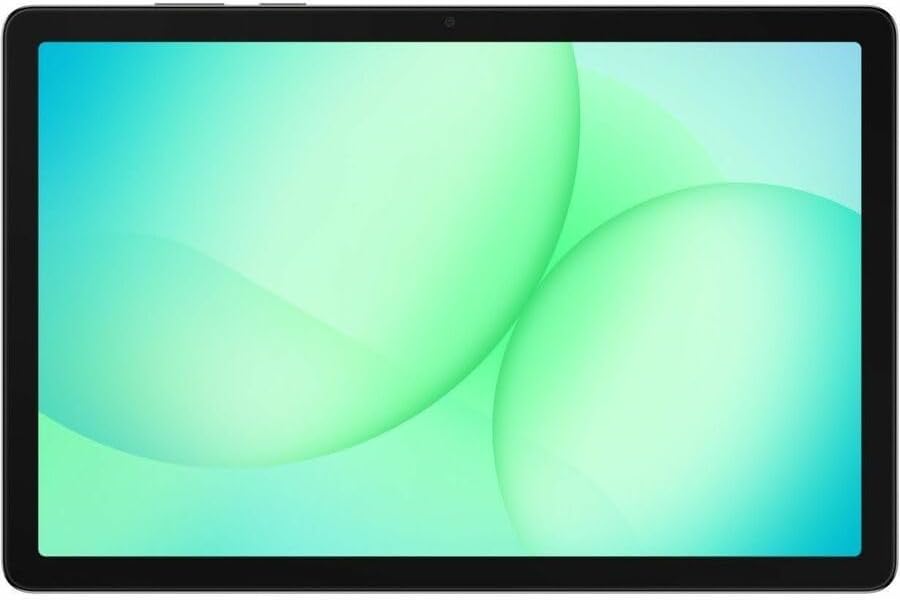
Image: The Samsung Galaxy Tab A11+ display, showcasing its vibrant and clear screen.
3.2 შესრულება
The tablet is powered by a MediaTek Dimensity 7300 (4 nm) Octa-core processor with 6 GB of RAM, ensuring responsive performance for various tasks, from gaming to multitasking.

Image: A visual representation of the tablet's enhanced CPU and GPU performance.
3.3 შენახვის მართვა
Your tablet comes with 128 GB of internal storage. You can expand this by up to 2 TB using a microSD card.
- To check storage: Go to პარამეტრები > ელემენტისა და მოწყობილობის მოვლა > შენახვა.
- სივრცის გასათავისუფლებლად: წაშალეთ არასაჭირო files, uninstall unused apps, or move large fileღრუბლოვან საცავში ან გარე microSD ბარათზე.

Image: The tablet displaying various media, illustrating its ample internal storage and microSD expansion capabilities.
3.4 კამერის ფუნქციები
The tablet features an 8 MP rear camera and a 5 MP front camera for photos and video calls.
- გახსენით კამერა app from the home screen or app drawer.
- ფოტოს გადასაღებად შეეხეთ ჩამკეტის ღილაკს.
- წინა და უკანა კამერებს შორის გადართვა კამერის გადამრთველის ხატულის გამოყენებით შეგიძლიათ.
- Select video mode to record videos (up to HD 720p).
3.5 აუდიო პარამეტრები
Experience rich, multidimensional audio with Dolby-engineered Quad Speakers. The tablet also includes a 3.5 mm audio jack for wired headphones.
- Adjust volume using the physical volume buttons on the side of the tablet.
- Access detailed audio settings via Settings > Sounds and vibration.
- Connect wired headphones to the 3.5 mm jack for private listening.

სურათი: პლანშეტის ჩვენებაasing its immersive audio experience with Dolby Atmos technology.
3.6 დაკავშირებადობა (Wi-Fi, Bluetooth)
- Wi-Fi: გადადით პარამეტრები > კავშირები > Wi-Fi to connect to available networks. The tablet supports 802.11ac wireless compatibility.
- Bluetooth: გადადით პარამეტრები > კავშირები > Bluetooth Bluetooth მოწყობილობებთან, როგორიცაა ყურსასმენები ან დინამიკები, დასაწყვილებლად.
3.7 Using Google Gemini
The Galaxy Tab A11+ integrates with Google Gemini. You can interact with Gemini to get assistance based on what you see on your screen or through your camera.
- To activate: Long press the side button to launch Google Gemini.
- Share your screen or camera view to ask for advice or information.

Image: The tablet demonstrating Google Gemini's capability to provide real-time assistance based on visual input.
3.8 File გაზიარება
მარტივად გააზიარეთ files between your tablet and other compatible devices.
- Use built-in sharing options within apps (e.g., Gallery, Files) to send content via Bluetooth, Wi-Fi Direct, or cloud services.
- Connect to a computer via USB-C cable to transfer fileს პირდაპირ.

Image: Multiple Samsung devices illustrating the ease of file sharing across the ecosystem.
4. მოვლა და მოვლა
4.1 თქვენი პლანშეტის გაწმენდა
- ეკრანისა და კორპუსის გასაწმენდად გამოიყენეთ რბილი, უბუშტო ქსოვილი.
- ჯიუტი ლაქებისთვის, ოდნავ შეიზილეთampქსოვილი გაწმინდეთ წყლით ან ელექტრონიკისთვის სპეციალურად შექმნილი ეკრანის საწმენდი საშუალებით.
- მოერიდეთ უხეში ქიმიკატების, აბრაზიული მასალების ან ზედმეტი ტენიანობის გამოყენებას.
4.2 პროგრამული უზრუნველყოფის განახლებები
რეგულარულად შეამოწმეთ და დააინსტალირეთ პროგრამული უზრუნველყოფის განახლებები, რათა უზრუნველყოთ ოპტიმალური მუშაობა, უსაფრთხოება და ახალ ფუნქციებზე წვდომა.
- გადადით პარამეტრები > პროგრამული უზრუნველყოფის განახლება.
- შეეხეთ ჩამოტვირთეთ და დააინსტალირეთ.
- განახლების დაწყებამდე დარწმუნდით, რომ თქვენი პლანშეტი დაკავშირებულია Wi-Fi-სთან და აქვს საკმარისი დამუხტვა.
4.3 ბატარეის ხანგრძლივობა
ბატარეის მაქსიმალური მუშაობისთვის:
- მოერიდეთ ექსტრემალურ ტემპერატურას.
- არ დატოვოთ ტაბლეტი სრულად დამუხტული ან სრულად დაცლილი დიდი ხნის განმავლობაში.
- Adjust screen brightness and use power-saving modes when possible.
4.4 Storage Optimization
პერიოდულად რეview your storage to remove unnecessary files and apps. This helps maintain device performance.
- Utilize cloud storage for backups of photos and videos.
- Move large media files to an inserted microSD card.
5. Დიაგნოსტიკა
5.1 საერთო საკითხები და გადაწყვეტილებები
- მოწყობილობა არ ჩართულია:
- Ensure the battery is charged. Connect the tablet to a charger for at least 30 minutes.
- იძულებითი გადატვირთვა განახორციელეთ ჩართვისა და ხმის დაწევის ღილაკების ერთდროულად დაჭერით და დაახლოებით 7-10 წამის განმავლობაში დაჭერით.
- Wi-Fi კავშირის პრობლემები:
- Wi-Fi-ს ჩართვა და გამორთვა პარამეტრებში შეგიძლიათ.
- გადატვირთეთ თქვენი Wi-Fi როუტერი.
- დაივიწყეთ ქსელი და ხელახლა დაუკავშირდით.
- ნელი შესრულება:
- დახურეთ გამოუყენებელი აპები, რომლებიც მუშაობენ ფონზე.
- ხშირად გამოყენებული აპლიკაციების ქეშის მონაცემების გასუფთავება.
- Check available storage and free up space if necessary.
- გადატვირთეთ ტაბლეტი.
- აპლიკაციების გაჭედვა:
- აპლიკაციის ქეშისა და მონაცემების გასუფთავება (პარამეტრები > აპლიკაციები > [აპლიკაციის სახელი] > მეხსიერება).
- წაშალეთ და ხელახლა დააინსტალირეთ აპლიკაცია.
- დარწმუნდით, რომ აპლიკაცია განახლებულია უახლეს ვერსიამდე.
5.2 ქარხნული პარამეტრების გადატვირთვა
თუ მუდმივ პრობლემებს წააწყდებით, ქარხნულ პარამეტრებზე გადატვირთვამ შეიძლება გადაჭრას პროგრამული უზრუნველყოფის მრავალი პრობლემა. გაფრთხილება: ეს წაშლის თქვენს ტაბლეტზე არსებულ ყველა მონაცემს. გაგრძელებამდე შექმენით მნიშვნელოვანი მონაცემების სარეზერვო ასლი.
- გადადით პარამეტრები > ზოგადი მენეჯმენტი > გადატვირთვა > ქარხნული მონაცემების აღდგენა.
- Review ინფორმაცია და შეეხეთ გადატვირთვა.
- Enter your screen lock credentials if prompted.
- შეეხეთ წაშალე ყველა to confirm. The tablet will restart and begin the reset process.
6. პროდუქტის სპეციფიკაციები
| ფუნქცია | სპეციფიკაცია |
|---|---|
| ბრენდი | სამსუნგი |
| მოდელის სახელი | Galaxy Tab A11+ |
| მოდელის ნომერი | SM-X230 |
| ეკრანის ზომა | 11 ინჩი |
| ჩვენების ტიპი | TFT LCD |
| მშობლიური რეზოლუცია | 1920 x 1200 პიქსელი (WUXGA) |
| განახლების სიჩქარის ჩვენება | 90 ჰც |
| პროცესორი | MediaTek Dimensity 7300 (4 nm) Octa-core, 2.5 GHz |
| RAM მეხსიერება | 6 GB |
| შიდა საცავი | 128 GB |
| გაფართოებადი საცავი | microSD (2 ტბ-მდე) |
| ოპერაციული სისტემა | Android |
| უკანა კამერა | 8 დეპუტატი |
| წინა კამერა | 5 დეპუტატი |
| ვიდეო გადაღების გარჩევადობა | HD 720p |
| ბატარეის ტევადობა | 7040 mAh (ლითიუმის პოლიმერი) |
| ბატარეის საშუალო ხანგრძლივობა | 10 საათი |
| დამუხტვა | 25W სუპერ სწრაფი დატენვა |
| დაკავშირება | Wi-Fi (802.11ac), Bluetooth, USB Type C |
| GPS ფუნქციონირება | GPS-Enabled (GLONASS, Galileo, Beidou, QZSS) |
| აუდიო ფუნქციები | Dolby-engineered Quad Speakers, 3.5 mm audio jack |
| Dimensions (L x W x Thickness) | 0.3" სიგრძე x 10.1" სიგანე x 6.6" სიგანე |
| ნივთის წონა | 1.4 ფუნტი |
7. ინფორმაცია გარანტიის შესახებ
The Samsung Galaxy Tab A11+ SM-X230 comes with a 12-month Manufacturer Warranty. This warranty covers defects in materials and workmanship under normal use. For specific terms and conditions, please refer to the warranty card included with your product or visit the official Samsung support webსაიტი.
შეინახეთ შეძენის დამადასტურებელი საბუთი საგარანტიო პრეტენზიებისთვის.
8. მხარდაჭერა და მომსახურება
For further assistance, technical support, or service inquiries, please contact Samsung customer support through the following channels:
- ონლაინ დახმარება: ეწვიეთ Samsung-ის ოფიციალურ მხარდაჭერის საიტს webსაიტი ხშირად დასმული კითხვებისთვის, პრობლემების მოგვარების სახელმძღვანელოებისთვის და პროგრამული უზრუნველყოფის ჩამოსატვირთად. www.samsung.com/us/support/
- ტელეფონის მხარდაჭერა: Refer to your product packaging or the Samsung support webსაიტი რეგიონალური საკონტაქტო ნომრებისთვის.
- სერვის ცენტრები: პირადი დახმარების მისაღებად იპოვეთ Samsung-ის ავტორიზებული სერვის ცენტრები.
When contacting support, please have your tablet's model number (SM-X230) and serial number ready.
Ask a question about this manual
Ask about setup, troubleshooting, compatibility, parts, safety, or missing instructions. Manuals+ will review the question and use this page’s manual context to help answer it.