1. შესავალი
The Logitech C920 HD Pro Webcam is designed to deliver high-definition video and clear audio for video calls, streaming, and recording. Featuring Full HD 1080p video capture and a 78-degree field of view, ეს webcam connects via USB for easy integration with your computer system. This manual provides instructions for setting up, operating, maintaining, and troubleshooting your C920 webკამერა

სურათი 1: წინა view of the Logitech C920 HD Pro Webcam. The camera lens is centered, flanked by stereo microphones, with the Logitech logo on the right.
2. პაკეტის შიგთავსი
დარწმუნდით, რომ თქვენს პაკეტში ყველა ნივთია:
- Logitech C920 HDPro Webკამერა
- ინტეგრირებული USB კაბელი
- მომხმარებლის სახელმძღვანელო (ეს დოკუმენტი)
3. დაყენების ინსტრუქციები
Follow these steps to set up your Logitech C920 HD Pro Webკამერა:
- ამოალაგეთ Webკამერა: ფრთხილად ამოიღეთ webcam and its integrated USB cable from the packaging.
- პოზიციონირება Webკამერა:
The C920 features a versatile clip/stand that allows it to be mounted on various surfaces:
- On a Monitor/Laptop Screen: Open the clip and place the webcam on top of your monitor or laptop screen. Adjust the clip to securely grip the back of the screen.
- სამფეხზე: The webcam includes a standard tripod thread on the bottom of its stand. Screw the webcam onto a compatible tripod for more flexible positioning.
- On a Desk: Fold the clip into a flat stand and place the webcam on a stable, flat surface.

Figure 2: Logitech C920 Webcam with its multi-position clip/stand unfolded, ready for mounting on a monitor or tripod.
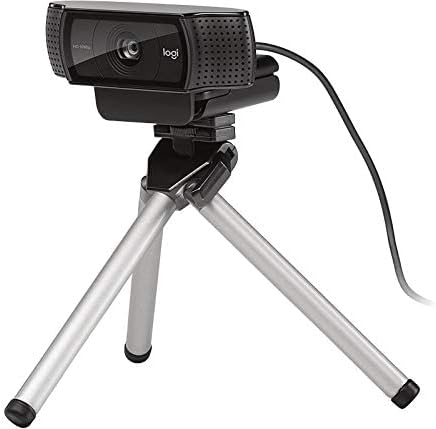
Figure 3: Logitech C920 Webcam securely mounted on a small tripod, demonstrating its versatility.
- კომპიუტერთან დაკავშირება: Plug the integrated USB cable into an available USB port on your computer. The webcam is a plug-and-play device and typically does not require additional driver installation on most modern operating systems (Windows, macOS, Chrome OS).
- პროგრამული უზრუნველყოფის ინსტალაცია (სურვილისამებრ): For advanced features and settings, you may download the Logitech Capture software from the official Logitech webსაიტი (www.logitech.com/support/c920).
- ტესტირება Webკამერა: Open a video conferencing application (e.g., Zoom, Skype, Google Meet) or your computer's camera application to verify that the webcam is recognized and functioning correctly.
4. საოპერაციო ინსტრუქციები
The Logitech C920 HD Pro Webcam is designed for ease of use. Once connected, it functions as a standard video input device for most applications.
4.1. Video Calls and Conferencing
- Launch your preferred video conferencing application (e.g., Zoom, Microsoft Teams, Google Meet, Skype).
- Navigate to the application's settings or preferences.
- Select "Logitech C920" as your video input device and, if applicable, as your microphone input device. The C920 features dual stereo microphones for clear audio.
- Adjust your position and lighting for optimal video quality. The C920 includes automatic light correction.
4.2. ვიდეოს ჩაწერა
- Open a video recording application (e.g., Windows Camera app, QuickTime Player on macOS, or Logitech Capture software).
- Ensure the C920 is selected as the video source.
- Start recording. The C920 supports Full HD 1080p video recording at 30 frames per second.
4.3. Advanced Settings (with Logitech Capture)
If you have installed Logitech Capture software, you can access additional features:
- Custom Resolution and Frame Rate: Adjust video resolution (up to 1080p) and frame rate.
- კამერის კონტროლი: Pan, tilt, and zoom digitally.
- გამოსახულების კორექტირება: Fine-tune brightness, contrast, saturation, and white balance.
- წყაროს გადართვა: Easily switch between multiple cameras or screen sharing.
5. მოვლა
To ensure the longevity and optimal performance of your Logitech C920 HD Pro Webcam-ზე, დაიცავით ეს მარტივი მოვლის ინსტრუქციები:
- ლინზების გაწმენდა: ფრთხილად გაწმინდეთ კამერის ლინზა რბილი, ბუსუსების გარეშე ქსოვილით. ჯიუტი ლაქების შემთხვევაში, ოდნავ გაწმინდეთampen the cloth with water or a lens cleaning solution. Avoid abrasive materials or harsh chemicals.
- სხეულის გაწმენდა: გამოიყენეთ რბილი, მშრალი ქსოვილი გასაწმენდად webcam's body. Do not use liquid cleaners directly on the device.
- შენახვა: როდესაც არ იყენებთ, შეინახეთ webშეინახეთ კამერა სუფთა, მშრალ ადგილას, ექსტრემალური ტემპერატურისა და პირდაპირი მზისგან მოშორებით.
- საკაბელო მოვლა: მოერიდეთ USB კაბელის ზედმეტად მოღუნვას ან დახვევას. არ გაწიოთ კაბელი გათიშვისას. webcam; always grasp the USB connector.
6. Დიაგნოსტიკა
If you encounter issues with your Logitech C920 HD Pro Webcam-თან დაკავშირებით, იხილეთ შემდეგი გავრცელებული პრობლემები და გადაწყვეტილებები:
| პრობლემა | შესაძლო მიზეზი | გამოსავალი |
|---|---|---|
| Webკომპიუტერმა კამერა ვერ აღმოაჩინა. | USB კავშირის გაწყვეტა, USB პორტის გაუმართაობა, დრაივერის პრობლემა. |
|
| No video or black screen in applications. | არასწორია webcam selection, privacy settings, application conflict. |
|
| ვიდეოს ცუდი ხარისხი (ბუნდოვანი, მუქი, მარცვლოვანი). | Insufficient lighting, dirty lens, incorrect settings. |
|
| ხმა არ არის ან ხმის ხარისხი ცუდია. | Incorrect microphone selection, microphone muted, environmental noise. |
|
7. სპეციფიკაციები
Key technical specifications for the Logitech C920 HD Pro Webკამერა:
| ფუნქცია | დეტალი |
|---|---|
| მოდელის ნომერი | 960-000764 წწ |
| ვიდეო გადაღების გარჩევადობა | Full HD 1080p at 30fps (H.264 video compression) |
| მაქსიმალური ვიდეო გარჩევადობა | FHD |
| ფოტო სენსორის ტექნოლოგია | BSI CMOS |
| სფერო View | 78 გრადუსიანი დიაგონალი |
| ავტოფოკუსი | დიახ |
| მიკროფონი | Dual stereo microphones with automatic noise reduction |
| დაკავშირების ტექნოლოგია | USB 2.0 (USB 3.0 ready) |
| აპარატურის პლატფორმა | ლეპტოპი, კომპიუტერი |
| ნივთის წონა | 5.6 უნცია (დაახლოებით 158.7 გრამი) |
| პაკეტის ზომები | 3.98 x 3.31 x 2.24 ინჩი |
| ფერი | შავი |
| მხარდაჭერილი OS | Windows 7 or later, macOS 10.10 or later, Chrome OS, Android v 5.0 or above |
8. გარანტია და მხარდაჭერა
Logitech products are manufactured to high quality standards and are designed to provide superior performance. For detailed warranty information, please refer to the warranty card included with your product or visit the official Logitech webსაიტი.
საგარანტიო ინფორმაცია:
- Typically, Logitech offers a limited hardware warranty for its webcams. The duration and terms may vary by region.
- შეინახეთ შეძენის დამადასტურებელი საბუთი საგარანტიო პრეტენზიებისთვის.
მომხმარებელთა მხარდაჭერა:
For technical assistance, driver downloads, FAQs, and further support, please visit the Logitech support webსაიტი:
You can also find contact information for Logitech customer service in your region on their webსაიტი.


