1. პროდუქტი დასრულდაview
The D-Link AC1200 Wi-Fi Router (DIR-850L) delivers next-generation wireless speed and coverage to all your Wi-Fi devices. With wireless dual-band speeds of 300 Mbps (2.4 GHz) and 867 Mbps (5 GHz), the DIR-850L avoids interference to deliver fast wireless speeds, improved coverage, and reliable connections. This router is ideal for streaming HD video, gaming, connecting multiple devices, and watching shows on your TV simultaneously. The DIR-850L is also backward compatible with existing wireless 802.11a/g/n devices for seamless connectivity. D-Link’s free mobile apps provide easy setup, remote monitoring, and access to content from anywhere on your smartphone or tablet.
ძირითადი მახასიათებლები:
- Next Generation Wireless Technology: Wireless AC1200 for optimized performance and reliable coverage, delivering high-quality HD video streaming, gaming, and file გადარიცხვები.
- უკანა თავსებადობა: Compatible with wireless 802.11a/g/n devices.
- მრავალი მოწყობილობის დაკავშირება: Connect more devices with four Gigabit Ethernet ports.
- მედიის გაზიარება: Stream and share files using the USB Share Port and free mobile app.
- მარტივი დაყენება: Intelligent browser wizard and Quick Router Setup Mobile app for simplified installation.
- გაფართოებული უსაფრთხოება: Preset security with advanced WPA2 encryption.
2. პაკეტის შიგთავსი
Ensure all items are present in your D-Link DIR-850L package:
- D-Link Wireless AC 1200 Dual-Band Gigabit Router (DIR-850L)
- დენის ადაპტერი
- Ethernet კაბელი
- სწრაფი ინსტალაციის სახელმძღვანელო
თუ რომელიმე ნივთი დაკარგულია ან დაზიანებულია, გთხოვთ, დაუკავშირდეთ თქვენს გამყიდველს ან D-Link-ის მხარდაჭერის სამსახურს.
3. აპარატურა დასრულდაview
Familiarize yourself with the physical components and indicators of your DIR-850L router.

სურათი 3.1: წინა View. Shows the cylindrical design of the router with the D-Link logo and LED indicators for Power and Internet status.

სურათი 3.2: მხარე View. Illustrates the side of the router, highlighting the USB port for storage sharing and the Wi-Fi Protected Setup (WPS) button.
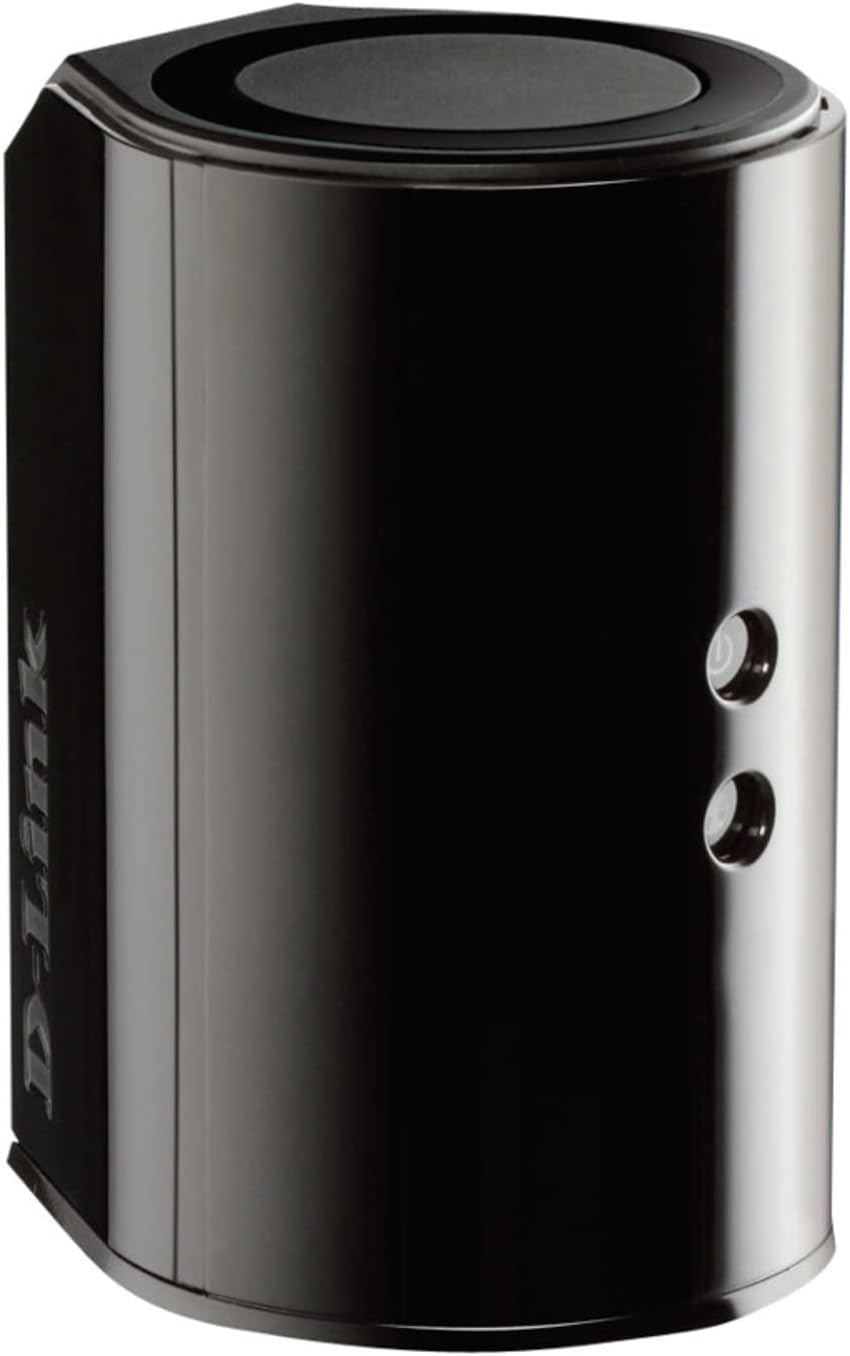
სურათი 3.3: უკანა View. Displays the back panel of the router, featuring the WAN (Internet) port, four LAN (Ethernet) ports, and the power input connector.
LED ინდიკატორები:
- დენის LED: Solid green indicates the router is powered on. Blinking green indicates a firmware upgrade or reset.
- ინტერნეტ LED: Solid green indicates a successful connection to the internet. Blinking green indicates data activity. Amber indicates no internet connection.
პორტები და ღილაკები:
- WAN (Internet) Port: ინტერნეტზე წვდომისთვის თქვენს მოდემს უკავშირდება.
- LAN პორტები (1-4): შეაერთეთ სადენიანი მოწყობილობები, როგორიცაა კომპიუტერები, სათამაშო კონსოლები ან ქსელური მეხსიერება.
- USB პორტი: Connect a USB storage device for network sharing.
- დენის კონექტორი: უერთდება თანდართულ კვების ადაპტერს.
- გადატვირთვის ღილაკი: დააჭირეთ და გააჩერეთ 10 წამის განმავლობაში ქარხნული ნაგულისხმევი პარამეტრების აღსადგენად.
- WPS ღილაკი: Initiates Wi-Fi Protected Setup for easy wireless connection of compatible devices.
4. დაყენება
Follow these steps to set up your D-Link DIR-850L router:
- როუტერის პოზიციონირება: მოათავსეთ თქვენი როუტერი სახლის ცენტრალურ ადგილას, დაბრკოლებებისა და მოწყობილობებისგან მოშორებით, რომლებმაც შეიძლება ხელი შეუშალონ მუშაობას (მაგ., უსადენო ტელეფონები, მიკროტალღური ღუმელები).
- მოდემთან დაკავშირება:
- გამორთე მოდემი.
- Connect one end of the provided Ethernet cable to the WAN (Internet) port on your DIR-850L router.
- Ethernet კაბელის მეორე ბოლო შეაერთეთ თქვენი მოდემის Ethernet პორტთან.
- ჩართვა:
- Power on your modem and wait for its indicator lights to stabilize (usually indicating an active internet connection).
- Connect the power adapter to the power connector on your DIR-850L router and plug it into a power outlet.
- Wait for the Power LED on the router to turn solid green. The Internet LED should also turn green, indicating a successful connection.
- შეაერთეთ მოწყობილობა:
- სადენიანი კავშირი: Connect an Ethernet cable from one of the LAN ports (1-4) on the router to your computer's Ethernet port.
- უკაბელო კავშირი: On your Wi-Fi enabled device (laptop, smartphone, tablet), search for available Wi-Fi networks. Select the network name (SSID) found on the Wi-Fi Configuration Card (usually a sticker on the bottom of the router) and enter the Wi-Fi password.
- გაუშვით დაყენების ოსტატი:
- გახსენით ა web browser (e.g., Chrome, Firefox) on the connected device.
- ტიპი
http://dlinkrouter.localor192.168.0.1მისამართის ზოლში შეიყვანეთ და დააჭირეთ Enter. - Follow the on-screen instructions of the D-Link Setup Wizard to configure your internet connection and personalize your Wi-Fi network name (SSID) and password.
Setup Video (General D-Link Router Overview):
Video 4.1: D-Link Wireless AC 1200 Mbps Home Cloud App-Enabled Dual-Band Gigabit Router Overview. ეს ვიდეო ზოგად წარმოდგენას გვიქმნისview of D-Link routers, including the DIR-850L, and highlights their features and target users. While not a step-by-step setup guide, it offers insights into the router's capabilities.
5. საოპერაციო ინსტრუქციები
Once your D-Link DIR-850L router is set up, you can manage and optimize your network.
დამაკავშირებელი მოწყობილობები:
- უსადენო: Use the Wi-Fi network name (SSID) and password you configured during setup to connect your wireless devices. The router supports both 2.4 GHz and 5 GHz bands.
- სადენიანი: Connect devices directly to the LAN ports using Ethernet cables for a stable, high-speed connection.
როუტერის პარამეტრებზე წვდომა:
To access advanced settings, open a web ბრაუზერი და გადადით http://dlinkrouter.local or 192.168.0.1. Log in with the administrator password you set during the initial setup. From here, you can:
- Wi-Fi პარამეტრების შეცვლა (SSID, პაროლი, უსაფრთხოების ტიპი).
- Configure guest Wi-Fi networks.
- დააყენეთ მშობელთა კონტროლი.
- დაკავშირებული მოწყობილობების მართვა.
- განაახლეთ firmware.
Using the USB Share Port:
Plug a USB storage device (e.g., flash drive, external hard drive) into the USB port on the router. You can then access and share files on this storage device across your network using the D-Link SharePort Mobile app or through network shares on your computer.
6. მოვლა
რეგულარული მოვლა უზრუნველყოფს თქვენი როუტერის ოპტიმალურ მუშაობას და მის ხანგრძლივ მუშაობას.
- გადატვირთვა: პერიოდულად გადატვირთეთ როუტერი (გამორთეთ კვების წყაროდან 10 წამით, შემდეგ ხელახლა შეაერთეთ) მისი მეხსიერების გასასუფთავებლად და ქსელური კავშირების განახლებისთვის. ამან შეიძლება მოაგვაროს მუშაობის მცირე პრობლემები.
- Firmware განახლებები: შეამოწმეთ D-Link-ის მხარდაჭერა website for firmware updates. Firmware updates can improve performance, add new features, and fix security vulnerabilities. Follow the instructions provided by D-Link carefully when performing updates.
- დასუფთავება: Keep the router clean and free from dust. Use a soft, dry cloth to wipe the exterior. Do not use liquid cleaners or aerosols. Ensure ventilation openings are not blocked.
- უსაფრთხოება: Regularly change your Wi-Fi password and router administrator password to enhance network security.
7. Დიაგნოსტიკა
If you encounter issues with your D-Link DIR-850L router, refer to the following common problems and solutions:
Არ არის ინტერნეტ კავშირი:
- შეამოწმეთ კაბელები: დარწმუნდით, რომ ყველა Ethernet კაბელი საიმედოდ არის დაკავშირებული როუტერთან და მოდემთან.
- მოდემის სტატუსი: დარწმუნდით, რომ თქვენი მოდემი სწორად მუშაობს და აქტიური ინტერნეტ კავშირი აქვს.
- გადატვირთვის თანმიმდევრობა: გამორთეთ მოდემი, შემდეგ კი როუტერი. დაელოდეთ 30 წამი და შემდეგ ჯერ ჩართეთ მოდემი. როგორც კი მოდემი სრულად დაუკავშირდება ინტერნეტს, ჩართეთ როუტერი.
- ISP Contact: If the issue persists, contact your Internet Service Provider (ISP) to confirm service status.
ნელი Wi-Fi სიჩქარე:
- როუტერის განლაგება: როუტერი გადაიტანეთ უფრო ცენტრალურ ადგილას, დაბრკოლებებისა და ჩარევის წყაროებისგან მოშორებით.
- არხის ჩარევა: შედით როუტერში web interface and try changing the Wi-Fi channel for both 2.4 GHz and 5 GHz bands to a less congested one.
- დაკავშირებული მოწყობილობები: Disconnect unused devices from your network.
- Firmware: დარწმუნდით, რომ თქვენი როუტერის პროგრამული უზრუნველყოფა განახლებულია.
Wi-Fi-თან დაკავშირება შეუძლებელია:
- სწორი პაროლი: Double-check that you are entering the correct Wi-Fi password (case-sensitive).
- SSID მაუწყებლობა: Ensure the router is broadcasting its Wi-Fi network name (SSID).
- WPS: If your device supports WPS, try using the WPS button on the router to connect.
- როუტერის გადატვირთვა: As a last resort, perform a factory reset (see Hardware Overview) and reconfigure the router.
8. სპეციფიკაციები
| ფუნქცია | აღწერა |
|---|---|
| მოდელის სახელი | DIR-850L |
| უკაბელო ტიპი | 802.11ac (backward compatible with 802.11a/b/g/n) |
| სიხშირის ჯგუფის კლასი | ორმაგი სიხშირე (2.4 გჰც და 5 გჰც) |
| უკაბელო სიჩქარე | 300 Mbps-მდე (2.4 GHz), 867 Mbps-მდე (5 GHz) |
| Ethernet პორტები | 4 გიგაბიტიანი ლოკალური ქსელი, 1 გიგაბიტიანი WAN |
| USB პორტი | 1 x USB 2.0 (for SharePort) |
| ანტენის ტიპი | შიდა |
| ოპერაციული სისტემის თავსებადობა | Windows® 8, 7, Vista®, XP SP2, or Mac OS® X (v10.4 or higher) |
| ზომები (LxWxH) | 4.45 x 3.43 x 5.72 ინჩი |
| ნივთის წონა | 9.9 უნცია (0.62 ფუნტი) |
| ფერი | შავი |
9. გარანტია და მხარდაჭერა
D-Link-ის პროდუქტებს აქვს შეზღუდული გარანტია. კონკრეტული გარანტიის პირობებისთვის, გთხოვთ, იხილოთ თქვენს პროდუქტთან ერთად მოცემული გარანტიის ინფორმაცია ან ეწვიოთ D-Link-ის ოფიციალურ ვებგვერდს. webსაიტი.
For technical support, product registration, and access to the latest drivers, firmware, and user manuals, please visit the D-Link support portal:
D-Link მხარდაჭერა Webსაიტი: www.dlink.com/support
You may also find helpful resources and community forums on the D-Link webსაიტი.


