შესავალი
The Hyperkin RetroN 5 is a high-definition gaming console designed to play cartridges from multiple retro gaming systems. This manual provides essential information for setting up, operating, and maintaining your RetroN 5 console.
Supported systems include NES, SNES, Super Famicom, Genesis, Mega Drive, Famicom, Game Boy, Game Boy Color, and Game Boy Advance. Master System games can also be played with the use of a Power Base Converter (sold separately).
პაკეტის შიგთავსი
- RetroN 5 HD Gaming Console
- უკაბელო Bluetooth კონტროლერი
- HDMI კაბელი
- ცვლადი დენის ადაპტერი ურთიერთშემცვლელი შტეფსელებით
- კონტროლერის USB დამტენი კაბელი
პროდუქტი დასრულდაview
The RetroN 5 console features multiple cartridge slots and controller ports to accommodate various retro gaming hardware.
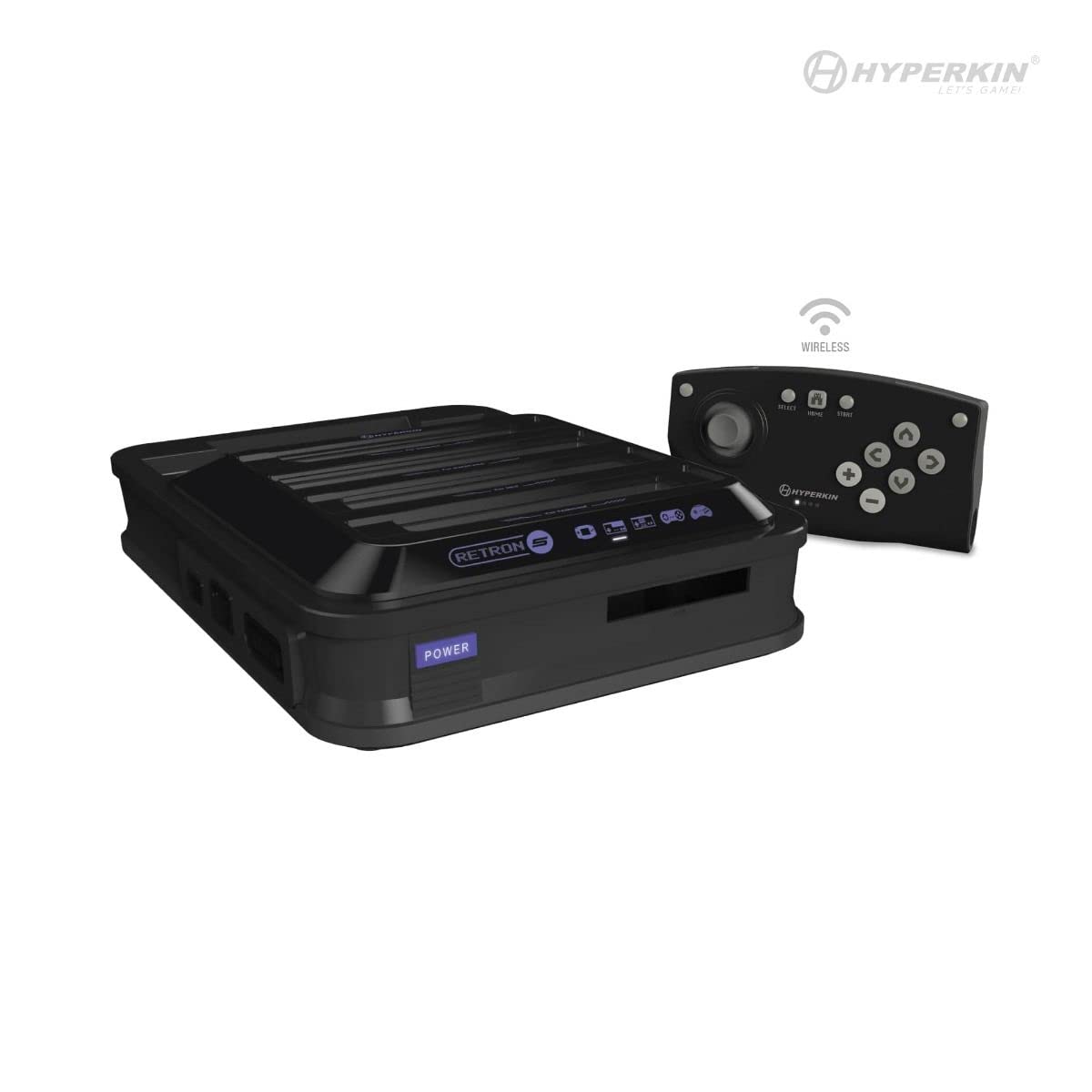
სურათი: წინა მხარე view of the Hyperkin RetroN 5 console and its included wireless controller. The console features multiple cartridge slots on top and front.
წინა და ზედა პანელი
- Cartridge Slots: Dedicated slots for NES, SNES, Super Famicom, Genesis, Mega Drive, Famicom, Game Boy, Game Boy Color, and Game Boy Advance cartridges.
- დენის ღილაკი: კონსოლის ჩასართავად ან გამოსართავად.
უკანა პანელი

სურათი: უკანა view of the Hyperkin RetroN 5 console, displaying the HDMI output, AC power input, USB port, and SD card slot.
- HDMI გამომავალი: Connects to your television or display for high-definition video and audio.
- AC შეყვანა: კვების ადაპტერის დასაკავშირებლად.
- USB პორტი: For various accessories or future updates.
- SD ბარათის სლოტი: For saving game states, backups, and system updates.
გვერდითი პანელები
- Controller Ports: Dedicated ports for original NES, SNES, and Genesis controllers.
დაყენება
- დაკავშირება ეკრანთან: Connect one end of the HDMI cable to the HDMI Output port on the back of the RetroN 5 and the other end to an HDMI input on your television or monitor.
- დაკავშირება ძალა: Insert the appropriate regional plug into the AC power adapter. Connect the power adapter to the AC Input port on the back of the RetroN 5, then plug the adapter into a wall outlet.
- Charge/Pair Controller: Connect the included wireless controller to the console using the USB charging cable. The controller will charge and automatically pair with the console. Once charged, it can be used wirelessly.
- Insert Game Cartridge: Carefully insert a compatible game cartridge into its corresponding slot on the console. Ensure the cartridge is fully seated.
- ჩართვა: Press the Power button on the front of the console. Select the correct HDMI input on your television.
ოპერაციული ინსტრუქციები
თამაშების თამაში
- After powering on, the console will detect the inserted cartridge and display the game's information on screen.
- Select 'Play Game' from the on-screen menu to begin.
- The RetroN 5 allows for various video and audio enhancements, which can be adjusted through the system's settings menu.
Saving Game Progress
The RetroN 5 supports multiple methods for saving game progress:
- თამაშში შენახული შენახვები: Utilize the game's original save functionality, which will save directly to the cartridge.
- შეინახეთ შტატები: The console can create save states at any point during gameplay, stored on the system's internal memory or an inserted SD card.
- Save Backups: You can back up save files from a cartridge to the system memory or an SD card, and transfer save files from an SD card back to a cartridge.
კარტრიჯის ამოღება
To prevent damage to cartridges or the console, always remove cartridges by holding the console firmly with your right hand and gently pulling the cartridge from the top right side with your left hand. Avoid forcing the cartridge out.
Using Original Controllers
Original NES, SNES, and Genesis controllers can be connected to their respective ports on the side of the console for an authentic gaming experience.
მოვლა
- Cleaning Cartridges: Ensure game cartridge contacts are clean before insertion to prevent reading errors. Use a cotton swab with isopropyl alcohol if necessary.
- Cleaning Console Slots: Periodically inspect and gently clean the console's cartridge slots with compressed air or a specialized cleaning kit.
- პროგრამული განახლებები: Check the Hyperkin official website for any available firmware updates. Updates can be installed via an SD card.
- ზოგადი წმენდა: Wipe the console's exterior with a soft, dry cloth. Avoid using harsh chemicals or abrasive materials.
პრობლემების მოგვარება
- კონსოლი არ ირთვება: Ensure the AC power adapter is securely connected to both the console and a working wall outlet.
- ვიდეო/აუდიო გამომავალი არ არის: Verify the HDMI cable is correctly connected to both the console and the display. Ensure your television is set to the correct HDMI input.
- Game Cartridge Not Reading: Remove and reinsert the cartridge. Ensure the cartridge contacts are clean. Try a different cartridge to rule out a cartridge-specific issue.
- Wireless Controller Not Responding: Ensure the controller is charged. Reconnect it via USB to re-pair if necessary.
- Tight Cartridge Removal: This is a known characteristic. Refer to the 'Cartridge Removal' section under Operating Instructions for the recommended method.
სპეციფიკაციები
| მოდელის ნომერი | M01688-BK |
| პროდუქტის ზომები | 13 x 3 x 14 ინჩი |
| ნივთის წონა | 4.01 ფუნტი |
| თავსებადობა | NES, SNES, Super Famicom, Genesis, Mega Drive, Famicom, Game Boy, Game Boy Color, GBA (Master System with Power Base Converter) |
| გამომავალი | HDMI |
| დენის წყარო | AC ადაპტერი |
| კონტროლერი | Wireless Bluetooth (1 Lithium Ion battery required) |
საგარანტიო ინფორმაცია
For detailed warranty information, please refer to the official Hyperkin webსაიტზე ან თქვენს პროდუქტს თანდართული გარანტიის ბარათიდან. გარანტიის პირობები შეიძლება განსხვავდებოდეს რეგიონის მიხედვით.
მხარდაჭერა
დამატებითი დახმარებისთვის, ტექნიკური მხარდაჭერისთვის ან view frequently asked questions, please visit the official Hyperkin support website or contact their customer service department. Contact information can typically be found on the Hyperkin webადგილზე ან პროდუქტის შეფუთვაზე.


