1. შესავალი
This manual provides essential information for setting up, operating, maintaining, and troubleshooting your new CYBERPOWERPC Luxe Gaming PC. Please read this guide thoroughly before using your system to ensure optimal performance and longevity.
The CYBERPOWERPC Luxe Gaming PC is a high-performance desktop computer designed for gaming and demanding applications. It features an Intel Core i7-12700KF processor, Nvidia GeForce RTX 4060 Ti graphics, 32GB DDR5 RAM, and a 1TB NVMe SSD, all housed in a CyberpowerPC Prism Mid Tower case with advanced cooling.
2. სისტემის დაყენება
2.1 ყუთის ამოღება
Carefully remove the PC from its packaging. Retain all packaging materials for future transport or warranty claims. Ensure all accessories, such as power cables, documentation, and any included peripherals, are present.
2.2 პერიფერიული მოწყობილობების შეერთება
ჩართვამდე შეაერთეთ თქვენი ძირითადი პერიფერიული მოწყობილობები:
- მონიტორი: Connect your monitor to the graphics card's DisplayPort or HDMI output. Ensure the cable is securely fastened.
- კლავიატურა და მაუსი: Connect your keyboard and mouse to the available USB ports on the rear or top of the PC.
- აუდიო: Connect speakers or headphones to the audio output jacks on the rear or front panel.
- ქსელი: For a wired connection, connect an Ethernet cable to the RJ45 port. For wireless, ensure the Wi-Fi antenna (if included) is attached.

სურათი 2.2.1: წინა view of the CYBERPOWERPC Luxe Gaming PC. This image displays the tempered glass side panel, internal components with RGB lighting, and the overall design of the PC tower.
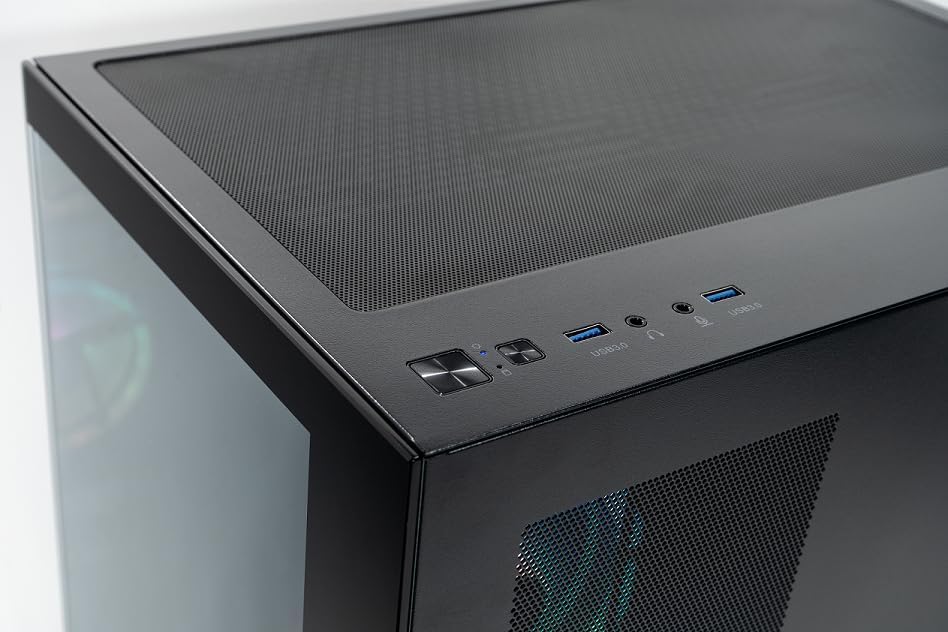
Image 2.2.2: Top panel of the CYBERPOWERPC Luxe Gaming PC. This image highlights the power button, reset button, two USB 3.0 ports, and audio input/output jacks located on the top of the PC case for easy access.
2.3 დენის კავშირი
Connect the provided power cable to the power supply unit (PSU) input on the rear of the PC, then plug the other end into a grounded electrical outlet.
3. საოპერაციო ინსტრუქციები
3.1 ჩართვა/გამორთვა
- ჩართვა: დააჭირეთ კომპიუტერის ზედა პანელზე მდებარე ჩართვის ღილაკს.
- გამორთვა: From the Windows 11 desktop, click the Start button, then select Power > Shut down. Avoid direct power-off unless necessary to prevent data loss.
3.2 Initial Boot and Windows 11 Setup
Upon first power-on, the system will guide you through the Windows 11 Home setup process. Follow the on-screen instructions to configure your region, language, network, and user account.
3.3 ქსელთან დაკავშირება
- სადენიანი (Ethernet): Once the Ethernet cable is connected, Windows 11 should automatically detect and connect to the network.
- უსადენო (Wi-Fi): After Windows 11 setup, click the Wi-Fi icon in the taskbar, select your network, and enter the password. The system supports 1200Mbps 802.11ac Wi-Fi.
4. Key Components and Features
Your CYBERPOWERPC Luxe Gaming PC is equipped with the following core components:
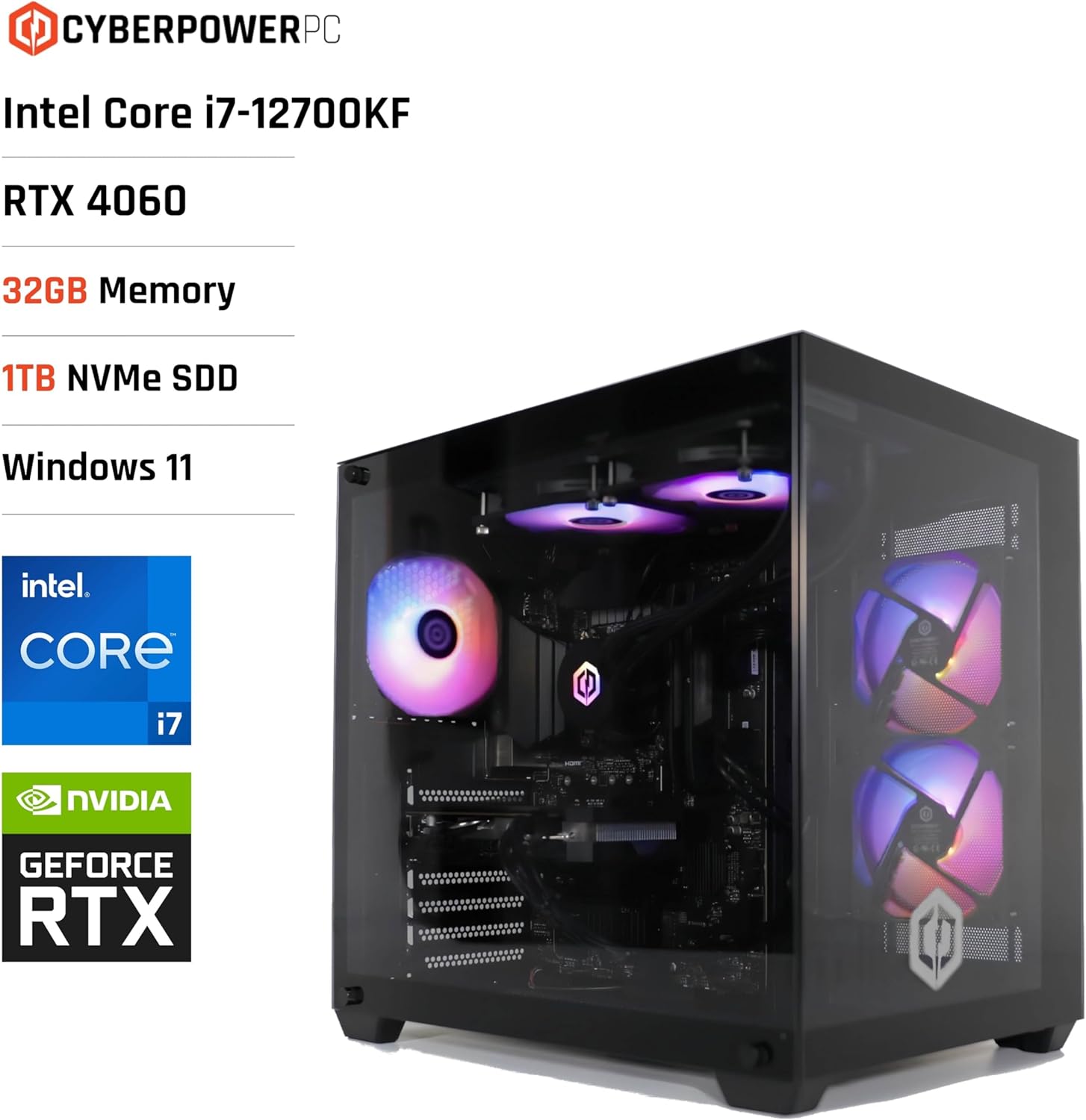
Image 4.1: CYBERPOWERPC Luxe Gaming PC with specifications. This image visually presents the PC alongside text overlays indicating its Intel Core i7-12700KF processor, RTX 4060 graphics, 32GB Memory, 1TB NVMe SSD, and Windows 11 operating system.
- პროცესორი: Intel Core i7-12700KF (12 cores, 20 threads, up to 5.00GHz boost, 25MB cache).
- გრაფიკული ბარათი: Nvidia GeForce RTX 4060 Ti with 8GB GDDR6X memory. Supports DisplayPort v1.4a and HDMI 2.1.
- ოპერატიული მეხსიერება: 32GB 5200MHz DDR5 RAM.
- შენახვა: 1TB M.2 NVMe Solid State Drive for fast boot times and application loading.
- დედაპლატა: Intel Z790 chipset motherboard.
- ელექტრომომარაგება: 650W 80+ certified gaming power supply.
- გაგრილება: 240mm all-in-one CPU water cooler and 6x RGB LED fans for efficient thermal management.
- ოპერაციული სისტემა: Windows 11 Home (64-bit) pre-installed.
- დაკავშირება:
- 4x USB 3.1 პორტი
- 2x USB 2.0 პორტი
- 1x PS/2 KB or mouse port
- 1x RJ45 Ethernet LAN (10/100/1000)
- 1200Mbps 802.11ac Wi-Fi / WLAN
- 7.1-არხიანი მაღალი გარჩევადობის აუდიო

სურათი 4.2: უკანა view of the CYBERPOWERPC Luxe Gaming PC. This image details the various input/output ports available on the back panel, including USB ports, Ethernet, audio jacks, and video outputs from the graphics card.

Image 4.3: Nvidia GeForce RTX logo. This image represents the powerful graphics processing unit integrated into the system.
5. მოვლა
Regular maintenance helps ensure the longevity and performance of your PC.
- მტვრისგან გაწმენდა: Periodically clean dust from the case fans, CPU cooler, and graphics card heatsink using compressed air. Ensure the PC is powered off and unplugged before cleaning.
- პროგრამული განახლებები: Keep your Windows operating system, drivers (especially graphics drivers), and applications updated to the latest versions for security and performance improvements.
- ვენტილაცია: Ensure the PC is placed in a well-ventilated area, free from obstructions that could block airflow to the intake and exhaust vents.
- საკაბელო მენეჯმენტი: Organize internal and external cables to improve airflow and prevent accidental disconnections.
6. Დიაგნოსტიკა
ეს განყოფილება განიხილავს გავრცელებულ პრობლემებს, რომლებსაც შეიძლება წააწყდეთ.
6.1 ძალა არ არის
- Check if the power cable is securely connected to both the PC and the wall outlet.
- Verify the power switch on the PSU (located at the rear of the PC) is in the 'ON' position.
- Test the outlet with another device to ensure it is functional.
6.2 მონიტორზე ეკრანი არ ჩანს
- Ensure the monitor is powered on and the video cable (HDMI/DisplayPort) is securely connected to the graphics card outputs, not the motherboard's integrated video ports.
- თუ შესაძლებელია, სცადეთ სხვა ვიდეო კაბელი ან მონიტორი.
- Confirm the correct input source is selected on your monitor.
6.3 ქსელთან დაკავშირების პრობლემები
- სადენიანი კავშირებისთვის, შეამოწმეთ Ethernet კაბელის და როუტერის სტატუსი.
- For Wi-Fi, ensure the Wi-Fi adapter is enabled in Windows settings and you are connected to the correct network with the correct password.
- გადატვირთეთ თქვენი როუტერი/მოდემი და კომპიუტერი.
6.4 სისტემის მუშაობის პრობლემები
- დარწმუნდით, რომ ყველა დრაივერი, განსაკუთრებით გრაფიკული დრაივერები, განახლებულია.
- შეამოწმეთ, არის თუ არა ფონურ რეჟიმში მომუშავე აპლიკაციები, რომლებიც ზედმეტ რესურსებს მოიხმარენ დავალებების მენეჯერის გამოყენებით (Ctrl+Shift+Esc).
- Verify that the system is not overheating. Monitor CPU and GPU temperatures using appropriate software.
7. ტექნიკური მახასიათებლები
| კომპონენტი | სპეციფიკაცია |
|---|---|
| ბრენდი | CyberpowerPC |
| ოპერაციული სისტემა | Windows 11 Home (64-bit) |
| CPU მოდელი | Intel Core i7-12700KF |
| CPU სიჩქარე | 3.6 GHz (Base), up to 5.0 GHz (Boost) |
| CPU Cores/Threads | 12 ბირთვი (8 მაღალი ხარისხის, 4 ეფექტური) / 20 ნაკადი |
| ქეშის ზომა | 25 მბ |
| გრაფიკული ბარათი | Nvidia GeForce RTX 4060 Ti 8GB GDDR6X |
| ოპერატიული მეხსიერება | 32 GB 5200 MHz DDR5 |
| შენახვა | 1 ტბ M.2 NVMe SSD |
| Motherboard Chipset | Intel Z790 |
| ელექტრომომარაგება | 650W 80+ Gaming PSU |
| გაგრილება | 240mm All-in-One CPU Water Cooler, 6x RGB LED Fans |
| Wi-Fi | 1200Mbps 802.11ac WLAN |
| Ethernet | 10/100/1000 Gigabit LAN |
| აუდიო | 7.1-არხიანი მაღალი გარჩევადობის აუდიო |
| USB პორტები | 4x USB 3.1, 2x USB 2.0 |
| საქმის ტიპი | CyberpowerPC Prism Mid Tower |
| სპეციფიკური გამოყენება | თამაშები |
8. გარანტია და მხარდაჭერა
Your CYBERPOWERPC Luxe Gaming PC comes with the following warranty and support:
- კომპონენტის გარანტია: 2 years for components.
- Manufacturing Warranty: 3 years for manufacturing defects.
- ტექნიკური მხარდაჭერა: სიცოცხლის ტექნიკური მხარდაჭერა.
- პროგრამული უზრუნველყოფა: Includes 1 Year Norton 360 VPN & Security for Gamers.
For technical assistance or warranty claims, please contact CyberpowerPC customer support through their official webსაიტი ან თქვენი პროდუქტის დოკუმენტაციაში მოცემული საკონტაქტო ინფორმაცია.


