1. შესავალი
The Microsoft Surface Go Alcantara Signature Type Cover is designed to enhance the functionality of your Surface Go device, transforming it into a versatile laptop experience. This ultra-slim accessory features a full-mechanical keyset, backlit keys, and a large glass trackpad, providing a comfortable and precise input solution. The Alcantara material offers a luxurious feel while being durable and stain-resistant.
This manual provides essential information on setting up, operating, maintaining, and troubleshooting your Type Cover to ensure optimal performance.
2. დაყენება და კავშირი
The Surface Go Signature Type Cover connects magnetically to your Surface Go device, allowing for instant attachment and detachment.
2.1 Attaching the Type Cover
- Align the magnetic connector on the Type Cover with the corresponding port at the bottom edge of your Surface Go.
- Gently bring the Type Cover closer to the Surface Go until the magnets engage and the cover clicks into place.
- Ensure the connection is secure. The Surface Go will automatically detect the Type Cover.

Image: The Microsoft Surface Go tablet with the Alcantara Signature Type Cover securely attached, demonstrating its use as a laptop.
3. ტიპის საფარის გამოყენება
3.1 Keyboard Functionality
The Type Cover features a full-mechanical keyset with optimal spacing for fast and fluid typing. It includes standard QWERTY layout keys, function keys (F1-F12), and dedicated media control keys.
- განათებული ღილაკები: The keyboard backlight can be adjusted through multiple levels. Use the dedicated backlight key (often an F-key with a sun icon) to cycle through brightness settings or turn it off.
- ფუნქციის გასაღების დაბლოკვა: The Fn key often has a lock feature (indicated by an LED) to switch between standard F-key functions and media/shortcut functions.
3.2 Trackpad Usage
The extra-large glass trackpad provides precise control and navigation. It supports multi-touch gestures for enhanced productivity.
- ერთი თითის შეხება: დააწკაპუნეთ მარცხნივ.
- ორი თითით შეხება: დააწკაპუნეთ მარჯვენა ღილაკით.
- ორი თითის გადახვევა: გადაახვიეთ დოკუმენტებს ან web გვერდები.
- მასშტაბირება თითებით: კონტენტის მასშტაბირება გადიდება ან დაპატარავება.
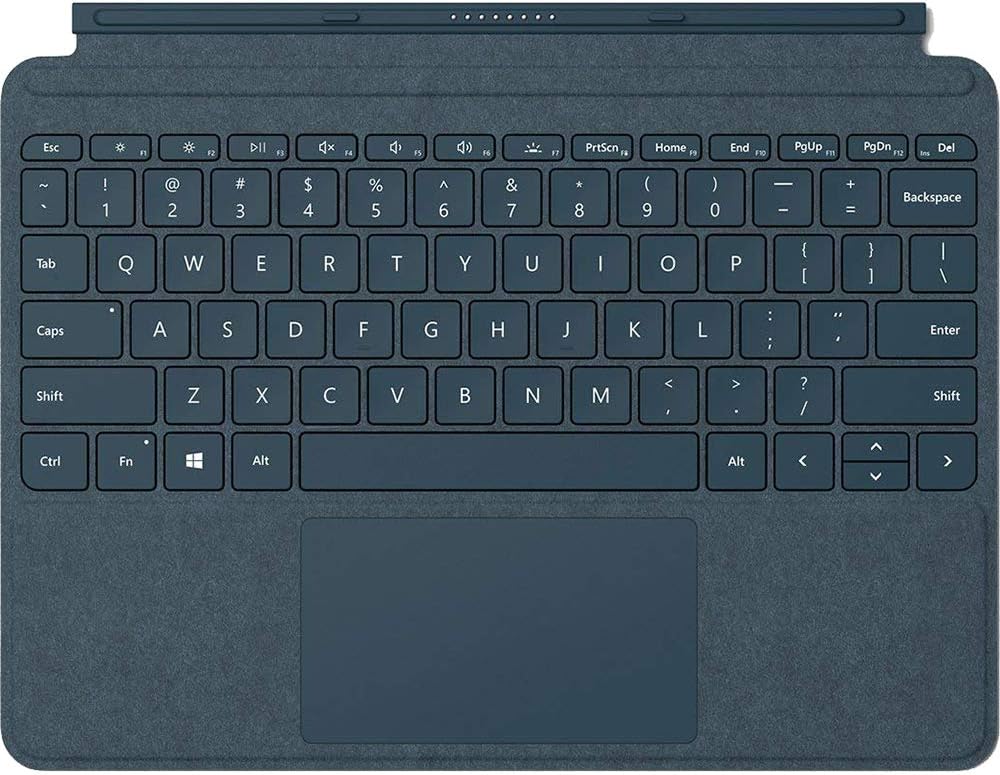
სურათი: ახლო ხედი, ზემოდან ქვემოთ view of the Cobalt Blue Alcantara Signature Type Cover, highlighting the full keyboard layout and the integrated trackpad.
3.3 გამოყენების რეჟიმები
- ლეპტოპის რეჟიმი: Open the Type Cover and use the Surface Go Kickstand to position your device for a traditional laptop experience.
- ტაბლეტის რეჟიმი: Fold the Type Cover completely back behind the Surface Go. The keyboard keys will automatically disable to prevent accidental input.
- დაცვის რეჟიმი: Close the Type Cover over the Surface Go display to protect the screen and conserve battery life.
4. მოვლა და მოვლა
To maintain the appearance and functionality of your Alcantara Signature Type Cover, follow these care instructions:
- ალკანტარას მასალის გაწმენდა: გამოიყენეთ რბილი, უბინავის ქსოვილი დampened with water or a mild soap solution. Gently wipe the surface. Avoid harsh chemicals or abrasive cleaners.
- Cleaning the Keys and Trackpad: Use a soft, dry cloth to wipe dust and smudges. For stubborn marks, a slightly dampened cloth can be used, ensuring no liquid enters the key gaps.
- შენახვა: When not in use, keep the Type Cover attached to your Surface Go or store it in a clean, dry environment to prevent dust accumulation.
5. Დიაგნოსტიკა
If you encounter issues with your Surface Go Signature Type Cover, consider the following:
- Keyboard/Trackpad Not Responding:
- Ensure the Type Cover is securely attached to the Surface Go. Detach and reattach it.
- Restart your Surface Go device.
- Check for any pending Windows updates that might include driver updates for accessories.
- უკანა განათება არ მუშაობს:
- Press the backlight adjustment key (often F1 or F2 with a sun icon) to cycle through brightness levels.
- Ensure your Surface Go's battery is not critically low, as backlight functionality might be reduced to conserve power.
- Accidental Input in Tablet Mode:
- Ensure the Type Cover is folded completely back. The keys should automatically disable. If not, detach and reattach the cover, or restart the Surface Go.
For further assistance, refer to the official Microsoft Surface support webსაიტი.
6. სპეციფიკაციები
| მოდელის ნომერი | KCS-00021 |
| ბრენდი | მაიკროსოფტი |
| ფერი | კობალტის ლურჯი |
| მასალა | Alcantara (on select covers), Microfiber (for Black) |
| ინტერფეისი | მაგნიტური |
| სენსორი | აქსელერომეტრი |
| Trackpad Dimensions | 99.2 mm x 56.5 mm (height) |
| ნივთის წონა | 8.6 უნცია (დაახლოებით 244 გრამი) |
| პროდუქტის ზომები (LxWxH) | 7.48 x 9.77 x 0.18 ინჩი (დაახლოებით 19 x 24.8 x 0.46 სმ) |
| თავსებადი მოწყობილობები | Surface Go, Surface Go 2, Surface Go 3 |
| სპეციალური ფუნქცია | Backlighting (Single Color) |
7. გარანტია და მხარდაჭერა
This Microsoft Surface Go Alcantara Signature Type Cover is covered by Microsoft's standard limited warranty. For detailed warranty information, including terms, conditions, and how to make a claim, please refer to the official Microsoft support webსაიტზე ან თქვენს შენაძენთან ერთად მოწოდებულ საგარანტიო დოკუმენტაციაში.
For technical support, driver updates, or additional assistance, visit the official Microsoft Surface support page:


