1. შესავალი
The Modecom Oberon Pro Midi Tower is a computer case designed for users seeking a functional and spacious interior with a modern aesthetic. This manual provides essential information for the proper installation, operation, and maintenance of your computer case, ensuring optimal performance and longevity of your components.
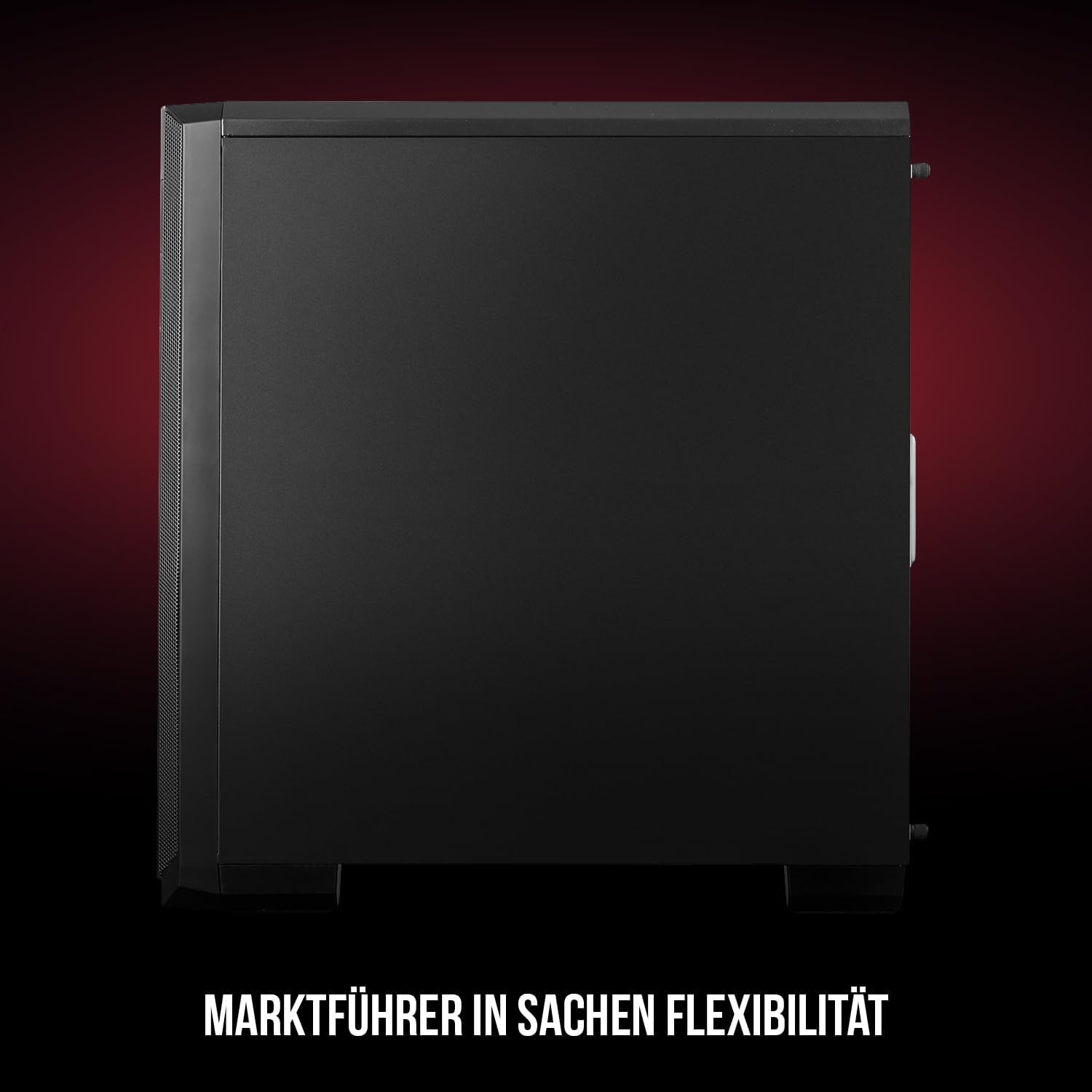
სურათი 1: წინა და გვერდითი view of the Modecom Oberon Pro Midi Tower computer case.
2. უსაფრთხოების ინფორმაცია
- ნებისმიერი კომპონენტის დამონტაჟებამდე ან მოხსნამდე ყოველთვის გამორთეთ დენის წყარო კედლის როზეტიდან.
- Handle components with care to avoid electrostatic discharge. Consider using an anti-static wrist strap.
- შეინახეთ პატარა ნაწილები და ხელსაწყოები ბავშვებისგან შორს.
- გადახურების თავიდან ასაცილებლად, უზრუნველყავით კორპუსის გარშემო სათანადო ვენტილაცია.
- Do not attempt to modify the case structure, as this may void your warranty and pose safety risks.
3. პაკეტის შიგთავსი
Verify that all the following items are present in your package:
- Modecom Oberon Pro Midi Tower Computer Case
- Accessory box (screws, standoffs, cable ties)
- მომხმარებლის სახელმძღვანელო (ეს დოკუმენტი)
4. ძირითადი მახასიათებლები
- ფართო ინტერიერი: Designed to accommodate high-end components and facilitate good airflow.
- ეფექტური გაგრილება: Includes two pre-mounted 120mm fans (front and rear) to prevent component overheating.
- ინსტალაცია ხელსაწყოების გარეშე: Supports tool-free mounting for SSD/HDD drives and expansion cards.
- Dust Filtration: Features easily dismountable magnetic filters on the top, front, and bottom (under the power supply unit) to keep the interior clean.
- ოპტიმიზებული კაბელების მართვა: Provides a system for convenient wiring organization.
- Long PSU Tunnel: Offers a 240mm space for power supplies, simplifying installation and cable arrangement.
5. დაყენება და ინსტალაცია
5.1. საქმის მომზადება
Before installation, remove the side panels of the case. The Oberon Pro features sound-dampening mats on the side panels to reduce noise.

სურათი 2: ინტერიერი view showing sound-dampening mats on the side panel.
5.2. დედაპლატის მონტაჟი
Install the necessary standoffs for your motherboard form factor (ATX, Micro ATX, ITX). Carefully place your motherboard into the case, aligning it with the standoffs, and secure it with screws.

Figure 3: Interior layout with pre-installed rear fan and motherboard tray.
5.3. Drive Installation (SSD/HDD)
The Oberon Pro supports tool-free installation for three 2.5" SSDs and two 3.5" HDDs. The 3.5" HDD bays are located in the power supply tunnel at the bottom of the case. 2.5" SSDs can be mounted on both sides of the motherboard tray.

Figure 4: Dedicated bays for HDD and SSD storage devices.
5.4. კვების წყაროს მონტაჟი
The case features a long PSU tunnel (240mm) at the bottom. Install your power supply unit into this tunnel and secure it. This design aids in cable management and airflow.
5.5. Expansion Card Installation (PCI/PCIe)
Install your graphics card or other expansion cards into the PCI/PCIe slots. The case supports tool-free mounting for these cards, allowing for easy installation and removal.
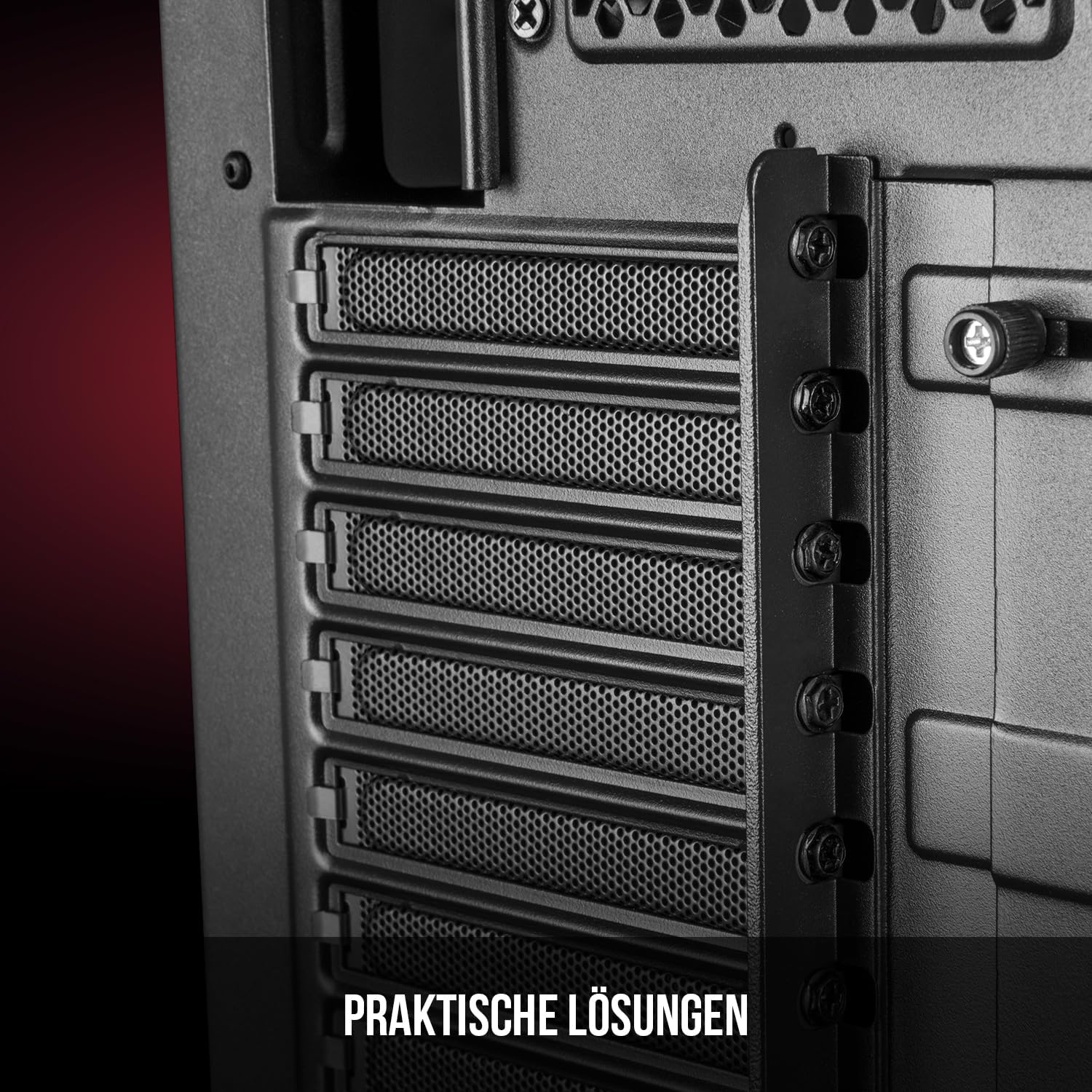
სურათი 5: უკანა ინტერიერი view highlighting the expansion card slots.
5.6. კაბელის მენეჯმენტი
Utilize the provided cable routing options and tie-down points behind the motherboard tray to organize cables. This improves airflow and maintains a tidy interior.
6. გაგრილების სისტემა
The Oberon Pro comes with two pre-installed 120mm fans, one at the front and one at the rear, to ensure adequate airflow. The maximum height for a CPU cooler is 163mm, and the maximum length for a video card is 395mm, allowing for compatibility with a wide range of components.
7. მოვლა
To maintain optimal performance and prevent dust buildup, regularly clean the dust filters. The magnetic filters on the top, front, and bottom of the case are easily dismountable for cleaning. Use compressed air or a soft brush to remove accumulated dust.
8. Დიაგნოსტიკა
- ძალა არ არის: Ensure all power cables are securely connected to the motherboard, power supply, and wall outlet. Check the power button connection to the motherboard.
- გადახურება: Verify that all fans are spinning correctly and that dust filters are clean. Ensure proper cable management to avoid obstructing airflow.
- წინა პანელის პორტები არ მუშაობს: Check that the front panel connectors (USB, audio) are correctly plugged into the motherboard headers.
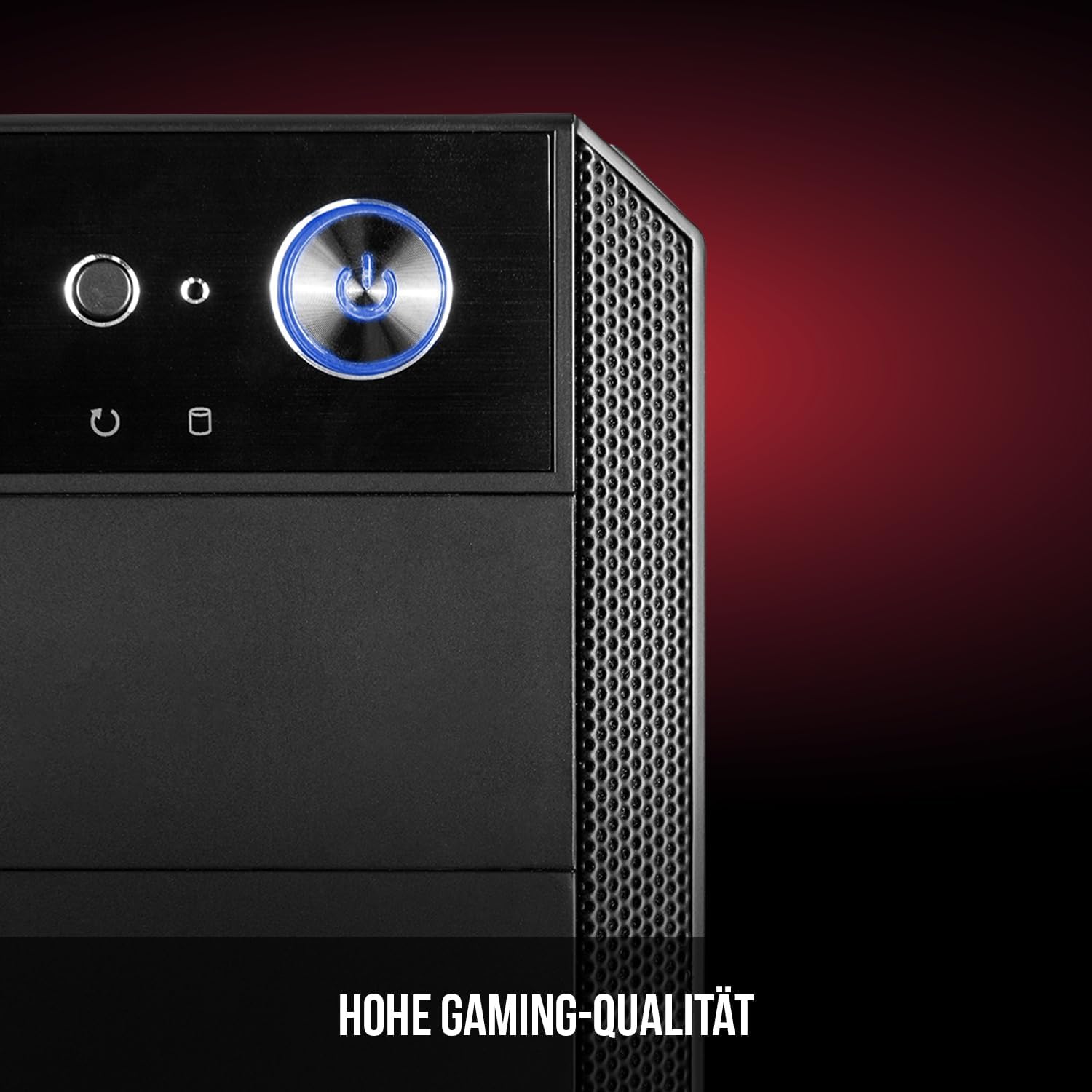
Figure 6: Front panel I/O ports for connectivity.
9. სპეციფიკაციები
| ფუნქცია | სპეციფიკაცია |
|---|---|
| ბრენდი | მოდეკომი |
| მოდელის სახელი | Oberon Pro |
| მოდელის ნომერი | AT-OBERON-PS-10-000000-0002 |
| ფერი | შავი |
| საქმის ტიპი | Midi Tower |
| დედაპლატის თავსებადობა | ATX, მიკრო ATX, ITX |
| მასალა | შენადნობის ფოლადი |
| გაგრილების მეთოდი | ჰაერი |
| წინასწარ დაინსტალირებული ფანები | 2 x 120mm (Front, Rear) |
| CPU გამაგრილებლის მაქსიმალური სიმაღლე | 163 მმ |
| მაქსიმალური GPU სიგრძე | 395 მმ |
| Drive Bays | 3 x 2.5" SSD, 2 x 3.5" HDD |
| სულ USB პორტები | 4 |
| განსაკუთრებული თვისებები | Reset Button, Dust Filter, LED Indicators, Side Window |
| ნივთის წონა | 5270 გრამი |

Figure 7: Rear exterior view of the computer case.
10. გარანტია და მხარდაჭერა
For warranty information and technical support, please refer to the official Modecom webსაიტზე ან დაუკავშირდით თქვენს საცალო მოვაჭრეს. შეინახეთ შეძენის დამადასტურებელი საბუთი გარანტიის ნებისმიერი მოთხოვნისთვის.


