1. შესავალი
This manual provides comprehensive instructions for the installation, operation, and maintenance of your Intel 3168NGW Dual Band Wireless-AC 3168 WiFi Card. Please read this manual thoroughly before installation and use to ensure proper functionality and to prevent damage.
The Intel 3168NGW is a compact M.2 2230 form factor card designed to provide high-speed 802.11ac Wi-Fi and Bluetooth 4.2 connectivity to compatible systems.
2. უსაფრთხოების ინფორმაცია
- ნებისმიერი შიდა კომპონენტის დაყენებამდე ან ამოღებამდე ყოველთვის გამორთეთ კომპიუტერიდან კვება.
- Handle the card by its edges to avoid touching the gold connectors or sensitive components. Electrostatic discharge (ESD) can damage the card.
- Ensure proper grounding when working inside your computer.
- Keep the card away from moisture and extreme temperatures.
- This product is intended for installation by qualified personnel.
3. პაკეტის შიგთავსი
დარწმუნდით, რომ თქვენს პაკეტში ყველა ნივთია:
- Intel 3168NGW Dual Band Wireless-AC 3168 WiFi Card
- (Antennas and mounting screw may be included depending on retailer/kit)
4. დაყენება და ინსტალაცია
This section outlines the general steps for installing the Intel 3168NGW WiFi Card. Specific steps may vary depending on your computer's make and model.
4.1. წინასწარი ინსტალაციის ჩამონათვალი
- Compatible M.2 2230 slot (Key E) on your motherboard or laptop.
- პატარა ფილიპსის თავიანი ხრახნიანი.
- ანტისტატიკური სამაჯური (რეკომენდებულია).
- Internet access (for driver download).
4.2. ინსტალაციის ეტაპები
- გამორთვა და გათიშვა: Shut down your computer completely and disconnect the power cord and any other peripherals.
- ღია კომპიუტერის კორპუსი: Open your computer's case or access panel to expose the motherboard. Refer to your computer's manual for specific instructions.
- იპოვეთ M.2 სლოტი: Identify an available M.2 2230 slot (often labeled "Key E" or "WiFi").
- Insert WiFi Card: Carefully align the Intel 3168NGW card with the M.2 slot. Insert the card at a slight angle (approximately 30 degrees) and gently push it into the slot until it is fully seated.
- დაიცავით ბარათი: Once seated, push the card down towards the motherboard. Secure it with the small screw provided with your computer or the card (if included).
- Attach Antennas (if applicable): If your system uses external antennas, carefully connect the antenna cables to the corresponding connectors on the WiFi card (Main and Aux). Ensure a secure connection.
- კომპიუტერის კორპუსის დახურვა: Replace the computer's access panel or close the case.
- ხელახლა შეაერთეთ დენი: Reconnect the power cord and other peripherals.
- ჩართვა: ჩართეთ თქვენი კომპიუტერი.
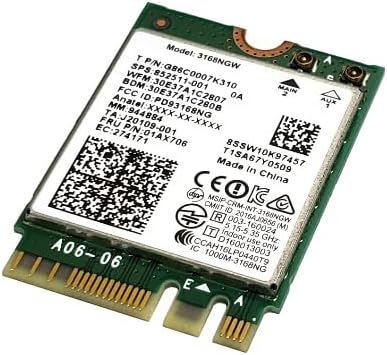
Image 1: Intel 3168NGW Dual Band Wireless-AC 3168 WiFi Card. This image displays the Intel 3168NGW WiFi card, an M.2 2230 form factor component. The card features a green PCB with a white label detailing the model number (3168NGW), part numbers (G86C0007K310, 852511-001), and regulatory information. Two small gold antenna connectors are visible at one end, labeled "MAIN" and "AUX". The M.2 connector pins are visible at the opposite end.
5. საოპერაციო ინსტრუქციები
5.1. დრაივერის ინსტალაცია
After physical installation, you will need to install the appropriate drivers for the WiFi and Bluetooth functionalities.
- საწყისი ჩატვირთვა: Upon booting your computer, the operating system may automatically detect the new hardware and attempt to install generic drivers.
- ჩამოტვირთეთ უახლესი დრაივერები: For optimal performance and stability, it is highly recommended to download the latest drivers directly from the official Intel support webსაიტი. ძიება "Intel Wireless-AC 3168 drivers" and "Intel Bluetooth 4.2 drivers".
- დრაივერების დაყენება: Run the downloaded driver installation packages and follow the on-screen prompts. You may need to restart your computer after installation.
- დაადასტურეთ ინსტალაცია: Open Device Manager (Windows) or System Information (macOS/Linux) to confirm that the Intel Wireless-AC 3168 and Bluetooth 4.2 devices are recognized and functioning correctly.
5.2. დაკავშირება Wi-Fi ქსელთან
- დარწმუნდით, რომ Wi-Fi ჩართულია თქვენი ოპერაციული სისტემის პარამეტრებში.
- დააწკაპუნეთ Wi-Fi ხატულაზე სისტემურ უჯრაში (Windows) ან მენიუს ზოლში (macOS).
- ხელმისაწვდომი ქსელების სიიდან აირჩიეთ სასურველი Wi-Fi ქსელი.
- შეიყვანეთ ქსელის პაროლი (საჭიროების შემთხვევაში) და დააჭირეთ ღილაკს "დაკავშირება".
5.3. Bluetooth მოწყობილობების დაწყვილება
- დარწმუნდით, რომ Bluetooth ჩართულია თქვენი ოპერაციული სისტემის პარამეტრებში.
- Put your Bluetooth device into pairing mode (refer to the device's manual).
- გადადით თქვენი კომპიუტერის Bluetooth პარამეტრებში და მოძებნეთ ახალი მოწყობილობები.
- აირჩიეთ თქვენი მოწყობილობა სიიდან და მიჰყევით ეკრანზე გამოტანილ ნებისმიერ მითითებას დაწყვილების პროცესის დასასრულებლად.
6. მოვლა
- დრაივერის განახლებები: Regularly check the Intel support website for updated drivers to ensure optimal performance and security.
- ფიზიკური შემოწმება: Periodically inspect the card and antenna connections for any signs of damage or loose connections.
- დასუფთავება: If necessary, gently clean any dust accumulation on the card using compressed air. Ensure the computer is powered off and disconnected before cleaning.
7. Დიაგნოსტიკა
7.1. Wi-Fi or Bluetooth Not Detected
- შეამოწმეთ ფიზიკური კავშირი: Ensure the card is properly seated in the M.2 slot and secured.
- ანტენის კავშირები: Verify that antenna cables are securely attached to the card.
- მოწყობილობის მენეჯერი: Check Device Manager (Windows) for any yellow exclamation marks or unknown devices. Reinstall drivers if necessary.
- BIOS/UEFI პარამეტრები: Some motherboards may have an option to enable/disable M.2 slots or wireless functionality in the BIOS/UEFI settings. Ensure it is enabled.
7.2. Poor Wi-Fi Performance or Disconnections
- დრაივერის განახლება: Ensure you have the latest drivers installed from Intel.
- როუტერის სიახლოვე: Move closer to your Wi-Fi router or access point.
- ჩარევა: Other electronic devices (cordless phones, microwaves) can cause interference. Try changing your router's Wi-Fi channel.
- ანტენის განთავსება: If using external antennas, ensure they are positioned for optimal signal reception.
7.3. Bluetooth-ის დაწყვილების პრობლემები
- მოწყობილობის თავსებადობა: Ensure the Bluetooth device you are trying to pair is compatible with Bluetooth 4.2.
- დაწყვილების რეჟიმი: Confirm the Bluetooth device is in pairing mode.
- Restart Bluetooth Service: Try disabling and re-enabling Bluetooth in your computer's settings.
- Remove Existing Pairings: If you've previously paired the device, remove it from your computer's Bluetooth list and try pairing again.
8. სპეციფიკაციები
| ფუნქცია | სპეციფიკაცია |
|---|---|
| მოდელი | Intel 3168NGW |
| ნაწილის ნომრები | G86C0007K310, 852511-001, 01AX706, SW10K97457, J20109-001, 84811-002, 11S01AX706, 8SSW10K97457 |
| უკაბელო სტანდარტი | 802.11a/b/g/n/ac |
| სიხშირის ზოლები | ორმაგი დიაპაზონი (2.4 GHz და 5 GHz) |
| მონაცემთა გადაცემის სიჩქარე | 433 Mbps-მდე |
| Bluetooth სტანდარტი | Bluetooth 4.2 |
| ინტერფეისი | PCI-Express (M.2 2230, Key E) |
| ფორმის ფაქტორი | M.2 2230 |
| თავსებადი მოწყობილობები | Desktop (with compatible M.2 slot) |
| მწარმოებელი | ინტელი |
| ნივთის წონა | 2 ფუნტი (Note: This weight might refer to shipping weight, actual card weight is minimal) |
| UPC | 735899008645 |
9. გარანტია და მხარდაჭერა
გარანტიის შესახებ ინფორმაციისა და ტექნიკური მხარდაჭერისთვის, გთხოვთ, იხილოთ Intel-ის ოფიციალური website or contact your point of purchase. Intel provides comprehensive support resources, including driver downloads, troubleshooting guides, and customer service contacts.
ინტელის მხარდაჭერა Webსაიტი: www.intel.com/support


