1. შესავალი
This manual provides essential information for the installation, operation, and maintenance of your AMD Ryzen 7 5800X 8-core, 16-thread unlocked desktop processor. The AMD Ryzen 5000 Series processors are designed to deliver high performance for a wide range of computing tasks, from gaming to professional applications. Please read this manual thoroughly before proceeding with installation.
2. პროდუქტის მახასიათებლები
- AMD's fastest 8 core processor for mainstream desktop, with 16 processing threads. OS Support-Windows 10 64-Bit Edition
- Can deliver elite 100+ FPS performance in the world's most popular games
- Cooler not included, high-performance cooler recommended
- 4.7 GHz Max Boost, unlocked for overclocking, 36 MB of cache, DDR-3200 support
- For the advanced Socket AM4 platform, can support PCIe 4.0 on X570 and B550 motherboards
3. დაყენება და ინსტალაცია
Proper installation is crucial for optimal performance and longevity of your processor. Always handle the processor by its edges to avoid touching the gold contacts or pins.
3.1. წინასწარი ინსტალაციის ჩამონათვალი
- Compatible Motherboard: Ensure your motherboard has an AM4 socket and supports AMD Ryzen 5000 series processors. A BIOS update may be required for older motherboards. Refer to your motherboard manufacturer's website for compatibility and BIOS update instructions.
- CPU გამაგრილებელი: The AMD Ryzen 7 5800X does not include a stock cooler. A high-performance CPU cooler (air or liquid) is highly recommended to manage thermal output.
- თერმო პასტა: If your cooler does not come with pre-applied thermal paste, ensure you have a high-quality thermal compound.
- ინსტრუმენტები: Phillips head screwdriver, anti-static wrist strap (recommended).
3.2. ინსტალაციის ეტაპები
- დედაპლატის მომზადება: With the motherboard installed in your PC case (or on a test bench), locate the AM4 CPU socket. Lift the small metal lever on the side of the socket to open it.
- Unpack Processor: Carefully remove the AMD Ryzen 7 5800X processor from its packaging. Avoid touching the pins on the underside.
- პროცესორის გასწორება: Locate the small golden triangle or arrow on one corner of the processor. Align this with the corresponding triangle/arrow on the CPU socket on the motherboard. Gently lower the processor straight down into the socket. Do not force it. If it does not seat easily, re-check alignment.
- უსაფრთხო პროცესორი: Once the processor is fully seated, push the metal lever back down and under the retention tab to lock the processor into place.
- წაისვით თერმული პასტა: If your CPU cooler does not have pre-applied thermal paste, apply a small pea-sized amount of thermal paste to the center of the CPU's integrated heat spreader (IHS).
- პროცესორის გამაგრილებელი მოწყობილობის დაყენება: Follow the instructions provided with your specific CPU cooler to mount it securely onto the motherboard and CPU. Ensure proper contact between the cooler's base and the CPU's IHS.
- გამაგრილებლის ვენტილატორის შეერთება: Connect the CPU cooler's fan cable(s) to the designated CPU_FAN header(s) on your motherboard.

Figure 1: AMD Ryzen 7 5800X Processor Retail Box (Front View)

Figure 2: AMD Ryzen 7 5800X Processor Retail Box (Rear View with Installation Note)

Figure 3: Close-up of the AMD Ryzen 7 5800X Processor Chip

სურათი 4: დეტალური view of the AMD Ryzen 7 5800X Processor showing model number
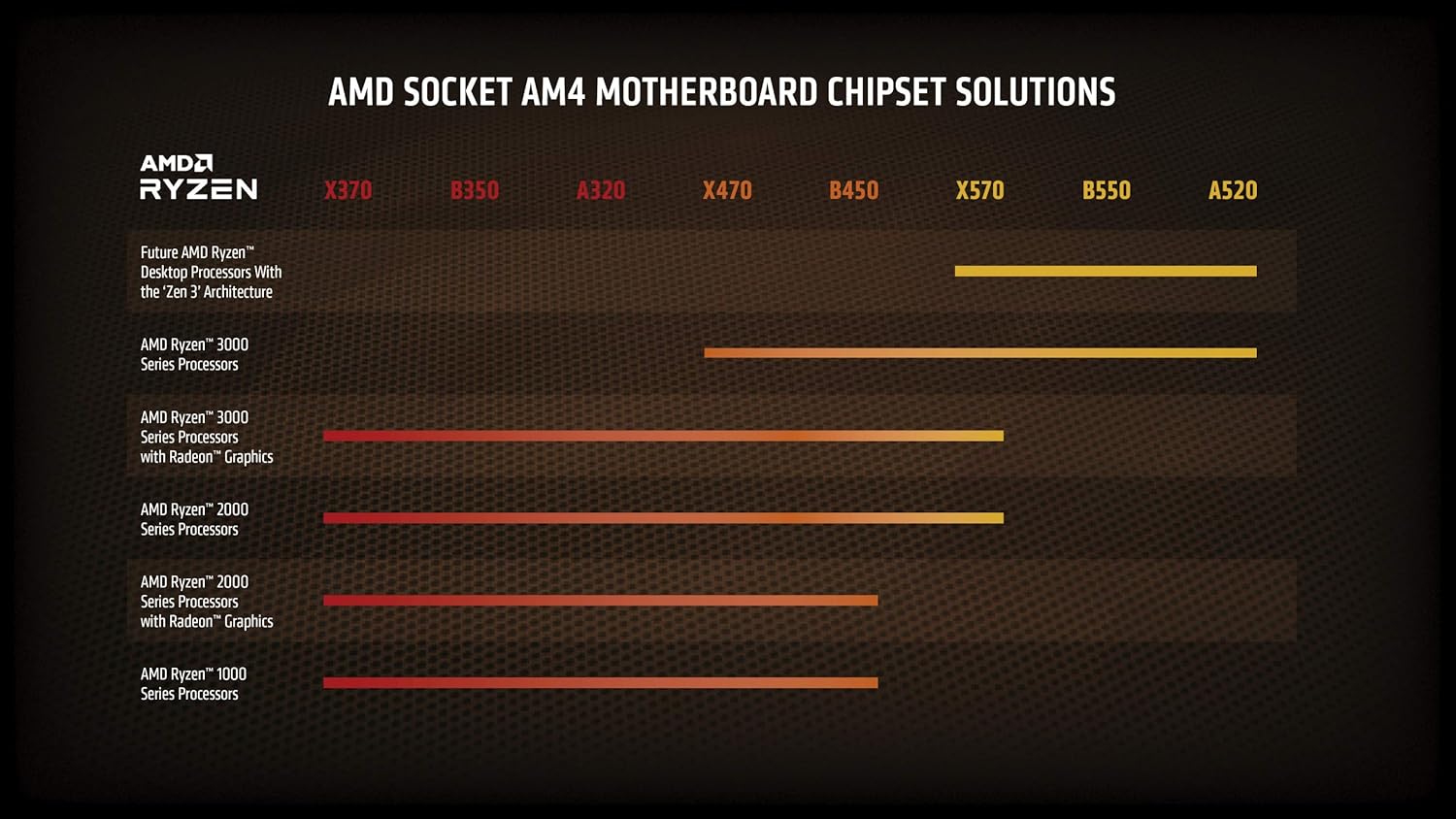
Figure 5: AMD Socket AM4 Motherboard Chipset Solutions Compatibility Chart
4. საოპერაციო სახელმძღვანელო
Once installed, your AMD Ryzen 7 5800X processor will operate automatically with your system. For optimal performance and stability, consider the following:
- BIOS/UEFI პარამეტრები: Ensure your motherboard's BIOS/UEFI is updated to the latest version to fully support the processor and enable features like Precision Boost Overdrive (PBO) or XMP/DOCP for memory.
- დრაივერის ინსტალაცია: Install the latest chipset drivers from the AMD website for your motherboard's chipset. This ensures proper communication and performance.
- გაგრილება: Maintain adequate airflow within your PC case. Monitor CPU temperatures using system monitoring software to ensure they remain within safe operating limits, especially under heavy loads.
- გადატვირთვა: The Ryzen 7 5800X is an unlocked processor, allowing for manual overclocking. However, overclocking should only be attempted by experienced users and requires careful monitoring of temperatures and stability. Incorrect overclocking can lead to system instability or damage.
5. მოვლა
Regular maintenance helps ensure the longevity and consistent performance of your system and processor.
- მტვრის მოცილება: Periodically clean dust from your CPU cooler fins and case fans using compressed air. Dust accumulation can impede airflow and lead to higher temperatures.
- თერმული პასტის ხელახალი გამოყენება: If you notice consistently high temperatures after extended use (several years), consider reapplying thermal paste. This involves carefully removing the CPU cooler, cleaning off old paste, and applying new paste.
- პროგრამული განახლებები: Keep your operating system, motherboard BIOS/UEFI, and AMD chipset drivers updated to benefit from performance improvements and bug fixes.
6. Დიაგნოსტიკა
If you encounter issues with your AMD Ryzen 7 5800X processor, consider the following common troubleshooting steps:
6.1. System Not Booting / No Display
- შეამოწმეთ კავშირები: Ensure all power cables (24-pin ATX, 8-pin CPU) are securely connected to the motherboard and power supply. Verify the CPU cooler fan is connected to the CPU_FAN header.
- პროცესორის განლაგება: Re-seat the CPU in its socket, ensuring it is properly aligned and the retention lever is locked.
- ოპერატიული მეხსიერება: დარწმუნდით, რომ RAM მოდულები სწორად არის ჩასმული თავიანთ სლოტებში. სცადეთ ჩატვირთვა მხოლოდ ერთი RAM მეხსიერების ბარათით.
- BIOS-ის განახლება: If you upgraded from an older CPU, your motherboard may require a BIOS update to support the Ryzen 5000 series. Refer to your motherboard manual for instructions on how to update the BIOS, often without a compatible CPU installed (e.g., BIOS Flashback).
6.2. გადახურების პრობლემები
- ქულერის მონტაჟი: Verify the CPU cooler is properly installed and making good contact with the CPU. Ensure mounting pressure is even.
- თერმო პასტა: Check if thermal paste was applied correctly and adequately. Reapply if necessary.
- ჰაერის ნაკადი: Ensure your PC case has sufficient airflow with properly configured intake and exhaust fans. Clean any dust buildup.
- ვენტილატორის სიჩქარე: Check CPU cooler fan speeds in BIOS/UEFI or monitoring software. Ensure they are responding to temperature changes.
6.3. Performance Issues / Instability
- მძღოლები: დააინსტალირეთ უახლესი AMD ჩიპსეტის დრაივერები ოფიციალური AMD-დან webსაიტი.
- BIOS პარამეტრები: Reset BIOS to default settings. If overclocking, revert to stock speeds to check for stability.
- ელექტრომომარაგება: დარწმუნდით, რომ თქვენს კვების ბლოკს (PSU) საკმარისი სიმძლავრე აქვსtage and stable power delivery for your entire system, including the CPU and GPU.
- ოპერაციული სისტემა: დარწმუნდით, რომ თქვენი ოპერაციული სისტემა განახლებულია.
7. სპეციფიკაციები
| ფუნქცია | სპეციფიკაცია |
|---|---|
| პროცესორი | 4.7 გჰც amd_ryzen_7 |
| ბრენდი | AMD |
| სერიალი | AMD Ryzen 7 5800X |
| ნივთის მოდელის ნომერი | AMD Ryzen 7 5800X |
| ნივთის წონა | 2.8 უნცია |
| პროდუქტის ზომები | 1.57 x 1.57 x 0.1 ინჩი |
| ელემენტის ზომები LxWxH | 1.57 x 1.57 x 0.1 ინჩი |
| ფერი | შავი |
| პროცესორის ბრენდი | AMD |
| პროცესორების რაოდენობა | 8 |
| კომპიუტერის მეხსიერების ტიპი | DIMM |
| ბატარეები | საჭიროა 1 ლითიუმ-იონის ბატარეა. |
| მწარმოებელი | AMD |
| ენა | ინგლისური |
| ASIN | B0815XFSGK |
| წარმოშობის ქვეყანა | ჩინეთი |
| პირველი ხელმისაწვდომი თარიღი | 5 წლის 2020 ნოემბერი |
| კლიენტი Reviews | 4.8 4.8 ვარსკვლავი 5-დან 21,829 შეფასება 4.8 ვარსკვლავი 5-დან |
| ბესტსელერების რეიტინგი | #5 in Computer CPU Processors |
| CPU მწარმოებელი | AMD |
| CPU მოდელი | AMD Ryzen 7 |
| CPU სიჩქარე | 4.7 გჰც |
| CPU სოკეტი | სოკეტი AM4 |
8. გარანტია და მხარდაჭერა
Your AMD Ryzen 7 5800X processor is covered by a manufacturer's warranty. For specific warranty terms and conditions, please refer to the official AMD website or the documentation included with your purchase. For technical support, driver downloads, and additional resources, visit the official AMD support page.
AMD მხარდაჭერა Webსაიტი: www.amd.com/support


