1. შესავალი
This manual provides essential information for the safe and efficient operation of your iProda 2 in 1 Laptop, Model M1169YM. Please read this manual thoroughly before using the device and retain it for future reference. This convertible laptop features an 11.6-inch touchscreen, powered by an Intel N4100 processor, and runs on Windows 10 Pro.

Image: The iProda 2 in 1 Laptop can be used in multiple configurations, including traditional laptop, tent, stand, and tablet modes, showcasinგ მისი მრავალმხრივობა.
2. უსაფრთხოების ინფორმაცია
დაიცავით შემდეგი უსაფრთხოების ზომები, რათა თავიდან აიცილოთ თქვენი მოწყობილობის დაზიანება ან საკუთარი თავის დაზიანება:
- არ დაუშვათ მოწყობილობის ექსპრეს ტემპერატურა, მზის პირდაპირი სხივები ან მაღალი ტენიანობა.
- მოერიდეთ მოწყობილობის დავარდნას ან მის ძლიერ დარტყმას.
- Use only the provided or approved power adapter for charging.
- შეინახეთ მოწყობილობა წყლისა და სხვა სითხეებისგან მოშორებით.
- არ სცადოთ მოწყობილობის დამოუკიდებლად დაშლა ან შეკეთება. მიმართეთ კვალიფიციურ სერვის პერსონალს.
3. პაკეტის შიგთავსი
დარწმუნდით, რომ თქვენს პაკეტში ყველა ნივთია:
- iProda 2 in 1 Laptop (Model M1169YM)
- დენის ადაპტერი
- მომხმარებლის სახელმძღვანელო (ეს დოკუმენტი)
4. პროდუქტი დასრულდაview
The iProda 2 in 1 Laptop is designed for versatility, offering multiple usage modes and essential connectivity options.
4.1. ძირითადი მახასიათებლები
- 11.6 დიუმიანი IPS სენსორული ეკრანი: A responsive 10-point precision touchscreen with 1920x1080 resolution for interactive use.
- კონვერტირებადი დიზაინი: 360-degree hinge allows seamless transition between laptop, tablet, tent, and stand modes.
- Intel N4100 Processor: Provides efficient performance for daily tasks.
- Windows 10 Pro: Pre-installed operating system for productivity and security.
- გაფართოებადი საცავი: Supports M.2 2242 SSD for additional storage capacity.

Image: Key features of the iProda laptop, including its touchscreen, operating system, display specifications, and camera resolution.

Image: The laptop's 360-degree hinge allows it to convert into a tablet, enabling direct interaction via its precision touchscreen.
4.2. პორტები და ღილაკები
Familiarize yourself with the various ports and buttons on your laptop:
- Type-C პორტი: Used for power supply and data transfer.
- მიკრო HDMI: გარე ეკრანებთან დასაკავშირებლად.
- მიკრო USB: USB მოწყობილობების დასაკავშირებლად.
- TF ბარათის სლოტი: For expanding storage with a TF (MicroSD) card.
- დენის ღილაკი: მოწყობილობის ჩასართავად/გამოსართავად ან ძილის რეჟიმში გადასაყვანად.
- ხმის ღილაკები: To adjust audio output.
- ყურსასმენის ჯეკი: ყურსასმენების ან გარე დინამიკების შესაერთებლად.

სურათი: დეტალური view of the laptop's side panels, indicating the location and function of each port and button for easy identification.
5. დაყენება
5.1. ბატარეის დატენვა
Before first use, fully charge the laptop's battery. Connect the provided power adapter to the Type-C port on the laptop and plug it into a power outlet. The charging indicator light will illuminate.
5.2. პირველი ჩატვირთვა და Windows-ის დაყენება
- Press and hold the Power Button until the screen turns on.
- Windows 10 Pro-ს საწყისი დაყენების დასასრულებლად, მათ შორის ენის შერჩევის, ქსელური კავშირისა და მომხმარებლის ანგარიშის შექმნისთვის, მიჰყევით ეკრანზე მოცემულ ინსტრუქციებს.
6. ლეპტოპის მართვა
6.1. სენსორული ეკრანის გამოყენება
The 10-point precision touchscreen allows for intuitive interaction with Windows 10 Pro. Use gestures such as tapping, swiping, pinching, and stretching to navigate, zoom, and interact with applications.
6.2. კლავიატურა და სენსორული პანელი
The integrated keyboard and touchpad provide traditional input methods. The touchpad supports multi-touch gestures for scrolling, zooming, and switching applications.

Image: The laptop's full-size American keyboard and responsive touchpad, designed for comfortable typing and navigation.
6.3. Convertible Modes
The 360-degree hinge allows you to switch between various modes:
- ლეპტოპის რეჟიმი: სტანდარტული კონფიგურაცია აკრეფისა და პროდუქტიულობისთვის.
- ტაბლეტის რეჟიმი: ეკრანი მთლიანად გადაკეცეთ უკან, რათა პლანშეტის მსგავსი გამოცდილება მიიღოთ, რაც იდეალურია დათვალიერების ან ხატვისთვის.
- კარვის რეჟიმი: Position the laptop like a tent for media consumption or presentations.
- სტენდის რეჟიმი: Flip the keyboard face down to use the screen as a display, suitable for watching videos.

Image: The laptop configured in tent mode, demonstrating its flexibility for viewing content without the keyboard in the way.
7. შენახვის გაფართოება
The laptop comes with 64GB eMMC storage. You can expand the storage capacity by installing an M.2 2242 SSD (128GB/256GB/512GB, not included).
7.1. Installing an M.2 2242 SSD
To install an M.2 2242 SSD:
- Power off the laptop and disconnect the power adapter.
- Carefully open the back cover of the laptop.
- იპოვეთ M.2 სლოტი.
- Insert the M.2 2242 SSD into the slot and secure it with the appropriate screw (if provided).
- შეცვალეთ უკანა საფარი.
- Upon booting, you may need to initialize and format the new SSD through Windows Disk Management.
Note: If you are unsure about this procedure, it is recommended to seek professional assistance.

Image: Visual representation of the M.2 SSD slot, illustrating how additional storage can be integrated into the laptop.
8. დაკავშირება
8.1. Wi-Fi კავშირი
The laptop supports dual-frequency 2.4GHz/5GHz Wi-Fi. To connect to a wireless network:
- დააწკაპუნეთ Wi-Fi ხატულაზე სისტემურ უჯრაში.
- აირჩიეთ სასურველი ქსელი სიიდან.
- მოთხოვნის შემთხვევაში, შეიყვანეთ ქსელის პაროლი და დააჭირეთ ღილაკს „დაკავშირება“.
8.2. External Display (Micro HDMI)
Connect an external monitor or TV using a Micro HDMI to HDMI cable. Once connected, you can configure display settings (duplicate, extend, second screen only) through Windows display settings.
8.3. USB მოწყობილობები
Use the Micro USB port or the Type-C port (with an appropriate adapter) to connect peripherals such as a mouse, keyboard, or external storage devices.
9. მოვლა
9.1. დასუფთავება
To clean the laptop, power it off and disconnect the power adapter. Use a soft, lint-free cloth slightly dampened with water or a screen cleaner for the display. Avoid harsh chemicals or abrasive materials.
9.2. ბატარეის მოვლა
ბატარეის გახანგრძლივების მიზნით:
- მოერიდეთ ბატარეის ხშირ სრულ დაცლას.
- არ დაუშვათ ლეპტოპის მაღალი ტემპერატურის ზემოქმედების ქვეშ მოქცევა.
- If storing the laptop for an extended period, ensure the battery is charged to around 50-70%.
10. Დიაგნოსტიკა
აქ მოცემულია გადაწყვეტილებები იმ საერთო პრობლემებისთვის, რომელთა წინაშეც შეიძლება აღმოჩნდეთ:
| პრობლემა | გამოსავალი |
|---|---|
| ლეპტოპი არ ირთვება. | Ensure the battery is charged. Connect the power adapter and try again. If still unresponsive, perform a hard reset by holding the power button for 10-15 seconds. |
| ეკრანი ცარიელია ან ციმციმებს. | Restart the laptop. Check if an external display is connected and interfering. Update display drivers if possible. |
| Wi-Fi კავშირის პრობლემები. | Ensure Wi-Fi is enabled. Restart your router and the laptop. Check network settings in Windows. |
| სენსორული ეკრანი არ რეაგირებს. | Restart the laptop. Ensure the screen is clean. Check for any pending Windows updates or driver updates for the touchscreen. |
11. სპეციფიკაციები
Technical specifications for the iProda 2 in 1 Laptop (Model M1169YM):
| ფუნქცია | დეტალი |
|---|---|
| ბრენდი | აიპროდა |
| მოდელის ნომერი | M1169YM |
| ოპერაციული სისტემა | Windows 10 Pro |
| ეკრანის ზომა | 11.6 ინჩი |
| ეკრანის გარჩევადობა | 1920 x 1080 პიქსელი (1080p) |
| პროცესორი | Intel N4100 (up to 2.4 GHz Burst Frequency) |
| ოპერატიული მეხსიერება | 4 GB DDR4 |
| მყარი დისკი | 64 GB eMMC |
| გრაფიკული ბარათი | Integrated (UHD 600 Graphics) |
| უკაბელო ტიპი | 2.4 GHz / 5 GHz Dual-frequency Wi-Fi |
| ბატარეის საშუალო ხანგრძლივობა | 8 Hours (3500mAh, 27Wh) |
| ნივთის წონა | 3.63 ფუნტი |
| პროდუქტის ზომები | 11.99 x 11.6 x 0.5 ინჩი |
| დაკავშირების ტექნოლოგია | HDMI, USB Type-C, Micro USB |
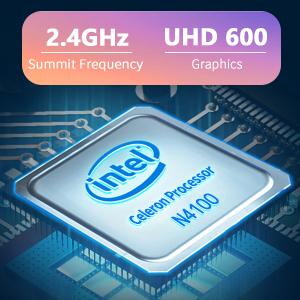
Image: The Intel Celeron N4100 processor, central to the laptop's performance, highlighting its clock speed and integrated graphics capabilities.

Image: The laptop's battery specifications, indicating its power capacity for extended use.
12. გარანტია და მხარდაჭერა
For warranty information and technical support, please refer to the documentation included with your purchase or visit the official iProda website. Contact information for customer service can typically be found on the manufacturer's support page.


