StarTech.com 2 Port Dual Monitor HDMI KVM Switch
Model: SV231DHU34K6
1. შესავალი
This instruction manual provides detailed information on the installation, operation, and maintenance of your StarTech.com 2 Port Dual Monitor HDMI KVM Switch. This device allows you to control two computers from a single set of peripherals, including two HDMI monitors, a keyboard, a mouse, and other USB devices, supporting resolutions up to 4K at 60Hz.
2. უსაფრთხოების ინფორმაცია
გთხოვთ, ამ პროდუქტის გამოყენებამდე წაიკითხოთ და გაითვალისწინოთ ყველა ინსტრუქცია. ამ ინსტრუქციების შეუსრულებლობამ შეიძლება გამოიწვიოს ელექტროშოკი, ხანძარი ან სერიოზული დაზიანება.
- ელექტრო საფრთხეები: Do not use damaged or frayed cables. Exposed wires can lead to electric shocks. Ensure all cables are properly connected and secured to prevent accidental disconnection.
- Heat Buildup: Overloaded or tightly bundled cables can overheat and pose a fire hazard. Ensure adequate ventilation and avoid bundling power cables.
- დაზიანება: Always unplug adapters by holding the plug, not the cable. Pulling by the cable can expose live wires, which could lead to electrical shocks or burns.
3. პროდუქტი დასრულდაview
The StarTech.com SV231DHU34K6 KVM switch is designed to streamline your workspace by enabling control of two computers with dual 4K HDMI displays and shared USB peripherals. Its robust steel housing ensures durability.
3.1. ძირითადი მახასიათებლები
- Supports dual 4K (3840 x 2160) resolution at 60Hz per monitor.
- HDMI 2.0, HDCP 2.2, and HDR10 support.
- Integrated 2-port USB 3.0 Hub (5Gbps) for sharing peripherals.
- Four USB 2.0 HID ports for keyboard and mouse.
- Hotkey and front-panel push-button switching.
- EDID and HDCP signal emulation for fast, seamless switching.
- Supports stereo analog and 7.1 digital audio.
- OS Independent compatibility (Windows, Mac, Linux).
3.2. Წინა პანელი

სურათი 1: წინა პანელის განლაგება
- HID USB Port: For connecting a keyboard or mouse.
- 5G USB Port: For connecting high-speed USB 3.0 devices.
- Computer Selection Buttons (1, 2): Press to switch to the corresponding computer.
- აირჩიეთ ღილაკი: Used for various functions, including auto-scan activation.
3.3. უკანა პანელი
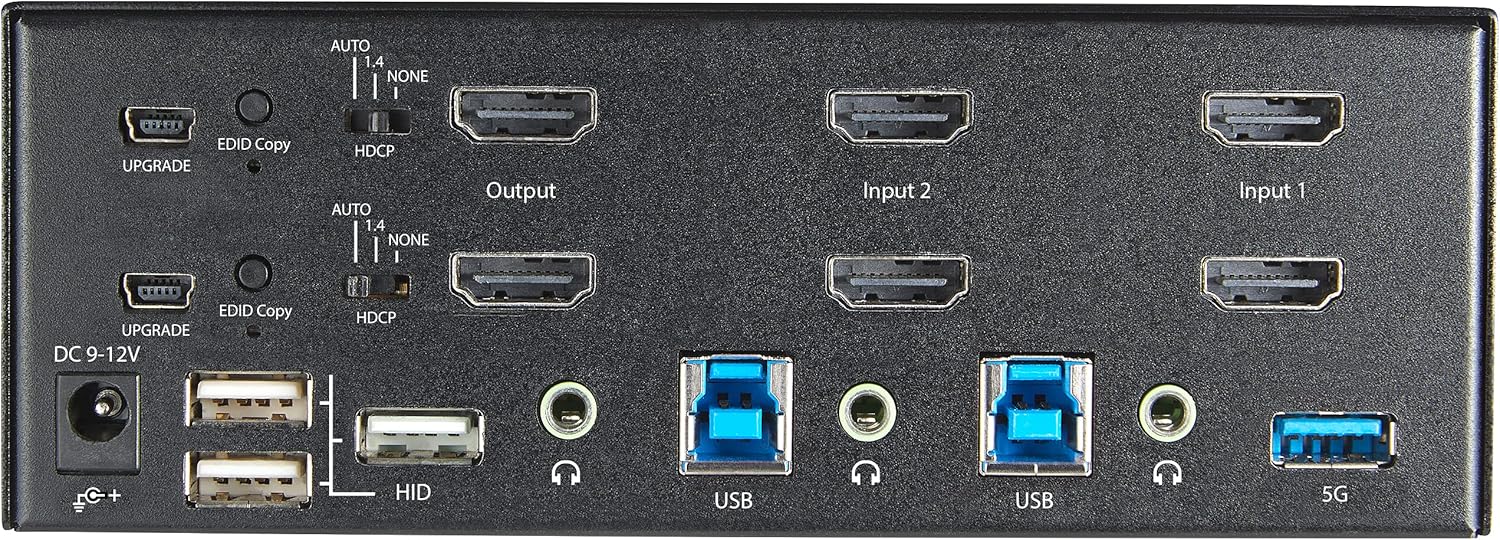
სურათი 2: უკანა პანელის განლაგება
- DC 9-12V შემავალი სიმძლავრე: შეაერთეთ თანდართული კვების ადაპტერი.
- UPGRADE Port: firmware განახლებისთვის.
- EDID Copy Button/Switch: Manages Extended Display Identification Data.
- HDCP გადამრთველი: Manages High-bandwidth Digital Content Protection.
- Output (HDMI): Connect to your monitors.
- Input 1/Input 2 (HDMI): Connect to the HDMI outputs of your computers.
- USB (ტიპი-B): Connect to the USB 3.0 ports of your computers.
- HID USB Ports (Type-A): For additional keyboard/mouse connections or other low-power USB devices.
- Audio Jacks (3.5mm): For connecting speakers/headphones and microphones.
- 5G USB Port (Type-A): For connecting high-speed USB 3.0 devices.
4. დაყენება
4.1. რა არის ყუთში
- 1 x KVM Switch (SV231DHU34K6)
- 1 x უნივერსალური კვების ადაპტერი (NA / JP, EU, UK, ANZ)
- 4 x რეზინის ფეხები
- 1 x სწრაფი დაწყება სახელმძღვანელო
Note: HDMI cables, USB 3.0 Type-A to Type-B cables, and audio cables are not included and must be purchased separately.
4.2. კავშირის ინსტრუქციები
KVM კომუტატორის დასაკავშირებლად, მიჰყევით ამ ნაბიჯებს:
- მონიტორების დაკავშირება: Connect your two HDMI monitors to the 'Output' HDMI ports on the rear panel of the KVM switch.
- Connect Computers (HDMI): Connect the HDMI outputs from Computer 1 to the 'Input 1' HDMI ports on the KVM switch. Repeat for Computer 2 and 'Input 2'. Ensure both HDMI outputs from each computer are connected for dual monitor support.
- კომპიუტერების (USB) დაკავშირება: Connect the USB 3.0 Type-B ports on the KVM switch to the USB 3.0 Type-A ports on Computer 1 and Computer 2 using appropriate USB 3.0 cables. These connections enable keyboard, mouse, and USB hub functionality.
- პერიფერიული მოწყობილობების დაკავშირება:
- Connect your keyboard and mouse to the 'HID' USB ports on the front or rear panel.
- Connect other USB devices (e.g., printer, scanner, webcam) to the '5G' USB 3.0 ports on the front or rear panel.
- აუდიოს დაკავშირება (სურვილისამებრ): If desired, connect your speakers/headphones and microphone to the 3.5mm audio jacks on the rear panel.
- დაკავშირება ძალა: Connect the included universal power adapter to the 'DC 9-12V' power input on the rear panel, then plug it into a power outlet. The KVM switch will power on automatically.

Figure 3: KVM Switch with Ports for Connection
5. KVM კომუტატორის მართვა
5.1. კომპიუტერებს შორის გადართვა
You can switch between connected computers using either the front-panel push buttons or hotkey commands.
- Front-Panel Buttons: Press the '1' or '2' button on the front panel to directly switch to Computer 1 or Computer 2, respectively.
- ცხელი კლავიშების გადართვა: Use keyboard hotkey combinations to switch computers. The default hotkey sequence is typically Scroll Lock, Scroll Lock, [1 or 2]. Refer to the Quick-Start Guide for a complete list of hotkey commands and customization options. A buzzer sound confirms the switch.
5.2. EDID and HDCP Emulation
The KVM switch includes EDID (Extended Display Identification Data) and HDCP (High-bandwidth Digital Content Protection) signal emulation. This feature ensures that your monitors remain synced and desktop settings are maintained when switching between computers, preventing display resolution changes or window rearrangement.
5.3. USB Hub Functionality
The integrated USB 3.0 hub allows you to share two USB 3.0 peripherals (connected to the 5G ports) and four USB 2.0 HID peripherals (connected to the HID ports) between the connected computers. Devices connected to these ports will function as if directly connected to the currently selected host computer.
5.4. აუდიო მხარდაჭერა
The KVM switch supports both digital audio (via HDMI, 7.1 Channel Audio) and separate 3.5mm stereo analog audio (2 Channel Audio). Ensure your displays and sources support the desired audio format for full compatibility.
6. მოვლა
თქვენი KVM კომუტატორის ხანგრძლივი მომსახურებისა და ოპტიმალური მუშაობის უზრუნველსაყოფად, დაიცავით შემდეგი ტექნიკური მომსახურების ინსტრუქციები:
- დასუფთავება: მოწყობილობის გარე ზედაპირის გასაწმენდად გამოიყენეთ რბილი, მშრალი ქსოვილი. არ გამოიყენოთ თხევადი ან აეროზოლური საწმენდი საშუალებები.
- ვენტილაცია: Ensure the KVM switch is placed in a well-ventilated area. Do not block any ventilation openings.
- საკაბელო მენეჯმენტი: Keep cables organized and untangled to prevent damage and ensure proper airflow. Avoid excessive bending or crimping of cables.
- შენახვა: ხანგრძლივი პერიოდის განმავლობაში არ გამოყენების შემთხვევაში, შეინახეთ მოწყობილობა გრილ, მშრალ ადგილას, მოარიდეთ მზის პირდაპირ სხივებს და ექსტრემალურ ტემპერატურას.
7. Დიაგნოსტიკა
თუ თქვენს KVM კომუტატორთან დაკავშირებით პრობლემებს წააწყდებით, იხილეთ შემდეგი გავრცელებული პრობლემები და მათი გადაჭრის გზები:
- No Display or Incorrect Resolution:
- Ensure all HDMI cables are securely connected to both the KVM switch and your computers/monitors.
- Verify that your HDMI cables are rated for 4K 60Hz if you are using 4K displays. Longer cables (e.g., over 3m/10ft) may require higher quality or active cables.
- Check the display settings on your computers to ensure they are configured for the correct resolution and refresh rate.
- Try power cycling the KVM switch and monitors.
- კლავიატურა/მაუსი არ რეაგირებს:
- Ensure the USB Type-B cables are securely connected from the KVM switch to your computers.
- Verify that your keyboard and mouse are connected to the designated HID USB ports.
- სცადეთ კლავიატურა/მაუსი პირდაპირ კომპიუტერთან დააკავშიროთ, რათა დარწმუნდეთ, რომ ისინი ფუნქციონირებენ.
- Some specialized keyboards/mice with advanced features may require direct connection or specific drivers.
- USB მოწყობილობები ვერ იქნა აღმოჩენილი:
- Ensure the USB Type-B cables are connected from the KVM switch to your computers.
- Verify that the USB device is connected to the appropriate 5G USB 3.0 port.
- Some high-power USB devices may require an external power source or a powered USB hub connected to the KVM's 5G port.
- აუდიო პრობლემები:
- Check all 3.5mm audio cable connections.
- Verify audio output settings on your computers.
- Ensure your monitors or audio devices support the HDMI audio format being sent.
- Slow Switching Time:
- The KVM switch is designed for fast switching. If experiencing delays, ensure EDID and HDCP emulation are functioning correctly.
- დარწმუნდით, რომ ყველა კაბელი კარგი ხარისხისაა და სწორად არის დამაგრებული.
If the problem persists after attempting these solutions, please contact StarTech.com technical support.
8. სპეციფიკაციები
| კატეგორია | სპეციფიკაცია |
|---|---|
| მოდელის ნომერი | SV231DHU34K6 |
| KVM პორტები | 2 |
| Monitors Supported | 2 |
| ვიდეოს ტიპი | HDMI 2.0 |
| მხარდაჭერილი რეზოლუციები | მდე 3840 x 2160 @ 60 Hz |
| HDCP მხარდაჭერა | HDCP 2.2 |
| HDR მხარდაჭერა | HDR10 |
| USB კერა | 2-პორტიანი USB 3.0 (5 გბ/წმ) |
| USB HID პორტები | 4x USB 2.0 |
| აუდიო მხარდაჭერა | HDMI (7.1 Channel), Analog Stereo (3.5mm) |
| პორტის შერჩევა | Push Button, Hotkeys |
| მასალა | ფოლადი |
| ფერი | შავი |
| პროდუქტის ზომები (L x W x H) | 6.3 x 3.9 x 2.3 ინჩი (16.0 x 10.0 x 5.8 სმ) |
| პროდუქტის წონა | 1.8 ფუნტი (0.8 კგ) |
| დენის წყარო | AC ადაპტერი (შედის) |
| შეყვანის მოცულობაtage | 100 - 240 AC |
| ენერგიის მოხმარება | 36 W |
| ოპერაციული ტემპერატურა | 0℃-დან 40℃-მდე (32℉-დან 104℉-მდე) |
| შენახვის ტემპერატურა | -10℃-დან 60℃-მდე (14℉-დან 140℉-მდე) |
| ტენიანობა | 0% დან 80% RH (არაკონდენსირებადი) |
9. გარანტია და მხარდაჭერა
This StarTech.com KVM Switch (Model: SV231DHU34K6) is backed by a 2 წლიანი გარანტია. StarTech.com also provides უფასო, უვადო ტექნიკური მხარდაჭერა. For technical assistance or warranty claims, please visit the official StarTech.com webსაიტზე ან დაუკავშირდით მათ მომხმარებელთა მხარდაჭერის გუნდს.
დამატებითი ინფორმაციისთვის ეწვიეთ: www.startech.com


