შესავალი
The Intel NUC 10 Performance NUC10i3FNHN is a compact barebone system designed for versatility. It features a customizable board and chassis, allowing users to integrate their preferred memory, storage, and operating systems. This mini PC is suitable for a wide range of applications, including business, education, and DIY projects, offering a powerful computing solution in a small form factor.
პაკეტის შიგთავსი
Upon opening your Intel NUC 10 Performance kit, please verify that all components are present:
- Intel NUC 10 Performance kit - NUC10i3FNHN Barebone System
- აშშ დენის კაბელი
Note: Memory, storage, and operating system are not included and must be purchased separately. Ensure the power cord provided is compatible with your region's electrical outlets.
დაყენება
Follow these steps to set up your Intel NUC system:
- ოპერატიული მეხსიერების ინსტალაცია (RAM):
Locate the DDR4 SDRAM compatible slots inside the NUC chassis. Carefully insert the memory modules into the slots until they click into place. Ensure proper alignment to prevent damage.
- მეხსიერების ინსტალაცია:
The NUC supports various storage options, including M.2 SSDs and 2.5-inch SATA drives. Connect your chosen storage device to the appropriate Serial ATA/600 interface or M.2 slot. Secure the drive with the provided screws if necessary.
- პერიფერიული მოწყობილობების დაკავშირება:
Connect your monitor to one of the available video output ports (e.g., HDMI, USB-C/Thunderbolt). Connect your keyboard, mouse, and other USB-compatible devices to the available USB ports. The NUC features 7 USB ports for extensive connectivity.
- ქსელთან კავშირი:
For wired network access, connect an Ethernet cable to the Gigabit Ethernet port. For wireless connectivity, ensure your NUC has a Wi-Fi module installed (if not integrated) and configure it after OS installation.
- დენის კავშირი:
Connect the provided US power cord to the NUC's power input and then to a wall outlet. Ensure the connection is secure.
- Initial Boot and OS Installation:
Press the power button to turn on the NUC. Follow the on-screen prompts to install your preferred operating system (e.g., Windows 10, Linux distribution). You may need to create a bootable USB drive with the OS installer.

სურათი 1: წინა view of the Intel NUC 10 Performance NUC10i3FNHN, showing the power button, USB ports, and SD card slot.
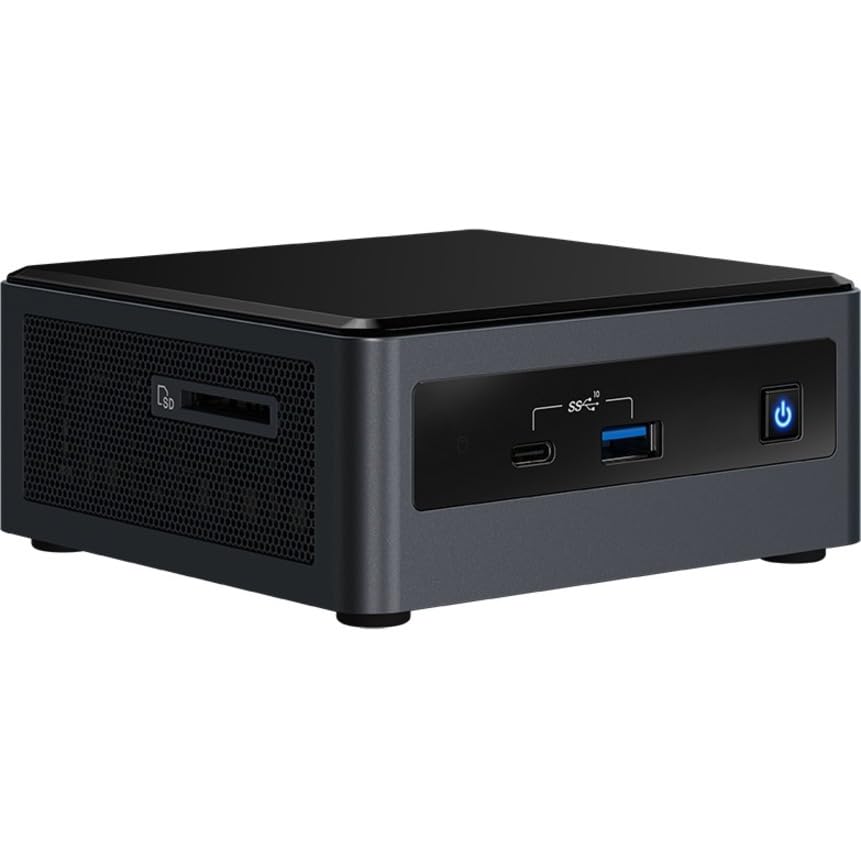
სურათი 2: მხარე view of the Intel NUC 10 Performance NUC10i3FNHN, highlighting the ventilation and additional ports.
ოპერაციული ინსტრუქციები
Once your Intel NUC is set up and the operating system is installed, you can begin using it for various tasks.
- ჩართვა/გამორთვა: Press the power button located on the front panel to turn the system on or off. For a controlled shutdown, use the operating system's shutdown function.
- USB მოწყობილობების დაკავშირება: Utilize the multiple USB ports (including USB 2.0 and USB 3.0/3.1) to connect external hard drives, flash drives, printers, and other peripherals.
- Network Usage: The Gigabit Ethernet port provides high-speed wired network connectivity, ideal for large file transfers and stable internet access. Wireless connectivity (if equipped) allows for flexible network access.
- ეკრანის გამომავალი: Connect to displays using the available HDMI or USB-C/Thunderbolt ports. The NUC supports high resolutions, including 3840x2160 and 4096x2304, for a clear visual experience.
- აუდიო: Connect speakers or headphones to the audio jack for sound output.
მოვლა
Regular maintenance helps ensure the longevity and optimal performance of your Intel NUC.
- მტვრის მოცილება: Periodically clean the exterior of the NUC with a soft, dry cloth. Use compressed air to gently clear dust from ventilation grilles to maintain proper airflow and prevent overheating. Ensure the system is powered off before cleaning.
- პროგრამული განახლებები: Regularly update your operating system, drivers, and BIOS/firmware. Visit the Intel support website for the latest drivers specific to your NUC model.
- საკაბელო მენეჯმენტი: Ensure all cables connected to the NUC are neatly organized and not obstructing ventilation.
- გარემო პირობები: Operate the NUC in a well-ventilated area, away from direct sunlight, heat sources, and excessive moisture.
პრობლემების მოგვარება
ეს განყოფილება გთავაზობთ გადაწყვეტილებებს იმ გავრცელებული პრობლემებისთვის, რომლებსაც შეიძლება წააწყდეთ.
- No Power/System Not Turning On:
Ensure the power cord is securely connected to both the NUC and a working electrical outlet. Verify that the power outlet is active. If you are using an international power adapter, ensure it is compatible with your region's voltage and plug type. Some users have reported receiving power cords incompatible with their region; a replacement may be necessary.
- ეკრანის გამომავალი არ არის:
Check that the monitor is powered on and the video cable (HDMI, USB-C) is securely connected to both the NUC and the monitor. Try a different video port or cable if available. Ensure the monitor input source is correctly selected.
- System Not Booting After RAM/Storage Installation:
Verify that the RAM modules and storage devices are correctly seated in their respective slots. Refer to the installation steps in the Setup section. Ensure the storage device contains a valid operating system.
- ნელი შესრულება:
Ensure you have installed sufficient RAM (up to 64 GB DDR4) and a fast storage solution (e.g., NVMe SSD). Close unnecessary applications. Check for background processes consuming resources. Ensure drivers are up to date.
- ქსელთან დაკავშირების პრობლემები:
For wired connections, check the Ethernet cable and router/modem. For wireless, ensure the Wi-Fi module is enabled and drivers are installed. Verify network settings in your operating system.
სპეციფიკაციები
Detailed technical specifications for the Intel NUC 10 Performance NUC10i3FNHN Barebone System:
| ფუნქცია | დეტალი |
|---|---|
| მოდელის ნომერი | NUC10i3FNHN |
| პროცესორი | Intel Core i3 10th Gen i3-10110U Dual-core (2 Core) |
| პროცესორის სიჩქარე | 1.9 გჰც |
| RAM (Max Supported) | 64 GB DDR4 SDRAM |
| მეხსიერების სიჩქარე | 2666 MHz |
| გრაფიკული კოპროცესორი | Intel UHD გრაფიკა (ინტეგრირებული) |
| ეკრანის მაქსიმალური გარჩევადობა | 4096x2304 |
| მყარი დისკის ინტერფეისი | Serial ATA/600, Solid State (M.2) |
| USB პორტები | 7 (including USB 2.0, USB 3.0/3.1, USB-C) |
| ქსელი | Gigabit Ethernet, Bluetooth (Wireless Type) |
| Operating System (Compatible) | Windows 10 (Barebone system, OS not included) |
| ნივთის წონა | 1.25 ფუნტი |
| პროდუქტის ზომები (LxWxH) | 6.1 x 5 x 4.8 ინჩი |
| ფერი | შავი |
გარანტია და მხარდაჭერა
დეტალური ინფორმაციისა და ტექნიკური მხარდაჭერისთვის, გთხოვთ, იხილოთ Intel-ის ოფიციალური ვებგვერდი. website or contact Intel customer service. Keep your proof of purchase for warranty claims.
ონლაინ რესურსები:
Note: Warranty terms may vary by region and retailer. Always consult the official Intel warranty policy for the most accurate information.


