1. შესავალი
This manual provides comprehensive instructions for the setup, operation, and maintenance of your Tera 9200-Wired Omnidirectional Desktop Barcode Scanner. This device is designed for efficient and hands-free scanning of 1D, 2D, and QR barcodes in various environments such as retail stores, warehouses, and offices.
2. პროდუქტი დასრულდაview
The Tera 9200-Wired scanner is a high-performance, plug-and-play device engineered for reliability and ease of use. Its omnidirectional scanning capability allows for quick and accurate barcode reading from various angles.
2.1 ძირითადი მახასიათებლები
- შეერთება და თამაში: No driver or software installation required. Simply connect the USB cable to your computer, POS system, or cash register.
- Hands-Free Scanning: Designed as a desktop platform scanner, it allows for convenient, hands-free operation, improving efficiency for both cashiers and customers.
- სტაბილური დიზაინი: Equipped with four small non-slip pads on the bottom and an internal iron slab, ensuring stability during operation.
- ფართო თავსებადობა: Compatible with various operating systems including Windows XP, Windows 7, Windows 8, Windows 10, Android, and Linux. Works with PCs, laptops, iPads, and smartphones.
- Multi-Language Keyboard Support: Supports keyboard layouts for US, UK, German, French, Italian, Spanish, Japanese, and more.
- Powerful Decoding Ability: Capable of reading a wide range of 1D and 2D barcodes, including those that are reflective, smudged, damaged, or fuzzy.
2.2 პაკეტის შიგთავსი
- Tera 9200-Wired Desktop Barcode Scanner
- USB 2.0 Data Cable (integrated)
- ინსტრუქციის სახელმძღვანელო (ეს დოკუმენტი)
2.3 პროდუქტის დიაგრამა

სურათი 2.3.1: წინა view of the Tera 9200-Wired Desktop Barcode Scanner, showing its compact, black and white design with the scanning window.
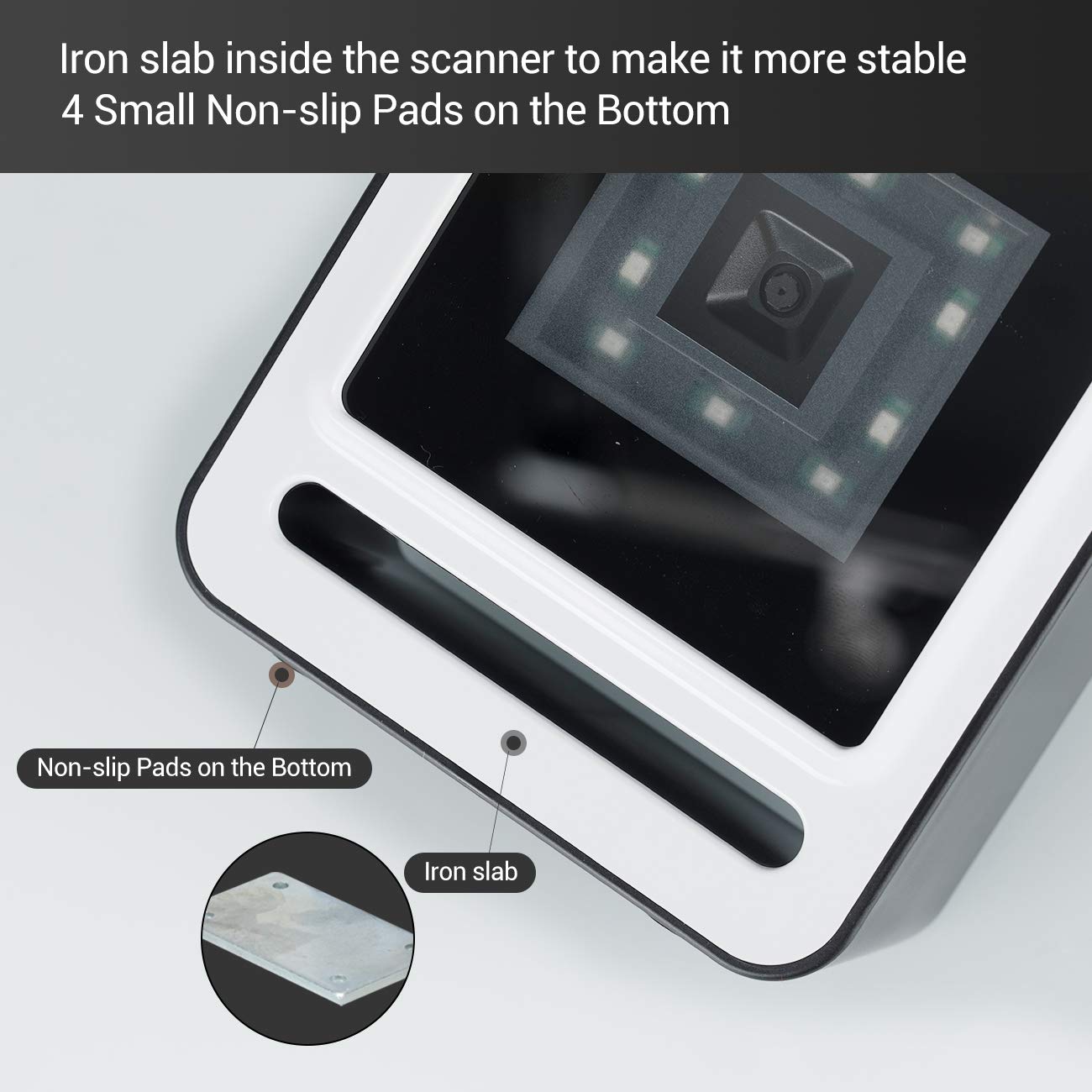
სურათი 2.3.2: ახლოდან view of the scanner's base, highlighting the four non-slip pads and the internal iron slab designed for enhanced stability.
3. დაყენება
The Tera 9200-Wired barcode scanner is designed for quick and easy setup, requiring no special drivers or software installation.
- სკანერის გახსნა: ფრთხილად ამოიღეთ სკანერი მისი შეფუთვიდან.
- შეაერთეთ USB კაბელი: Insert the integrated USB 2.0 data cable into an available USB port on your computer, POS system, or cash register.
- სისტემის ამოცნობა: The operating system will automatically detect and configure the scanner. This process typically takes a few seconds.
- მზა გამოსაყენებლად: Once recognized, the scanner is ready for immediate use.

Figure 3.1: The scanner connected via USB to a laptop, demonstrating its plug-and-play functionality and compatibility with Windows, Android, and Linux systems, as well as PCs, laptops, iPads, and phones.
4. საოპერაციო ინსტრუქციები
The Tera 9200-Wired scanner offers hands-free operation for efficient barcode reading.
4.1 ძირითადი სკანირება
- Position the Item: Place the barcode of the item directly in front of the scanner's window.
- ავტომატური სკანირება: The scanner will automatically detect the barcode and emit a successful scan indication (e.g., a beep or light change).
- მონაცემთა გადაცემა: The scanned data will be transmitted to your connected device (computer, POS system) as if typed via a keyboard.

Figure 4.1: A smartphone displaying a QR code being scanned by the Tera 9200-Wired scanner, illustrating its hands-free capability for digital barcodes.
4.2 მხარდაჭერილი შტრიხკოდების ტიპები
The scanner supports a wide array of 1D and 2D barcode symbologies:
- 1D Decode Capability: Codabar, Code 11, Code93, MSI, Code 128, UCC/EAN-128, Code 39, EAN-8, EAN-13, UPC-A, ISBN, Industrial 25, Interleaved 25, Standard 25, 2/5 Matrix.
- 2D Decode Capability: QR Code, PDF417, Data Matrix, Aztec code, Maxi Code.

Figure 4.2: Visual representation of the scanner's advanced decoding capabilities, showing its ability to read challenging barcodes such as reflective, smudged, damaged, and fuzzy ones.
4.3 Advanced Settings (via Configuration Codes)
The scanner can be configured for various settings by scanning specific configuration barcodes (not provided in this manual, refer to a separate programming guide if available from manufacturer). These settings may include:
- კლავიატურის ენა: Adjust the output keyboard language to match your system (e.g., US, UK, German, French, Italian, Spanish, Japanese).
- ვირტუალური COM პორტი: Enable virtual COM port mode for specific software applications.
- პრეფიქსი/სუფიქსი: Add custom characters before or after scanned data.
- Hide Characters: Configure the scanner to hide certain characters from the output.
- ხმის დაყენება: Adjust the volume of the scan confirmation beep.

Figure 4.3: The scanner illustrating its support for multiple keyboard languages, including English, Spanish, German, Japanese, French, and Italian, allowing for versatile international use.
5. მოვლა
Proper maintenance ensures the longevity and optimal performance of your barcode scanner.
- სკანირების ფანჯრის გაწმენდა: Regularly clean the scanning window with a soft, lint-free cloth. For stubborn smudges, slightly dampქსოვილი წყლით ან რბილი, არააბრაზიული საწმენდი საშუალებით დაასველეთ. არ გამოიყენოთ უხეში ქიმიკატები ან აბრაზიული მასალები.
- ზოგადი წმენდა: Wipe the exterior of the scanner with a dry or slightly damp ქსოვილი მტვრისა და ჭუჭყის მოსაშორებლად.
- მოერიდეთ ექსტრემალურ პირობებს: Do not expose the scanner to extreme temperatures, humidity, or direct sunlight for prolonged periods.
- სიფრთხილით მოპყრობა: Avoid dropping the scanner or subjecting it to strong impacts.
6. Დიაგნოსტიკა
If you encounter issues with your Tera 9200-Wired scanner, refer to the following common problems and solutions:
| პრობლემა | შესაძლო მიზეზი | გამოსავალი |
|---|---|---|
| სკანერი არ ირთვება. | USB კაბელი სწორად არ არის დაკავშირებული ან USB პორტი გაუმართავია. | Ensure the USB cable is securely plugged into both the scanner and the computer. Try a different USB port. |
| სკანერი არ კითხულობს შტრიხკოდებს. | Barcode is damaged, smudged, or poorly printed. Scanner window is dirty. Incorrect barcode symbology enabled. | Try scanning a different, known-good barcode. Clean the scanning window. Ensure the barcode type is supported and enabled (if configurable). |
| სკანირებული მონაცემები არასწორი ან არასრულია. | Keyboard language mismatch. Data format settings incorrect. | Verify your computer's keyboard language matches the scanner's setting. Check for any prefix/suffix settings. |
| სკანერი სიგნალს გამოსცემს, მაგრამ მონაცემები არ გადაიცემა. | Application not in focus or not accepting input. | Ensure the cursor is in the correct input field of your application (e.g., notepad, word processor, POS software). |
7. სპეციფიკაციები
| ფუნქცია | დეტალი |
|---|---|
| ბრენდი | ტერა |
| მოდელი | 9200-Wired |
| ტიპი | 1D 2D QR Omnidirectional Desktop Barcode Scanner |
| დაკავშირება | სადენიანი USB 2.0 |
| დეკოდირების შესაძლებლობა (1D) | Codabar, კოდი 11, კოდი 93, MSI, კოდი 128, UCC/EAN-128, კოდი 39, EAN-8, EAN-13, UPC-A, ISBN, სამრეწველო 25, გადაჯაჭვული 25, სტანდარტული 25, 2/5 მატრიცა |
| დეკოდირების შესაძლებლობა (2D) | QR Code, PDF417, Data Matrix, Aztec code, Maxi Code |
| თავსებადობა | Windows XP/7/8/10, Android, Linux (PC, Laptops, iPad, Phone) |
| კლავიატურის ენები | US, UK, German, French, Italian, Spanish, Japanese, etc. |
| პაკეტის ზომები | 18.21 x 12.29 x 8.61 სმ |
| ნივთის წონა | 449 გ |
| საჭიროა ბატარეები | არა |
8. გარანტია და მხარდაჭერა
For warranty information and technical support, please refer to the documentation provided with your purchase or contact Tera customer service directly. Keep your purchase receipt as proof of purchase for warranty claims.
For the most up-to-date support resources, visit the official Tera webსაიტი.


