1. შესავალი
The YMOO S04 USB Volume Controller is a multimedia control knob designed to provide convenient volume adjustment and media playback control for your computer. It features a metal knob for precise volume control, one-touch mute functionality, and dedicated buttons for play/pause, previous, and next track. The device offers dual 3.5mm and Type-C USB connectivity, ensuring broad compatibility with various systems.
2. პაკეტის შიგთავსი
დარწმუნდით, რომ თქვენს პაკეტში ყველა ნივთია:
- 1x YMOO S04 Multimedia Controller
- 1x 3.5 მმ აუდიოკაბელი
- 1x USB მონაცემთა კაბელი
- 1x მომხმარებლის სახელმძღვანელო
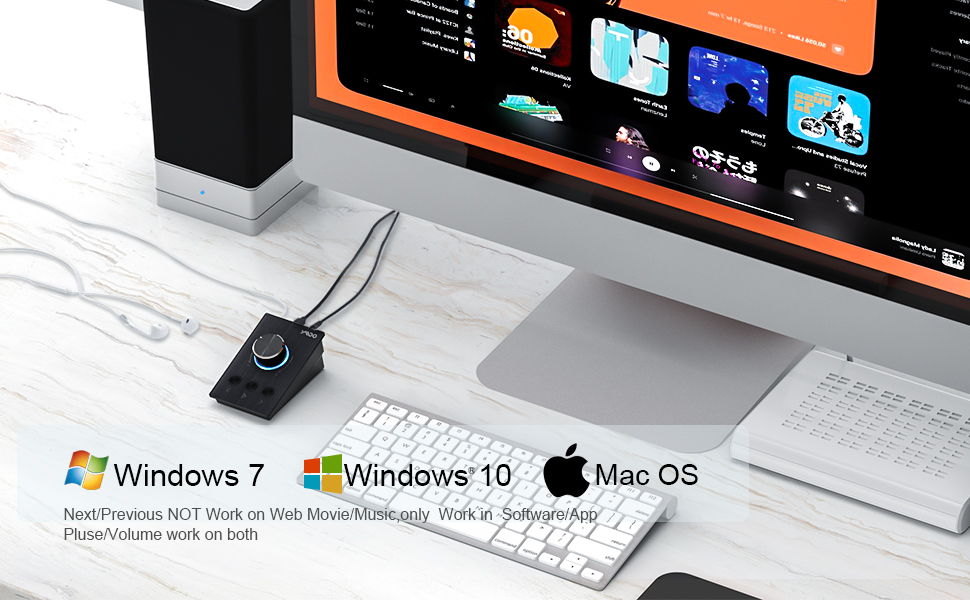
Image: Contents of the YMOO S04 USB Volume Controller package, including the controller, 3.5mm audio cable, USB data cable, and user manual.
3. დაყენება
3.1 სისტემური მოთხოვნები
The YMOO S04 USB Volume Controller is compatible with the following operating systems:
- Windows 7
- Windows 8
- Windows 10
- Windows 11
- Mac OS
შენიშვნა: This device does not support Linux systems, Remote Control Desktop environments, or VMWare Workstation. Next/Previous functions may not work on web-based media players (e.g., YouTube) but volume and play/pause functions are generally supported across applications.
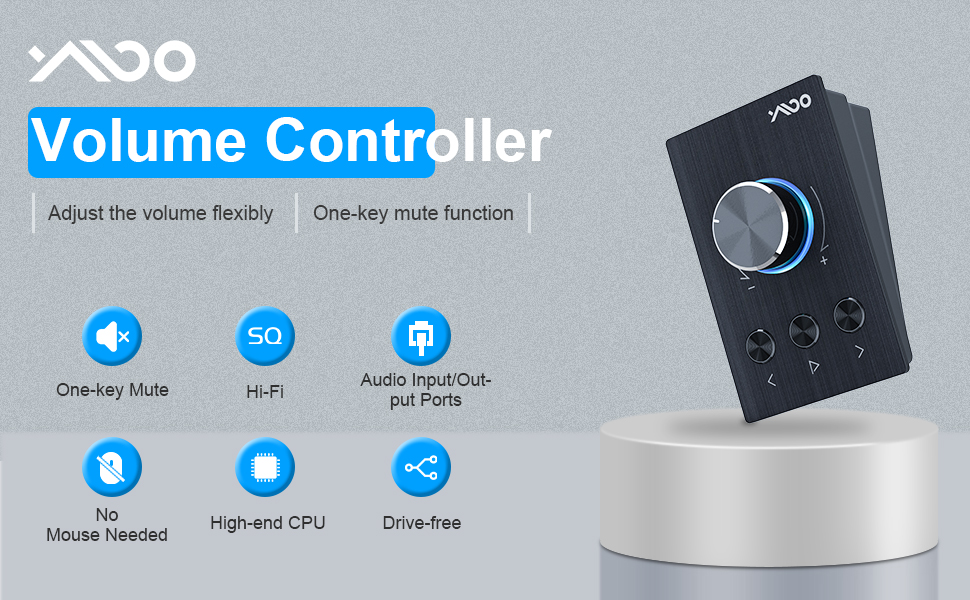
Image: The YMOO S04 USB Volume Controller connected to a computer, illustrating compatibility with Windows 7, Windows 10, and Mac OS.
3.2 კავშირი
Connect the YMOO S04 to your computer using the provided USB cable. The device is plug-and-play, requiring no additional drivers for basic functionality.
For audio output, you can connect speakers or headphones to the 3.5mm audio output port on the controller. If your computer lacks built-in speakers, connect the controller via USB and then connect your external audio devices to the controller. If your computer has its own speakers, you can still use the controller to manage system volume and connect headphones directly to the controller for private listening.
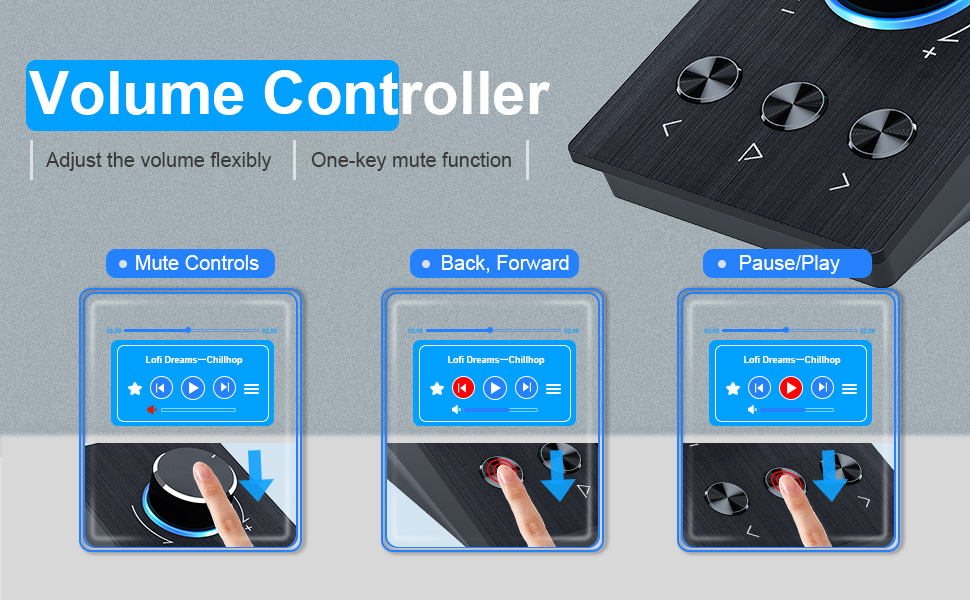
Image: Diagrams illustrating various connection scenarios for the YMOO S04 USB Volume Controller, including connecting to a computer without speakers, with built-in speakers, and with external audio output devices.
4. საოპერაციო ინსტრუქციები
4.1 ძირითადი ფუნქციები
- ხმის რეგულირება: Rotate the large knob clockwise to increase volume and counter-clockwise to decrease volume. Each turn adjusts the system volume by approximately 2 units.
- One-touch Mute: Press the large knob once to mute the audio. Press it again to restore the volume.
- დაკვრა/პაუზა: Press the central button below the knob to play or pause media playback.
- წინა ჩანაწერი: Press the left button below the knob to go to the previous track.
- შემდეგი სიმღერა: Press the right button below the knob to go to the next track.

სურათი: ახლო ხედი view of the YMOO S04 USB Volume Controller, highlighting the volume knob, mute function, and dedicated buttons for previous, play/pause, and next track.
4.2 Audio Input/Output Ports
The YMOO S04 features dual 3.5mm audio ports. The 'IN/OUT' port can be used for connecting an audio source or for outputting audio to headphones/speakers. The 'USB' port is for connecting to your computer. The 'OUT/IN' port is another versatile 3.5mm port for audio connections.
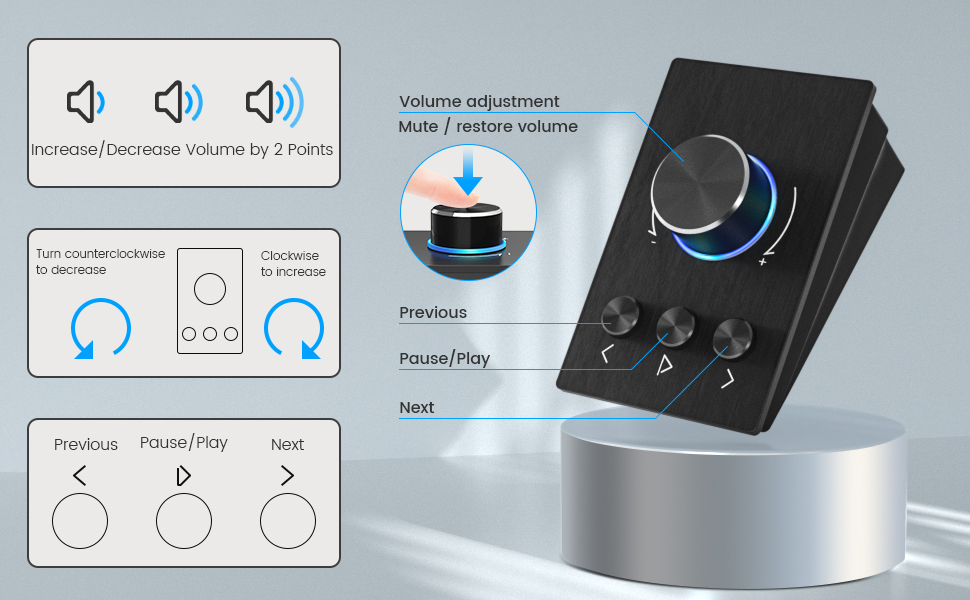
Image: The YMOO S04 USB Volume Controller with headphones connected, illustrating the audio input/output ports and 360-degree rotation adjustment.
5. მოვლა
5.1 დასუფთავება
To clean the device, use a soft, dry cloth. Avoid using liquid cleaners or abrasive materials, as these may damage the surface or internal components.
5.2 შენახვა
Store the YMOO S04 in a cool, dry place away from direct sunlight and extreme temperatures. When not in use for extended periods, disconnect it from your computer.
6. Დიაგნოსტიკა
6.1 საერთო საკითხები და გადაწყვეტილებები
- Issue: Volume adjustment is slow or unresponsive when turning the knob quickly.
გამოსავალი: The controller is designed for precise, gradual volume adjustments. Turning the knob too rapidly may result in missed inputs. Adjust the volume at a moderate pace for optimal response. - Issue: Next/Previous track buttons do not work in web browsers or specific applications.
გამოსავალი: The functionality of next/previous track buttons can vary depending on the application or web player. These controls are primarily designed for system-level media players. Volume and play/pause functions should generally work across most applications. - Issue: Device is not recognized or functional on Linux, Remote Control Desktop, or VMWare.
გამოსავალი: The YMOO S04 is not designed to be compatible with these specific operating environments. Ensure you are using a supported operating system (Windows 7/8/10/11 or Mac OS). - Issue: The blue LED light around the knob cannot be turned off.
გამოსავალი: The blue LED is an integrated design feature and cannot be manually turned off or adjusted. - Issue: No sound output.
გამოსავალი: Ensure the USB cable is securely connected to both the controller and your computer. Check that your speakers or headphones are correctly plugged into the controller's 3.5mm output port. Verify that the system volume is not muted or set to zero.
7. სპეციფიკაციები
7.1 ტექნიკური მახასიათებლები
| მოდელის ნომერი | S04 |
| ბრენდი | YMOO |
| დაკავშირების ტექნოლოგია | USB |
| თავსებადი მოწყობილობები | PC (Windows 7/8/10/11, Mac OS) |
| სპეციალური ფუნქცია | One-touch Mute Controls |
| აუდიო გამოყვანის რეჟიმი | სტერეო |
| მასალა | მეტალი |
| პროდუქტის ზომები | 10.24 x 15.75 x 17.72 ინჩი (დაახლოებით 26 x 40 x 45 სმ) |
| ნივთის წონა | 12 უნცია (დაახლოებით 0.34 კგ) |
| დენის წყარო | ელექტრო კაბელი (USB-ის საშუალებით) |

Image: A visual reference for the exterior measurements and weight of the YMOO S04 USB Volume Controller.
8. გარანტია და მხარდაჭერა
8.1 ინფორმაცია გარანტიის შესახებ
The YMOO S04 USB Volume Controller comes with a limited warranty. For specific details regarding warranty coverage, duration, and terms, please refer to the warranty card included in your product packaging or visit the official YMOO webსაიტი.
8.2 მომხმარებელთა მხარდაჭერა
If you encounter any issues or have questions not covered in this manual, please contact YMOO customer support through their official website or the contact information provided with your product. Please have your product model number (S04) and purchase details ready when contacting support.


