შესავალი
This manual provides detailed instructions for the Fitbit Charge 5 fitness tracker. It covers initial setup, daily operation, maintenance, and troubleshooting to ensure you get the most out of your device. Please read this guide thoroughly before using your Fitbit Charge 5.
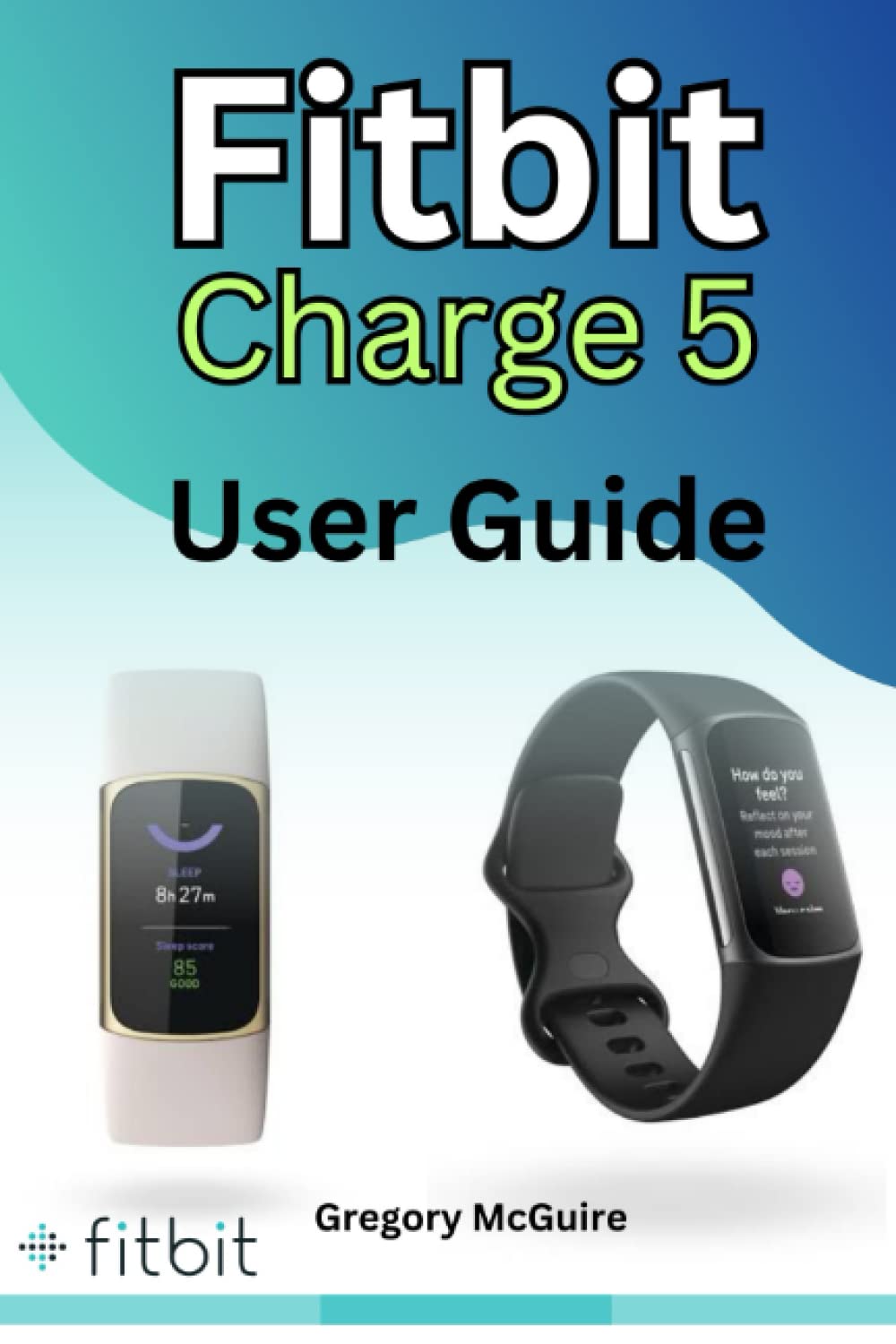
Image: Cover of the Fitbit Charge 5 User Guide. This manual provides instructions for the Fitbit Charge 5 device.
1. დაყენება
1.1 ყუთის გახსნა და საწყისი გადასახადი
Upon opening the package, ensure all components are present: Fitbit Charge 5 device, charging cable, and additional band (if included). Before first use, fully charge your device. Connect the charging cable to a USB power source and attach the magnetic end to the charging port on the back of your Charge 5. A full charge typically takes about two hours.
1.2 Installing the Fitbit App
The Fitbit Charge 5 requires the Fitbit app for setup and data synchronization. Download the Fitbit app from the Apple App Store (for iOS devices) or Google Play Store (for Android devices). Create a new account or log in with an existing Fitbit account.
1.3 თქვენი მოწყობილობის დაწყვილება
- Open the Fitbit app on your smartphone.
- შეეხეთ თქვენს პროფესიონალსfile picture in the top-left corner.
- Select "Set Up a Device."
- Choose "Charge 5" from the list and follow the on-screen instructions to pair your device via Bluetooth.
- During pairing, a 4-digit code will appear on your Charge 5 screen. Enter this code into the Fitbit app when prompted.
1.4 საწყისი კონფიგურაცია
After pairing, the app will guide you through setting up personal information such as height, weight, and gender, which are used for accurate activity tracking. You can also customize watch faces and notification preferences at this stage.
2. Operating Your Fitbit Charge 5
2.1 Navigating the Device
The Charge 5 features a color touchscreen display. Swipe left or right to access different apps and stats. Swipe up from the clock face to view daily stats. Swipe down from the clock face to access quick settings like Do Not Disturb, Sleep Mode, and Screen Wake.
2.2 აქტივობის თვალყურის დევნება
- ნაბიჯები, მანძილი, კალორიები: Your Charge 5 automatically tracks these metrics throughout the day. View them on the device by swiping up from the clock face or in the Fitbit app.
- ვარჯიშის რეჟიმები: To track a specific workout, swipe left on the device until you find the "Exercise" app. Tap to select an activity (e.g., Run, Bike, Swim) and tap "Start."
- აქტიური ზონის წუთები: Earn Active Zone Minutes for time spent in fat burn, cardio, or peak heart rate zones.
2.3 გულისცემის მონიტორინგი
The Charge 5 continuously monitors your heart rate. View your current heart rate on the device or detailed trends in the Fitbit app. The device also provides notifications for high or low heart rates when at rest.
2.4 ძილის თვალყურის დევნება
Wear your Charge 5 to bed to automatically track your sleep stages (light, deep, REM) and sleep score. Review your sleep data in the Fitbit app each morning.
2.5 Stress Management (EDA Sensor)
The Electrodermal Activity (EDA) Scan app on your Charge 5 measures electrodermal activity, which can indicate your body's response to stress. To use, swipe left to the "EDA Scan" app, tap to open, and follow the on-screen instructions to place your fingers on the side sensors.
2.6 ჩაშენებული GPS
For outdoor activities like running or cycling, the built-in GPS tracks your pace and distance without needing your phone. Ensure GPS is enabled in the Exercise app settings before starting your workout.
2.7 შეტყობინებები
Receive call, text, calendar, and app notifications from your paired smartphone directly on your Charge 5. Manage notification settings within the Fitbit app.
2.8 Fitbit Pay
If supported by your bank, you can add credit or debit cards to your Fitbit Wallet in the app and make contactless payments directly from your Charge 5. To use, swipe down from the clock face and tap the Fitbit Pay icon.
3. მოვლა
3.1 თქვენი მოწყობილობის გაწმენდა
Regularly clean your Charge 5 and its band to prevent skin irritation and maintain functionality. Use a soft, lint-free cloth with mild soap and water. Avoid harsh chemicals or abrasive cleaners. Ensure the device is completely dry before wearing or charging.
3.2 დატენვის საუკეთესო პრაქტიკა
To prolong battery life, avoid fully discharging the device frequently. Charge it when the battery indicator shows low. Use only the official Fitbit charging cable.
3.3 პროგრამული უზრუნველყოფის განახლებები
Fitbit periodically releases software updates to improve performance and add new features. Ensure your Charge 5 is charged and near your paired phone during updates. The Fitbit app will notify you when an update is available.
3.4 წყალგამძლეობა
The Fitbit Charge 5 is water-resistant up to 50 meters. It is suitable for swimming and showering. However, it is not recommended for diving or high-velocity water sports. After getting wet, dry the device thoroughly before charging or prolonged wear.
4. Დიაგნოსტიკა
4.1 Device Not Syncing
- დარწმუნდით, რომ Bluetooth ჩართულია თქვენს სმარტფონზე.
- Verify your Charge 5 is within range of your phone.
- Check if the Fitbit app is running in the background.
- Restart both your Charge 5 and your smartphone.
4.2 მოწყობილობა არ იტენება
- Ensure the charging cable is securely connected to both the device and the USB power source.
- Clean the charging contacts on the device and cable.
- სცადეთ სხვა USB პორტი ან კვების ადაპტერი.
4.3 არასწორი მაჩვენებლები
- Ensure the device is worn correctly: not too tight, not too loose, and about a finger's width above your wrist bone.
- Clean the heart rate sensors on the back of the device.
- Restart your Charge 5.
4.4 Restarting Your Charge 5
If your device is unresponsive, connect it to the charging cable. Press the button on the charging cable three times within eight seconds, pausing for one second between presses. The Fitbit logo will appear, indicating the device has restarted.
4.5 ქარხნული პარამეტრების გადატვირთვა
A factory reset erases all data and restores the device to its original settings. This should only be used as a last resort. To perform a factory reset, navigate to "Settings" on your Charge 5, then "Device Info," and select "Clear User Data."
5. სპეციფიკაციები
| ჩვენება | Color AMOLED touchscreen |
| სენსორები | 3-axis accelerometer, Optical heart rate monitor, Red and infrared sensors for SpO2 monitoring, Electrical sensor for EDA Scan app, Built-in GPS + GLONASS, Ambient light sensor, Vibration motor |
| ბატარეის ხანგრძლივობა | Up to 7 days (varies with use and other factors) |
| დატენვის დრო | Approximately 2 hours (0-100%) |
| წყლის წინააღმდეგობა | 50 მეტრამდე |
| დაკავშირება | Bluetooth 5.0 |
| ოპერაციული ტემპერატურა | -10°-დან 45°C-მდე (14°-დან 113°F-მდე) |
6. გარანტია და მხარდაჭერა
For information regarding your Fitbit Charge 5's warranty, please refer to the warranty documentation included with your device or visit the official Fitbit support website. For technical assistance, troubleshooting beyond this manual, or to contact customer service, please visit help.fitbit.com.