1. შესავალი
This manual provides detailed instructions for the setup, operation, and maintenance of your Logitech POP Mouse. The POP Mouse is a compact, wireless mouse designed for multi-device use with customizable features.

Image: The Logitech POP Mouse in Graphite, showcasinმისი კომპაქტური და ერგონომიული დიზაინი.
2. პაკეტის შიგთავსი
- Logitech POP უსადენო მაუსი
- 1x AA Battery (pre-installed)
- მომხმარებლის დოკუმენტაცია

Image: The Logitech POP Mouse and a single AA battery, representing the items included in the product package.
3. დაყენების ინსტრუქციები
3.1. ბატარეის მონტაჟი
- Gently remove the top cover of the mouse. The cover is magnetically attached.
- ჩადეთ თანდართული AA ელემენტი, დარწმუნდით, რომ სწორი პოლარობაა (+/-).
- დაახურეთ ზედა საფარი, დარწმუნდით, რომ ის მყარად არის დამაგრებული თავის ადგილზე.
3.2. დაკავშირება Bluetooth-ით
- ჩართეთ მაუსი ბოლოში მდებარე დენის გადამრთველის გამოყენებით.
- Press and hold one of the Easy-Switch buttons (1, 2, or 3) on the bottom of the mouse until the LED indicator starts blinking rapidly. This indicates pairing mode.
- On your device (computer, tablet, or phone), open Bluetooth settings.
- Select "Logitech POP Mouse" from the list of available devices to complete the pairing process.
- The LED indicator will glow solid for a few seconds, then turn off, confirming a successful connection.

Image: The underside of the POP Mouse, highlighting the Easy-Switch buttons for multi-device pairing.
4. საოპერაციო ინსტრუქციები
4.1. ძირითადი ფუნქციები
- მარცხენა დაწკაპუნება: Primary selection and interaction.
- დააწკაპუნეთ მარჯვენა ღილაკით: კონტექსტურ მენიუებზე წვდომა.
- გადახვევის ბორბალი: ვერტიკალურად ნავიგაციას ახდენს დოკუმენტებში და web გვერდები.
4.2. SilentTouch ტექნოლოგია
The POP Mouse features SilentTouch Technology, which significantly reduces click noise, providing a quieter user experience without compromising tactile feedback.

Image: A hand operating the POP Mouse, illustrating the quiet operation provided by SilentTouch Technology.
4.3. SmartWheel Scrolling
The SmartWheel automatically switches between two modes:
- ზუსტი რეჟიმი: For detailed, line-by-line navigation.
- Speed Scroll Mode: For rapid scrolling through long documents or web გვერდები.

Image: A user's hand demonstrating the use of the SmartWheel for efficient navigation.
5. მორგება
5.1. Customizable Top Button (Emoji Button)
The top button, located below the scroll wheel, is customizable. By default, it can be configured to open an emoji menu or assign other shortcuts.
- Download and install the Logitech Options+ Software from the official Logitech webსაიტი (logitech.com/optionsplus).
- Open the Logitech Options+ Software.
- Select your POP Mouse from the detected devices.
- Navigate to the button customization settings.
- Assign your desired function to the top button, such as an emoji shortcut, Snip Screen, Mic Mute, or Voice-to-Text.
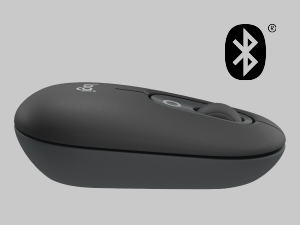
Image: A visual representation of the customizable top button on the POP Mouse, showing its function to access an emoji menu on a connected computer.
6. მრავალმოწყობილობასთან დაკავშირება
The Logitech POP Mouse can connect to up to three different devices simultaneously using Bluetooth. You can easily switch between these devices.
6.1. მოწყობილობების გადართვა
To switch between paired devices, press the Easy-Switch button (1, 2, or 3) on the bottom of the mouse corresponding to the desired device. The LED indicator will briefly light up to confirm the selected channel.
6.2. Logitech FLOW (Advanced Feature)
For seamless control across multiple computers, install Logitech Options+ Software on all devices. With Logitech FLOW enabled, you can move your mouse cursor across screens as if they were a single desktop, even copying and pasting text, images, and files მათ შორის.
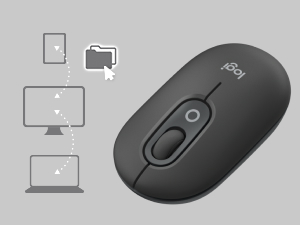
Image: A diagram showing how the POP Mouse can control multiple devices, illustrating the FLOW feature for cross-device interaction.
7. მოვლა
7.1. ბატარეის გამოცვლა
The POP Mouse operates on a single AA battery with an estimated life of up to 24 months. When the battery is low, the LED indicator on the bottom of the mouse may flash. Replace the battery by following the steps in Section 3.1.
7.2. დასუფთავება
მაუსის გასაწმენდად გამოიყენეთ რბილი, უბუშტო ქსოვილი. ჯიუტი ჭუჭყის შემთხვევაში, ოდნავampქსოვილი წყლით დაასველეთ. მოერიდეთ უხეში ქიმიკატების ან აბრაზიული მასალების გამოყენებას.
8. Დიაგნოსტიკა
| პრობლემა | გამოსავალი |
|---|---|
| მაუსი არ ირთვება. | Ensure the power switch on the bottom of the mouse is in the 'ON' position. Check and replace the AA battery if necessary. |
| Mouse not connecting via Bluetooth. |
|
| კურსორის მოძრაობა არასტაბილურია ან არ რეაგირებს. |
|
| Custom button not working. | Ensure Logitech Options+ Software is installed and running on your computer, and the button is correctly configured. |
9. სპეციფიკაციები
| ფუნქცია | დეტალი |
|---|---|
| მოდელის ნომერი | 910-007165 წწ |
| დაკავშირება | Bluetooth 5.1 |
| უსადენო დიაპაზონი | 10 მეტრამდე (32.81 ფუტი) |
| სენსორის ტექნოლოგია | Logitech High Precision Optical Tracking |
| ღილაკების რაოდენობა | 4 (Left/Right click, Scroll wheel click, Top customizable button) |
| ბატარეის ტიპი | 1 x AA ბატარეა |
| ბატარეის ხანგრძლივობა | 24 თვემდე (შეიძლება განსხვავდებოდეს გამოყენების მიხედვით) |
| ზომები (LxWxH) | 14.12 x 2.34 x 1.38 ინჩი (35.86 x 5.94 x 3.51 სმ) |
| წონა | 2.89 უნცია (82 გ ბატარეით) |
| ოპერაციული სისტემის თავსებადობა | Windows 10 ან უფრო ახალი, macOS 10.15 ან უფრო ახალი, iPadOS, Chrome OS, Android |

Image: Technical drawing displaying the length, width, and height measurements of the Logitech POP Mouse.
10. გარანტია და მხარდაჭერა
გარანტიის შესახებ ინფორმაციისა და ტექნიკური მხარდაჭერისთვის, გთხოვთ, ეწვიოთ Logitech-ის ოფიციალურ მხარდაჭერის საიტს. website or refer to the user documentation included in your product package.
- ონლაინ დახმარება: support.logi.com
- პროდუქტის რეგისტრაცია: Registering your product can help you receive faster support and updates.


