1. შესავალი
The Dayton Audio Matrix88 is an advanced 8-source, 8-zone matrix audio switcher designed to provide flexible audio distribution and control throughout your home or commercial space. This device allows you to assign any audio input to any output zone, adjust volume, bass, and treble, and manage power, all through an intuitive mobile application. It integrates seamlessly with existing audio amplification systems and offers various connectivity options including analog, digital, 12V triggers, and RS232 for comprehensive control.
2. უსაფრთხოების მნიშვნელოვანი ინსტრუქციები
Please read and follow all safety instructions before operating the Dayton Audio Matrix88. Retain this manual for future reference.
- დენის წყარო: Connect the unit only to the specified power supply as indicated in this manual and on the product label.
- ვენტილაცია: უზრუნველყავით საკმარისი ვენტილაცია. არ დაბლოკოთ ვენტილაციის ღიობები. დაამონტაჟეთ მწარმოებლის ინსტრუქციის შესაბამისად.
- წყალი და ტენიანობა: Do not expose this apparatus to rain or moisture. Do not use near water or in wet locations.
- სითბო: არ დააინსტალიროთ სითბოს წყაროსთან ახლოს, როგორიცაა რადიატორები, სითბოს რეგისტრები, ღუმელები ან სხვა მოწყობილობა (მათ შორის ampგამხსნელები), რომლებიც წარმოქმნიან სითბოს.
- დასუფთავება: გაწმინდეთ მხოლოდ მშრალი ქსოვილით.
- მომსახურება: ნუ ეცდებით ამ პროდუქტის საკუთარ მომსახურებას. მიაწოდეთ ყველა სერვისი კვალიფიციურ მომსახურე პერსონალს.
- კაბელები: დაიცავით კვების კაბელები ფეხით სიარულისგან ან მოჭერისგან, განსაკუთრებით შტეფსელებთან, როზეტებთან და მოწყობილობიდან გამოსვლის წერტილებთან.
3. პროდუქტი დასრულდაview
3.1 წინა პანელი
The front panel of the Matrix88 provides essential indicators and controls for quick status checks and basic power management.

სურათი 1: წინა View of Dayton Audio Matrix88
- Zone Signal LED Indicators: These LEDs illuminate to indicate active audio signals in each of the 8 zones.
- სიმძლავრის LED ინდიკატორი: აჩვენებს მოწყობილობის კვების სტატუსს.
- ჩართვის/გამორთვის ჩამრთველი: Controls the main power to the Matrix88.
3.2 უკანა პანელი
The rear panel houses all input and output connections, along with control ports for integration into various audio systems.
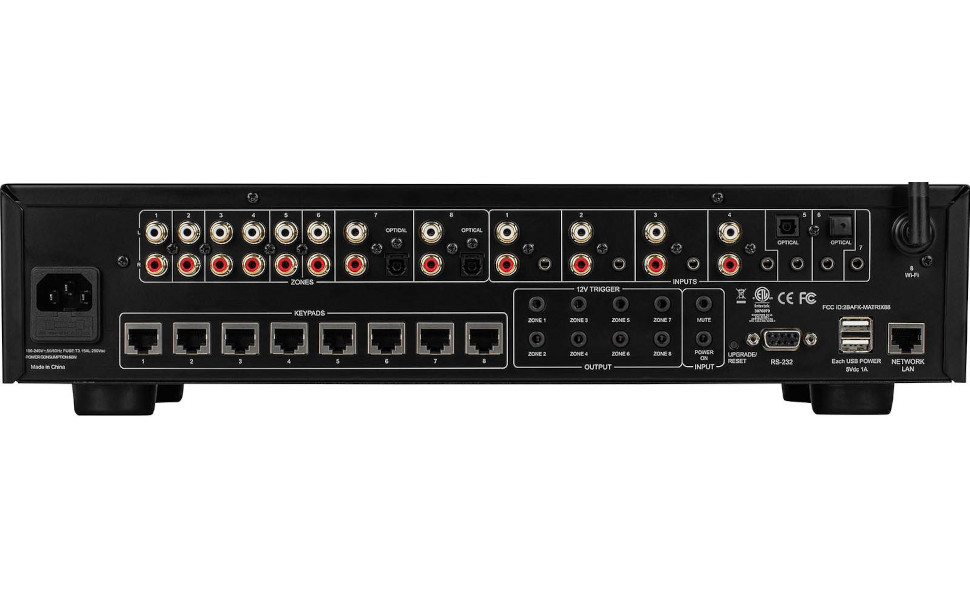
სურათი 2: უკანა View of Dayton Audio Matrix88
- AC შეყვანა: Power connection for the unit.
- ზონის წინაamp შედეგები 1-8: RCA outputs for connecting to external amplifiers for each zone.
- Stereo RCA Inputs: Analog audio inputs for various sources.
- Stereo 3.5mm Inputs: Auxiliary analog audio inputs.
- Optical Toslink Inputs: Digital audio inputs.
- Wi-Fi ანტენა: უკაბელო ქსელთან დასაკავშირებლად.
- Keypad Connections: Ports for optional in-wall keypads.
- 12VDC Trigger Inputs: For external control via 12V trigger signals.
- 12VDC Trigger Outputs: To trigger other devices based on Matrix88 status.
- RS232 სერიული პორტი: For integration with third-party control systems.
- USB Power Outputs: For powering small external devices.
- Network LAN Port: სადენიანი ქსელის დასაკავშირებლად.
4. დაყენების გზამკვლევი
4.1 შეფუთვა და განთავსება
Carefully remove the Matrix88 from its packaging. Place the unit on a stable, flat surface or mount it in an equipment rack. Ensure there is sufficient space around the unit for proper ventilation.
4.2 აუდიო წყაროების დაკავშირება
The Matrix88 supports a variety of audio input types:
- ანალოგური RCA: Connect your audio sources (e.g., CD player, streamer, TV audio out) to the Stereo RCA Inputs on the rear panel using appropriate RCA cables.
- ანალოგური 3.5 მმ: Use the Stereo 3.5mm Inputs for devices with a 3.5mm audio output.
- Digital Optical (Toslink): Connect digital audio sources (e.g., TV, game console) to the Optical Toslink Inputs.
4.3 დაკავშირება Ampგამხსნელები და სპიკერები
The Matrix88 provides pre-amplified outputs for each zone. These outputs must be connected to external power amplifiers, which then drive your speakers.
- დააკავშირეთ ზონის წინაamp გამომავალი 1-8 (RCA) to the corresponding input of your external power amplifiers for each zone.
- უზრუნველყავით თქვენი amplifiers are correctly connected to your speakers in each zone.
4.4 ქსელური კავშირი
Network connectivity is essential for app control.
- სადენიანი კავშირი: შეაერთეთ Ethernet კაბელი თქვენი ქსელის როუტერიდან ან გადართეთ ქსელის LAN პორტი უკანა პანელზე.
- უკაბელო კავშირი: Attach the provided Wi-Fi antenna to the Wi-Fi ანტენა connector on the rear panel. The unit will automatically attempt to connect to an available Wi-Fi network. Configuration may be required via the Matrio app.
4.5 12V Trigger Connections (Optional)
The 12V trigger ports allow for automated control of other devices or to be controlled by external systems.
- 12VDC Trigger Inputs: Connect a 12V trigger source to these inputs to control specific functions of the Matrix88.
- 12VDC Trigger Outputs: Connect these outputs to devices that can be triggered by a 12V signal (e.g., power amplifiers) to turn them on/off in sync with the Matrix88 zones.
4.6 RS232 Control (Optional)
For advanced integration with home automation systems, use the RS232 serial port.
- Connect an RS232 cable from your control system to the RS232 სერიული პორტი. Refer to the detailed RS232 protocol documentation for specific commands.
4.7 ჩართვა
Once all connections are made, connect the AC power cord to the AC შეყვანა and then to a wall outlet. Flip the ჩართვის/გამორთვის ჩამრთველი on the front panel to the 'On' position. The Power LED Indicator will illuminate.
5. საოპერაციო ინსტრუქციები
5.1 Matrio App Installation and Pairing
The primary control interface for the Matrix88 is the Matrio mobile application.
- Download the Matrio app from your device's app store (iOS or Android).
- Ensure your mobile device is connected to the same network as the Matrix88.
- Open the Matrio app. It will automatically search for and discover the Matrix88 on your network.
- Follow the on-screen prompts to pair your device with the Matrix88. You may need to name your zones and inputs during the initial setup.

სურათი 3: Matrio App Interface for Zone and Source Control
5.2 ზონის კონტროლი
The Matrio app provides comprehensive control over each audio zone.
- Assigning Inputs: Select any available audio input source to play in any desired zone.
- ხმის რეგულირება: Independently control the volume level for each zone.
- ტონი კონტროლი: Adjust bass and treble settings for individual zones to optimize sound quality.
- ჩართვა/გამორთვა: Turn zones on or off as needed.
- დადუმება: Temporarily mute audio in a specific zone.
5.3 ჯგუფური კონტროლი
The app allows for grouping multiple zones to play the same source at synchronized volumes.
- Select the 'Group Control' option within the app.
- Choose the zones you wish to group together.
- Select a common input source and adjust the master volume for the group.
ვიდეო 1: Demonstrating App Control for Dayton Audio Matrix88
6. მოვლა
6.1 დასუფთავება
To maintain the appearance and functionality of your Matrix88, periodically wipe the exterior with a soft, dry cloth. Do not use harsh chemicals or abrasive cleaners.
6.2 პროგრამული უზრუნველყოფის განახლებები
Dayton Audio may release firmware updates to improve performance or add new features. Check the Matrio app or the Dayton Audio webსაიტზე შეგიძლიათ იხილოთ ინფორმაცია არსებული განახლებებისა და მათი გამოყენების ინსტრუქციების შესახებ.
7. Დიაგნოსტიკა
If you encounter issues with your Matrix88, refer to the following common problems and solutions:
| პრობლემა | შესაძლო მიზეზი | გამოსავალი |
|---|---|---|
| ელექტროენერგია არ არის მოწყობილი. | Power cord disconnected; Power switch off; Faulty outlet. | შეამოწმეთ კვების კაბელის შეერთება; დარწმუნდით, რომ კვების ჩამრთველი ჩართულია; შეამოწმეთ როზეტი სხვა მოწყობილობასთან. |
| No sound in a zone. | Incorrect input selected; Zone volume too low; Amplifier off/disconnected; Speaker wiring issue. | Verify input selection in app; Increase zone volume; Check amplifier power and connections; Inspect speaker wiring. |
| App cannot find the Matrix88. | Network connection issue; Device not powered on; App/firmware outdated. | Ensure Matrix88 is powered on and connected to the network (wired or Wi-Fi); Restart app and Matrix88; Check for app/firmware updates. |
| დამახინჯებული აუდიო. | Input signal too high; Volume too high; Faulty cables. | Reduce input source volume; Lower zone volume; Replace audio cables. |
If the problem persists after trying these solutions, please contact Dayton Audio customer support.
8. სპეციფიკაციები
- პროდუქტის ზომები: 21.5 x 13.75 x 8.75 ინჩი
- ნივთის წონა: 14 ფუნტი
- მოდელის ნომერი: მატრიცა88
- ბრენდი: დეიტონის აუდიო
- ფერი: შავი
- კონექტორის ტიპები: 3.5mm Jack, RCA, Optical Toslink, RS232, LAN
- თავსებადი მოწყობილობები: DVD Player, Projector, Monitor, Television, Gaming Console, Blu-ray Player, Satellite Receiver, DVR, various audio sources and ampმებრძოლები.
- კაბელის ტიპები: RCA, 3.5mm Jack, Optical, Ethernet, RS232
- პირველი ხელმისაწვდომი: 5 წლის 2023 სექტემბერი
9. გარანტია და მხარდაჭერა
For warranty information, technical support, or service inquiries, please refer to the official Dayton Audio webსაიტზე ან დაუკავშირდით მათ მომხმარებელთა მომსახურების განყოფილებას. შეინახეთ თქვენი შესყიდვის ქვითარი, როგორც შეძენის დამადასტურებელი საბუთი გარანტიის მოთხოვნის შემთხვევაში.
დეიტონის აუდიო Webსაიტი: www.daytonaudio.com


