1. შესავალი
Thank you for choosing the Cherry KW 7100 Mini Multi-Device Compact Keyboard. This manual provides essential information for setting up, operating, and maintaining your new keyboard. Designed for versatility and portability, this keyboard offers seamless connectivity across multiple devices.
2. რა არის ყუთში
- Cherry KW 7100 Mini Multi-Device Compact Keyboard
- USB-C to USB-A Charging/Connection Cable
- 2x AAA ბატარეები
- 2.4 GHz Wireless Nano Receiver (stored magnetically in the keyboard)
- ტარების საქმე
- ინსტრუქციის სახელმძღვანელო

სურათი 1: ზემოდან ქვემოთ view of the Cherry KW 7100 Mini Keyboard.
3. დაყენება
3.1. ბატარეის მონტაჟი
- იპოვეთ ბატარეის განყოფილება კლავიატურის ქვედა მხარეს.
- გახსენით ბატარეის განყოფილების საფარი.
- ჩადეთ ორი AAA ელემენტი, დარწმუნდით, რომ სწორი პოლარობა (+/-) გაქვთ.
- უსაფრთხოდ დახურეთ ბატარეის განყოფილების საფარი.
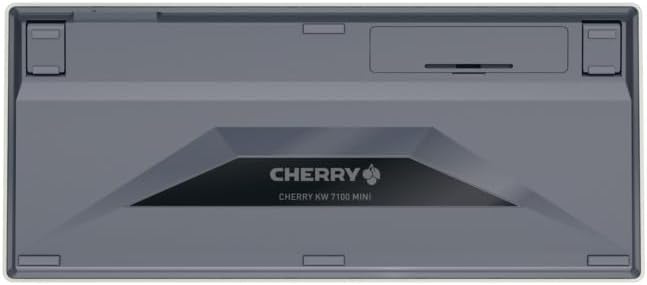
Figure 2: Underside of the keyboard with the battery compartment.
3.2. კლავიატურის დაკავშირება
The Cherry KW 7100 Mini supports three connection methods: Bluetooth, 2.4 GHz Wireless, and Wired USB-C.
3.2.1. Bluetooth Connection (Up to 3 Devices)
- ჩართეთ კლავიატურა გვერდით მდებარე დენის გადამრთველის გამოყენებით.
- Press and hold one of the Bluetooth channel keys (F1, F2, or F3) for 3-5 seconds until the corresponding LED indicator blinks rapidly. This indicates pairing mode.
- On your device (laptop, smartphone, tablet), navigate to Bluetooth settings and search for available devices.
- Select "Cherry KW 7100" from the list to pair. The LED will stop blinking and remain solid for a few seconds upon successful connection.
- Repeat for up to two additional devices using the other Bluetooth channel keys (F1, F2, or F3).
3.2.2. 2.4 გჰც უსადენო კავშირი
- Locate the 2.4 GHz wireless nano receiver, typically stored magnetically in a slot on the underside of the keyboard.
- Insert the nano receiver into an available USB-A port on your computer.
- Turn on the keyboard using the power switch. The keyboard should automatically connect to the receiver.
3.2.3. სადენიანი USB-C კავშირი
- მოწოდებული USB-C კაბელის ერთი ბოლო კლავიატურის USB-C პორტს შეაერთეთ.
- USB-C კაბელის მეორე ბოლო შეაერთეთ თქვენი კომპიუტერის თავისუფალ USB-A პორტთან.
- The keyboard will function as a wired keyboard.
Video 1: Demonstrating the setup and typing experience of the Cherry KW 7100 Mini Keyboard.
4. კლავიატურის გამოყენება
4.1. დაკავშირებულ მოწყობილობებს შორის გადართვა
To switch between paired Bluetooth devices, simply press the corresponding Bluetooth channel key (F1, F2, or F3) that your device is paired to. The keyboard will automatically connect to the selected device.
4.2. Function Keys (FN)
The keyboard features a dedicated FN key, typically located near the right Shift key. This key, in combination with other keys, activates secondary functions such as media controls, screen brightness, and other system commands. Refer to the keycap legends for specific FN key combinations.
4.3. LED ინდიკატორები
LED indicators on the keyboard provide information about its status:
- Bluetooth Channel LEDs (F1, F2, F3): Indicate the currently active Bluetooth connection or pairing mode.
- Caps Lock-ის LED ინდიკატორი: ანათებს, როდესაც Caps Lock აქტიურია.
- ბატარეის სტატუსის LED: მიუთითებს ბატარეის დაბალ დონეზე.
4.4. რეგულირებადი ფეხები
The keyboard is equipped with stable, fold-out feet on the underside. These allow you to adjust the typing angle for improved ergonomics and comfort.
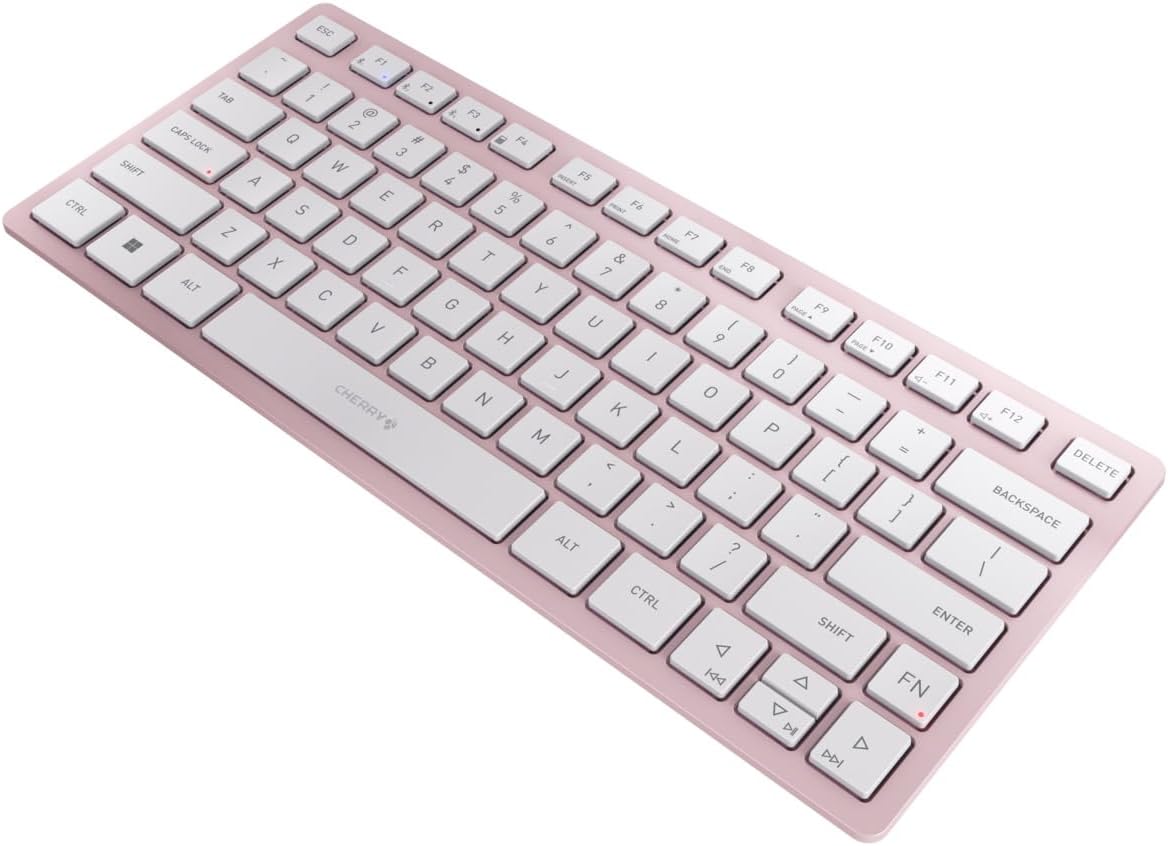
სურათი 3: დახრილი view of the keyboard, highlighting its slim profile.

სურათი 4: მხარე view showing the adjustable feet extended for an ergonomic typing angle.
5. მოვლა
5.1. დასუფთავება
To clean your keyboard, gently wipe the keycaps and surface with a soft, lint-free cloth. For stubborn dirt, slightly dampen the cloth with water or a mild, non-abrasive cleaning solution. Avoid excessive moisture and do not spray cleaners directly onto the keyboard.
5.2. შენახვა
When not in use, especially during travel, store the keyboard in its included carrying case to protect it from dust, scratches, and minor impacts.

Figure 5: The keyboard stored in its protective carrying case.
6. Დიაგნოსტიკა
6.1. Keyboard Not Connecting
- დარწმუნდით, რომ კლავიატურა ჩართულია.
- შეამოწმეთ ბატარეები და საჭიროების შემთხვევაში შეცვალეთ ისინი.
- For Bluetooth, ensure the correct channel (F1, F2, or F3) is selected and the keyboard is in pairing mode (blinking LED).
- For 2.4 GHz wireless, ensure the nano receiver is securely plugged into a USB-A port.
- Try connecting via the USB-C cable to rule out wireless issues.
- გადატვირთეთ მოწყობილობა და ხელახლა სცადეთ დაწყვილება.
6.2. კლავიშები არ რეაგირებს
- Check the connection as described above.
- დარწმუნდით, რომ გასაღებების ქვეშ ნარჩენები არ არის მოქცეული.
- თუ სადენიან კავშირს იყენებთ, სცადეთ სხვა USB პორტი ან კაბელი.
6.3. ბატარეის ხანმოკლე ხანგრძლივობა
- Ensure you are using fresh, high-quality AAA batteries.
- Turn off the keyboard when not in use to conserve battery power.
7. სპეციფიკაციები
| ფუნქცია | სპეციფიკაცია |
|---|---|
| მოდელის სახელი | KW 7100 |
| საქონლის მოდელის ნომერი | JK-7100US-19 |
| ბრენდი | ალუბალი |
| დაკავშირების ტექნოლოგია | Bluetooth 5.1 (3 channels), 2.4 GHz Wireless, USB-C Wired |
| თავსებადი მოწყობილობები | ლეპტოპი, სმარტფონი, პლანშეტი |
| კლავიატურის აღწერა | Compact, Multi-Device |
| ძირითადი მექანიზმი | CHERRY SX Scissor Mechanism |
| დენის წყარო | 2x AAA ბატარეები |
| დაშიფვრა | AES-128 |
| პროდუქტის ზომები | 11.6 x 5.1 x 0.6 ინჩი |
| ნივთის წონა | 1.4 ფუნტი |
| მასალა | მეტალი, პლასტმასი |
| ფერი | ალუბლის ყვავილი |
8. გარანტია და მხარდაჭერა
This product is covered by Cherry's standard manufacturer warranty. For detailed warranty information, technical support, or service inquiries, please visit the official Cherry webსაიტზე ან პირდაპირ დაუკავშირდით მათ მომხმარებელთა მხარდაჭერას.
მწარმოებელი: ალუბალი
Webსაიტი: www.cherry.de


