შესავალი
This manual provides detailed instructions for the setup, operation, and maintenance of your Prechen 10.1 inch Portable Touchscreen Monitor, Model HD-101. Please read this manual thoroughly before using the device to ensure proper functionality and to prevent damage.
პროდუქტის მახასიათებლები
- Portable Touchscreen: This 10.1-inch monitor is compact and lightweight, designed for portability. The touchscreen functionality allows for intuitive navigation and interaction, enhancing productivity on the go.
- მაღალი გარჩევადობის IPS დისპლეი: Features a 1920x1200 resolution with a 16:10 aspect ratio, delivering clear and vibrant visuals. IPS technology provides wide viewing angles and accurate color reproduction, suitable for various applications.
- მრავალმხრივი კავშირი: Equipped with HDMI and USB-C ports, offering flexible connection options. It can be easily connected to Windows PCs, laptops, and gaming consoles like Xbox. Note: USB-C is for touch functionality and power.
- ინტეგრირებული დინამიკები: Built-in speakers provide clear and dynamic audio, eliminating the need for external speakers during media consumption, gaming, or virtual meetings.
- VESA Mount თავსებადი: The monitor supports VESA mounting standards, allowing for attachment to compatible stands or arms for customized workspace setups and comfortable viewing კუთხეები.
დაყენება
პაკეტის შიგთავსი
დარწმუნდით, რომ შეფუთვაში ყველა ნივთია:
- Prechen 10.1 inch Portable Touchscreen Monitor
- HDMI კაბელი
- USB-C to USB-C კაბელი
- USB-A to USB-C Cable (for power/touch)
- დენის ადაპტერი
- მომხმარებლის სახელმძღვანელო (ეს დოკუმენტი)
მონიტორის დაკავშირება
- დენის კავშირი: Connect the provided power adapter to the DC Power Port on the monitor and plug it into a power outlet. Alternatively, if your device supports power delivery, connect a USB-C to USB-C cable to the USB-C (Power & Touch) port for both power and signal.
- ვიდეო კავშირი:
- HDMI: Connect one end of the HDMI cable to the HDMI port on the monitor and the other end to the HDMI output of your computer or device.
- USB-C (DisplayPort Alternate Mode): If your device supports DisplayPort Alternate Mode over USB-C, connect a USB-C to USB-C cable to the USB-C (Power & Touch) port on the monitor and your device. This single cable can provide video, power, and touch functionality.
- შეხების ფუნქციონირება: For touch functionality, ensure the USB-C (Power & Touch) port is connected to your device. If using HDMI for video, you will also need to connect a USB-A to USB-C cable from your device's USB-A port to the monitor's USB-C (Power & Touch) port.
- აუდიო გამომავალი: If you wish to use external headphones or speakers, connect them to the 3.5mm Audio Port on the monitor.
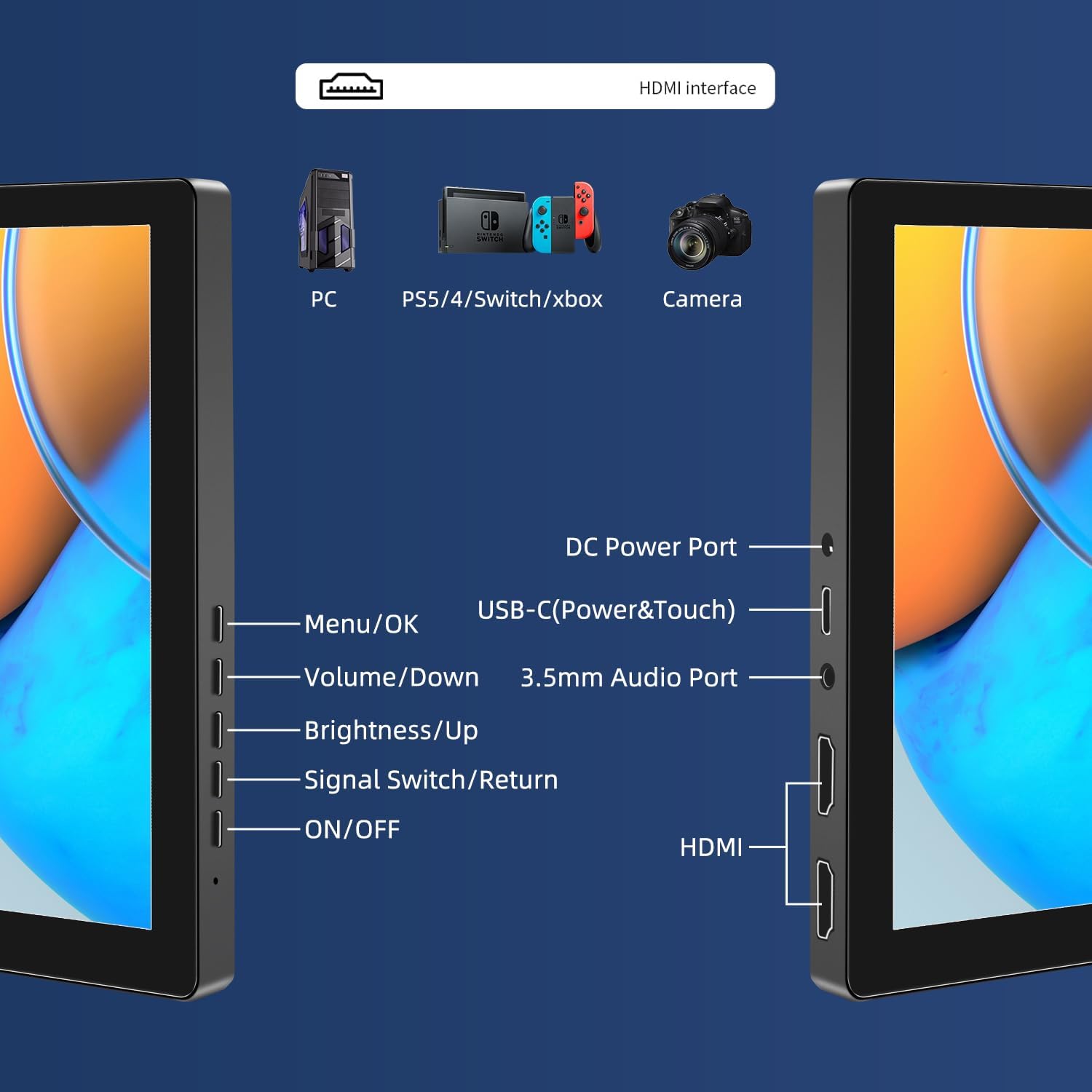
სურათი: მეტიview of the monitor's ports including DC Power, USB-C (Power & Touch), 3.5mm Audio, HDMI, and control buttons.
ოპერაციული ინსტრუქციები
ჩართვა/გამორთვა
- To power on the monitor, press the ჩართვა/გამორთვა ღილაკი.
- გამორთვა, დააჭირეთ ღილაკს ჩართვა/გამორთვა button for a few seconds until the screen turns off.
ეკრანულ ეკრანზე (OSD) მენიუს გამოყენება
OSD მენიუ საშუალებას გაძლევთ დაარეგულიროთ სხვადასხვა ეკრანის პარამეტრები.
- დააჭირეთ მენიუ / კარგი ღილაკი OSD მენიუს გასახსნელად.
- გამოიყენეთ Ხმის დაწევა და სიკაშკაშე/Up ღილაკები მენიუს პარამეტრებში ნავიგაციისთვის.
- დააჭირეთ მენიუ / კარგი ვარიანტის ასარჩევად ან პარამეტრის დასადასტურებლად.
- დააჭირეთ Signal Switch/Return button to go back to the previous menu or exit the OSD.
Adjusting Display Modes
The monitor supports multiple display modes when connected to a computer:
- დუბლიკატის რეჟიმი: Displays the same content on both your primary screen and the portable monitor.
- გაფართოების რეჟიმი: აფართოებს თქვენს სამუშაო მაგიდას ორივე ეკრანზე, რაც უზრუნველყოფს მეტ სამუშაო სივრცეს.
- მეორე ეკრანის რეჟიმი: დისპლეისთვის მხოლოდ პორტატულ მონიტორს იყენებს.
These modes are typically configured through your operating system's display settings (e.g., Windows Display Settings, macOS System Preferences).
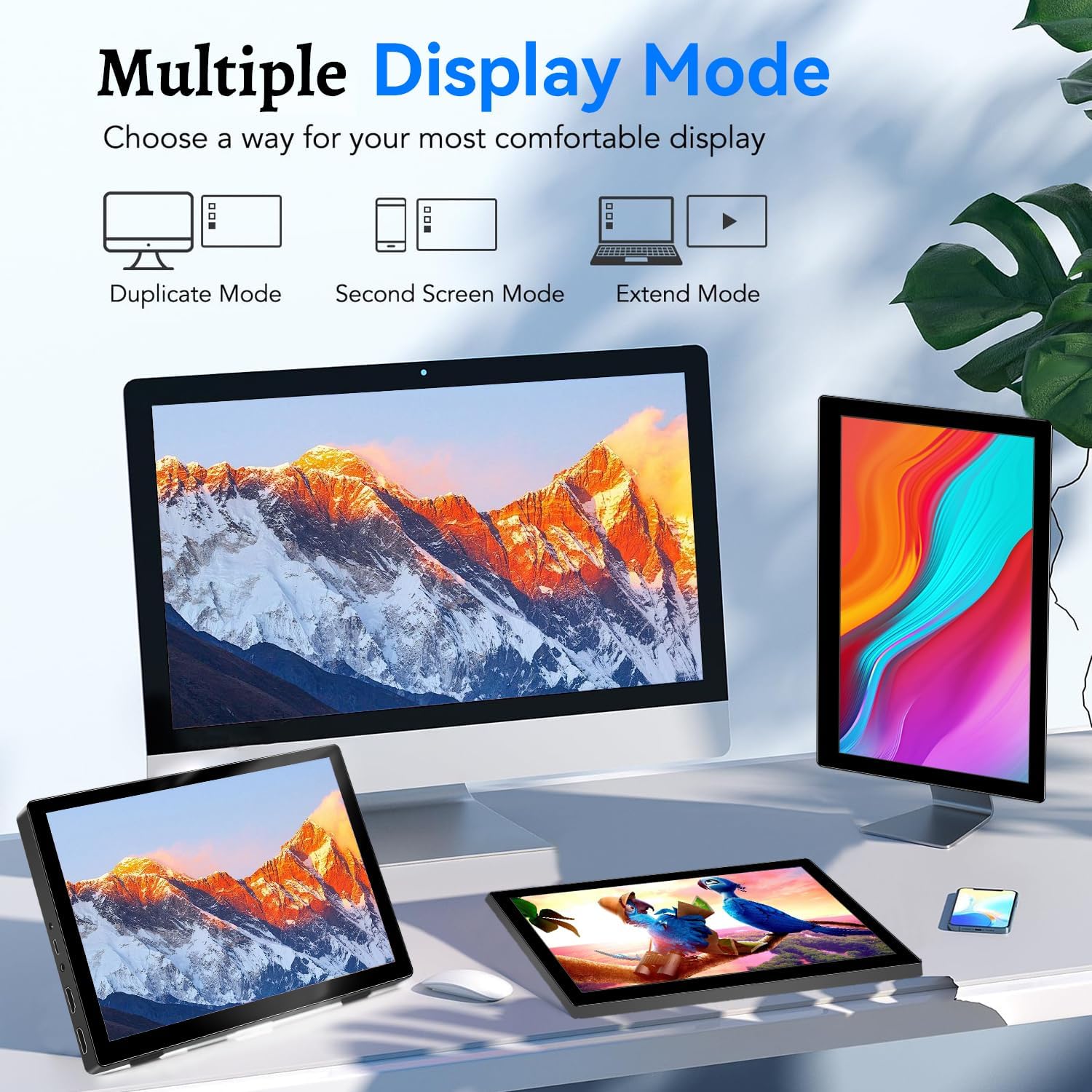
Image: Visual representation of Duplicate, Second Screen, and Extend display modes.
Using Touchscreen Functionality
The monitor supports 10-point touchscreen technology. Ensure the USB-C (Power & Touch) port is correctly connected to your device for touch input to function.

სურათი: მაგamples of 10-point touchscreen gestures for interaction.
მოვლა
- ეკრანის გაწმენდა: გამოიყენეთ რბილი, უბინავის ქსოვილი ოდნავ დampened with water or a non-abrasive screen cleaner. Do not spray cleaner directly onto the screen.
- C-ს გაწმენდაasing: მონიტორის გასუფთავება გasinრბილი, მშრალი ქსოვილით გაწმინდეთ. მოერიდეთ ძლიერი სარეცხი საშუალებების ან გამხსნელების გამოყენებას.
- შენახვა: როდესაც მონიტორი არ გამოიყენება, შეინახეთ გრილ, მშრალ ადგილას, მოარიდეთ მზის პირდაპირ სხივებს და ექსტრემალურ ტემპერატურას.
- დამუშავება: მოერიდეთ მონიტორის დავარდნას ან ძლიერ დარტყმებს. მონიტორზე მძიმე საგნები არ დადოთ.
პრობლემების მოგვარება
| პრობლემა | შესაძლო მიზეზი | გამოსავალი |
|---|---|---|
| ეკრანი არ არის/შავი ეკრანი |
|
|
| სენსორული ეკრანი არ პასუხობს |
|
|
| დინამიკებიდან ხმა არ არის |
|
|
| Image quality issues (blurry, distorted) |
|
|
სპეციფიკაციები
| ფუნქცია | დეტალი |
|---|---|
| ბრენდი | პრეჩენი |
| მოდელის ნომერი | HD-101 |
| ეკრანის ზომა | 10.1 ინჩი |
| რეზოლუცია | 1920 x 1200 (UXGA Wide) |
| ასპექტის თანაფარდობა | 16:10 |
| პანელის ტიპი | IPS |
| განახლების სიხშირე | 60 ჰც |
| რეაგირების დრო | 1 ms |
| დაკავშირება | 1x HDMI, 1x USB-C (Power & Touch), 1x 3.5mm Audio Jack, 1x DC Power Port |
| ზომები (L x W x H) | 21.8 x 15.8 x 1.4 სმ |
| წონა | 990 გრამი |
| მწარმოებელი | შენჟენ კენოვას ელექტრონიკის კომპანია, შპს |
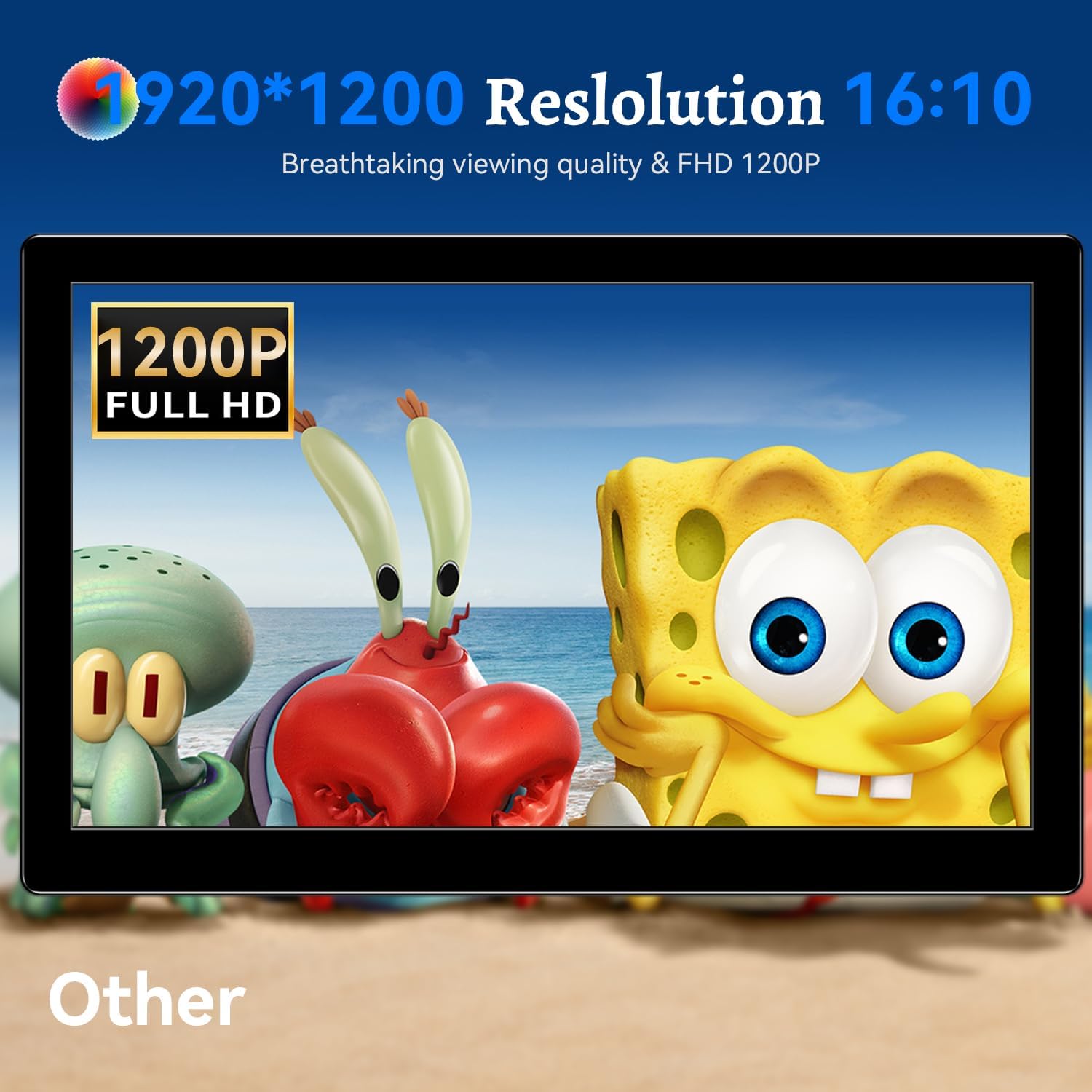
სურათი: მონიტორის ჩვენებაasing its 1920x1200 Full HD resolution.

Image: The monitor's IPS panel offering wide viewing angles and rich colors.
გარანტია და მხარდაჭერა
For warranty information and technical support, please refer to the warranty card included with your product or contact Prechen customer service through their official website. Please have your model number (HD-101) and purchase details ready when contacting support.


