შესავალი
This manual provides detailed instructions for the WAVLINK UMD308 USB-C Triple Display Docking Station. This versatile device expands your laptop's connectivity, offering multiple display outputs, power delivery, and additional USB ports for enhanced productivity.
უსაფრთხოების ინფორმაცია
- მოწყობილობა მოარიდეთ წყალს, ცეცხლს და მაღალ ტემპერატურას.
- ნუ ეცდებით მოწყობილობის დაშლას ან შეკეთებას თავად.
- Use only compatible power adapters (not included) for power delivery.
- უზრუნველყოს სათანადო ვენტილაცია გადახურების თავიდან ასაცილებლად.
პაკეტის შიგთავსი
- WAVLINK UMD308 USB-C სამმაგი ეკრანის დასამაგრებელი სადგური
- სწრაფი დაწყების სახელმძღვანელო (დეტალური ინსტრუქციებისთვის იხილეთ ეს სახელმძღვანელო)

Image: The WAVLINK UMD308 USB-C Triple Display Docking Station shown with its retail packaging and quick start guide.
პროდუქტი დასრულდაview
The WAVLINK UMD308 is a compact 7-in-1 USB-C docking station designed to expand your Windows laptop's capabilities. It features multiple ports for video output, power delivery, and peripheral connectivity.
პორტის განლაგება

სურათი: ზედა view of the WAVLINK UMD308 docking station highlighting its ports: PD In (100W), DP (8K@60Hz), HDMI1 (8K@60Hz), HDMI2 (8K@60Hz). The bottom view shows three USB 2.0 ports (480Mbps) and the Host Type-C cable (95W Output) for connecting to the laptop.
- USB-C Power Delivery (PD In): Up to 100W input for charging your laptop (95W output).
- DisplayPort (DP): Supports up to 8K@60Hz single display.
- HDMI 1 და HDMI 2: Each supports up to 8K@60Hz single display.
- USB 2.0 Type-A პორტები (x3): For connecting peripherals like keyboards, mice, and USB drives (480Mbps data transfer).
- Host Type-C Cable: Connects to your laptop's USB-C port.
დაყენება
- ლეპტოპთან დაკავშირება: Plug the integrated USB-C cable from the WAVLINK UMD308 into your laptop's USB-C port. Ensure your laptop's USB-C port supports video output (DP Alt Mode) and charging for full functionality.
- დენის მიწოდება (არასავალდებულო): If your laptop supports USB-C charging, connect a compatible 20V/5A (100W) USB-C power adapter (not included) to the PD In port on the docking station. This will provide up to 95W pass-through charging to your laptop.
- ეკრანების დაკავშირება: Connect your external monitors to the DisplayPort, HDMI 1, and HDMI 2 ports on the docking station using appropriate cables.
- პერიფერიული მოწყობილობების დაკავშირება: Plug your USB devices (keyboard, mouse, USB drives, etc.) into the three USB 2.0 Type-A ports.
თავსებადობის შენიშვნები:
- Windows Systems Only: This docking station is compatible with Windows 11/10/8.1/8/7, Chrome OS, Linux, iPad OS, Harmony OS, and Android. It is not compatible with MAC OS computers.
- USB-C Port Requirements: Your laptop's USB-C port must support video output (DP Alt Mode) and charging for the adapter to function correctly.
- DisplayPort 1.4 + DSC 1.2: For optimal resolution (e.g., Triple 4K@60Hz), ensure your laptop's USB-C port supports DP1.4 with DSC1.2. If not, the extended display resolution may be limited.
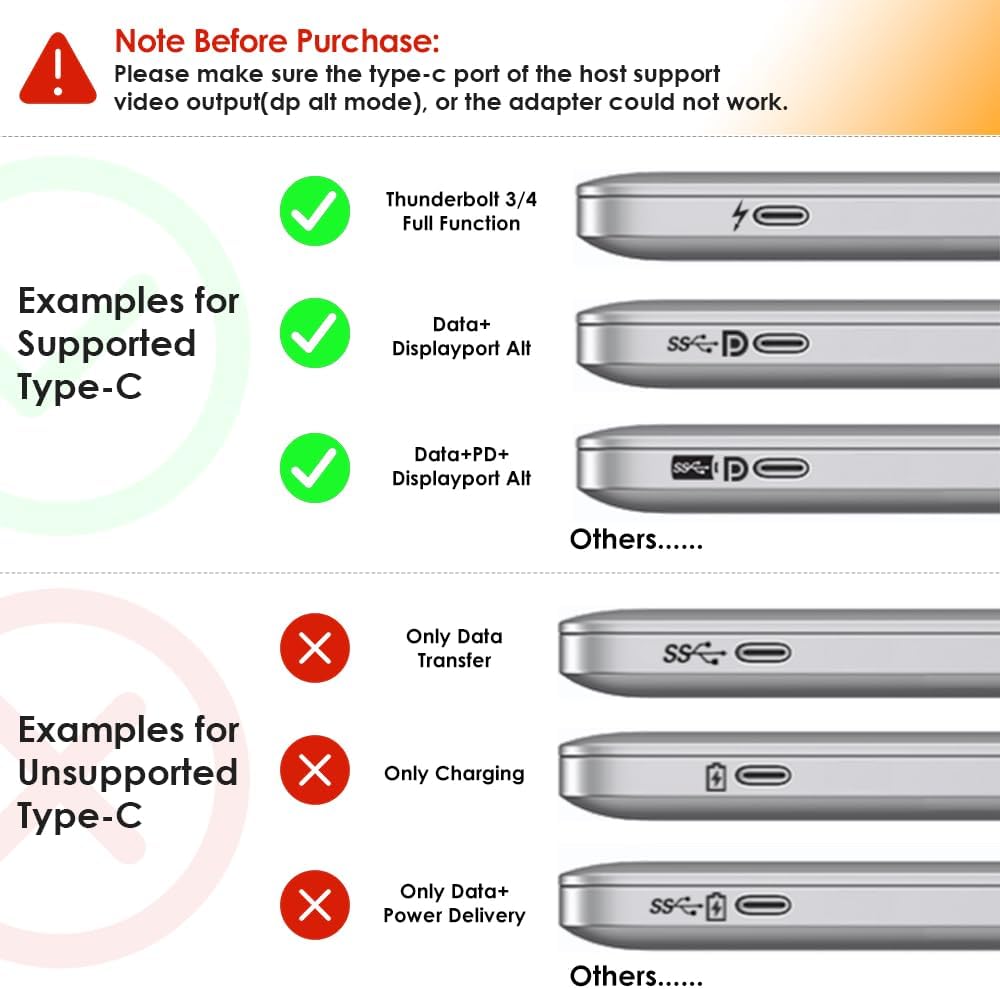
Image: Visual guide illustrating examples of supported USB-C ports (Thunderbolt 3/4 Full Function, Data+Displayport Alt, Data+PD+Displayport Alt) and unsupported USB-C ports (Only Data Transfer, Only Charging, Only Data+Power Delivery).

Image: A summary of important notes: Not compatible with MAC OS, USB-C port must support video output, some Windows laptops may only support 3 monitors (including host screen), and DP1.4+DSC1.2 is required for high resolutions.
ოპერაციული ინსტრუქციები
ჩვენების რეჟიმები:
The WAVLINK UMD308 supports various display configurations for Windows systems:
- ერთჯერადი ჩვენება: Up to 8K@60Hz via DisplayPort or either HDMI port.
- ორმაგი ჩვენება: Supports various combinations, e.g., 4K@120Hz + 4K@60Hz.
- Triple Displays (Extend Mode - Windows Only): Achieve 4K@60Hz on all three external monitors (DP+HDMI1+HDMI2), provided your laptop supports DP1.4+DSC1.2. This mode provides additional desktop space.
- Mirror Mode (Windows Only): Duplicate your laptop screen across all connected external monitors at 4K@60Hz.
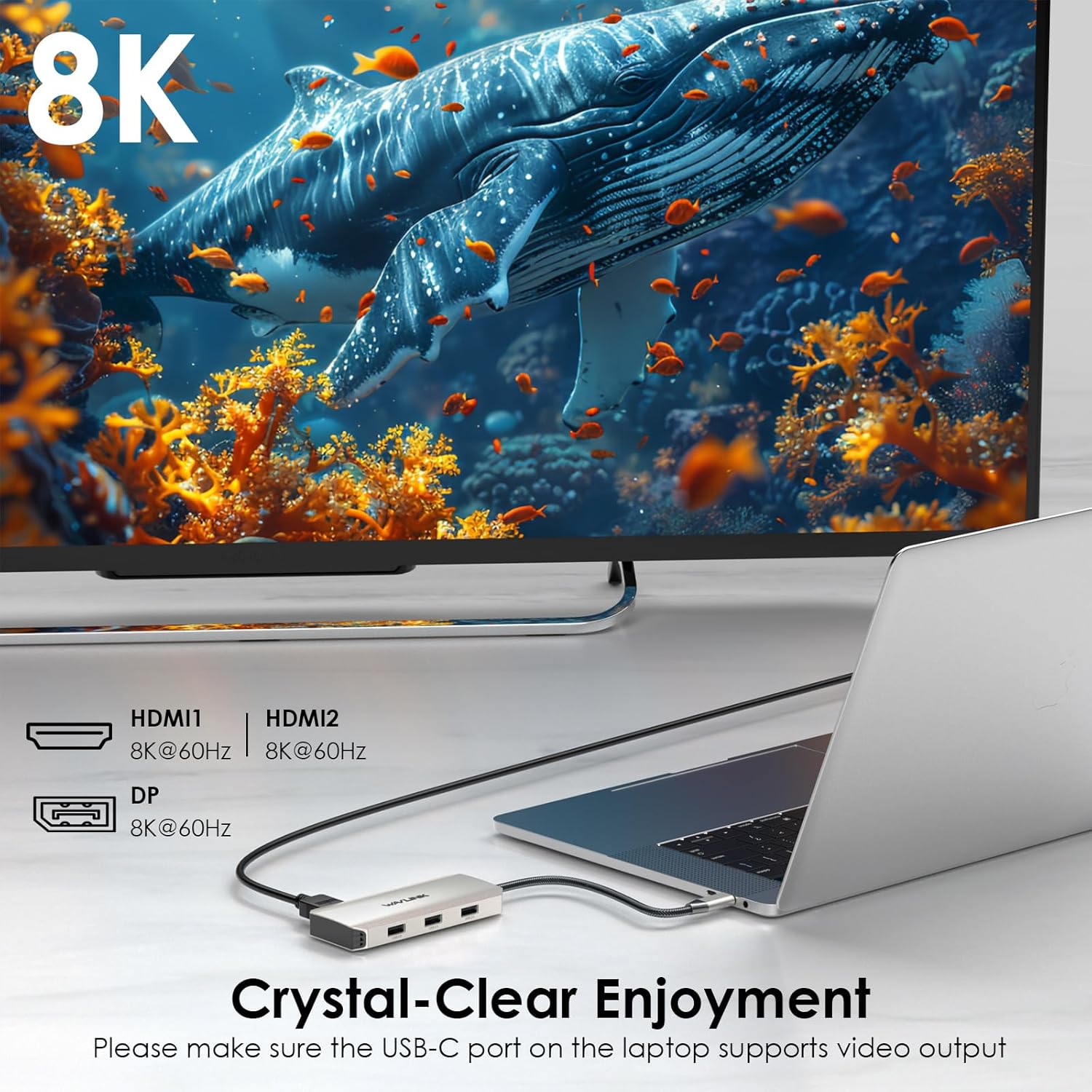
Image: A laptop connected to a single external monitor displaying 8K resolution, demonstrating the "Crystal-Clear Enjoyment" of the docking station.

Image: A table detailing single display resolutions: HDMI 1 and HDMI 2 support 8K@60Hz for Windows (DP1.4+DSC1.2) and 4K@60Hz for Mac OS. DP supports 8K@60Hz for Windows (DP1.4+DSC1.2) and 4K@60Hz for Mac OS. A laptop is shown connected to a single 8K monitor.

Image: A setup showing a laptop connected to three external monitors in Extend Mode on Windows, each displaying 4K@60Hz via DP, HDMI1, and HDMI2, providing additional desktop space.

Image: Two configurations for Windows: Extend Mode with three distinct 4K@60Hz displays (DP+HDMI1+HDMI2) and Mirror Mode with three mirrored 4K@60Hz displays.
დენის მიწოდება:
The PD In port allows you to charge your laptop while using the docking station. Connect your laptop's power adapter to the PD In port on the dock. The dock supports up to 100W input and provides up to 95W output to your laptop.

Image: A laptop being charged via the WAVLINK UMD308 docking station, illustrating 100W input from a power adapter and 95W output to the laptop. Note: Charger and charging cable are not included.
USB 2.0 პორტები:
The three USB 2.0 ports provide connectivity for various peripherals, allowing you to connect a mouse, keyboard, USB flash drive, hard drive, phone, or printer. These ports offer data transfer speeds of up to 480Mbps.

Image: A laptop connected to the WAVLINK UMD308, which in turn is connected to multiple USB 2.0 devices such as a U disk, mouse, keyboard, hard drive, phone, and printer, demonstrating "Syncing Data in Seconds".
პრობლემების მოგვარება
- ეკრანის გამომავალი არ არის: Ensure your laptop's USB-C port supports video output (DP Alt Mode). Verify all cables are securely connected.
- Limited Resolution: Confirm your laptop's USB-C port supports DP1.4 with DSC1.2 for maximum resolution.
- Only 3 Monitors Supported (Windows): Some Windows laptops have graphic card limitations and may only support 3 monitors (including the host screen). If you connect 3 external monitors and one has a black screen, try closing your laptop lid; the third external monitor should then work.
- დატენვის გარეშე: Ensure your laptop's USB-C port supports power delivery and you are using a compatible 100W power adapter connected to the dock's PD In port.
- USB პერიფერიული მოწყობილობები არ მუშაობს: Check connections. Ensure the devices do not require more power than the USB 2.0 ports can provide.
Video: This video from the seller, "Wirelessforce", explains how to determine the maximum number of monitors your computer supports, which is crucial for troubleshooting display issues with the docking station.
სპეციფიკაციები
| ფუნქცია | სპეციფიკაცია |
|---|---|
| პროდუქტის ზომები | 1.97 x 0.59 x 4.37 ინჩი |
| ნივთის წონა | 4.2 უნცია |
| მოდელის ნომერი | UMD308 |
| აპარატურა ინტერფეისი | DisplayPort, HDMI, USB 2.0 Type A, USB Type C |
| თავსებადი მოწყობილობები | Dell/HP/Lenovo, Windows system computer |
| სულ USB პორტები | 3 |
| მონაცემთა გადაცემის სიჩქარე | 480 მეგაბიტი წამში (USB 2.0) |
| დენის მიწოდება | Up to 100W Input, 95W Output |
| Max Single Display Resolution | 8K@60Hz |
| Max Triple Display Resolution (Windows) | 4K@60Hz (DP1.4+DSC1.2 required) |

Image: The WAVLINK UMD308 docking station with its dimensions labeled: 11.1cm/4.4in length and 5cm/2in width.
მოვლა
- გაწმინდეთ მოწყობილობა რბილი, მშრალი ქსოვილით.
- მოერიდეთ მოწყობილობის ჩამოვარდნას ან ძლიერ ზემოქმედებას.
- შეინახეთ გრილ, მშრალ ადგილას, როდესაც არ გამოიყენება.
გარანტია და მხარდაჭერა
For warranty information and technical support, please refer to the official WAVLINK webსაიტზე ან დაუკავშირდით მათ მომხმარებელთა მომსახურების სამსახურს. დამატებითი ინფორმაციის მოძიება შეგიძლიათ შემდეგ ბმულზე: https://www.wavlink.com/en_us/WL-UMD308.
Video: An official product video from "Wirelessforce" showcasing the features and connectivity of the WAVLINK 7-in-1 USB-C Triple Display Docking Station, including power delivery, USB ports, and single/dual/triple display capabilities.


