1. შესავალი
Thank you for choosing the ChunHee Wireless Intercom System. This system provides a reliable and convenient solution for two-way communication within your home, office, or during outdoor activities. Designed for ease of use, it facilitates clear communication over long distances, making it ideal for various scenarios including assisting the elderly, communicating with children, or coordinating tasks in a workspace. This manual will guide you through the setup, operation, and maintenance of your intercom system.
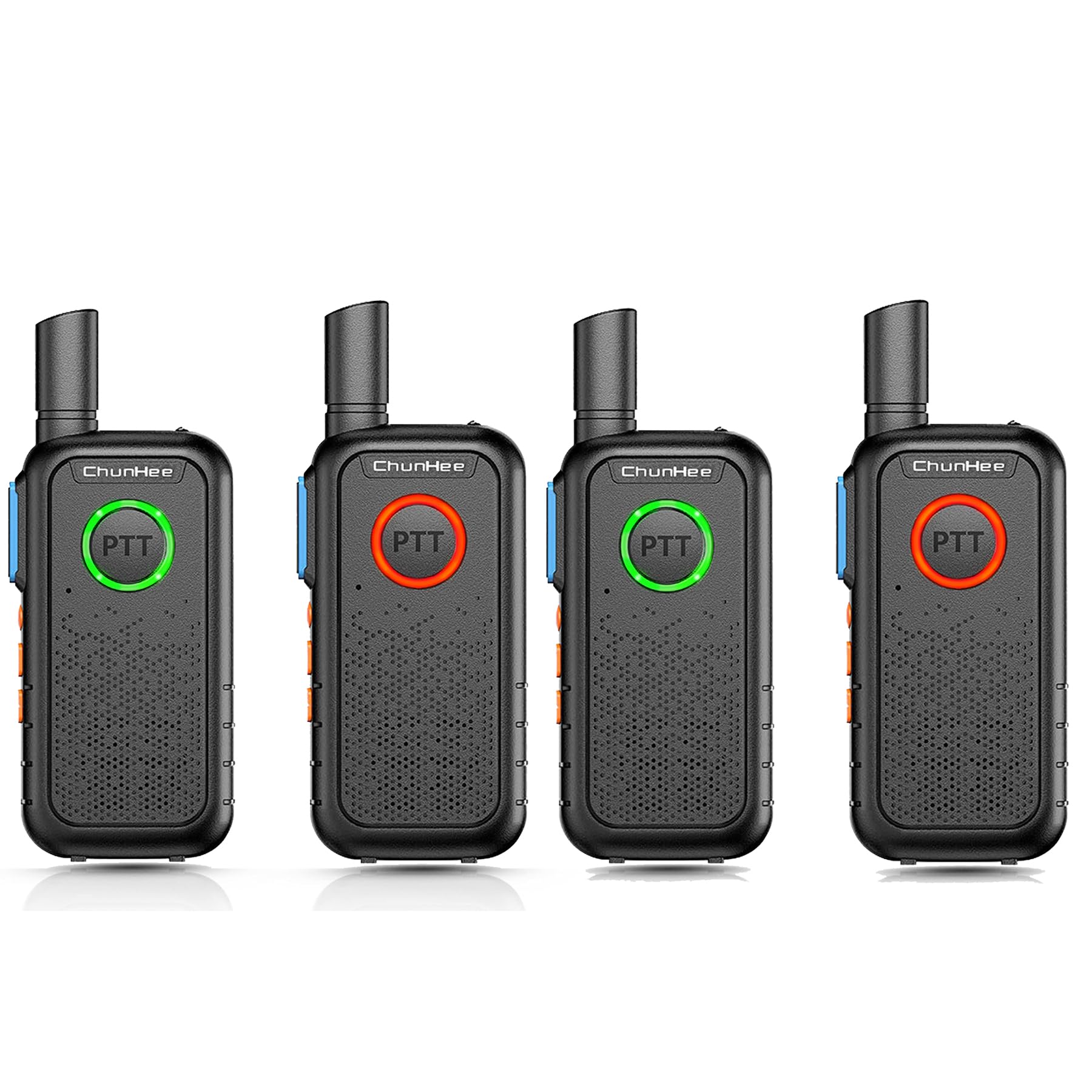
The ChunHee Wireless Intercom System is designed for easy communication within homes or other environments, providing a simple way to connect with family members or colleagues.
2. პაკეტის შიგთავსი
შეამოწმეთ შეფუთვა, რათა დარწმუნდეთ, რომ ყველა ნივთი ადგილზეა:
- ChunHee Wireless Intercom Unit(s)
- დამტენი კაბელი
- Power Plug (Adapter)
- Rechargeable Battery (pre-installed or separate)
- მომხმარებლის სახელმძღვანელო (ეს დოკუმენტი)
3. პროდუქტი დასრულდაview
Familiarize yourself with the components and dimensions of your ChunHee Wireless Intercom System.

This diagram labels the key components of the intercom unit, including the antenna, flashlight, indicator light, PTT buttons, microphone, power button, volume keys, headphone jack, write frequency jack, charging jack, and speaker.

The image displays the front, back, and side views of the intercom unit, along with its approximate dimensions: 10.6 cm height, 5.3 cm width, and 1.7 cm thickness.
4. დაყენება
4.1 აკუმულატორის მონტაჟი და დატენვა
Your intercom unit is powered by a rechargeable battery. Before first use, ensure the battery is fully charged.
- If the battery is not pre-installed, open the battery compartment cover on the back of the unit and insert the battery, ensuring correct polarity. Close the cover securely.
- Connect the charging cable to the charging jack on the intercom unit and the power plug. Plug the power plug into a standard electrical outlet.
- ინდიკატორის შუქი ჩაქრება წითელი during charging. Once fully charged, the light will turn ლურჯი.
- სრული დატენვა, როგორც წესი, დაახლოებით 3-4 საათს გრძელდება.

The intercom unit is shown connected to a wall charger via its charging cable, indicating the charging process.
4.2 ჩართვა/გამორთვა
To power on the unit, press and hold the Power button (usually combined with the Lighting Key, as shown in the Product Overview diagram) until you hear a tone or see the indicator light illuminate. To power off, press and hold the same button until the unit shuts down.
4.3 არხის შერჩევა
Your intercom system operates on 16 available channels. For communication between units, all intercoms must be set to the same channel. Use the 'Up Key' and 'Down Key' (often labeled with arrows) to select your desired channel. The current channel number may be indicated by voice prompt or a small display if available on your model.

This diagram shows how multiple intercom units can be used across different rooms in a house, such as the kitchen, living room, bedroom, wardrobe room, and work room, demonstrating the system's 1.5-mile working range and channel compatibility.
5. საოპერაციო ინსტრუქციები
5.1 Push-to-Talk (PTT) ფუნქცია
The intercom system features dual PTT keys for convenient operation:
- Front PTT Key: A large, round button on the front of the unit, designed for easy pressing with your thumb.
- Side PTT Key: A traditional button located on the side of the radio for alternative push-to-talk operation.
To transmit your voice, press and hold either PTT key. Speak clearly into the microphone. Release the PTT key to listen for a response. The indicator light will typically turn წითელი when transmitting and მწვანე when receiving.

This image demonstrates the PTT button's light changing color to indicate communication status: green for receiving a signal and red for transmitting.
5.2 ხმის რეგულირება
Use the 'Up Key' and 'Down Key' (often labeled with arrows) to increase or decrease the listening volume. Adjust to a comfortable level for clear audio.
5.3 მონიტორის ფუნქცია
The 'Up Key' may also function as a Monitor Key. Pressing this key can temporarily disable squelch, allowing you to listen to weak signals or monitor a channel for activity without having to transmit.
5.4 VOX ფუნქცია
The 'Down Key' may also activate the Voice Operated Exchange (VOX) function. When VOX is enabled, the intercom will automatically transmit when it detects your voice, without needing to press the PTT button. Refer to your unit's specific voice prompts or display for VOX activation and sensitivity settings.
5.5 ფანრის მუშაობა
Your intercom unit includes a built-in flashlight. Press the 'Power button + Lighting Key' (as indicated in the Product Overview diagram) to turn the flashlight on or off. This feature is useful in low-light conditions.

The intercom unit is shown with its integrated flashlight emitting light, highlighting this additional feature.
5.6 ინდიკატორის სინათლის სტატუსი
The PTT button's breathing light provides visual feedback on the unit's status:
- მწვანე შუქი: Indicates the unit is in standby mode or receiving a signal.
- წითელი შუქი: Indicates the unit is transmitting or the battery is low.
- ლურჯი შუქი: Indicates the battery charging process is complete.

This image illustrates the different colors of the PTT button's breathing light: green for standby, red for charging, and blue for finished charging.
6. მოვლა
6.1 დასუფთავება
To clean your intercom unit, use a soft, damp cloth. Do not use harsh chemicals, solvents, or abrasive cleaners, as these can damage the device's surface or internal components. Ensure the unit is powered off and disconnected from any power source before cleaning.
6.2 ბატარეის მოვლა
ბატარეის გახანგრძლივების მიზნით:
- მოერიდეთ ბატარეის ხშირ სრულ დაცლას.
- Charge the battery regularly, even if the unit is not in frequent use.
- შეინახეთ მოწყობილობა გრილ, მშრალ ადგილას, თუ დიდი ხნის განმავლობაში არ იყენებთ.
- არ დაუშვათ ბატარეა ექსტრემალურ ტემპერატურაზე.
7. Დიაგნოსტიკა
If you encounter issues with your intercom system, please refer to the following common problems and solutions:
| პრობლემა | შესაძლო მიზეზი | გამოსავალი |
|---|---|---|
| ერთეული არ ჩართულია | დაბალი ან ამოწურული ბატარეა | Charge the battery fully. Ensure the charging cable and adapter are properly connected. |
| ხმა არ არის ან სუსტი ხმა | Volume too low; Units on different channels; Out of range | Increase volume. Ensure all units are on the same channel. Move closer to the other unit. |
| გადაცემა ან მიღება შეუძლებელია | PTT button not pressed/released; Units on different channels; Out of range; Battery low | Press and hold PTT to transmit, release to receive. Verify channel settings. Reduce distance between units. Charge battery. |
| მოკლე კომუნიკაციის დიაპაზონი | Obstructions (walls, metal structures); Environmental interference; Low battery | Move to an open area. Avoid dense obstructions. Ensure battery is fully charged. |
8. სპეციფიკაციები
| ფუნქცია | სპეციფიკაცია |
|---|---|
| ბრენდი | ჩუნჰეი |
| მოდელის ნომერი | WT11-US-4 |
| დენის წყარო | იკვებება ბატარეით |
| დაკავშირების ტექნოლოგია | უსადენო |
| კონტროლის მეთოდი | Buttons (Touch) |
| ზომები (H x W x D) | 10.6 სმ x 5.3 სმ x 1.7 სმ (დაახლოებით 4.17 x 2.09 x 0.67 ინჩი) |
| ოპერაციული დიაპაზონი | Up to 1.5 Miles (approx. 8000 feet) in open areas |
| არხები | 16 |
| ბატარეის ტევადობა | 1000 mAh |
| მოყვება კომპონენტები | Charging Cable, Power Plug, Battery |
| სერთიფიკატები | FCC სერთიფიცირებული |
9. ინფორმაცია გარანტიის შესახებ
ChunHee products are manufactured to high-quality standards. For specific warranty details, including coverage period and terms, please refer to the warranty card included with your purchase or contact ChunHee customer support. Keep your purchase receipt as proof of purchase for warranty claims.
10. მხარდაჭერა
If you have any questions, require technical assistance, or need further support regarding your ChunHee Wireless Intercom System, please contact our customer service team. Contact information can typically be found on our official webსაიტზე ან პროდუქტის შეფუთვაზე.
ონლაინ დახმარება: Visit the ChunHee official webსაიტი ხშირად დასმული კითხვებისა და დამხმარე რესურსებისთვის.
ელ.ფოსტის მხარდაჭერა: [Insert Customer Support Email Address Here, if available]
ტელეფონის მხარდაჭერა: [ასეთის არსებობის შემთხვევაში, აქ შეიყვანეთ მომხმარებელთა მხარდაჭერის ტელეფონის ნომერი]


