შესავალი
This manual provides detailed instructions for the setup, operation, and troubleshooting of your Guermok USB C Video Capture Card. This device is designed to capture video and audio signals from various sources, including gaming consoles, tablets, and phones, for streaming, recording, and editing on your computer. It supports video input up to 4K@30Hz and output up to 2K@30Hz or 1080P@60Hz, featuring USB 3.0 for high-speed data transmission and PD100W fast charging for compatible USB-C devices.

Image: Guermok USB C Video Capture Card, showcasing its compact design and integrated cables.
პაკეტის შიგთავსი
გთხოვთ, დარწმუნდეთ, რომ თქვენს პაკეტში ყველა ნივთია:
- ვიდეო გადაღების მოწყობილობა
- ინსტალაციის სახელმძღვანელო
პროდუქტის მახასიათებლები
- Super HD 2K@30FPS Output: Supports video input up to 4K@30Hz and backward compatibility with 2K@30Hz and 1080P@60Hz for video capture output.
- Uncompressed Video Quality: Delivers real-time, uncompressed video and audio, preserving original quality with ultra-low latency. Supports YUY2 and MJPEG video formats.
- PD100W Power Delivery: Equipped with PD 3.0 100W fast charging for stable power supply during extended use, allowing simultaneous streaming and charging of USB-C port devices.
- Portable Design & Efficient Heat Dissipation: Plug-and-play functionality with no additional drivers required. Features an aluminum alloy casing with heat dissipation holes for efficient cooling, ideal for portable use.
- ფართო თავსებადობა: Compatible with Windows 8.1/10/11, macOS, Linux, and Android 5.0+ systems. Offers USB and Type-C 2-in-1 port for connection to PCs, laptops, tablets, in-car systems, and game consoles (VR, Switch, Steam, ROG Ally, Legion Go).

Image: Diagram illustrating the capture card's power delivery and connectivity features.
დაყენების ინსტრუქციები
ზოგადი კავშირი
- Plug your source device (e.g., tablet, Switch) into the capture card via its USB-C input cable.
- Connect the capture card's output cable (USB-A or USB-C) to your computer.
- Ensure your source device is powered on and outputting a video signal.
- For devices requiring power, connect a PD charger to the capture card's PD port.
Connecting to Nintendo Switch or VR Headsets (e.g., Quest 3)
The Guermok USB C Video Capture Card supports direct connection to devices like the Nintendo Switch and VR headsets such as the Quest 3. For optimal performance and to enable video capture, ensure the source device is in charging mode or receiving power.
- Nintendo Switch-ისთვის: Connect the capture card to the Switch's USB-C port. Ensure the Switch is receiving power (e.g., via its original charger connected to the capture card's PD port) to enable video output.
- For Quest 3: Directly connect the capture card to the Quest 3's USB-C port. If using the USB-A/C port on the capture card, ensure the A/C port is connected to the Quest. If the connection is recognized as USB 2.0, try flipping the USB-C connector.
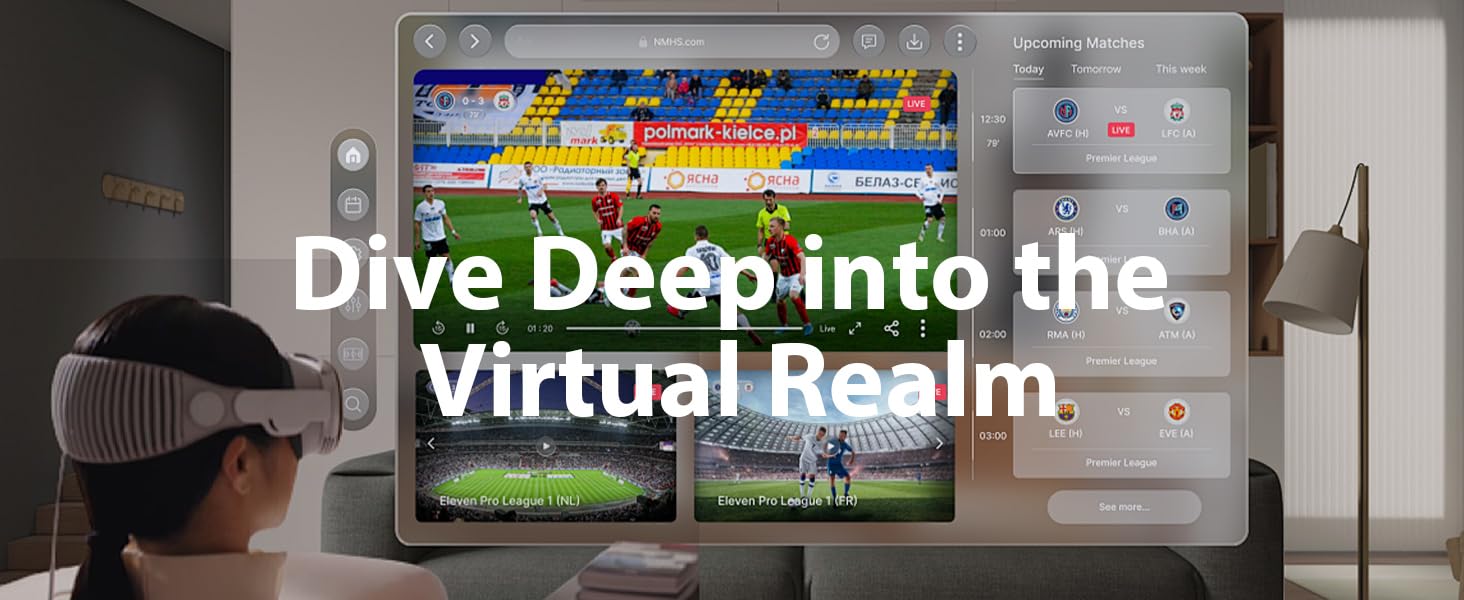
Image: Setup showing a phone connected to a laptop via the capture card, demonstrating simultaneous charging, gaming, and video capture.
Video: Guide to connecting Switch and Quest devices to the capture card. This video demonstrates the physical connection process for these specific devices.
Operating Instructions (OBS Studio)
This section outlines how to use the Guermok USB C Video Capture Card with OBS Studio for recording or streaming.
Adding a Video Source
- გახსენით OBS Studio.
- In the 'Sources' panel, click the '+' icon.
- აირჩიეთვიდეო გადაღების მოწყობილობა'.
- Choose 'შექმენით ახალი', give it a name (e.g., "Guermok Video Capture Card"), and click 'OK'.
- In the properties window, select 'Guermok USB3 Video' from the 'Device' dropdown.
- To customize resolution and FPS, change 'Resolution/FPS Type' to 'საბაჟო'. Select '1920x1080' for Resolution and '60' for FPS. Choose 'MJPEG/YUY2' for Video Format.
- Click 'OK' to apply settings. You should now see the video preview.
Image: Screenshot of OBS Studio showing the 'Add Source' menu with 'Video Capture Device' selected.
Adding an Audio Source
- In the 'Sources' panel, click the '+' icon.
- აირჩიეთაუდიო შეყვანის გადაღება'.
- Choose 'შექმენით ახალი', give it a name, and click 'OK'.
- In the properties window, select 'USB3 ციფრული აუდიო' from the 'Device' dropdown.
- Click 'OK'.
Starting Recording or Streaming
- Once video and audio sources are configured, you can adjust their layout in the preview ფანჯარა.
- In the 'Controls' panel (bottom-right), click 'დაიწყეთ სტრიმინგი„ან“ჩაწერის დაწყება'.
- Recordings are typically saved to the path specified in 'Settings' → 'Output' → 'Recording Path'.
Video: Guermok Capture Card Video and Audio Settings in OBS. This video provides a visual guide to configuring video and audio settings within OBS Studio.
Video: Streamlabs Desktop Operation Guide. This video demonstrates the steps for setting up and operating the capture card with Streamlabs Desktop.
მოვლა
To ensure the longevity and optimal performance of your Guermok USB C Video Capture Card, follow these maintenance guidelines:
- შეინახეთ მოწყობილობა სუფთა და მტვრისგან თავისუფალი. გასაწმენდად გამოიყენეთ რბილი, მშრალი ქსოვილი.
- მოერიდეთ მოწყობილობის ექსტრემალურ ტემპერატურას, მზის პირდაპირ სხივებს ან მაღალ ტენიანობას.
- არ სცადოთ მოწყობილობის დაშლა ან შეცვლა, რადგან ეს გააუქმებს გარანტიას.
- შეინახეთ მოწყობილობა გრილ, მშრალ ადგილას, როდესაც არ იყენებთ.
პრობლემების მოგვარება
If you encounter issues with your Guermok USB C Video Capture Card, please refer to the following common solutions:
- ვიდეო ჩვენება არ არის:
- Ensure all USB cables are securely connected.
- Verify that the source device is powered on and actively outputting a video signal.
- For consoles (e.g., Switch, PS5, Xbox), ensure HDCP (High-bandwidth Digital Content Protection) is disabled in the console's settings.
- If using an adapter, try flipping the USB-C plug and reconnecting it.
- Device Recognized as USB 2.0 (instead of USB 3.0):
- Ensure the device is plugged into a USB 3.0 port on your computer.
- Check for updated USB 3.0 drivers for your computer's chipset.
- Unplug the capture card, restart your computer, and then reconnect the device.
- Power Management Settings (Windows): Go to Device Manager, locate the USB 3.0 controller, right-click, select "Properties," and under the Power Management tab, uncheck "Allow the computer to turn off this device to save power."
- აუდიო პრობლემები:
- In OBS Studio, check the 'Audio Mixer' to ensure your capture card's audio input is active.
- Verify that 'USB3 Digital Audio' is selected as the input device in OBS.
- Check your computer's sound settings to ensure the correct input device is selected and not muted.
- Software-Related Issues:
- Try restoring the default settings in OBS Studio. Corrupted configuration files can cause recognition issues. After restoring, reactivate the capture device.
- Update OBS Studio to the latest version.
- Ensure your operating system and graphics drivers are up to date.
- Device Gets Warm: It is normal for the capture card to get slightly warm during use, especially during long sessions or when utilizing the PD charging feature. This is due to efficient heat dissipation through its aluminum casing.
სპეციფიკაციები
| ბრენდი | გერმოკი |
| მოდელის ნომერი | Guermok_TV_TUNER_CARD |
| აპარატურა ინტერფეისი | USB 3.0 |
| ვიდეო გადაღების გარჩევადობა | 1080p (up to 2K@30FPS output, 4K@30Hz input) |
| ოპერაციული სისტემის თავსებადობა | Windows 8.1/10/11, macOS, Linux, Android 5.0 and above |
| დენის მიწოდება | PD 3.0 100W Fast Charging |
| ნივთის წონა | 3 უნცია |
| პროდუქტის ზომები | 47.24 x 1.38 x 0.43 ინჩი |
| რეკომენდებული გამოყენება | Gaming Capture, Live Streaming, Video Recording |
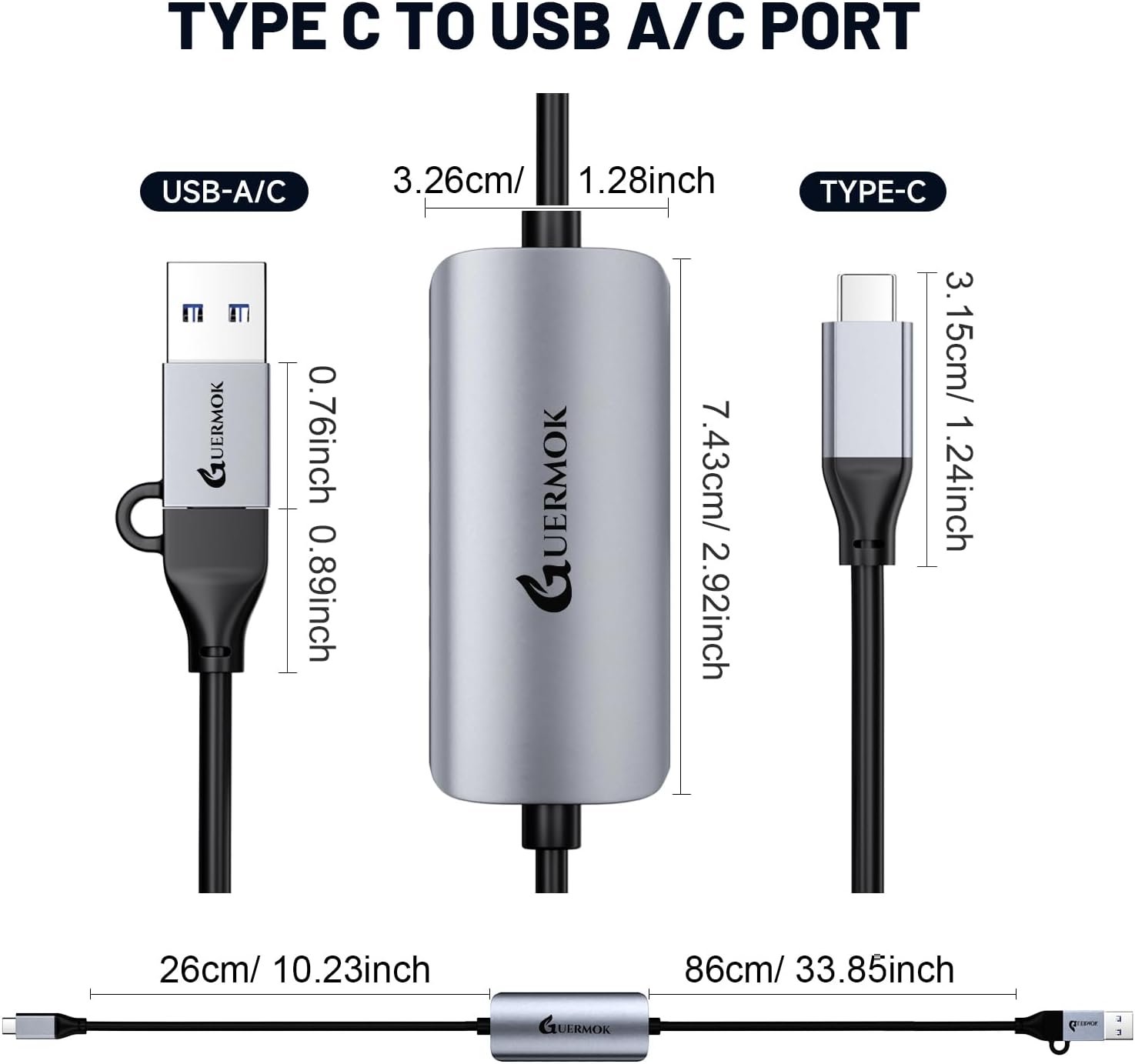
Image: Detailed diagram showing the dimensions of the Guermok USB C Video Capture Card.
გარანტია და მხარდაჭერა
Guermok is committed to providing high-quality products. While specific warranty details are not provided in this manual, please retain your proof of purchase for any warranty claims.
For technical support, troubleshooting assistance, or further inquiries, please contact Guermok customer service through the platform where you purchased the product or visit the official Guermok store online. You can find additional resources and contact information on the Guermok brand store page: Guermok Store.