1. შესავალი
This manual provides detailed instructions for the waveshare ESP32-S3 2.8inch Display Development Board. This board is a microcontroller development platform featuring a 2.4GHz WiFi and Bluetooth BLE 5 module, integrated Flash and PSRAM, and a 2.8-inch IPS LCD. It is designed for rapid development of Human-Machine Interface (HMI) and other ESP32-S3 applications.

სურათი 1: დასრულდაview of the ESP32-S3 2.8inch Display Development Board and its core features.
2. პროდუქტის მახასიათებლები
- Equipped with high-performance Xtensa 32-bit LX7 dual-core processor, operating up to 240MHz.
- Supports 2.4GHz Wi-Fi (802.11 b/g/n) and Bluetooth 5 (LE) with an onboard antenna.
- Built-in 512KB SRAM and 384KB ROM, with onboard 16MB Flash and 8MB PSRAM.
- Features a 2.8-inch IPS LCD display with 240x320 resolution and 262K colors.
- Optional capacitive 5-point touch function controlled via I2C interface, with interrupt support.
- Adapts UART, I2C, and various GPIO interfaces, integrating a full-speed USB port.
- Includes an onboard speaker, QMI8658 6-axis sensor, RTC sensor, TF card slot, and battery recharge management module.
- Supports flexible clock and multiple power modes for low power consumption.
3. ბორტზე არსებული კომპონენტები
The following diagram and list identify the key components on the ESP32-S3 2.8inch Display Development Board.

Figure 2: Labeled components of the ESP32-S3 2.8inch Display Development Board.
- ESP32-S3R8
- Dual-core processor, up to 240MHz operating frequency
- 16MB Flash
- QST attitude sensor
- QMI8658 (6-axis IMU includes a 3-axis gyroscope and a 3-axis accelerometer)
- საბორტო კერამიკული ანტენა
- 1.5A MP54F-WR
- GPIO expander chip
- RTC ჩიპი
- PCF85063 RTC chip
- MP1603GTF-Z
- Power module, 2A current (MAX)
- Battery recharge manager
- ზუმერი
- TF ბარათის სლოტი
- On the back side of the PCB
- ჩატვირთვის ღილაკი
- RESET ღილაკი
- IPEX1 connector (Switching to use external antenna via resoldering the resistor)
- 2*12PIN 2.54mm pin header
- RTC battery header (for connecting rechargeable RTC battery)
- MX1.25 აკუმულატორის კოლექტორი
- MX1.25 2PIN connector, for 3.7V Lithium battery, supports charging and discharging
- UART header
- მუხტის მაჩვენებელი
- USB Type-C პორტი
- დენის ინდიკატორი
- I2C header (connecting with internal chip, only supports the I2C peripherals and cannot be mapped to other functions)
- Battery power supply control button
4. ტექნიკური მახასიათებლები
Below are the general and LCD-specific technical specifications for the development board.
ზოგადი სპეციფიკაციები:
| პარამეტრი | ღირებულება |
|---|---|
| პაკეტის ზომები | 3.35 x 2.83 x 0.67 ინჩი |
| ნივთის წონა | 1.76 უნცია |
| CPU სიჩქარე | 240 MHz |
| დამონტაჟებული ოპერატიული მეხსიერების ზომა | 512 კბ |
| მეხსიერების შენახვის მოცულობა | 24 MB (16MB Flash + 8MB PSRAM) |
LCD Parameters:

Figure 3: Detailed LCD parameters for the display panel.
| პარამეტრი | ღირებულება | პარამეტრი | ღირებულება |
|---|---|---|---|
| ჩვენების პანელი | IPS LCD | ჩვენების ზომა | 2.8 ინჩი |
| რეზოლუცია | 240 × 320 | ფერების ჩვენება | 262 ათასი |
| საკომუნიკაციო ინტერფეისი | SPI + RGB | მძღოლი IC | ST7701 |
| შეეხეთ | Supported (Touch Version Only) | შეეხეთ IC-ს | GT911 (Touch Version Only) |
კონტურის ზომები:

Figure 4: Outline dimensions of the development board in millimeters.
5. დაყენების გზამკვლევი
Follow these steps to set up your ESP32-S3 2.8inch Display Development Board:
- შეფუთვა: Carefully remove the development board and included accessories from the packaging.
- დენის კავშირი: Connect the board to a 5V power source using the USB Type-C port. Alternatively, connect a 3.7V Lithium battery to the MX1.25 2PIN connector for portable operation.
- საწყისი ჩართვა: Observe the power indicator LED to confirm the board is receiving power.
- Computer Connection (for development): Connect the USB Type-C port to your computer using a compatible USB cable. This will allow for programming and serial communication.
- დრაივერის ინსტალაცია: Ensure necessary USB-to-serial drivers are installed on your computer if the board is not recognized automatically.
6. საოპერაციო ინსტრუქციები
The ESP32-S3 board is designed for various applications, from simple embedded systems to complex HMI projects.
ძირითადი ოპერაცია:
- ჩართვა/გამორთვა: Use the USB power or battery connection. The board powers on automatically when connected.
- ჩვენების ურთიერთქმედება: If you have the touch version, interact with the display using finger gestures. For non-touch versions, display output is for visual feedback only.
- პროგრამირება: Upload firmware to the ESP32-S3 using a compatible IDE (e.g., Arduino IDE, ESP-IDF) via the USB Type-C port.
- გადატვირთვის ღილაკი: Press the RESET button to restart the ESP32-S3 microcontroller.
- BOOT ღილაკი: Hold the BOOT button while pressing and releasing the RESET button to enter bootloader mode for firmware uploading.
განაცხადის სცენარები:

Figure 5: Potential application scenarios for the development board.
- Human-machine Interface (HMI): Develop interactive user interfaces for various devices, leveraging the display and optional touch functionality.
- LVGL GUI Development: Utilize the LVGL graphics library for creating rich graphical user interfaces with low memory requirements.
- IoT Applications: Integrate with WiFi and Bluetooth for connected devices, data logging, and remote control.
- Sensor Data Visualization: Display data from onboard or external sensors (e.g., QMI8658 6-axis sensor) directly on the LCD.
7. Connectivity and Interfaces
The board offers a variety of interfaces for communication and expansion.

Figure 6: Pinout diagram for various peripheral interfaces.
- USB Type-C: Used for power supply, programming, and serial communication with a host computer.
- GPIO ქინძისთავები: General Purpose Input/Output pins are available via the 2*12PIN header for connecting external sensors, actuators, and other modules. Refer to the pinout diagram for specific pin assignments.
- UART Header: Dedicated pins for Universal Asynchronous Receiver-Transmitter communication (RXD, TXD).
- I2C Header: Pins for Inter-Integrated Circuit communication (SDA, SCL), primarily for internal chip peripherals.
- WiFi და Bluetooth: Integrated 2.4GHz Wi-Fi and Bluetooth 5 (LE) for wireless connectivity. An onboard ceramic antenna is provided, with an option for an external antenna via the IPEX1 connector (requires resistor resoldering).
- TF ბარათის სლოტი: For external storage, allowing for data logging or storing display assets.
8. განვითარების გარემო
The ESP32-S3 board supports popular development environments for ease of programming.
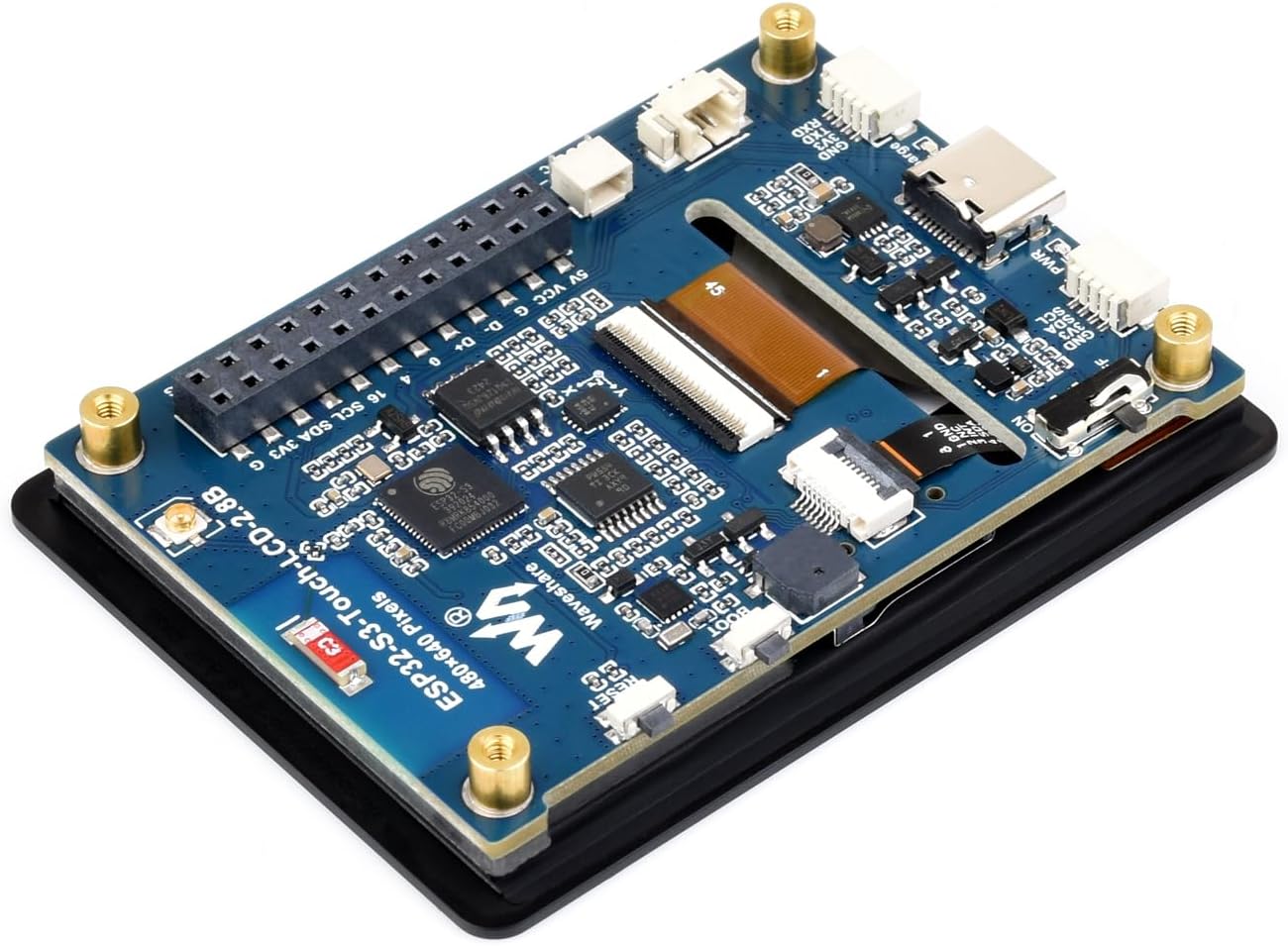
Figure 7: Supported development environments.
- ESP-IDF: The Espressif IoT Development Framework is the official development framework for ESP32 series chips. It provides a comprehensive SDK and tools, supporting IDEs like Eclipse and VSCode.
- Arduino IDE: A popular open-source electronic prototyping platform that offers a convenient and flexible environment for developing with ESP32 boards.
Refer to the waveshare product wiki or Espressif documentation for detailed guides on setting up these environments and programming the ESP32-S3.
9. მოვლა
Proper maintenance ensures the longevity and reliable operation of your development board.
- დასუფთავება: Keep the board clean and free from dust and debris. Use a soft, dry brush or compressed air. Avoid liquid cleaners.
- დამუშავება: Handle the board by its edges to avoid touching components, especially the display surface. Static electricity can damage electronic components; use anti-static precautions when handling.
- შენახვა: Store the board in a dry, cool environment, away from direct sunlight and extreme temperatures. Use anti-static bags if storing for extended periods.
- ენერგიის მენეჯმენტი: Always disconnect power before making physical changes to the board or connecting/disconnecting peripherals.
10. Დიაგნოსტიკა
If you encounter issues with your ESP32-S3 2.8inch Display Development Board, consider the following:
- დაფა არ ირთვება:
- Verify the USB cable is securely connected and functional.
- Ensure the power source (USB port or battery) is providing adequate power (5V for USB, 3.7V for battery).
- Check the power indicator LED on the board.
- ეკრანი არ მუშაობს:
- Confirm the display ribbon cable is properly seated and secured.
- Ensure your firmware includes the correct display initialization code and drivers.
- Check for any physical damage to the display or its connector.
- პროგრამირების შეცდომები:
- Verify that the correct board and port are selected in your IDE.
- Ensure USB-to-serial drivers are correctly installed.
- Try holding the BOOT button while pressing and releasing RESET to enter bootloader mode before uploading.
- Check for syntax errors or missing libraries in your code.
- Wi-Fi/Bluetooth-ის დაკავშირების პრობლემები:
- Confirm the antenna is properly connected (if using external).
- Verify Wi-Fi credentials and network availability.
- Ensure your code correctly initializes and uses the Wi-Fi/Bluetooth modules.
11. გარანტია და მხარდაჭერა
For warranty information, technical support, or further assistance, please refer to the official waveshare website or contact their customer service directly. Product documentation, examples, and community forums are often available on the manufacturer's support pages.


