1. შესავალი
This manual provides essential information for the safe and efficient use of your TCL 55Q6C 55-inch QD-Mini LED Smart TV. Please read it thoroughly before operating the device and retain it for future reference. Your new television features 4K HDR Premium 1000nits display, Google TV technology, Dolby Vision IQ and Atmos, an Onkyo 2.1 audio system, Motion Clarity Pro at 144 Hz, and Game Master capabilities.
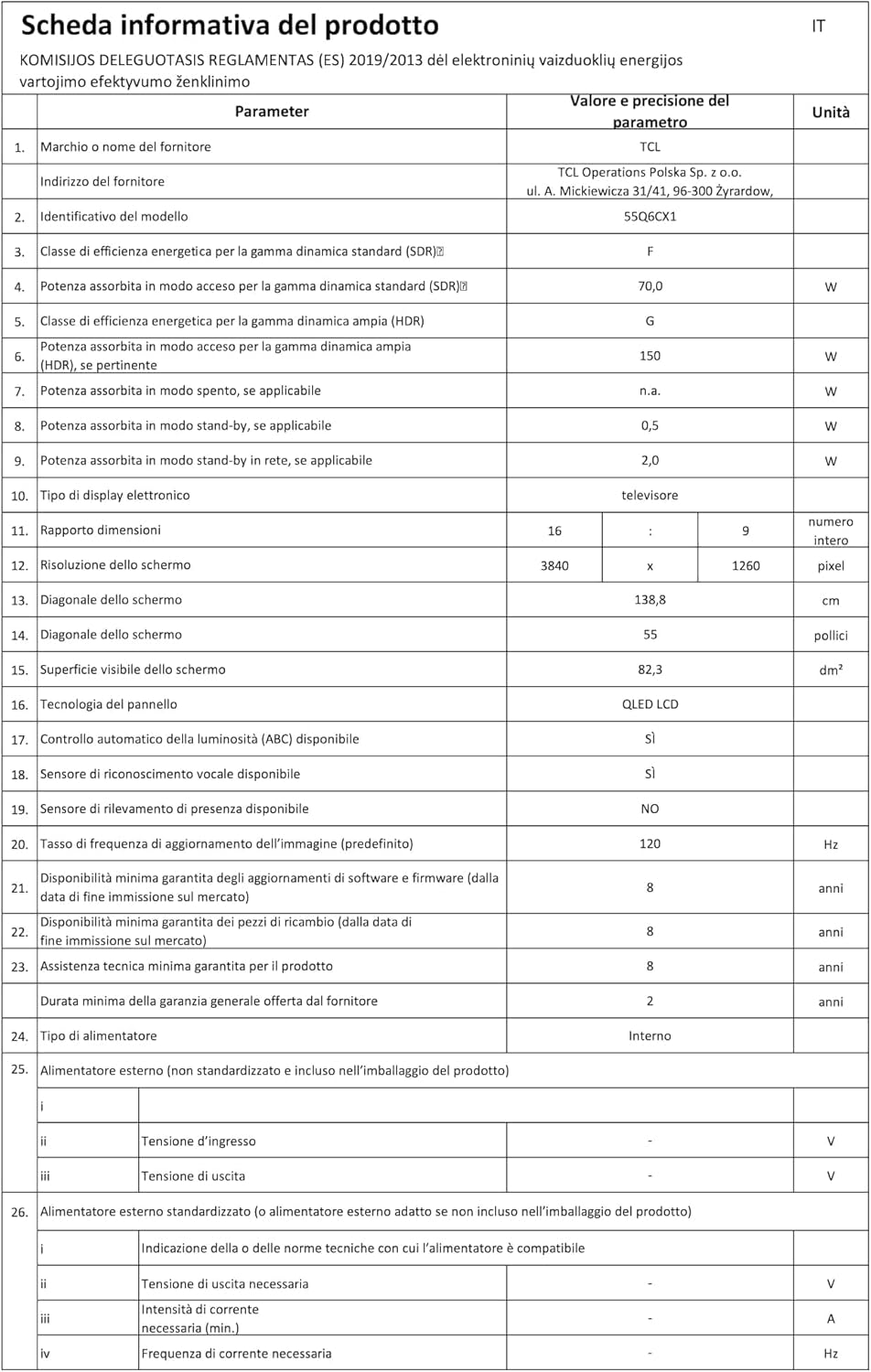
Figure 1: The TCL 55Q6C 55-inch QD-Mini LED Smart TV integrated into a modern living room.
2. უსაფრთხოების ინფორმაცია
Always follow these basic safety precautions when using your television:
- ხანძრის ან ელექტროშოკის თავიდან ასაცილებლად, ტელევიზორი არ დატოვოთ წვიმის ან ტენიანობის ზემოქმედების ქვეშ.
- არ დაბლოკოთ ვენტილაციის ღიობები. ტელევიზორის გარშემო უზრუნველყავით საკმარისი სივრცე ჰაერის სათანადო ნაკადისთვის.
- არ დადოთ ტელევიზორი არასტაბილურ ეტლზე, სადგამზე, სამფეხაზე, სამაგრზე ან მაგიდაზე.
- გამოიყენეთ მხოლოდ ტელევიზორთან ერთად მოწოდებული კვების კაბელი.
- დაიცავით დენის კაბელი სიარულისგან ან დაჭერისგან.
- გამორთეთ ტელევიზორი ელექტრომომარაგებიდან ჭექა-ქუხილის დროს ან ხანგრძლივი გამოყენებისას.
- მიმართეთ ყველა მომსახურება კვალიფიციურ მომსახურე პერსონალს.
- შეინახეთ პატარა ნაწილები და ბატარეები ბავშვებისთვის მიუწვდომელ ადგილას.
3. დაყენება
3.1 შეფუთვა და აწყობა
Carefully remove the TV from its packaging. Ensure all components (Power Cable, Remote Control, Stand) are present. Follow the instructions provided in the separate quick start guide for stand assembly or wall mounting.
3.2 მოწყობილობების დაკავშირება
Your TCL 55Q6C TV offers various connectivity options. Refer to the diagram below for port locations and connect your external devices such as gaming consoles, Blu-ray players, or sound systems.
სურათი 2: უკანა view of the TCL 55Q6C TV showing HDMI, USB, LAN, Optical, Cable, Satellite, and CI Slot ports.
- HDMI: Connect up to 4 HDMI devices for high-definition video and audio.
- USB: მედიის დასაკრავად შეაერთეთ USB მეხსიერების მოწყობილობები.
- ლოკალური ქსელი (ეთერნეტი): Connect to your wired network for internet access.
- ოპტიკური: ციფრული აუდიო გამომავალისთვის საუნდბარში ან სახლის კინოთეატრის სისტემაში.
- საკაბელო/სატელიტური ტელევიზია: Connect your antenna or satellite dish.
- CI სლოტი: For Conditional Access Modules (CAM) from your service provider.
- Wi-Fi და Bluetooth: Built-in wireless connectivity for internet and accessories.
3.3 საწყისი ჩართვა
After connecting all necessary cables, plug the power cord into an electrical outlet. Press the power button on the remote control or the TV itself. Follow the on-screen instructions to complete the initial setup, including network connection and Google TV configuration.
4. საოპერაციო ინსტრუქციები
4.1 Google TV-ის ინტერფეისი
Your TCL 55Q6C TV runs on Google TV, providing a personalized entertainment experience. Navigate through the interface using your remote control to access apps, streaming services, and live TV. You can also use Google Assistant for voice commands.
ვიდეო 1: დასრულდაview of TCL Q6C features, including QD-Mini LED, QLED, Onkyo audio, AiPQ processor, Game Master, and Google TV interface.
4.2 სურათისა და ხმის პარამეტრები
Access the settings menu to adjust picture modes (e.g., Standard, Movie, Game), brightness, contrast, and color settings. The TV features QD-Mini LED and QLED technology for vibrant colors and deep blacks, enhanced by TCL All-domain Halo Control for precise dimming.

Figure 3: Diagram illustrating the QD-Mini LED backlight technology for enhanced picture quality.

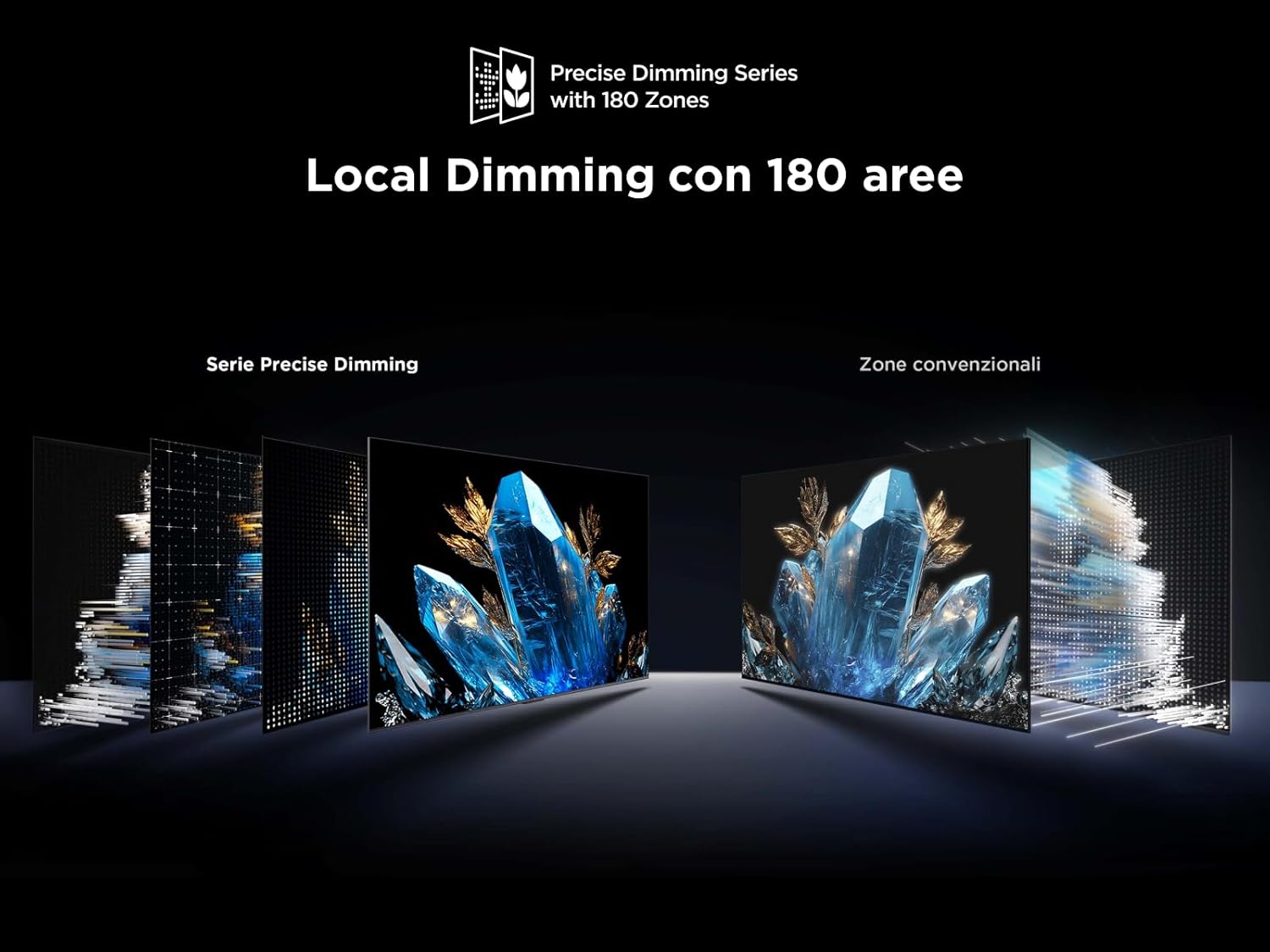
Figure 4: Visual representation of Local Dimming technology with 180 zones, improving contrast compared to conventional zones.
For audio, the integrated Onkyo 2.1 sound system with Dolby Atmos provides an immersive experience. Adjust sound modes and equalizer settings to your preference.
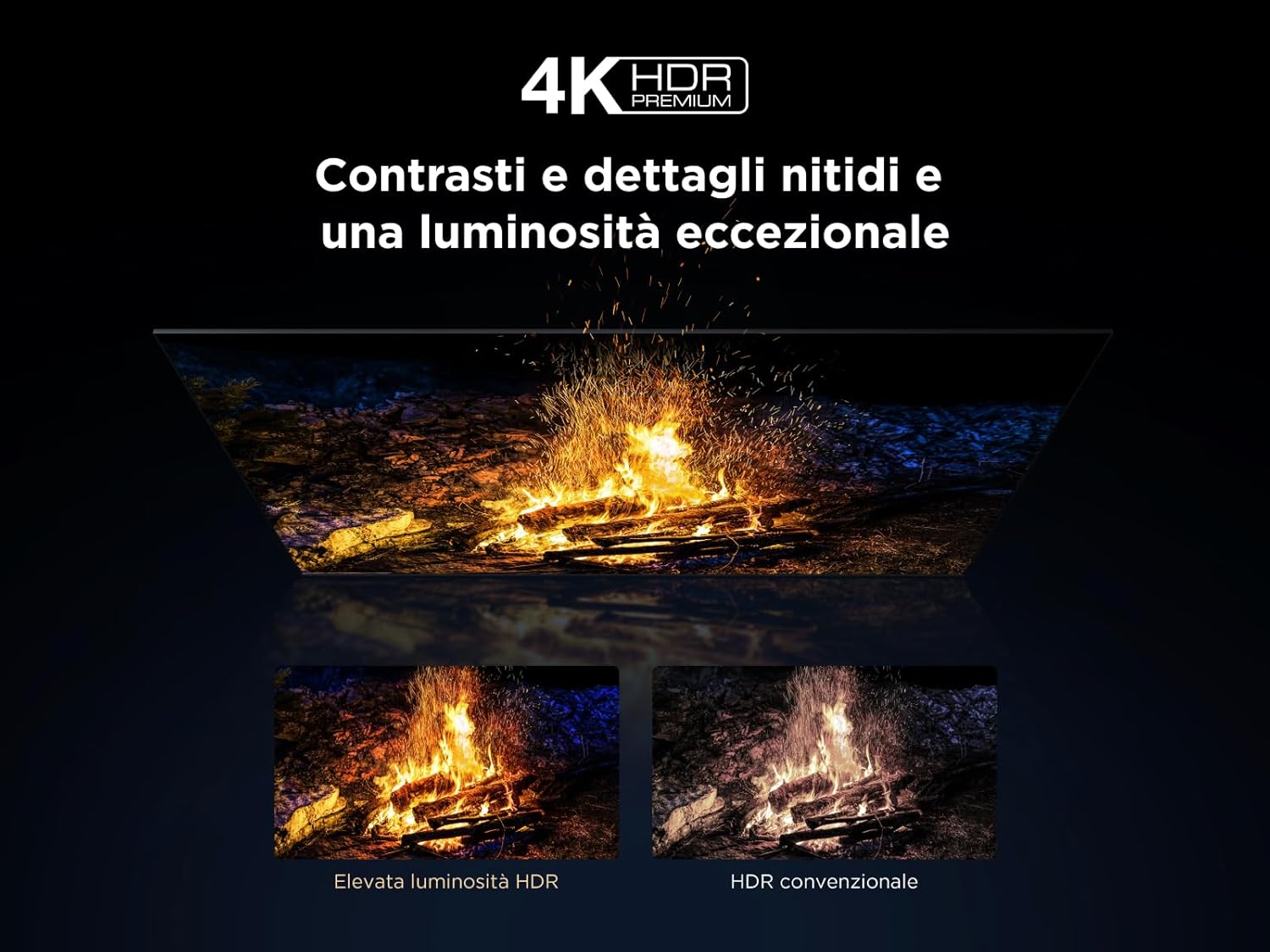
Figure 5: Illustration of the Onkyo 2.1 Hi-Fi audio system components, delivering cinematic sound.
4.3 სათამაშო ფუნქციები
The TV's Game Master features, combined with a 144 Hz Motion Clarity Pro display, ensure smooth and responsive gaming. Enable Game Mode in settings for optimized input lag and refresh rates.
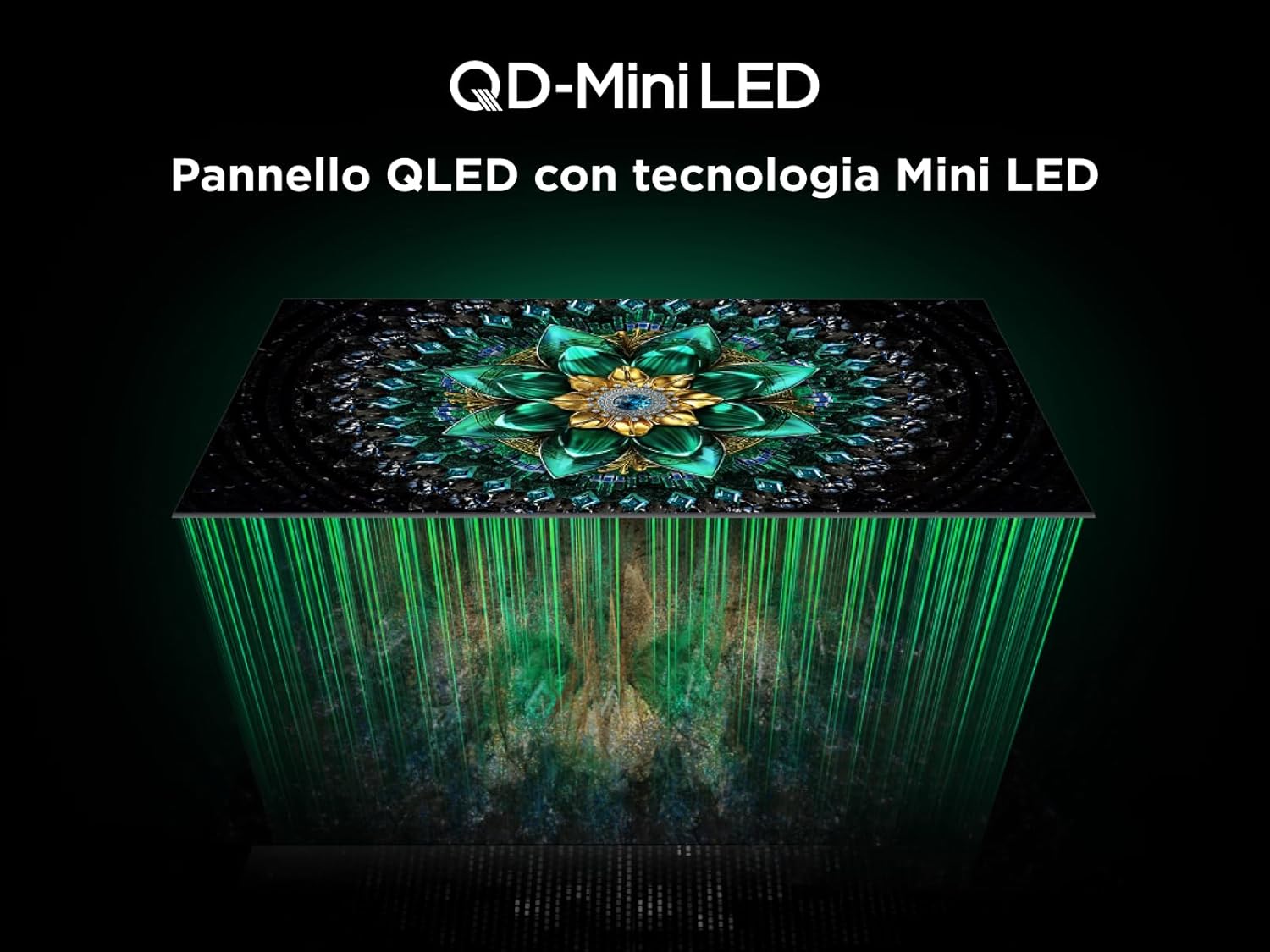
Figure 6: Visual demonstrating the 144Hz Motion Clarity Pro for fluid images, ideal for fast-paced content and gaming.
4.4 AiPQ Pro პროცესორი
The integrated AiPQ Pro Processor optimizes picture and sound in real-time, enhancing contrast, color, clarity, and motion for an improved viewგამოცდილება.

Figure 7: Diagram illustrating the AiPQ Pro Processor and its various AI-driven optimization functions for picture quality.
4.5 Casting and Screen Mirroring
Utilize Miracast, Google Cast, and Airplay 2 to wirelessly stream content from your smartphone, tablet, or PC directly to your TV screen.
5. მოვლა
თქვენი ტელევიზორის ხანგრძლივი მომსახურებისა და ოპტიმალური მუშაობის უზრუნველსაყოფად, დაიცავით შემდეგი ტექნიკური ინსტრუქციები:
- ეკრანის გაწმენდა: ფრთხილად გაწმინდეთ ეკრანი რბილი, ბუსუსების გარეშე ქსოვილით. ჯიუტი ლაქების შემთხვევაში, ოდნავ გაწმინდეთampქსოვილი წყლით ან სპეციალური ეკრანის საწმენდი საშუალებით გაწმინდეთ. მოერიდეთ უხეში ქიმიკატების გამოყენებას.
- ჩარჩოს გაწმენდა: ტელევიზორის ჩარჩოსა და სადგამის გასაწმენდად გამოიყენეთ რბილი, მშრალი ქსოვილი.
- ვენტილაცია: დარწმუნდით, რომ ტელევიზორის უკანა მხარეს სავენტილაციო ღიობები მტვერით ან საგნებით არ არის დაბლოკილი.
- დენის კაბელი: რეგულარულად შეამოწმეთ კვების კაბელი ნებისმიერი დაზიანებისთვის.
- შენახვა: თუ ტელევიზორს დიდი ხნის განმავლობაში ინახავთ, გამორთეთ ის დენიდან და დააფარეთ მტვრისგან დასაცავად.
6. Დიაგნოსტიკა
მომხმარებელთა მხარდაჭერის სერვისთან დაკავშირებამდე, სცადეთ შემდეგი გავრცელებული პრობლემების მოგვარების ნაბიჯები:
| პრობლემა | შესაძლო მიზეზი | გამოსავალი |
|---|---|---|
| არავითარი ძალა | დენის კაბელი გამორთულია; დენის წყარო არ მუშაობს. | შეამოწმეთ კვების კაბელის შეერთება; შეამოწმეთ სოკეტი სხვა მოწყობილობასთან. |
| სურათი არ არის, მაგრამ ხმა არის | არასწორი შეყვანის წყაროა შერჩეული; განათების პრობლემა. | Verify input source; try another HDMI port; contact support if issue persists. |
| ხმა არ არის, მაგრამ სურათი არის | Volume muted; incorrect audio output setting; external audio device issue. | Unmute volume; check audio output settings; verify external audio device connections. |
| დისტანციური მართვა არ მუშაობს | ელემენტები დაცლილი ან არასწორად ჩასმული; დისტანციური მართვის პულტსა და ტელევიზორს შორის დაბრკოლება. | Replace batteries; ensure clear line of sight to TV's IR receiver. |
| ქსელთან დაკავშირების პრობლემები | Wi-Fi სიგნალი სუსტია; პაროლი არასწორია; როუტერის პრობლემა. | Restart router; re-enter Wi-Fi password; try wired Ethernet connection. |
7. სპეციფიკაციები
Below are the key technical specifications for the TCL 55Q6C 55-inch QD-Mini LED Smart TV:
| ფუნქცია | დეტალი |
|---|---|
| ბრენდი | TCL |
| მოდელი | Q6C Series 2025 |
| ეკრანის ზომა | 55 ინჩი |
| ეკრანის ტექნოლოგია | QD-Mini LED, QLED, HVA Panel |
| რეზოლუცია | 4K (3840 x 2160 პიქსელი) |
| განახლების სიხშირე | 144 Hz (Motion Clarity Pro) |
| HDR მხარდაჭერა | 4K HDR Premium 1000nits, Dolby Vision IQ |
| აუდიო სისტემა | Onkyo 2.1, Dolby Atmos |
| ოპერაციული სისტემა | Google TV |
| პროცესორი | AiPQ Pro პროცესორი |
| დაკავშირება | 4x HDMI, 1x USB, Ethernet (LAN), Optical Audio Out, Cable/Satellite, CI Slot, Wi-Fi, Bluetooth |
| ასპექტის თანაფარდობა | 16:9 |
| პროდუქტის ზომები (DxWxH) | 30P x 122.4lx 77H სმ |
| მოყვება კომპონენტები | დენის კაბელი, პულტი, სადგამი |

Figure 8: Energy efficiency label for the TCL 55Q6C TV. For more details, visit the official EPREL database: https://eprel.ec.europa.eu/qr/2179781

Figure 9: Detailed product information sheet for the TCL 55Q6C TV, including power consumption and other technical data.
8. გარანტია და მხარდაჭერა
Your TCL 55Q6C TV comes with a manufacturer's warranty. Please refer to the warranty card included in the packaging for specific terms and conditions. For technical support, service, or additional information, please visit the official TCL webსაიტზე ან დაუკავშირდით თქვენს ადგილობრივ მომხმარებელთა მომსახურების ცენტრს.
You can also find more information on the TCL brand store: TCL ბრენდის მაღაზია


