1. შესავალი
This manual provides essential information for the setup, operation, and maintenance of your Bmax B4 Turbo N150 Mini PC. Please read this manual thoroughly before using the device to ensure proper functionality and safety.

Image 1.1: The Bmax B4 Turbo N150 Mini PC. This image displays the compact design of the mini PC, showcasing its small form factor and sleek appearance.
2. უსაფრთხოების ინფორმაცია
- Ensure the device is placed on a stable, flat surface to prevent accidental falls.
- არ დაუშვათ მოწყობილობის წყალზე, ტენიანობაზე ან ექსტრემალურ ტემპერატურაზე ზემოქმედება.
- გამოიყენეთ მხოლოდ მოწოდებული კვების ადაპტერი. არასწორი ადაპტერის გამოყენებამ შეიძლება დააზიანოს მოწყობილობა და გააუქმოს გარანტია.
- მოერიდეთ სავენტილაციო ღიობების გადაკეტვას გადახურების თავიდან ასაცილებლად.
- Do not attempt to open or repair the device yourself. Refer to qualified service personnel for any repairs.
3. პაკეტის შიგთავსი
დარწმუნდით, რომ შეფუთვაში ყველა ნივთია:
- Bmax B4 Turbo N150 Mini PC
- Power Adapter (DC12V/2A)
- სამონტაჟო ფრჩხილი
- მომხმარებლის სახელმძღვანელო (ეს დოკუმენტი)
4. პროდუქტი დასრულდაview
4.1. პორტები და კონექტორები

სურათი 4.1: დასრულდაview of Bmax B4 Turbo N150 Mini PC ports. This image illustrates the various input and output ports available on the mini PC, including USB, HDMI, Type-C, and Ethernet connections.
The Bmax B4 Turbo N150 Mini PC features a comprehensive set of ports for connectivity:
- წინა პანელი:
- 2 x USB 3.0 პორტი
- 1 x 3.5 მმ აუდიო ჯეკი
- დენის ღილაკი
- უკანა პანელი:
- 1 x DC12V/2A Power Input
- 2 x USB 2.0 პორტი
- 1 x HDMI 2.1 Port (supports 4K@60Hz)
- 1 x Type-C Port (full features, 10Gbps)
- 1 x RJ45 Gigabit Ethernet Port
- CMOS ღილაკის გასუფთავება
4.2. ძირითადი მახასიათებლები
- პროცესორი: Intel 13th Gen Twin Lake N150 (4 Cores, 4 Threads, 0.8GHz base, up to 3.6GHz burst frequency).
- მეხსიერება: 16 GB DDR4 3200 MHz ოპერატიული მეხსიერება.
- შენახვა: 1TB SSD.
- გრაფიკა: Integrated Intel UHD Graphics (up to 1 GHz).
- ოპერაციული სისტემა: Pre-installed Windows 11, supports Linux and Ubuntu.
- უსადენო კავშირი: Wi-Fi 5 (802.11a/b/g/n/ac) and Bluetooth 5.0.
- გაგრილების სისტემა: Built-in silent fan for efficient heat dissipation.

Image 4.2: Intel N150 Processor specifications. This graphic details the technical specifications of the Intel N150 CPU, including core count, thread count, cache, TDP, and clock speeds.
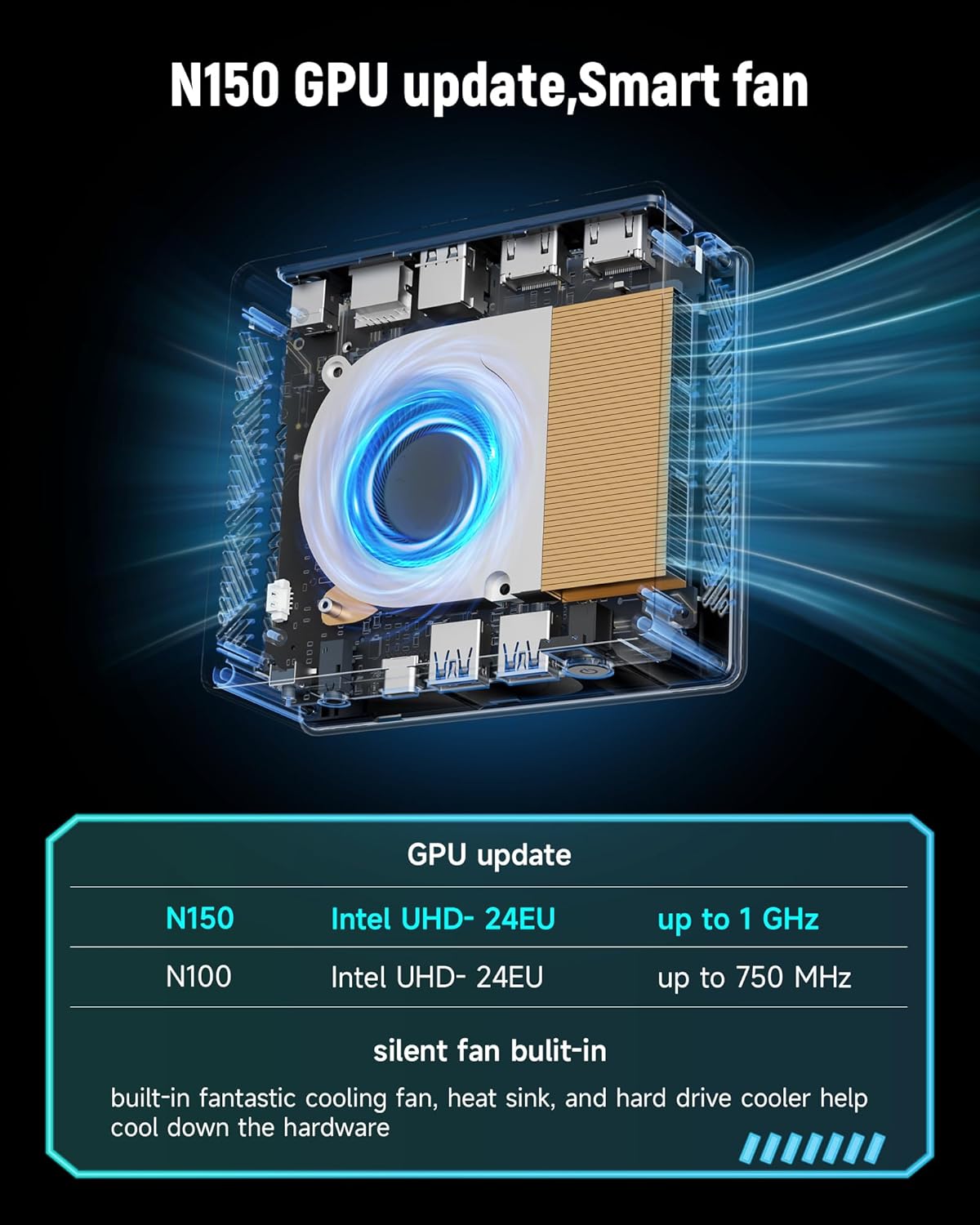
სურათი 4.3: შიდა view of the cooling system. This image highlights the internal fan and heatsink design, demonstrating the cooling solution implemented in the mini PC.
5. დაყენება
5.1. Connecting to a Display
- Connect one end of an HDMI cable to the HDMI 2.1 port on the rear of the Mini PC.
- Connect the other end of the HDMI cable to an HDMI input port on your monitor or TV.
5.2. პერიფერიული მოწყობილობების დამაკავშირებელი
- Connect your USB keyboard and mouse to the available USB ports on the Mini PC.
- For audio output, connect speakers or headphones to the 3.5mm audio jack on the front panel.
5.3. დენის კავშირი
- Plug the power adapter into the DC12V/2A input port on the rear of the Mini PC.
- შეაერთეთ დენის ადაპტერი კედლის განყოფილებაში.
6. საოპერაციო ინსტრუქციები
6.1. ჩართვა/გამორთვა
- ჩართვა: დააჭირეთ წინა პანელზე განთავსებულ ჩართვის ღილაკს. აინთება ჩართვის ინდიკატორი.
- გამორთვა: From the Windows 11 operating system, click the Start button, then Power, and select "Shut down." Alternatively, you can press and hold the power button for approximately 5 seconds to force a shutdown (not recommended for regular use).
6.2. ქსელთან დაკავშირება
6.2.1. Wired Connection (Ethernet)
- Connect an Ethernet cable from your router or modem to the RJ45 port on the rear of the Mini PC.
- The system should automatically detect and connect to the wired network.
6.2.2. Wireless Connection (Wi-Fi)
- Once Windows 11 has loaded, click the Wi-Fi icon in the taskbar.
- სიიდან აირჩიეთ სასურველი Wi-Fi ქსელი და საჭიროების შემთხვევაში შეიყვანეთ პაროლი.

Image 6.1: High-speed network connection capabilities. This image visually represents the mini PC's support for high-speed Wi-Fi 5, Bluetooth 5.0, and Gigabit LAN, indicating robust connectivity options.
6.3. Bluetooth კავშირი
To connect Bluetooth devices (e.g., headphones, keyboard, mouse):
- დარწმუნდით, რომ თქვენი Bluetooth მოწყობილობა დაწყვილების რეჟიმშია.
- On Windows 11, go to პარამეტრები > Bluetooth და მოწყობილობები.
- Turn on Bluetooth and click "Add device."
- Select your device from the list and follow the on-screen prompts to complete pairing.
6.4. Dual Display Setup
The Mini PC supports dual displays via the HDMI 2.1 port and the full-featured Type-C port. To set up dual monitors:
- Connect your primary monitor to the HDMI port.
- Connect your secondary monitor to the Type-C port (using a compatible Type-C to HDMI/DisplayPort adapter if necessary).
- Once both monitors are connected, right-click on the desktop, select "Display settings," and configure your display preferences (e.g., extend, duplicate).
7. მოვლა
- დასუფთავება: Use a soft, dry cloth to clean the exterior of the Mini PC. Do not use liquid cleaners or aerosols.
- ვენტილაცია: Ensure that the ventilation openings are clear of dust and obstructions to maintain optimal cooling performance.
- პროგრამული განახლებები: Regularly update your operating system and drivers to ensure system stability and security.
8. Დიაგნოსტიკა
8.1. არ არის ძალა
- Check if the power adapter is securely connected to both the Mini PC and the wall outlet.
- დარწმუნდით, რომ კედლის სოკეტი სწორად მუშაობს, მისი სხვა მოწყობილობით ტესტირებით.
8.2. ჩვენების გარეშე
- Verify that the HDMI cable is securely connected to both the Mini PC and the monitor.
- Ensure the monitor is powered on and set to the correct input source (e.g., HDMI 1).
- Try connecting the Mini PC to a different monitor or TV to rule out a monitor issue.
8.3. ქსელთან დაკავშირების პრობლემები
- სადენიანი: Check the Ethernet cable connection. Restart your router/modem.
- უსადენო: Ensure Wi-Fi is enabled in Windows settings. Verify the Wi-Fi password. Restart your router.
8.4. System Unresponsive
- If the system becomes unresponsive, press and hold the power button for 5-10 seconds to force a shutdown. Then, power it back on.
- If issues persist, consider using the "Clear CMOS Button" on the rear panel (consult section 4.1 for location) to reset BIOS settings to default. This may require a small, pointed object to press.
9. სპეციფიკაციები
| ფუნქცია | სპეციფიკაცია |
|---|---|
| ბრენდი | Bmax |
| მოდელი | B4 Turbo N150 |
| პროცესორი | Intel 13th Gen Twin Lake N150 (4 Cores, 4 Threads) |
| პროცესორის საბაზისო სიხშირე | 0.8 გჰც |
| Processor Burst Frequency | 3.6 გჰც-მდე |
| ოპერატიული მეხსიერება | 16 GB DDR4 3200 MHz |
| შენახვა | 1 ტბ SSD |
| გრაფიკა | Intel UHD Graphics (up to 1 GHz) |
| ოპერაციული სისტემა | Windows 11 (pre-installed), supports Linux, Ubuntu |
| Wi-Fi | Wi-Fi 5 (802.11a/b/g/n/ac) |
| Bluetooth | Bluetooth 5.0 |
| Ethernet | 1 x RJ45 გიგაბიტი LAN |
| USB პორტები | 2x USB 3.0, 2x USB 2.0 |
| ვიდეო გამომავალი | 1 x HDMI 2.1 (4K@60Hz), 1 x Type-C (full features) |
| აუდიო პორტი | 1 x 3.5 მმ აუდიო ჯეკი |
| დენის შეყვანა | DC12V/2A |
| ზომები (L x W x H) | 4.92 x 4.41 x 1.73 ინჩი |
10. გარანტია და მხარდაჭერა
For warranty information and technical support, please refer to the warranty card included with your product or visit the official Bmax webსაიტი. შეინახეთ თქვენი შესყიდვის ქვითარი, როგორც შეძენის დამადასტურებელი საბუთი გარანტიის მოთხოვნის შემთხვევაში.


