შესავალი
This manual provides essential instructions for setting up, operating, and maintaining your Epson EcoTank L1270 WiFi printer. Please read this guide thoroughly to ensure proper use and to maximize the performance and longevity of your device. The Epson EcoTank L1270 is an inkjet printer designed for efficient printing with a rechargeable ink tank system and Wi-Fi connectivity.
1. დაყენება
1.1 პრინტერის შეფუთვა
Carefully remove the printer from its packaging. Ensure all protective tapes and materials are removed from the exterior and interior of the printer. Keep the packaging materials for future transport or storage.
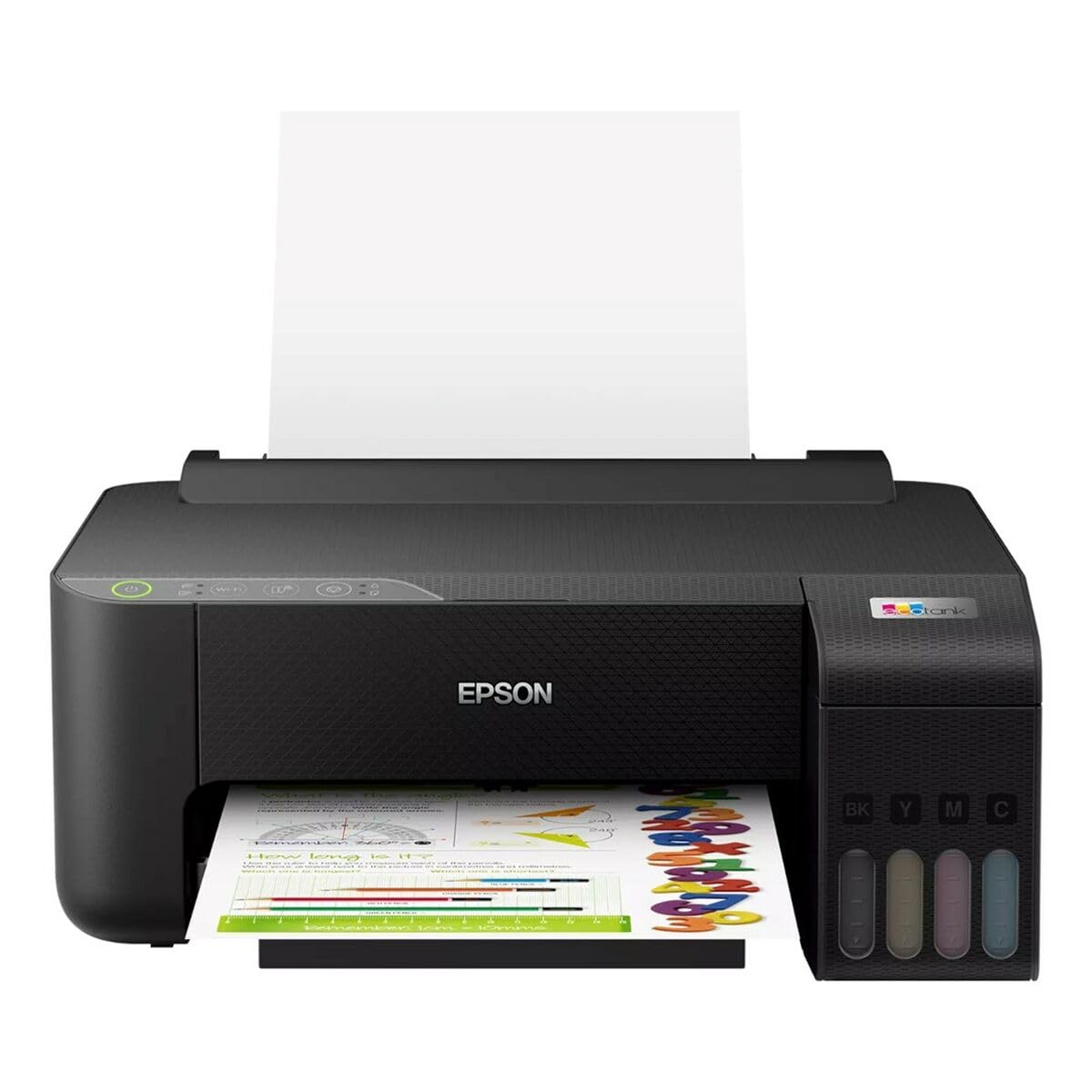
Image 1.1: Epson EcoTank L1270 WiFi Printer. This image shows the printer ready for initial setup after unpacking.
1.2 მელნის ავზების შევსება
The EcoTank L1270 uses a refillable ink tank system. Follow these steps to fill the ink tanks:
- გახსენით მელნის ავზის საფარი პრინტერზე.
- Uncap the ink bottle for the corresponding color. Each bottle is keyed to fit only the correct tank.
- ჩადეთ მელნის ბოთლი შემავსებელ პორტში. მელანი ავტომატურად დაიწყებს ავზის შევსებას. არ მოუჭიროთ ბოთლს.
- როგორც კი ავზი გაივსება, ამოიღეთ ბოთლი და დაახურეთ თავსახური. დახურეთ მელნის ავზის თავსახური.
- გაიმეორეთ ყველა ფერისთვის.
შენიშვნა: Use only genuine Epson ink bottles to prevent damage and ensure optimal print quality.
1.3 დენის კავშირი
Connect the power cord to the printer and then to a wall outlet. Press the power button to turn on the printer. The printer will perform an initial setup process, which may take a few minutes.
1.4 პროგრამული უზრუნველყოფისა და დრაივერის ინსტალაცია
To use your printer, you need to install the necessary drivers and software on your computer. Visit the official Epson support website for the EcoTank L1270 model to download the latest drivers and utilities. Follow the on-screen instructions provided by the installer.
- გადადით Epson მხარდაჭერა.
- ძიება "EcoTank L1270".
- Download and run the recommended driver package.
1.5 Wi-Fi დაყენება
The Epson EcoTank L1270 supports Wi-Fi connectivity. You can connect the printer to your wireless network using one of the following methods:
- Using the Printer's Control Panel: Navigate to the Wi-Fi settings on the printer's control panel, select your network, and enter the password.
- Using EpsonNet Setup: If installed, use the EpsonNet Setup utility on your computer to configure the wireless connection.
- WPS (Wi-Fi დაცული დაყენება): If your router supports WPS, press the WPS button on your router, then follow the instructions on the printer's control panel to establish a connection.
2. პრინტერის მართვა
2.1 ქაღალდის ჩატვირთვა
Load paper into the rear paper feeder. Ensure the paper guides are adjusted to the width of the paper. The printer supports various paper types and sizes, up to A4.
- Fan the paper stack before loading to prevent misfeeds.
- Do not overload the paper feeder; refer to the maximum capacity (100 sheets for plain paper).
2.2 დოკუმენტების ბეჭდვა
დოკუმენტის კომპიუტერიდან დასაბეჭდად:
- გახსენით დოკუმენტი, რომლის დაბეჭდვაც გსურთ.
- აპლიკაციის მენიუდან აირჩიეთ „ბეჭდვა“ (მაგ. File > ბეჭდვა).
- პრინტერად აირჩიეთ „Epson EcoTank L1270“.
- შეცვალეთ ბეჭდვის პარამეტრები, როგორიცაა ქაღალდის ზომა, ბეჭდვის ხარისხი და ასლების რაოდენობა.
- დააჭირეთ ღილაკს „ბეჭდვა“.
2.3 Duplex Printing (Two-Sided Printing)
The EcoTank L1270 supports manual duplex printing. To print on both sides of the paper:
- In your print settings, select the option for "Manual Duplex Printing" or "Print on Both Sides".
- ჯერ კენტი ნომრების მქონე გვერდები დაბეჭდეთ.
- When prompted, reload the printed pages into the paper feeder according to the on-screen instructions to print the even-numbered pages on the reverse side.
3. მოვლა
3.1 მელნის დონის შემოწმება
Visually inspect the ink tanks on the front of the printer to check current ink levels. The tanks are transparent, allowing for easy monitoring. Refill ink when levels are low to avoid running out during a print job.
3.2 მელნის ავზების შევსება
When an ink tank is low, purchase genuine Epson replacement ink bottles. Follow the same procedure as described in Section 1.2 "Filling the Ink Tanks".
3.3 ბეჭდვის თავის გაწმენდა
If print quality declines (e.g., missing lines, faded colors), perform a print head cleaning. This can be done through the printer's utility software on your computer or via the printer's control panel. Refer to the software's help guide for detailed steps.
3.4 ქაღალდის ბილიკის გაწმენდა
If you experience paper jams or streaks on prints, the paper path may need cleaning. Consult the printer's software utility or the online manual for instructions on how to perform a paper path cleaning.
4. Დიაგნოსტიკა
This section addresses common issues you might encounter with your Epson EcoTank L1270 printer.
4.1 Printer Not Printing / Blank Pages
- შეამოწმეთ მელნის დონე: Ensure all ink tanks have sufficient ink.
- Print Head Clogged: Perform a print head cleaning (see Section 3.3).
- Paper Loaded Correctly: Verify paper is loaded properly and not jammed.
- დრაივერის ინსტალაცია: Ensure printer drivers are correctly installed and up to date. Reinstall if necessary.
4.2 Wi-Fi კავშირის პრობლემები
- Router Range: დარწმუნდით, რომ პრინტერი თქვენი Wi-Fi როუტერის დიაპაზონშია.
- ქსელის პაროლი: Double-check that the correct Wi-Fi password has been entered.
- მოწყობილობების გადატვირთვა: Try restarting your printer, computer, and Wi-Fi router.
- Reconfigure Wi-Fi: Attempt to set up the Wi-Fi connection again (see Section 1.5).
4.3 ბეჭდვის დაბალი ხარისხი
- ბეჭდვის თავის გაწმენდა: Perform a print head cleaning and nozzle check.
- ქაღალდის ტიპი: დარწმუნდით, რომ თქვენი ბეჭდვის პარამეტრებისთვის სწორ ქაღალდის ტიპს იყენებთ.
- Ink Quality: Use genuine Epson inks for best results.
For more complex issues, refer to the comprehensive online manual on the Epson support webსაიტზე ან დაუკავშირდით Epson-ის მომხმარებელთა მხარდაჭერის სამსახურს.
5. სპეციფიკაციები
| ფუნქცია | დეტალი |
|---|---|
| ბრენდი | ეპსონი |
| მოდელის სახელი | EcoTank L1270 WiFi |
| ბეჭდვის ტექნოლოგია | ჭავლური |
| დაკავშირება | Wi-Fi |
| მაქსიმალური ბეჭდვის გარჩევადობა (ფერადი) | 5760 x 1440 dpi |
| მაქსიმალური ბეჭდვის გარჩევადობა (შავ-თეთრი) | 5760 dpi |
| მაქსიმალური ბეჭდვის სიჩქარე (მონოქრომული) | 15 გვერდი წუთში |
| Max Paper Capacity | 100 sheets (plain paper) |
| დუპლექსის ბეჭდვა | დიახ (ხელით) |
| სპეციალური ფუნქცია | Rechargeable Ink Tank |
| ზომები (L x W x H) | 26P x 42,5l x 46H cm (approx.) |
6. ინფორმაცია გარანტიის შესახებ
The Epson EcoTank L1270 WiFi printer comes with a limited warranty. For specific terms, conditions, and duration of your warranty, please refer to the warranty documentation included with your product or visit the official Epson support webსაიტი. შეინახეთ შეძენის დამადასტურებელი საბუთი გარანტიის მოთხოვნისთვის.
7. მხარდაჭერა
For further assistance, technical support, or to download the latest drivers and manuals, please visit the official Epson support webსაიტი:
Epson-ის ოფიციალური მხარდაჭერა Webსაიტი
ასევე შეგიძლიათ იპოვოთ სასარგებლო რესურსები და ხშირად დასმული კითხვები მათ შესახებ webსაიტი.


