1. შესავალი
The Innex DS200 is a professional USB book scanner designed for efficient digitization of various documents, including books, magazines, and loose papers. It features a 26MP camera, A3 scanning capability, and advanced software functions to enhance scanning quality and workflow. This manual provides detailed instructions for setting up, operating, and maintaining your DS200 scanner.

Figure 1.1: Innex DS200 Scanner in operation with an open book.
2. პაკეტის შიგთავსი
დარწმუნდით, რომ ქვემოთ ჩამოთვლილი ყველა ნივთი შედის თქვენს პაკეტში. თუ რომელიმე ნივთი აკლია ან დაზიანებულია, გთხოვთ, დაუკავშირდეთ მომხმარებელთა მხარდაჭერის სამსახურს.
- Innex DS200 Scanner Unit
- სკანირების პანელი
- USB კაბელი
- კვების ადაპტერი (ტიპი A)
- Power Plugs (Type C, Type G)
- ხელის ღილაკი
- ფეხის პედალი
- Adapter (USB-C to USB-A)
- სწრაფი დაწყების სახელმძღვანელო
- მომსახურების ბარათი
- GPSR-ის განცხადება
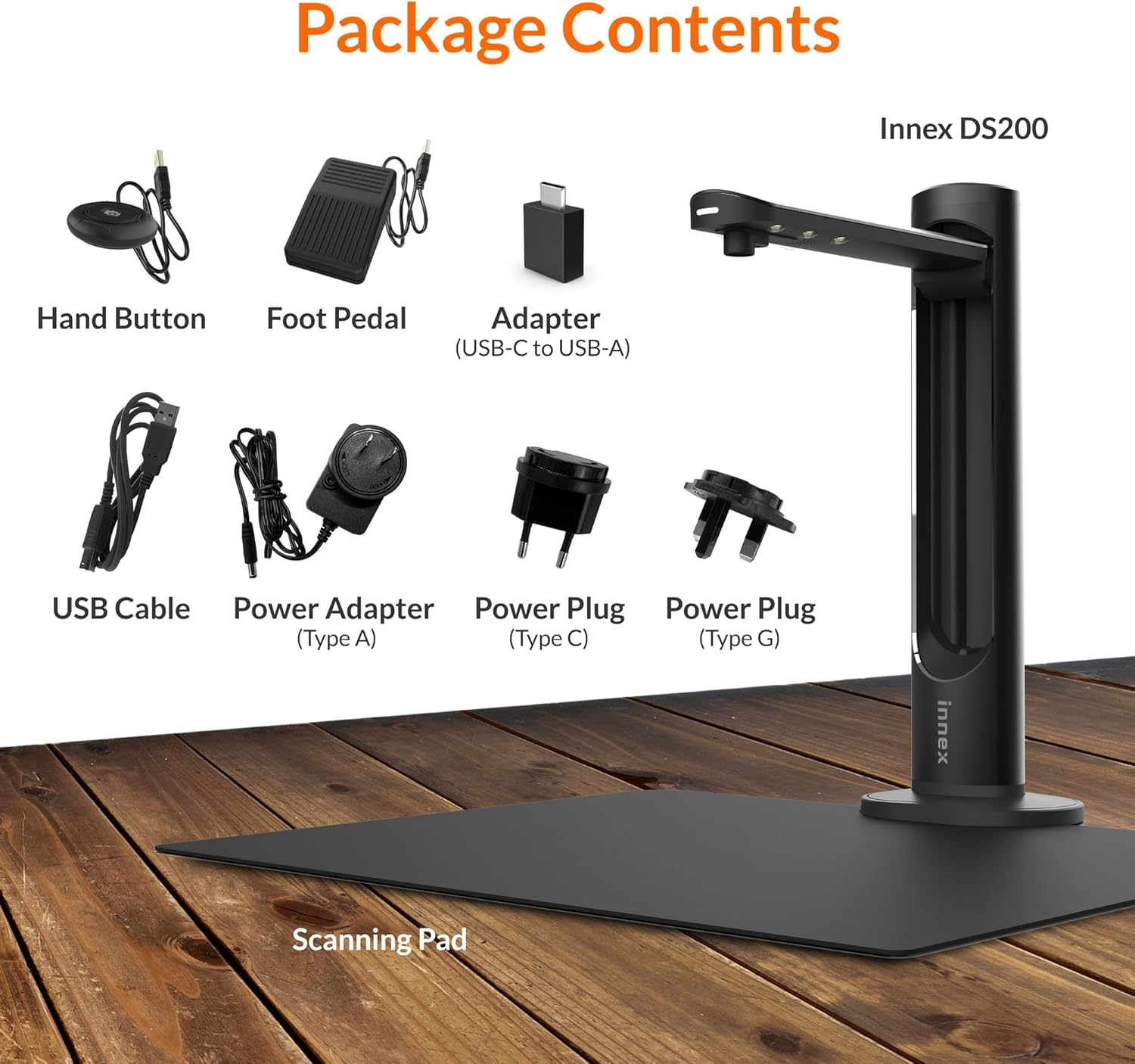
Figure 2.1: Contents of the Innex DS200 package.
3. დაყენება
- ამოალაგე კომპონენტები: ფრთხილად ამოიღეთ ყველა ნივთი შეფუთვიდან.
- Position the Scanner: Place the Innex DS200 scanner unit on a stable, flat surface.
- Place the Scanning Pad: Position the black scanning pad directly beneath the scanner head. Ensure it is centered and flat.
- დაკავშირება ძალა: Connect the power adapter to the scanner and plug it into an electrical outlet. Use the appropriate power plug for your region.
- კომპიუტერთან დაკავშირება: Connect the scanner to your computer using the provided USB cable. If your computer only has USB-C ports, use the included USB-C to USB-A adapter.
- დააინსტალირეთ პროგრამული უზრუნველყოფა: Download and install the Innex Scan software from the official Innex website. Follow the on-screen instructions for installation. The software is compatible with Windows and macOS.
- აქსესუარების დაკავშირება: Plug in the hand button and foot pedal to the designated ports on the scanner unit.
4. საოპერაციო ინსტრუქციები
4.1. სკანირების ძირითადი პროცედურა
- Launch Innex Scan Software: Open the Innex Scan application on your computer.
- დოკუმენტის განთავსება: Place the document or book you wish to scan on the scanning pad. Ensure it is within the scanning area. The laser guide can assist with alignment.
- დაარეგულირეთ პარამეტრები: In the software, select your desired scanning mode (e.g., Document, Book, Photo) and adjust settings such as color mode, resolution, and output format.
- სკანირების დაწყება: Trigger the scan using one of the available methods: the software capture button, the hand button, or the foot pedal.
- Review და შენახვა: სკანირების შემდეგ, ხელახლაview the image in the software. Apply any necessary corrections and save the file to your preferred location and format.

Figure 4.1: Using the laser guide for document alignment.

Figure 4.2: Multiple options for triggering a scan.
4.2. პროგრამული უზრუნველყოფის მახასიათებლები
The Innex Scan software includes several features to optimize your scanning experience:
- Curve Flattening: Automatically corrects the curvature of book pages for flat, readable scans.
- OCR (ოპტიკური სიმბოლოების ამოცნობა): Converts scanned images into editable and searchable text in over 120 languages.
- Auto-Cropping: Automatically detects and crops the document edges.
- Page-Turn Detection: For book scanning, the software can detect when a page has been turned and automatically initiate the next scan.
- Finger Removal: Intelligently removes images of fingers holding down pages during scanning.
- Multi Scan Mode: Allows scanning multiple small items simultaneously, such as business cards or photos, and separates them into individual files.
- Visualizer Mode: Enables the scanner to function as a document camera for presentations or live demonstrations.
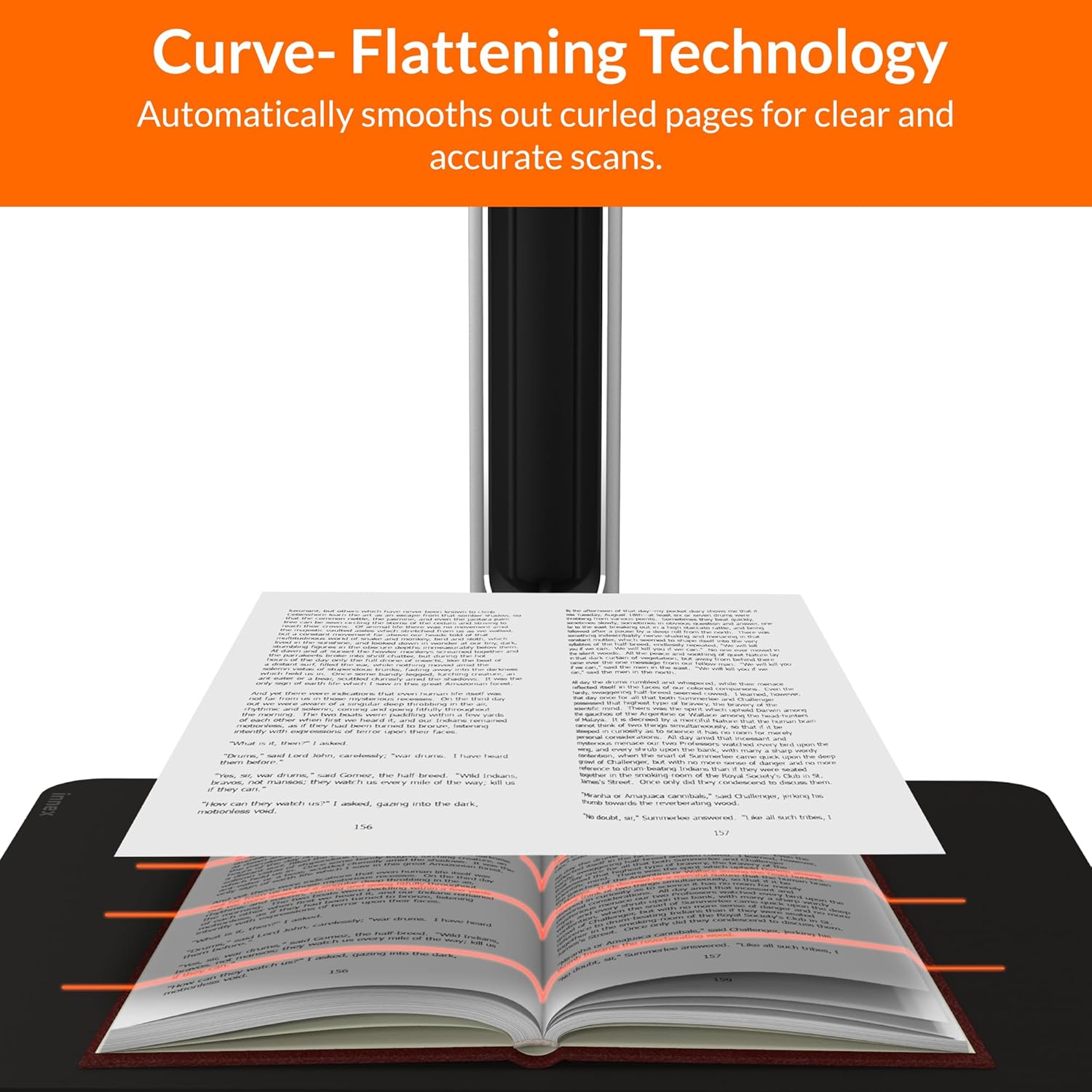
Figure 4.3: Curve Flattening Technology in use.

Figure 4.4: OCR Text Recognition and export options.

სურათი 4.5: დასრულდაview of Innex Scan software features.
4.3. Export Options
The Innex DS200 supports various export formats for both image and text files:
- გამოსახულება Files: JPEG, PNG, BMP, TIFF
- დოკუმენტი Files: PDF (searchable), DOC, EXCEL, TEXT
- ელექტრონული წიგნი Files: EPUB
- აუდიო Files (Text-to-Speech): MP3, WAV
- ვიდეო Files (Visualizer Mode): MP4, AVI, FLV, WMV

Figure 4.6: Available export formats in Innex Scan software.
5. მოვლა
- დასუფთავება: Regularly wipe the scanner lens and LED lamp with a soft, dry, lint-free cloth to ensure optimal scan quality. Clean the scanning pad with a damp საჭიროების შემთხვევაში ქსოვილი.
- პროგრამული განახლებები: Periodically check the official Innex website for software updates to ensure you have the latest features and performance improvements.
- შენახვა: When not in use, store the scanner in a clean, dry environment, away from direct sunlight and extreme temperatures.
6. Დიაგნოსტიკა
6.1. გავრცელებული პრობლემები და გადაწყვეტილებები
| საკითხი | შესაძლო მიზეზი | გამოსავალი |
|---|---|---|
| სკანერი არ არის აღმოჩენილი | Loose USB connection, driver issue, power issue | Ensure USB cable is securely connected. Check power connection. Reinstall scanner drivers or software. Try a different USB port. |
| სკანირების ცუდი ხარისხი | Dirty lens, insufficient lighting, incorrect settings, document not flat | Clean the scanner lens. Ensure adequate ambient lighting or use the built-in LED lamp. Adjust resolution and color settings in software. Ensure documents are flat on the scanning pad. |
| Software crashes or freezes | Outdated software, system incompatibility, insufficient system resources | Update Innex Scan software to the latest version. Ensure your computer meets minimum system requirements. Close other demanding applications. Restart the software and computer. |
| OCR not working correctly | Poor scan quality, incorrect language setting, complex font | Improve scan quality. Verify the correct OCR language is selected in the software. For highly stylized or handwritten text, OCR accuracy may vary. |
7. სპეციფიკაციები
Detailed technical specifications for the Innex DS200 scanner:

Figure 7.1: Innex DS200 Technical Specifications.
- მოდელი: DS200
- გამოსახულების სენსორი: CMOS სენსორი
- მაქს. რეზოლუცია: 5800 x 4522 პიქსელი (26 MP)
- Output DPI: Approx. 300 dpi (A3)
- მაქს. სროლის ზონა: A3 (16.77" x 12.59" / 426 x 320mm)
- ფერის სიღრმე: 24 ბიტიანი
- Lens Focus: დაფიქსირდა
- სკანირების სიჩქარე: 1.5 sec per A3 page
- სკანირების ტრიგერი: ხელის ღილაკი, ფეხის პედლები, პროგრამული უზრუნველყოფის ღილაკი, ავტომატური სკანირება
- გამომავალი ფორმატები: Picture (JPG, TIFF, BMP, PNG), Document (PDF, Image, PDF Searchable), Text (DOC, EXCEL, TEXT), E-book (EPUB), Audio (MP3, WAV), Video (AVI, MPEG, FLV, WMV)
- Laser Projection: ჩაშენებული
- სინათლის წყარო: ჩაშენებული მაღალი სიკაშკაშის LED ნათურა
- ინტერფეისი: USB 2.0 Type B x 1 (for PC Connection), USB 2.0 Type-A x 1 (for USB Extension)
- სიმძლავრე: 5V/2A
- მინიმალური სისტემური მოთხოვნები: Windows 10, 11, macOS 11 or later; Intel i5 Processor or higher; 8GB RAM (Recommended 16GB or more); 20GB Available HDD Space; USB 2.0 Port
- პროდუქტის ზომები (დაკეცილი): 4.33"D x 5.91"W x 15.75"H (110 x 150 x 400mm)
- Product Dimensions (In Use): 12.05"D x 5.91"W x 15.75"H (307 x 150 x 400mm)
- წმინდა წონა: დაახლ. 2.64 ფუნტი (1.2 კგ)
8. გარანტია და მხარდაჭერა
For warranty information and technical support, please refer to the service card included in your package or visit the official Innex website. You can also contact FunTech Innovation, the manufacturer, for assistance.
მწარმოებელი: FunTech ინოვაცია
Webსაიტი: Innex Official Store on Amazon


