1. შესავალი
Thank you for choosing the ILEBYGO Mini Projector B0F83Q1HHT. This portable projector is designed to provide a versatile entertainment experience with its Android 13 operating system, WiFi 6, Bluetooth 5.0, 1080P Full HD resolution with 4K support, 320 ANSI lumens brightness, 270-degree rotation, auto keystone correction, and autofocus. This manual provides essential information for setting up, operating, and maintaining your projector.
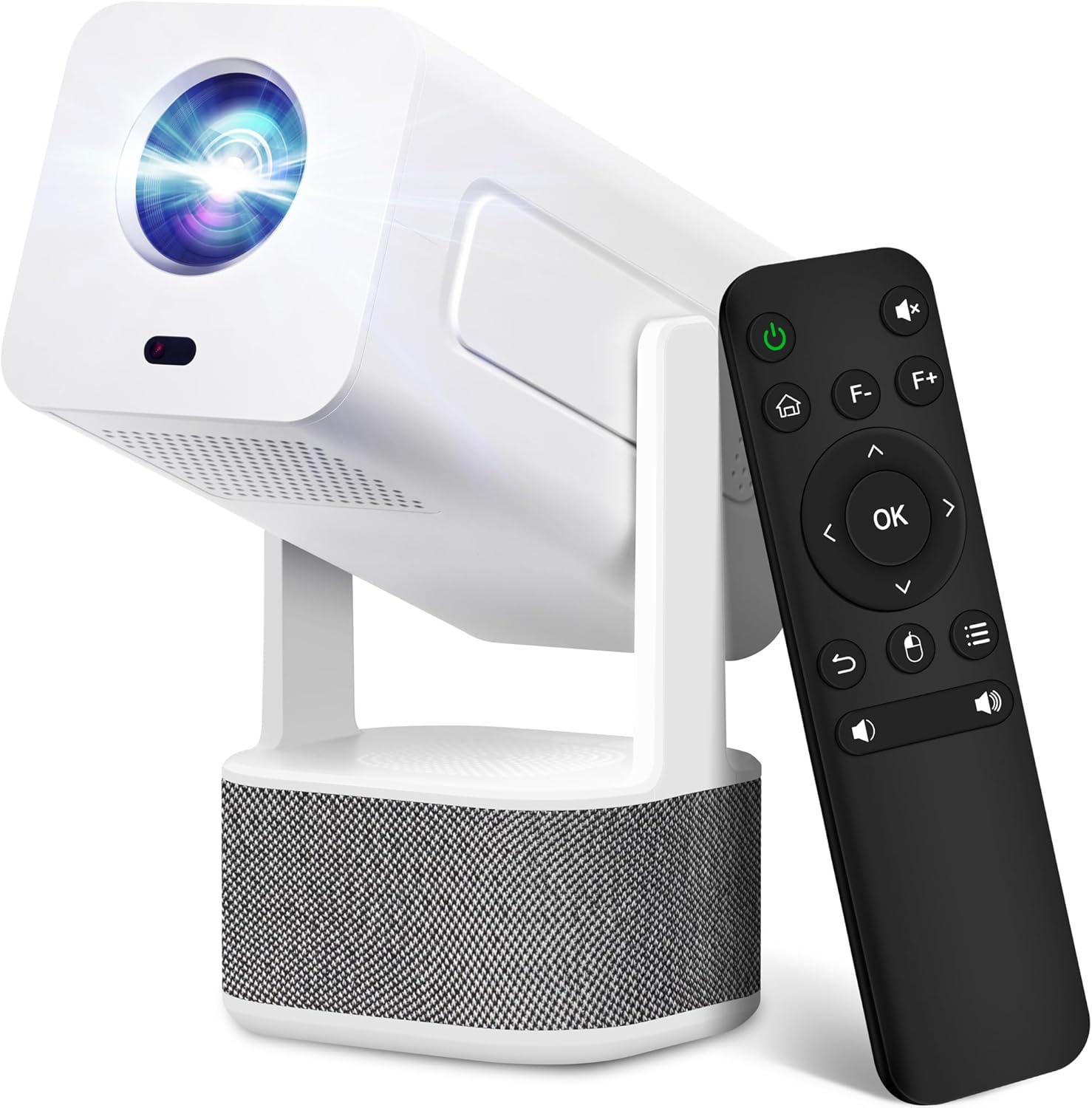
Image 1.1: ILEBYGO Mini Projector and Remote Control
The ILEBYGO Mini Projector B0F83Q1HHT offers a projection size ranging from 30 to 200 inches, making it suitable for various environments from small rooms to outdoor settings. Its dual 5W speakers deliver integrated audio, and multiple connectivity options ensure compatibility with a wide range of devices.
2. რა არის ყუთში
გთხოვთ, შეამოწმოთ თქვენი შეფუთვის შიგთავსი. თუ რომელიმე ნივთი აკლია ან დაზიანებულია, დაუკავშირდით მომხმარებელთა მხარდაჭერის სამსახურს.
- 1x ILEBYGO Mini Projector
- 1x მომხმარებლის სახელმძღვანელო
- 1x დენის ადაპტერი
- 1x დისტანციური მართვა
3. დაყენების გზამკვლევი
3.1. ჩართვა
- შეაერთეთ კვების ადაპტერი პროექტორის DC შემავალ პორტთან.
- შეაერთეთ დენის ადაპტერი კედლის განყოფილებაში.
- დააჭირეთ ჩართვის ღილაკს პროექტორზე ან დისტანციურ მართვის პულტზე მოწყობილობის ჩასართავად.

Image 3.1: Projector Connectivity Ports (DC, HDMI, USB, Audio)
3.2. Initial Placement and Adjustment
The projector features a 270-degree rotatable design, allowing flexible placement.
- მოათავსეთ პროექტორი სტაბილურ ზედაპირზე.
- Adjust the projector's angle to direct the image onto your desired projection surface (wall, screen, ceiling).
- The projector will automatically perform keystone correction and autofocus to optimize the image clarity and shape.
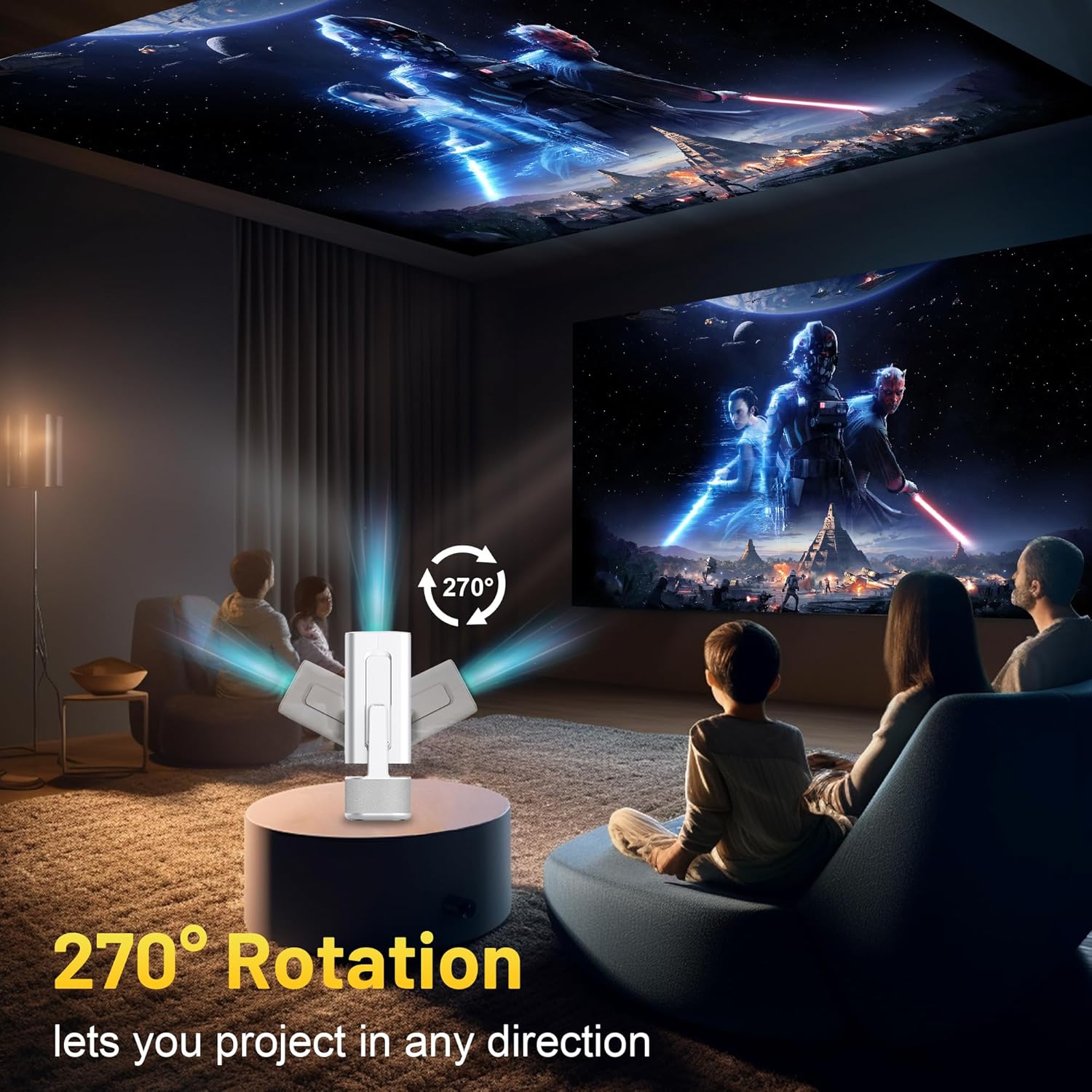
Image 3.2: 270-Degree Rotation Capability
3.3. ქსელური კავშირი (WiFi)
To access online content and streaming services, connect the projector to a Wi-Fi network.
- მთავარი ეკრანიდან გადადით „პარამეტრებზე“.
- აირჩიეთ „ქსელი და ინტერნეტი“.
- ჩართეთ Wi-Fi და აირჩიეთ სასურველი ქსელი სიიდან.
- მოთხოვნის შემთხვევაში, შეიყვანეთ Wi-Fi-ს პაროლი და დაუკავშირდით.

Image 3.3: Dual Band WiFi 6 and Bluetooth 5.0
3.4. Bluetooth დაწყვილება
Pair Bluetooth devices like external speakers or headphones for enhanced audio.
- მთავარი ეკრანიდან გადადით „პარამეტრებზე“.
- აირჩიეთ „დაკავშირებული მოწყობილობები“ ან „Bluetooth“.
- ჩართეთ Bluetooth.
- ჩართეთ თქვენი Bluetooth მოწყობილობა დაწყვილების რეჟიმში.
- Select your device from the list of available devices on the projector screen to pair.
4. საოპერაციო ინსტრუქციები
4.1. ნავიგაცია
Use the included remote control to navigate the projector's interface. The directional buttons, 'OK' button, 'Back' button, and 'Home' button are primary controls.
4.2. App Usage (Android 13)
The projector runs on Android 13 and comes with pre-installed streaming applications.
- From the home screen, select the desired application (e.g., Netflix, YouTube, Prime Video).
- საჭიროების შემთხვევაში, შედით თქვენი ანგარიშის სერთიფიკატებით.
- Browse and play content as you would on any Android smart device.
- Additional apps can be downloaded from the Google Play Store.

Image 4.1: Built-in Android 13 System with Apps
4.3. Screen Mirroring/Casting
Mirror content from your smartphone, tablet, or computer wirelessly.
- Ensure both the projector and your device are connected to the same Wi-Fi network.
- On the projector, select the screen mirroring/casting application (e.g., Miracast, AirPlay).
- On your mobile device, enable screen mirroring or casting and select the projector from the list of available devices.
4.4. External Device Connection (HDMI, USB)
Connect external devices such as laptops, gaming consoles, or USB drives.
- HDMI: Connect an HDMI cable from your device to the HDMI port on the projector. Select the HDMI input source from the projector's input menu.
- USB: Insert a USB drive into the USB port. The projector's file მენეჯერი, როგორც წესი, ავტომატურად იხსნება, რაც საშუალებას გაძლევთ დაათვალიეროთ და დაუკრათ მედია files.

Image 4.2: Multi-Device Compatibility
4.5. გამოსახულების რეგულირება
The projector features automatic adjustments for convenience.
- ავტომატური გასაღების კორექტირება: The projector automatically corrects vertical image distortion. If manual adjustment is needed, navigate to 'Settings' > 'Projection Settings' > 'Keystone Correction'.
- ავტოფოკუსი: The image will automatically focus when the projector is moved or powered on. Manual focus adjustment can be found in 'Settings' > 'Projection Settings' > 'Focus'.
- მასშტაბირება: Adjust the projection size from 50% to 100% without moving the projector. This setting is typically found in 'Settings' > 'Projection Settings' > 'Zoom'.

Image 4.3: Auto Keystone Correction and Autofocus
5. მოვლა
5.1. დასუფთავება
- ობიექტივი: გამოიყენეთ რბილი, უბუსუსო ქსოვილი, რომელიც სპეციალურად ოპტიკური ლინზებისთვისაა შექმნილი. მოერიდეთ აბრაზიულ მასალებს ან მკაცრ ქიმიკატებს.
- ექსტერიერი: პროექტორის გარე ზედაპირი გაწმინდეთ რბილი, მშრალი ქსოვილით. არ გამოიყენოთ თხევადი საწმენდი საშუალებები პირდაპირ მოწყობილობაზე.
- ვენტილაცია: გადახურების თავიდან ასაცილებლად, დარწმუნდით, რომ სავენტილაციო ღიობები მტვრისა და სხვა დაბრკოლებებისგან თავისუფალია.
5.2. შენახვა
როდესაც პროექტორი არ გამოიყენება, შეინახეთ გრილ, მშრალ ადგილას, მოარიდეთ მზის პირდაპირ სხივებს და ექსტრემალურ ტემპერატურას. მტვრის დაგროვებისა და ფიზიკური დაზიანების თავიდან ასაცილებლად გამოიყენეთ ორიგინალი შეფუთვა ან დამცავი ქეისი.
6. Დიაგნოსტიკა
იხილეთ ქვემოთ მოცემული ცხრილი გავრცელებული პრობლემებისა და მათი გადაჭრის გზებისთვის.
| საკითხი | შესაძლო მიზეზი | გამოსავალი |
|---|---|---|
| არ არის ძალა | Power cable not connected; Power outlet malfunction | დარწმუნდით, რომ კვების კაბელი საიმედოდ არის შეერთებული. სცადეთ სხვა კვების წყარო. |
| სურათი არ არის | არასწორი შეყვანის წყარო; მოწყობილობა არ არის დაკავშირებული; პროექტორი ლოდინის რეჟიმშია | Select correct input source (HDMI, USB). Ensure external device is powered on and connected. Press power button to wake projector. |
| ბუნდოვანი გამოსახულება | Out of focus; Keystone not corrected | Allow autofocus to adjust. Manually adjust focus in settings if needed. Check keystone correction settings. |
| ხმა არ არის | Volume too low; Muted; External audio device not connected/paired | Increase volume. Unmute projector. Ensure Bluetooth audio device is paired and connected, or external speakers are properly connected via audio jack. |
| Wi-Fi კავშირის პრობლემები | Incorrect password; Network interference; Router issues | Verify Wi-Fi password. Move projector closer to router. Restart router. |
| Bluetooth-ის დაწყვილების შეცდომა | Device not in pairing mode; Interference; Device too far | Ensure Bluetooth device is in pairing mode. Keep devices close. Turn off other Bluetooth devices to reduce interference. |
7. სპეციფიკაციები
| ფუნქცია | დეტალი |
|---|---|
| ბრენდი | ILEBYGO |
| მოდელი | B0F83Q1HHT |
| ჩვენების გარჩევადობა | 1920 x 1080 (Full HD), 4K Support |
| სიკაშკაშე | 320 ANSI ლუმენი |
| დაკავშირების ტექნოლოგია | Bluetooth 5.0, HDMI, USB, Wi-Fi 6 (2.4G+5G) |
| ოპერაციული სისტემა | Android 13 |
| განსაკუთრებული თვისებები | Auto Keystone Correction, Autofocus, 270° Rotation, Built-in Dual 5W Speakers |
| პროექციის ზომა | 30''-200'' |
| ასპექტის თანაფარდობა | 16:9 / 4:3 |
| ნივთის წონა | 2.72 ფუნტი |
| პაკეტის ზომები | 13.54 x 5.39 x 5.2 ინჩი |
8. გარანტია და მხარდაჭერა
The ILEBYGO Mini Projector B0F83Q1HHT comes with a standard manufacturer's warranty. Please refer to the warranty card included in your package for specific terms and conditions.
For technical support, troubleshooting assistance, or warranty claims, please contact ILEBYGO customer service through the retailer's platform or the contact information provided in your product documentation.