1. შესავალი
This instruction manual provides essential information for the safe and efficient operation, maintenance, and troubleshooting of your 3i P10 Ultra Robot Vacuum and Mop Combo. Please read this manual thoroughly before using the product and retain it for future reference.
2. უსაფრთხოების ინფორმაცია
ელექტრომოწყობილობების გამოყენებისას ყოველთვის დაიცავით ძირითადი უსაფრთხოების ზომები, რათა შეამციროთ ხანძრის, ელექტროშოკის ან დაზიანების რისკი. ეს მოწყობილობა განკუთვნილია მხოლოდ საყოფაცხოვრებო მოხმარებისთვის.
- არ მისცეთ ბავშვებს რობოტის მართვის უფლება. რობოტის მუშაობისას, მეთვალყურეობა გაუწიეთ ბავშვებსა და შინაურ ცხოველებს.
- უზრუნველყოს ძალა voltage ემთხვევა დამტენ დოკზე არსებულ ეტიკეტს.
- არ გამოიყენოთ რობოტი სველ ზედაპირებზე ან წყლის სტაგნაციის ადგილებში.
- Remove loose cables, small objects, and fragile items from the cleaning path before operation.
- Do not use the robot to pick up large or sharp objects, flammable materials, or liquids.
- Only use manufacturer-specified accessories and replacement parts.
- თუ დენის კაბელი დაზიანებულია, ის უნდა შეიცვალოს მწარმოებლის ან კვალიფიციური სერვისის აგენტის მიერ, რათა თავიდან აიცილოთ საფრთხეები.
3. პროდუქტი დასრულდაview
3.1 შემავალი კომპონენტები
პაკეტში შედის შემდეგი ნივთები:
- 1 x რობოტის მტვერსასრუტი
- 1 x საბაზო სადგური
- 2 x საწმენდი ბალიში
- 2 x გვერდითი ჯაგრისი
- 1 x 800ml Cleaning Solution
- 1 x მოხსნადი ბაზა
- XXX x დენის კაბელი
- 1 x მომხმარებლის სახელმძღვანელო
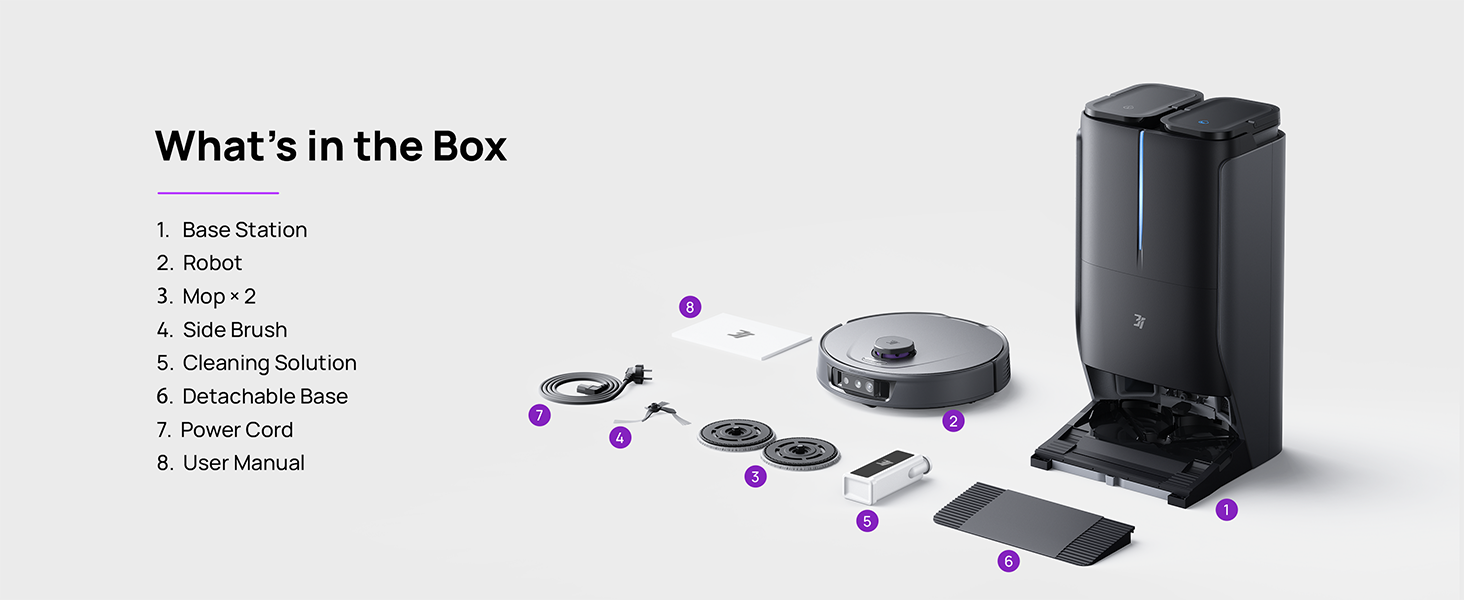
Figure 3.1: Contents of the 3i P10 Ultra package.
3.2 Robot Vacuum Features
- UltraReach Mop: The auto-extending mop system cleans edges and corners thoroughly. Dual mops spin at 220 RPM for effective stain removal.
- 18,000 Pa Suction: Provides powerful suction for deep cleaning on various floor types, including carpets and hard floors. Features smart carpet detection to boost suction and lift mops.
- All-in-One Automated Station: Offers automatic hot-water mop washing, hot air drying, solution adding, and hands-free dust collection for up to 70 days.
- გაფართოებული ნავიგაცია: Utilizes LiDAR for 3D mapping, dual 3D structured light, and an AI camera for obstacle avoidance, threshold crossing, and collision resistance.
- AI-Powered DirtScan: Identifies over 100 household objects and messes, adapting cleaning methods for optimal results, even in low light conditions.
- თმის მოვლა: Equipped with anti-tangle brushes and a TangleCut blade to prevent hair from wrapping around components.
- Smart Route Planning: Learns home layouts for efficient cleaning routes. Supports scheduled cleaning, no-go zones, and app control. Compatible with Alexa and Google Assistant.
- Wi-Fi კავშირი: Supports both 2.4G and 5G Wi-Fi networks.

სურათი 3.2: ზედა view of the 3i P10 Ultra Robot Vacuum.

Figure 3.3: The 3i P10 Ultra Base Station.
4. დაყენება
4.1 შეფუთვა და განთავსება
- ფრთხილად ამოიღეთ ყველა კომპონენტი შეფუთვიდან.
- Choose a suitable location for the base station. Ensure it is placed against a wall, on a hard, level surface, with at least 0.5 meters (1.6 feet) of clear space on both sides and 1.5 meters (4.9 feet) in front. Avoid areas with direct sunlight or strong Wi-Fi interference.
- Connect the power cord to the base station and plug it into a power outlet.
4.2 რობოტის მომზადება
- Install the side brushes by pressing them into their slots until they click.
- Attach the mop pads to the mop holders on the robot.
- Place the robot onto the base station to charge. Ensure the charging contacts align. The robot will announce its charging status.
4.3 აპლიკაციის ინსტალაცია და დაკავშირება
- Download the 3i app from your mobile device's app store (iOS or Android).
- Open the app and follow the on-screen instructions to create an account and add your 3i P10 Ultra robot.
- Ensure your phone is connected to a 2.4GHz or 5GHz Wi-Fi network during the pairing process.
5. საოპერაციო ინსტრუქციები
5.1 საწყისი გაწმენდა და რუკების შედგენა
For the first use, allow the robot to complete a full cleaning cycle to create a map of your home. This map is crucial for advanced features.

Figure 5.1: Precision 3D Mapping in the 3i App.
5.2 დასუფთავების ციკლის დაწყება
- რობოტის მეშვეობით: დასუფთავების დასაწყებად ან შესაჩერებლად ერთხელ დააჭირეთ რობოტზე ჩართვის ღილაკს.
- აპლიკაციის საშუალებით: Open the 3i app, select the desired cleaning mode (Vacuum, Mop, Vac & Mop, AI Auto, Custom), and tap 'Start'.
- ხმოვანი კონტროლის საშუალებით: Use compatible voice assistants (Alexa, Google Assistant) with commands like "Hey Google, start vacuuming."

Figure 5.2: Using voice control to operate the 3i P10 Ultra.
5.3 აპლიკაციის მახასიათებლები
The 3i app provides extensive control and customization options:
- დასუფთავების პარამეტრები: Schedule cleaning, select rooms, set no-go zones, customize carpet cleaning.
- რუქის პარამეტრები: View 3D maps, quick mapping, multi-floor maps, edit rooms and furniture.
- Station Settings: Customize dust collection, mop washing, auto-drying, and TangleCut.
- სხვა პარამეტრები: Do Not Disturb mode, Smart Route Planning, Pet Recognition, Child Lock.
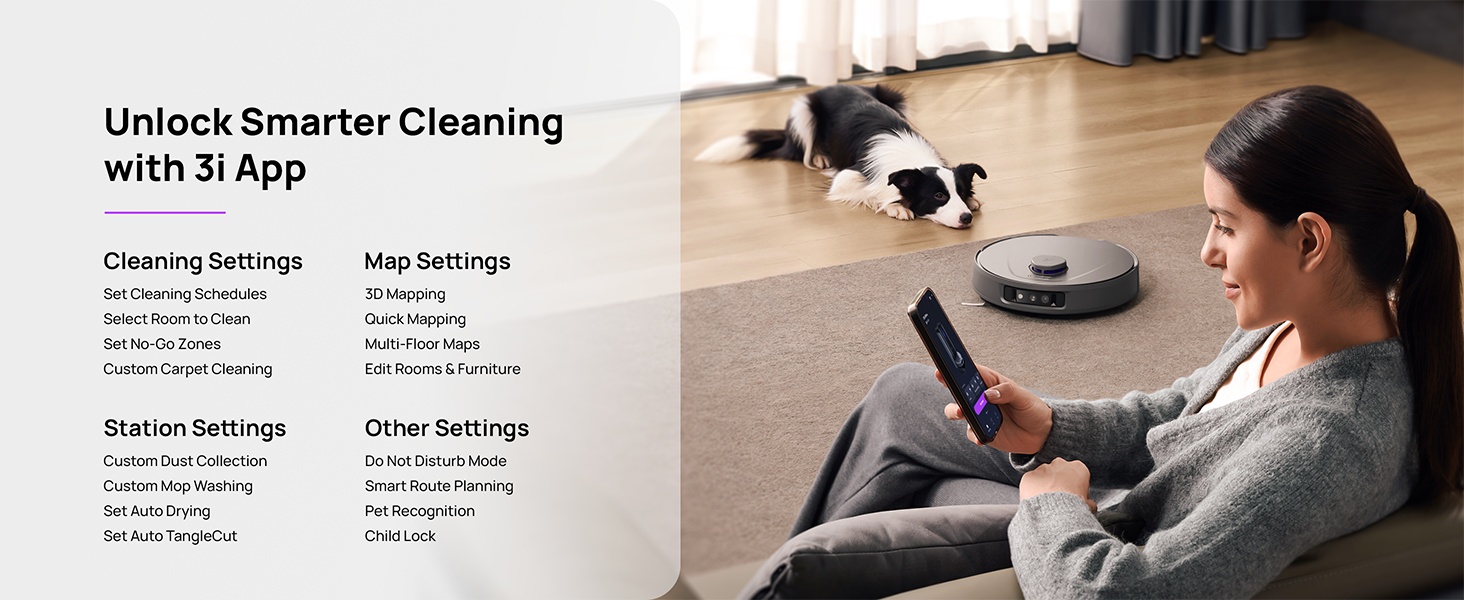
Figure 5.3: The 3i App interface for smart cleaning.
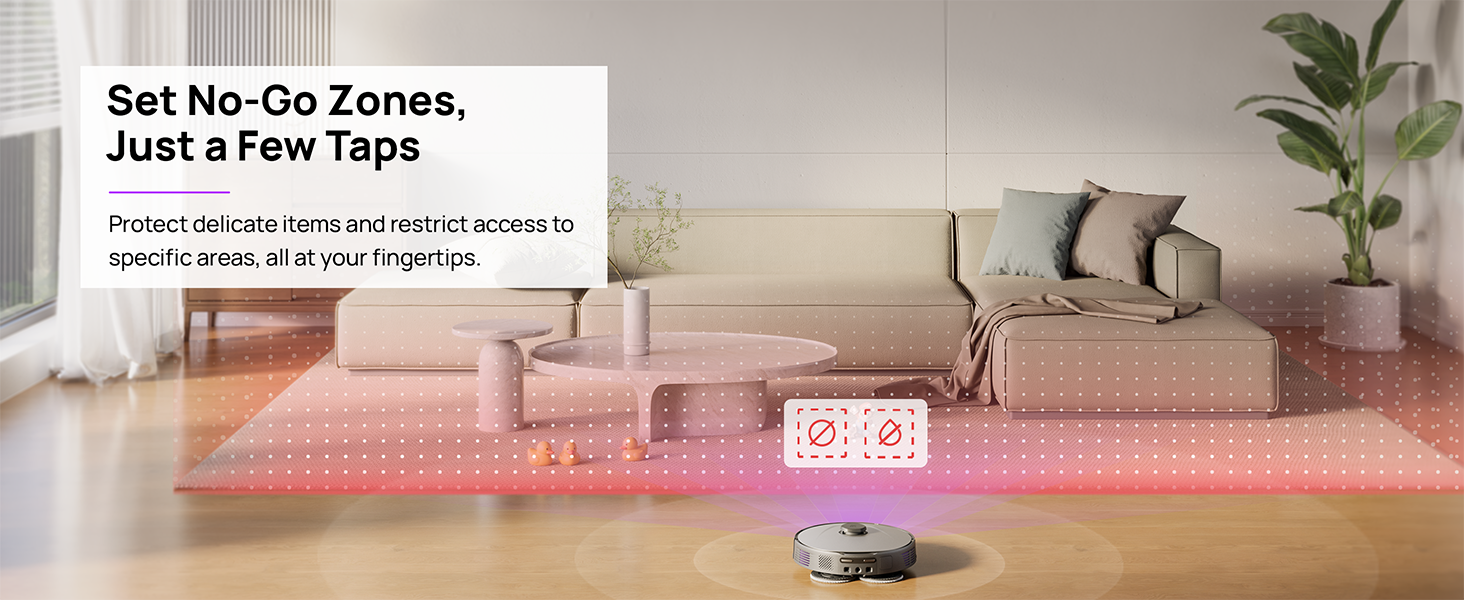
Figure 5.4: Setting No-Go Zones in the 3i App.
6. მოვლა
Regular maintenance ensures optimal performance and extends the lifespan of your 3i P10 Ultra.
6.1 Base Station Maintenance
- ნაგვის ურნის დაცლა: The base station automatically empties the robot's dustbin into a 3L bag. Replace the dust bag approximately every 70 days, or as indicated by the app.
- ტილოს რეცხვა და გაშრობა: The base station automatically washes mop pads with 140°F / 60°C hot water and dries them with hot air (131°F / 55°C) after each cleaning cycle. Ensure the clean and dirty water tanks are properly installed.
- Water Tank Refilling: The extra-large 4L clean water tank automatically refills the robot. Refill the clean water tank as needed. The base station also collects dirty water into a separate wastewater tank. Empty the wastewater tank regularly.
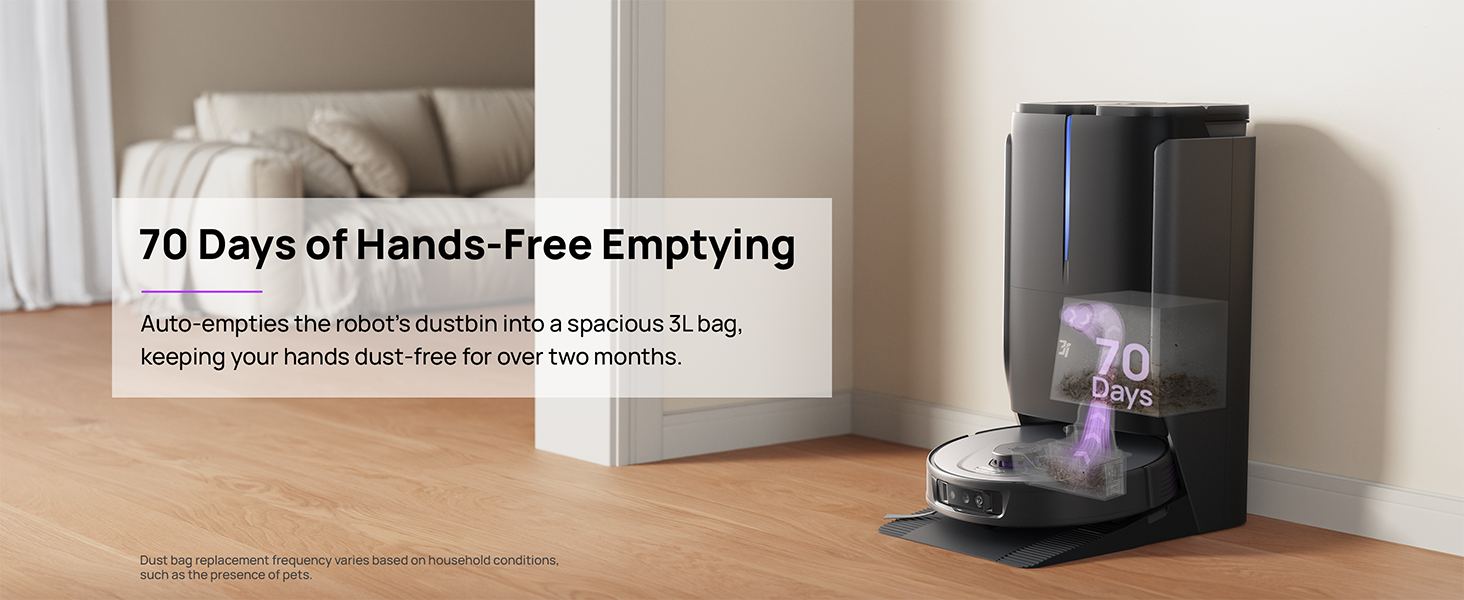
Figure 6.1: Automatic dustbin emptying at the base station.
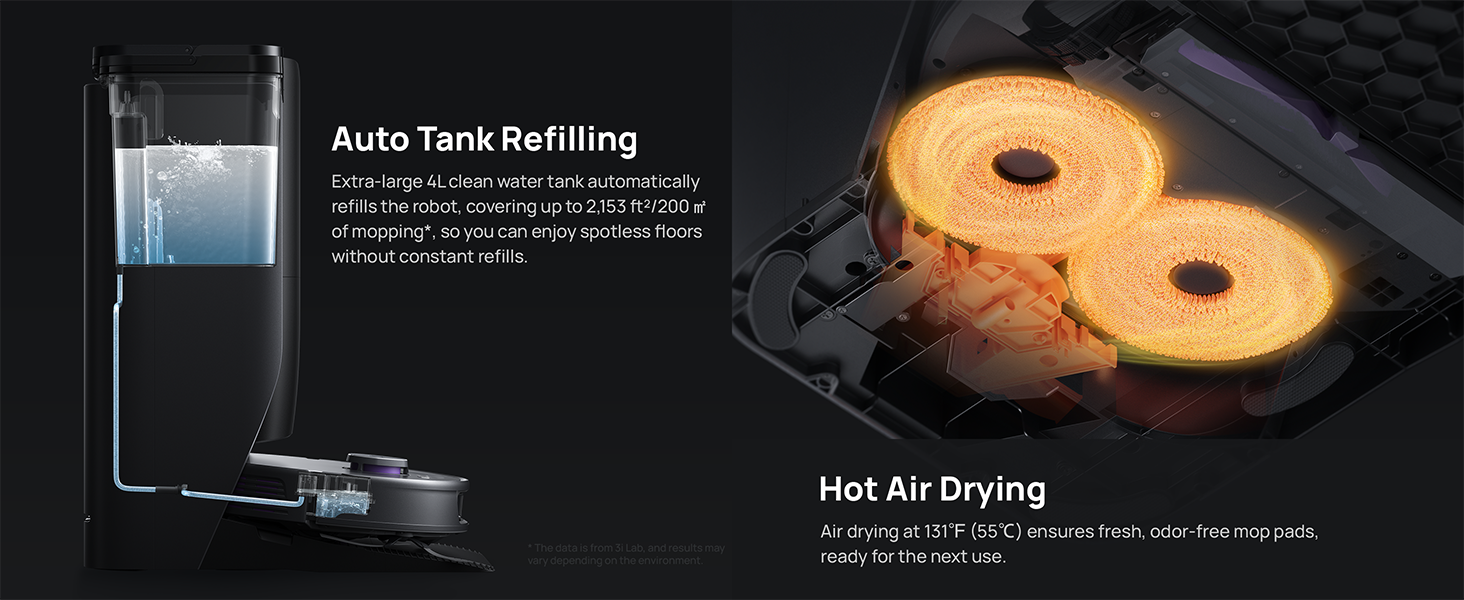
Figure 6.2: Auto tank refilling and hot air drying process.
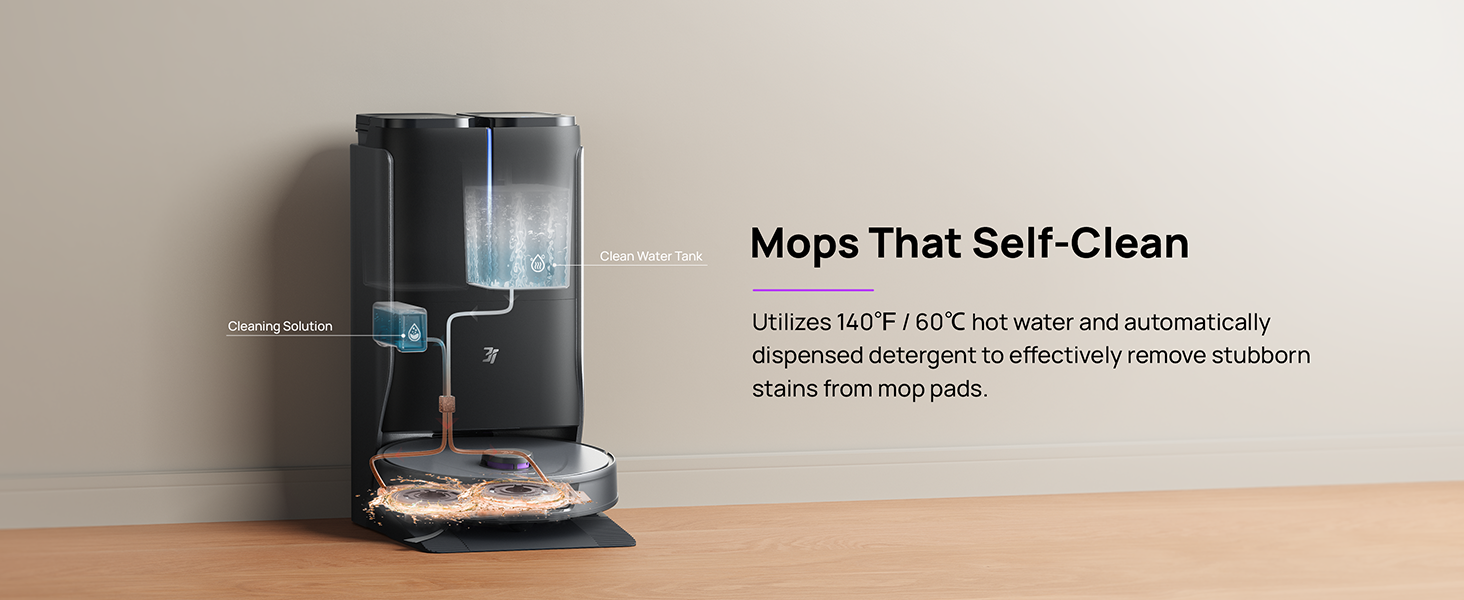
Figure 6.3: Mop self-cleaning function.
6.2 რობოტის კომპონენტების მოვლა-პატრონობა
- მთავარი ფუნჯი: Regularly check the main brush for tangled hair or debris. Use the cleaning tool provided to remove any obstructions. The TangleCut blade helps prevent excessive tangling.
- გვერდითი ჯაგრისები: Inspect side brushes for wear or damage. Clean them periodically and replace if necessary.
- საწმენდი ბალიშები: Although self-cleaned, inspect mop pads for excessive wear or stubborn stains. Replace them when their cleaning effectiveness diminishes.
- ფილტრი: The filter is washable. Remove and rinse it under running water. Allow it to air dry completely before reinstalling.
- სენსორები: Wipe all sensors (LDS, anti-drop, wall-following, charging contacts) with a clean, dry cloth to ensure proper function.
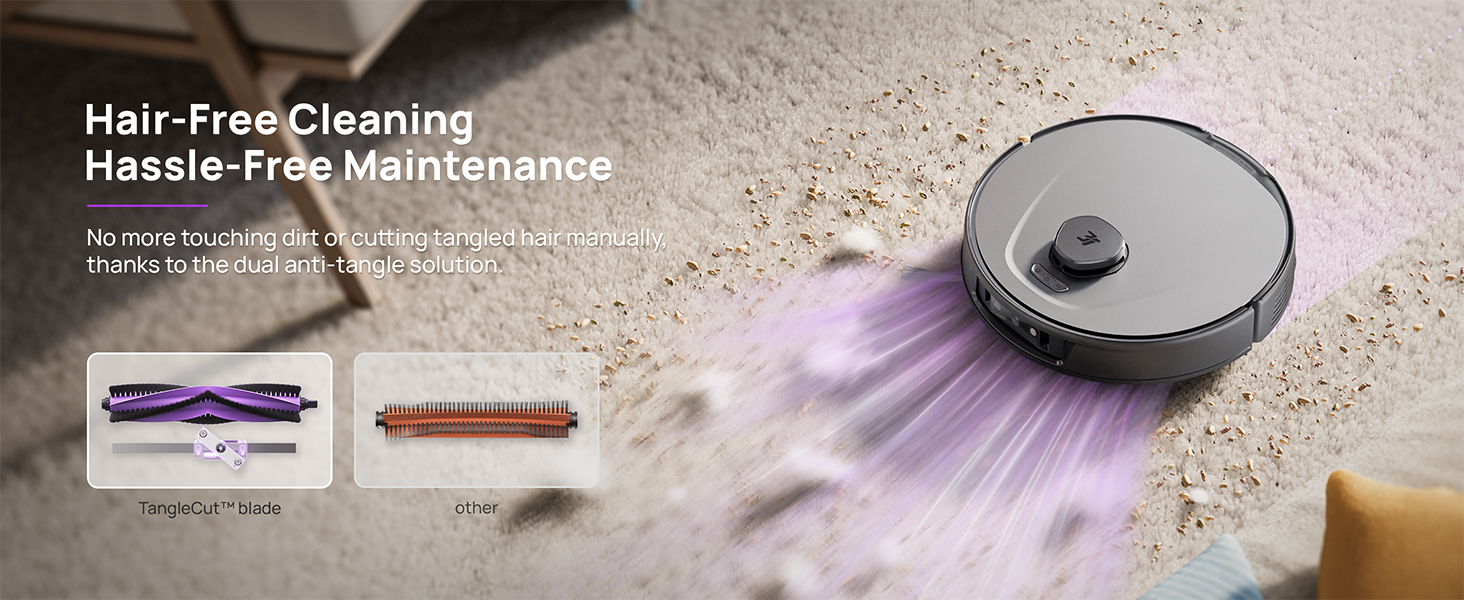
Figure 6.4: Hair-free cleaning with anti-tangle design.
7. Დიაგნოსტიკა
If you encounter issues with your 3i P10 Ultra, refer to the following common problems and solutions:
| პრობლემა | შესაძლო მიზეზი | გამოსავალი |
|---|---|---|
| რობოტი არ ირთვება. | დაბალი ბატარეა; ჩართვის ღილაკი სწორად არ არის დაჭერილი. | Place robot on charging dock; Press and hold power button for 3 seconds. |
| რობოტს არ შეუძლია დამტენის დოკის პოვნა. | Dock is obstructed or too far; Poor Wi-Fi signal. | Ensure dock is in an open area; Check Wi-Fi connection. |
| დასუფთავების ეფექტურობა დაბალია. | Dustbin full; Brushes tangled; Filter clogged; Mop pads dirty. | Empty dustbin; Clean brushes; Clean/replace filter; Clean/replace mop pads. |
| რობოტი ხშირად იჭედება. | იატაკზე დაბრკოლებები; სენსორები დაბინძურებულია. | Clear floor of obstacles; Clean all sensors. |
| აპლიკაციის დაკავშირების პრობლემები. | არასწორი Wi-Fi პაროლი; როუტერის პრობლემები; რობოტი ოფლაინშია. | Verify Wi-Fi password; Restart router; Restart robot; Re-pair device in app. |
For further assistance, please refer to the 3i app's help section or contact customer support.
8. სპეციფიკაციები
| ფუნქცია | დეტალი |
|---|---|
| ბრენდი | 3i |
| მოდელის სახელი | 3i P10 Ultra რობოტი მტვერსასრუტი |
| პროდუქტის ზომები (რობოტი) | 13.78" სიგრძე x 13.78" სიგანე x 3.94" სიმაღლე |
| პროდუქტის ზომები (სადგური) | 12.2" სიგრძე x 18.43" სიგანე x 23.39" სიმაღლე |
| ნივთის წონა | 37.3 ფუნტი |
| ბატარეის ხანგრძლივობა | 180 წუთი |
| ფილტრის ტიპი | გასარეცხი |
| ზედაპირის რეკომენდაცია | Carpet, Marble, Wood, Tile |
| შეწოვის სიმძლავრე | 18,000 Pa |
| ნავიგაციის სისტემა | LDS LiDAR, Dual 3D Structured Light, AI Camera |
| Wi-Fi მხარდაჭერა | 2.4G და 5G |

Figure 8.1: Dimensions of the 3i P10 Ultra Robot and Base Station.
9. გარანტია და მხარდაჭერა
For warranty information, please refer to the warranty card included with your product or visit the official 3i website. For technical support, troubleshooting beyond this manual, or to inquire about replacement parts, please contact 3i customer service through the contact information provided on their official website or within the 3i app.