1. შესავალი
The AULA SC900 Pro is a high-performance wireless gaming mouse designed for precision and versatility. It features a flagship PAW3395 sensor, multiple connectivity options, and a lightweight design for extended comfort. This manual provides detailed instructions for setting up, operating, and maintaining your SC900 Pro mouse.

სურათი 1.1: ზედა view of the AULA SC900 Pro Wireless Gaming Mouse in red.
ვიდეო 1.1: ეს ვიდეო ვიზუალურ მიმოხილვას იძლევაview of the AULA SC900 Pro Wireless Gaming Mouse, showcasing its design, connectivity options, and key functionalities.
2. პაკეტის შიგთავსი
გთხოვთ, დარწმუნდეთ, რომ თქვენს პაკეტში ყველა ნივთია:
- AULA SC900 Pro Wireless Gaming Mouse
- 2 x 400mAh Replaceable Lithium-Ion Batteries
- USB-C to USB-A დატენვის/მონაცემთა კაბელი
- 2.4G Wireless Receiver (USB-C type)
3. პროდუქტი დასრულდაview
Familiarize yourself with the various components and buttons of your AULA SC900 Pro mouse.

Image 3.1: Labeled diagram of the AULA SC900 Pro mouse components.
- მარცხენა გასაღები: სტანდარტული მარცხენა ღილაკის დაჭერის ფუნქცია.
- მარჯვენა გასაღები: სტანდარტული მარჯვენა ღილაკის დაჭერის ფუნქცია.
- Middle Key (Scroll Wheel): Scroll function and middle-click.
- წინსვლის გასაღები: წინ გადადის web ბრაუზერები ან აპლიკაციები.
- უკან გასაღები: უკან ნავიგაცია web ბრაუზერები ან აპლიკაციები.
- DPI ღილაკი: DPI პარამეტრებს შორის ციკლურად გადართვა.
- ინდიკატორის ნათურები: Displays DPI, charging status, and connection mode.
- Type-C დატენვის პორტი: სადენიანი კავშირისა და დატენვისთვის.
- დენის/რეჟის გადამრთველი: Selects 2.4G, OFF, or BT connection modes.
- ბატარეის საფარი: Access to the replaceable batteries.
- Receiver Type-C Port: Connects the 2.4G receiver.
- მიმღები: USB-C dongle for 2.4G wireless connection.
4. დაყენება
4.1 აკუმულატორის მონტაჟი და დატენვა
The AULA SC900 Pro mouse comes with two replaceable 400mAh batteries. One battery can be used while the other is charging, ensuring continuous operation.
- გახსენით მაუსის ქვედა მხარეს მდებარე ბატარეის საფარი.
- Insert one of the provided 400mAh Lithium-Ion batteries into the compartment, ensuring correct polarity.
- დახურეთ ბატარეის საფარი.
- To charge, connect the mouse to a computer's USB port using the provided USB-C cable. The indicator light will show charging status. It is recommended to use the original mouse cable and a standard computer USB port for charging. Avoid using fast-charging phone chargers or wall chargers for direct charging.
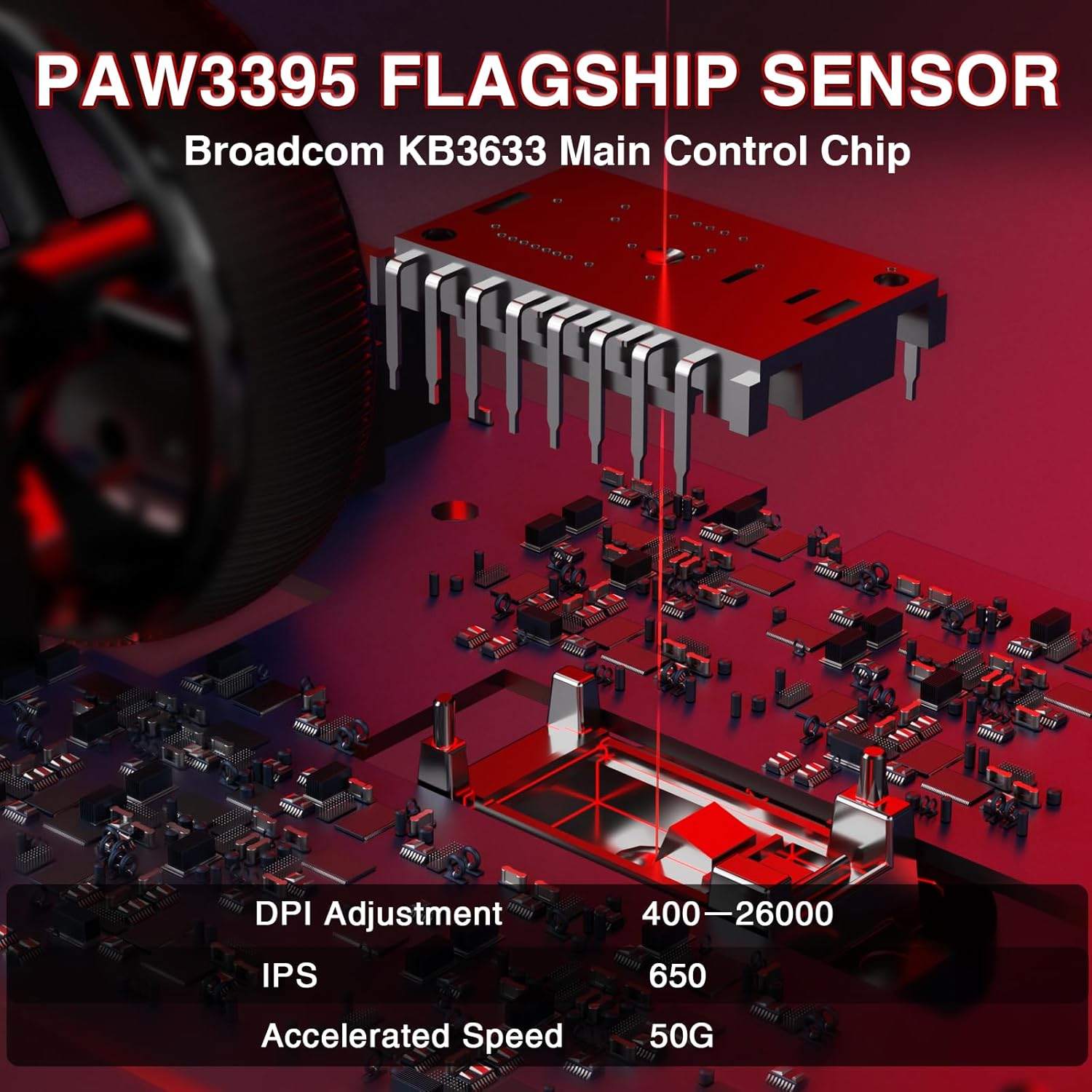
Image 4.1: Battery compartment with replaceable batteries.
4.2 მაუსის შეერთება
The SC900 Pro supports three connection modes: 2.4G Wireless, Bluetooth 5.0, and Wired Type-C.
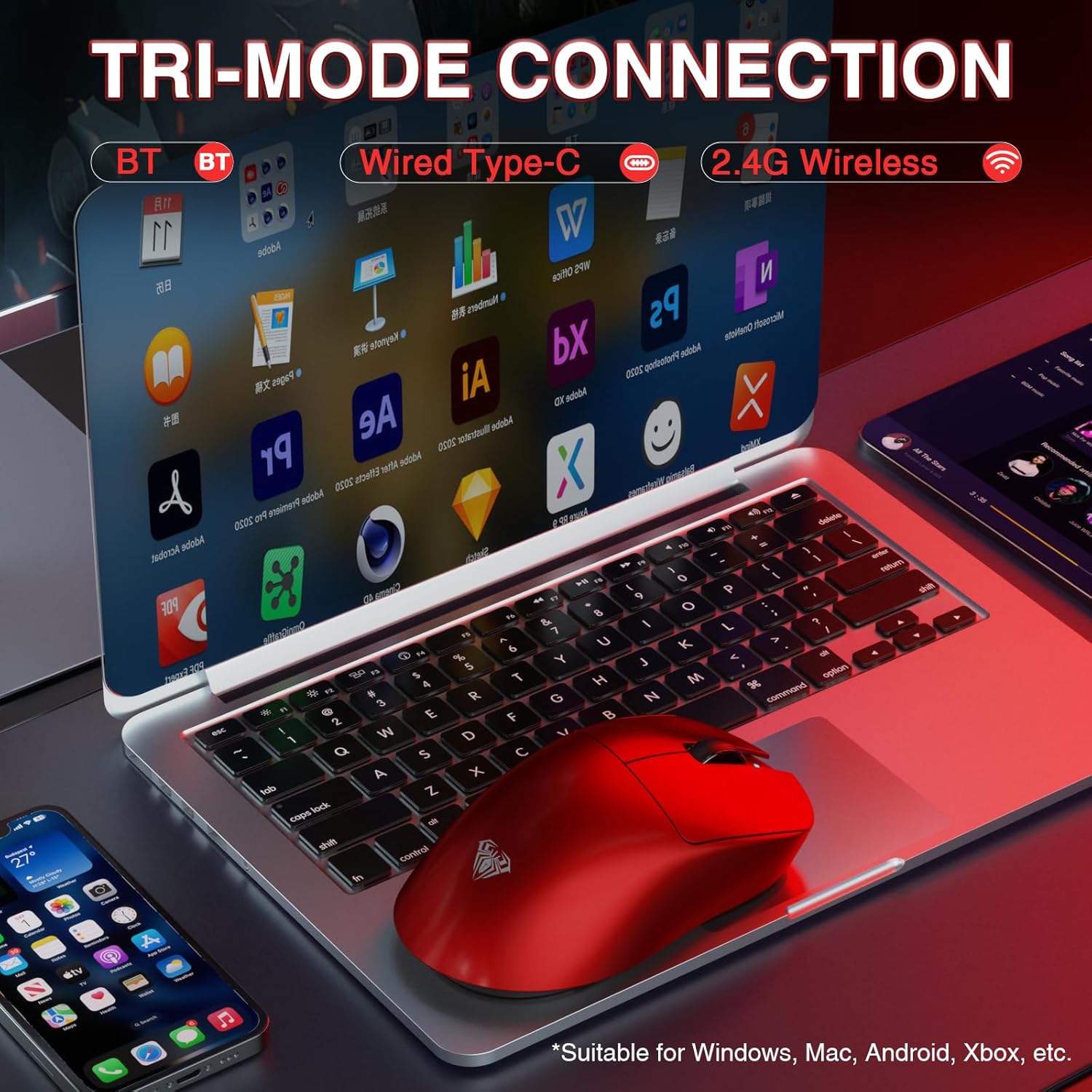
Image 4.2: Tri-mode connection options.
2.4G უკაბელო რეჟიმი:
- Locate the 2.4G wireless receiver.
- Connect the receiver to an available USB-A port on your computer.
- Slide the power/mode switch on the underside of the mouse to the "2.4G" position.
- მაუსი ავტომატურად უნდა დაუკავშირდეს კომპიუტერს.
Bluetooth 5.0 რეჟიმი:
- Slide the power/mode switch on the underside of the mouse to the "BT" position.
- Press and hold the left, middle (scroll wheel), and right buttons simultaneously for approximately 3 seconds. The blue indicator light on the mouse will flash rapidly, indicating it is in pairing mode.
- თქვენს კომპიუტერზე ან მოწყობილობაზე გადადით Bluetooth პარამეტრებში და მოძებნეთ ახალი მოწყობილობები.
- Select "SC900Pro BT" from the list of available devices to connect.
Wired Type-C Mode:
- Connect one end of the USB-C cable to the mouse's Type-C charging port.
- USB-C კაბელის მეორე ბოლო შეაერთეთ თქვენი კომპიუტერის თავისუფალ USB-A პორტთან.
- მაუსი იმუშავებს როგორც სადენიანი მოწყობილობა და ერთდროულად დაიტენება.
5. საოპერაციო ინსტრუქციები
5.1 DPI რეგულირება
The AULA SC900 Pro features a 6-speed adjustable DPI setting. Press the DPI button on the top of the mouse to cycle through the following sensitivity levels:
- 400 DPI
- 800 DPI
- 1600 DPI
- 3200 DPI
- 6400 DPI
- 26000 DPI (Maximum)
The indicator lights will change to reflect the current DPI setting.

Image 5.1: PAW3395 Sensor and DPI adjustment range.
5.2 გამოკითხვის მაჩვენებელი
The mouse supports a dual 8000Hz polling rate when operating in 2.4G wireless or wired mode. This high polling rate ensures lower latency and precise tracking, enhancing your gaming experience.

Image 5.2: Dual 8KHz Polling Rate feature.
5.3 Customization Software
The AULA SC900 Pro features 5 programmable buttons. Users can configure mouse buttons, DPI settings, lighting effects, and report rates through the dedicated software.
- დრაივერის ჩამოტვირთვა: The driver can be downloaded from bit.ly/m/AULA.
- თავსებადობა: The driver is only compatible with Windows systems.
- Mode Limitation: Customization features are only available when the mouse is used in 2.4GHz wireless or USB-C wired modes. Bluetooth mode does not support driver customization.

Image 5.3: AULA SC900 Pro customization software interface.
6. მოვლა
6.1 ბატარეის მოვლა
- Always use the provided USB-C cable and a standard computer USB port for charging to prevent damage to the batteries or mouse.
- მოერიდეთ ბატარეების ექსტრემალურ ტემპერატურაზე ზემოქმედებას.
- If the mouse will not be used for an extended period, it is recommended to switch it off to preserve battery life.
6.2 დასუფთავება
- გამოიყენეთ რბილი, მშრალი ქსოვილი მაუსის ზედაპირის გასასუფთავებლად.
- ჯიუტი ჭუჭყისთვის, ოდნავampქსოვილი წყლით ან რბილი საწმენდი ხსნარით გაწმინდეთ. მოერიდეთ უხეში ქიმიკატების გამოყენებას.
- არ დაუშვათ სითხეების მოხვედრა მაუსის შიდა კომპონენტებში.
7. Დიაგნოსტიკა
If you encounter issues with your AULA SC900 Pro mouse, please refer to the following common solutions:
| პრობლემა | შესაძლო მიზეზი | გამოსავალი |
|---|---|---|
| მაუსი არ პასუხობს | Low battery; Incorrect connection mode; Receiver not connected (2.4G); Bluetooth not paired. | Charge the battery; Ensure the mode switch is set correctly (2.4G/BT); Reconnect the 2.4G receiver; Re-pair Bluetooth. |
| შეფერხებული ან წყვეტილი კავშირი | ჩარევა; მიმღებიდან/მოწყობილობიდან დაშორება; დაბალი დატენვის ბატარეა. | Move closer to the receiver/device; Remove sources of interference; Charge the battery; Try a different USB port. |
| DPI არ იცვლება | DPI button not pressed firmly; Software conflict. | Ensure the DPI button is pressed correctly; Restart the mouse and computer; Check for software updates. |
| Customization software not working | Incorrect connection mode; Not on Windows OS; Driver not installed correctly. | Ensure mouse is in 2.4G wireless or wired mode; Verify operating system is Windows; Reinstall the driver from bit.ly/m/AULA. |
8. სპეციფიკაციები
| ფუნქცია | დეტალი |
|---|---|
| მოდელის ნომერი | SC900 პრო |
| დაკავშირების ტექნოლოგია | 2.4G უსადენო, Bluetooth 5.0, USB-C სადენიანი |
| სენსორი | PAW3395 ოპტიკური სენსორი |
| DPI პარამეტრები | 400 / 800 / 1600 / 3200 / 6400 / 26000 |
| IPS (Inches Per Second) | 650 |
| აჩქარება | 50 გ |
| გამოკითხვის მაჩვენებელი | Dual 8000Hz (2.4G Wireless & Wired Modes) |
| გადამრთველები | TTC Optical Microswitches (100 million click lifespan) |
| პროგრამირებადი ღილაკები | 5 |
| ბატარეის ტიპი | 2 x 400mAh Replaceable Lithium-Ion Batteries |
| ნივთის წონა | 62 გ (დაახლოებით 2.19 უნცია) |
| პროდუქტის ზომები | 4.92 x 2.36 x 0.04 ინჩი |
| თავსებადობა | PC, Mac, Linux (Driver for Windows only) |
9. გარანტია და მხარდაჭერა
AULA products are designed for reliability and performance. For warranty information, technical support, or customer service inquiries, please refer to the official AULA webადგილზე ან დაუკავშირდით თქვენს საცალო მოვაჭრეს. შეინახეთ შეძენის დამადასტურებელი საბუთი გარანტიის მოთხოვნებისთვის.
Official AULA Webსაიტი: AULA მაღაზია Amazon-ზე