1. შესავალი
Thank you for choosing the Dierya x TMKB M1 Wireless Gaming Mouse. This manual provides detailed instructions on how to set up, operate, and maintain your new gaming mouse. The M1 mouse offers versatile connectivity, high-precision tracking, and customizable features to enhance your gaming and productivity experience.
2. პროდუქტი დასრულდაview
2.1 კომპონენტები და მართვის საშუალებები
Familiarize yourself with the various buttons and features of your Dierya M1 mouse:
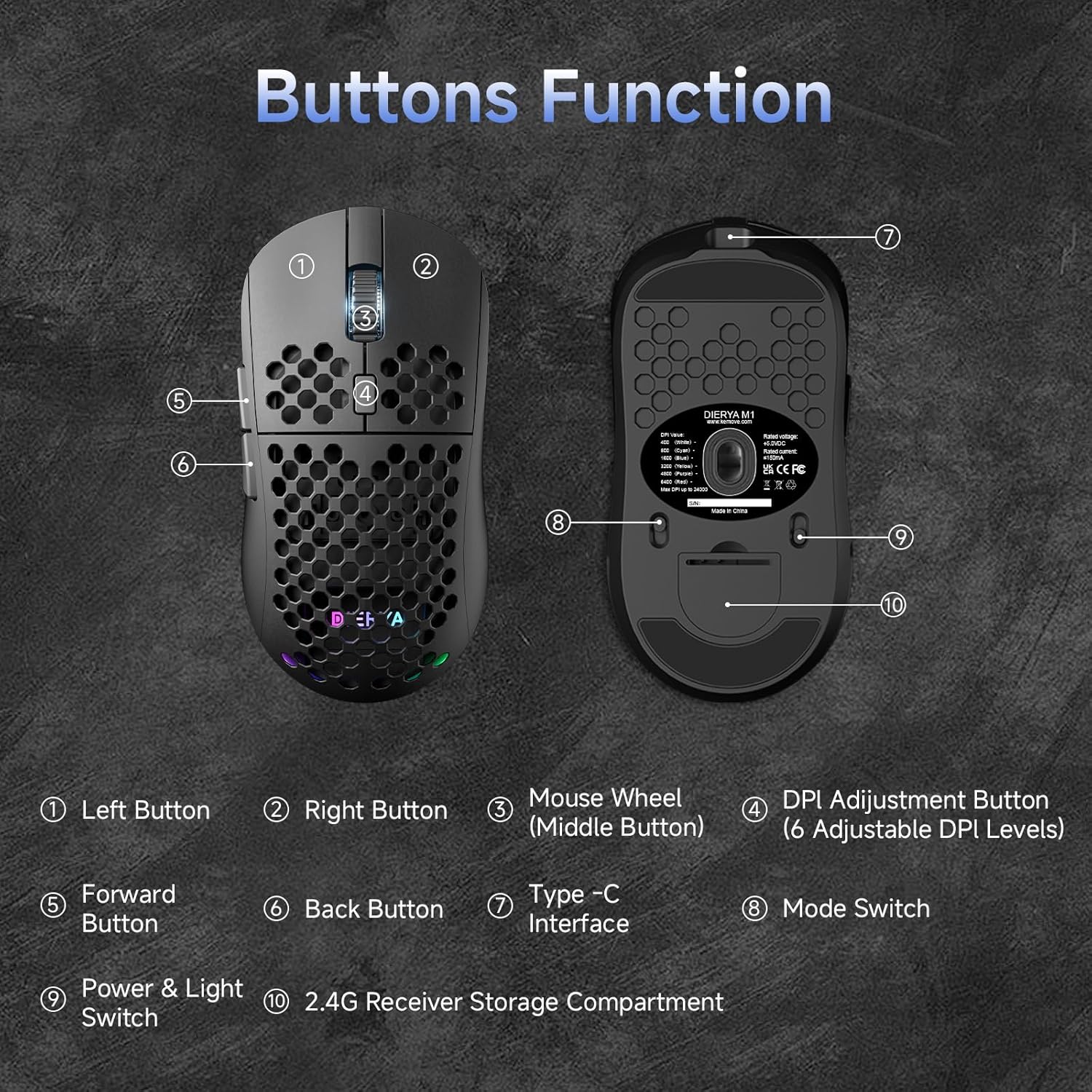
This diagram illustrates the various components of the Dierya M1 wireless gaming mouse. It highlights the მარცხენა ღილაკი (1), მარჯვენა ღილაკი (2), Mouse Wheel (Middle Button) (3), DPI Adjustment Button (4) with 6 adjustable DPI levels, Forward Button (5), Back Button (6), Type-C Interface (7) for charging and wired connection, რეჟიმის შეცვლა (8) for selecting connection type, Power & Light Switch (9), და 2.4G Receiver Storage Compartment (10) located on the underside.
2.2 ძირითადი მახასიათებლები
- 24,000 DPI ოპტიკური სენსორი: Adjustable DPI range from 200 to 24,000, with 6 preset levels (400-6400 DPI).
- სამრეჟიმიანი დაკავშირებადობა: Supports ultra-fast 2.4GHz wireless, energy-efficient Bluetooth 5.2, and stable USB-C wired connections.
- ბატარეის ხანგრძლივი ხანგრძლივობა: 1000mAh battery provides up to 180 hours in ECO mode or 48 hours with RGB lighting, with 1-hour fast charging.
- მსუბუქი და ერგონომიული დიზაინი: Weighs only 90g with a honeycomb shell for breathability and a symmetrical design (125x63x41 mm).
- პროგრამირებადი ღილაკები: 6 customizable buttons via the M1 Driver software (Windows only).
- დინამიური RGB განათება: 13 integrated RGB lighting effects with 16.8 million customizable colors.
- მაღალი შესრულება: 125-1000 Hz polling rate, 300 IPS tracking speed, and 35G acceleration.
- გამძლე გადამრთველები: Equipped with Huano switches rated for 20 million clicks and 100% PTFE feet for smooth gliding.
3. დაყენება
3.1 მაუსის დატენვა
Before first use, it is recommended to fully charge the mouse. Connect the provided USB-C cable to the Type-C Interface (7) on the mouse and the other end to a USB power source (e.g., computer USB port, USB wall adapter).
- The mouse charges in approximately 1 hour.
- The scroll wheel LED will indicate charging status (e.g., red for charging, green for fully charged).
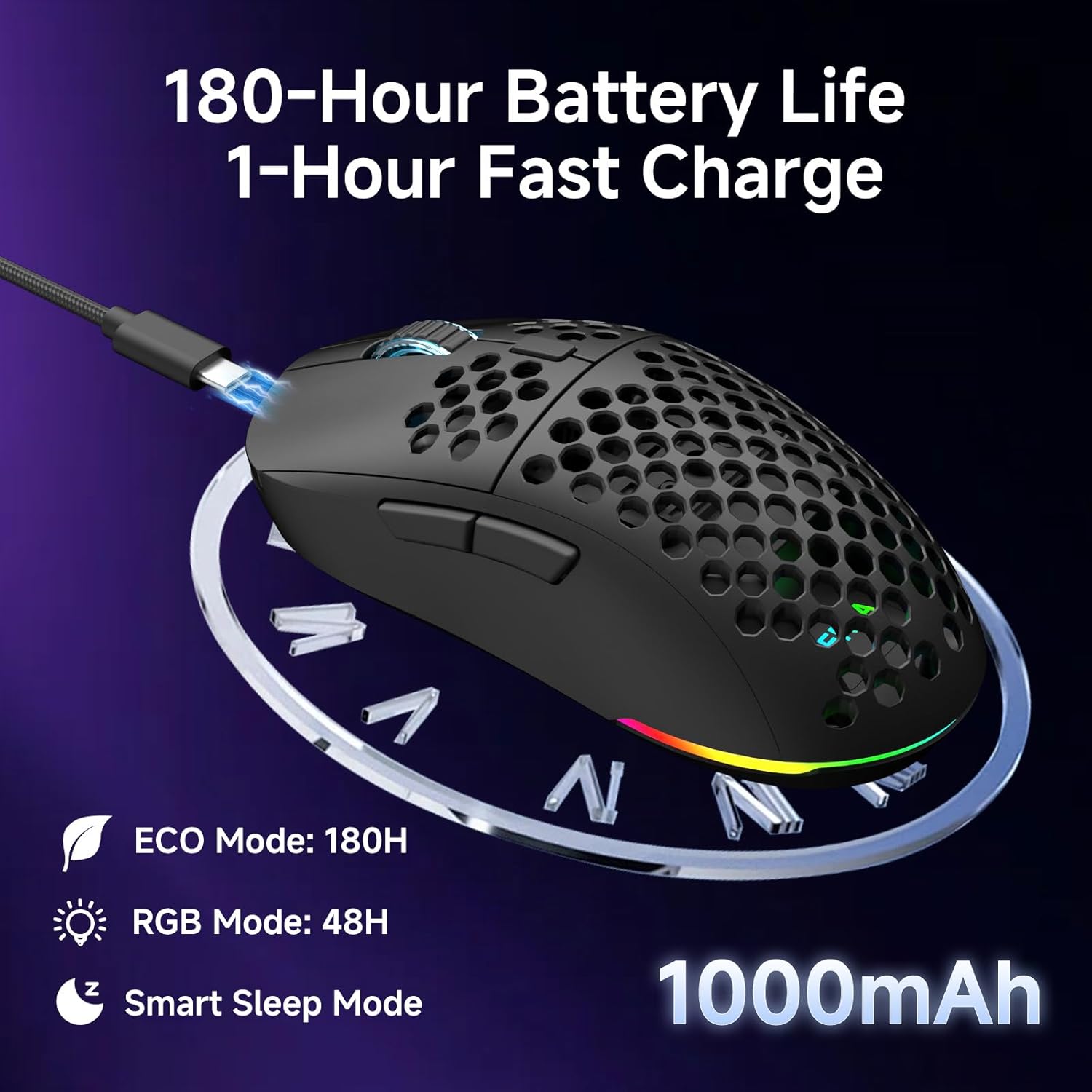
The Dierya M1 mouse features a 1000mAh battery, providing up to 180 hours of use in ECO mode or 48 hours with RGB lighting enabled. It supports fast charging, reaching full capacity in approximately 1 hour via the included USB-C cable. The mouse also includes a smart sleep mode to conserve power during inactivity.
3.2 მაუსის შეერთება
The Dierya M1 mouse offers three connection modes: 2.4GHz Wireless, Bluetooth 5.2, and USB-C Wired.

The Dierya M1 mouse supports three flexible connection modes: Bluetooth 5.2 for energy-efficient pairing with up to two devices, 2.4GHz Wireless via a USB dongle for ultra-fast response, and a stable USB-C Wired connection for charging and direct use. Each mode offers a different polling rate, with 2.4GHz and wired modes providing 1000Hz, and Bluetooth offering 125Hz.
3.2.1 2.4 GHz უსადენო კავშირი
- Locate the 2.4G receiver in the storage compartment (10) on the underside of the mouse.
- შეაერთეთ 2.4G მიმღები თქვენი კომპიუტერის თავისუფალ USB პორტში.
- Set the Mode Switch (8) on the underside of the mouse to the '2.4G' position.
- The mouse should connect automatically. The polling rate for this mode is 1000 Hz.
3.2.2 Bluetooth 5.2 კავშირი
- Set the Mode Switch (8) on the underside of the mouse to the 'BT' position.
- თქვენს კომპიუტერზე ან მოწყობილობაზე გახსენით Bluetooth-ის პარამეტრები და მოძებნეთ ახალი მოწყობილობები.
- Select 'Dierya M1' from the list of available devices to pair.
- The mouse supports Bluetooth 5.2 and has a polling rate of 125 Hz in this mode.
3.2.3 USB-C სადენიანი კავშირი
- Connect the USB-C cable to the Type-C Interface (7) on the mouse.
- USB-C კაბელის მეორე ბოლო შეაერთეთ თქვენი კომპიუტერის თავისუფალ USB პორტთან.
- The mouse will automatically switch to wired mode and begin charging. The polling rate for this mode is 1000 Hz.
4. საოპერაციო ინსტრუქციები
4.1 DPI რეგულირება
The Dierya M1 mouse features a dedicated DPI Adjustment Button (4) to cycle through preset DPI levels. The scroll wheel LED color indicates the current DPI setting.
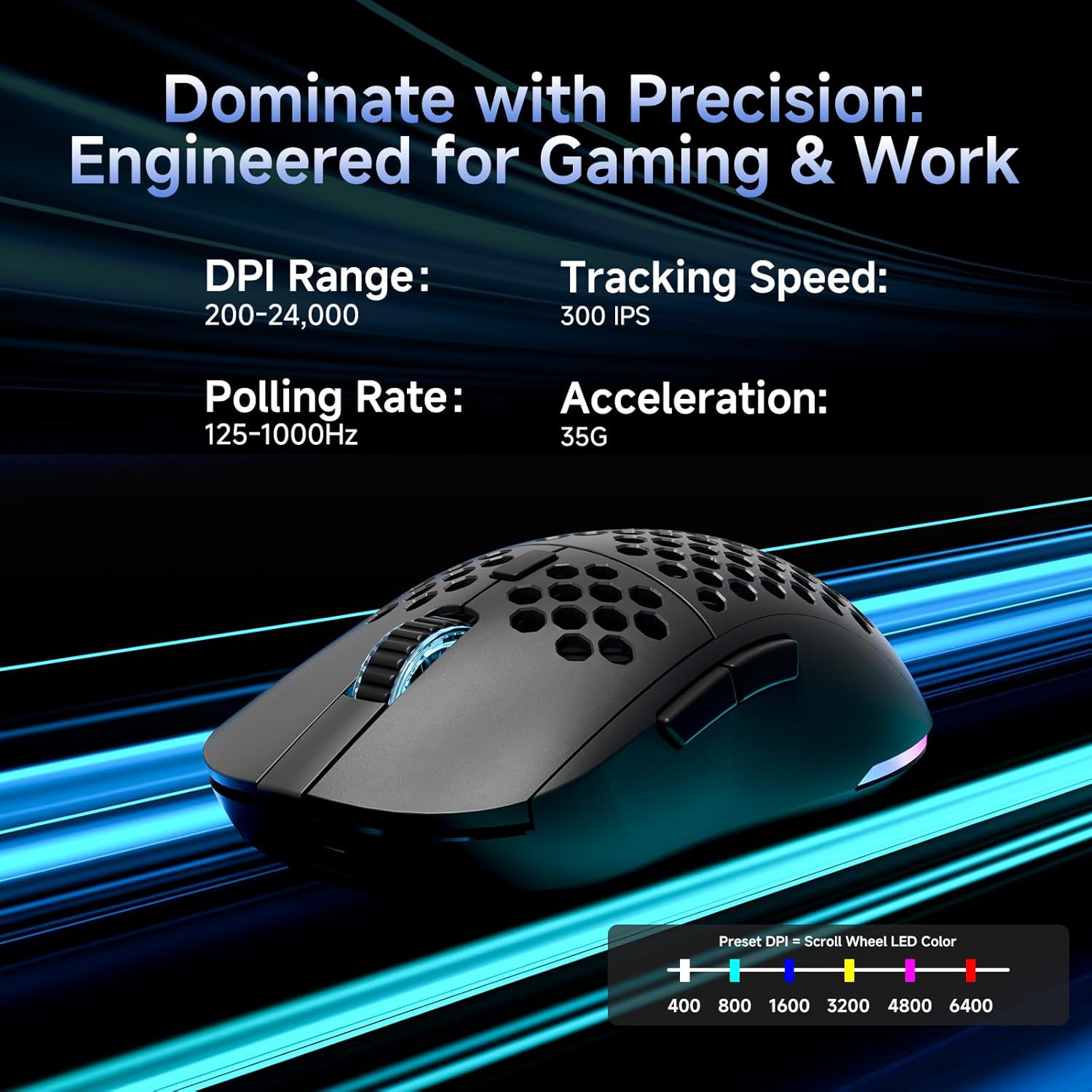
This image details the performance specifications of the Dierya M1 mouse, including a DPI range of 200-24,000, a tracking speed of 300 IPS, a polling rate of 125-1000Hz, and 35G acceleration. It also shows the preset DPI levels (400, 800, 1600, 3200, 4800, 6400) and the color indicators on the scroll wheel for each setting.
- Press the DPI Adjustment Button (4) to cycle through the 6 default DPI settings: 400, 800, 1600, 3200, 4800, and 6400 DPI.
- Each DPI level is indicated by a specific color on the scroll wheel LED.
- For custom DPI settings and a wider range (200-24,000 DPI), use the M1 Driver software.
4.2 RGB განათების კონტროლი
The Dierya M1 mouse features dynamic RGB lighting. You can control the lighting effects and colors using the M1 Driver software.
- The mouse has 13 built-in RGB lighting effects.
- Use the M1 Driver software to customize colors (16.8 million options), brightness, and speed of the lighting effects.
- The Power & Light Switch (9) on the underside can be used to turn the lighting on or off.
4.3 Programmable Buttons and Software
The M1 mouse has 6 programmable buttons that can be customized using the dedicated M1 Driver software.

The Dierya M1 driver software, currently available for Windows, allows users to customize various aspects of the mouse. This includes reassigning the 6 programmable buttons, creating macros, adjusting DPI settings, modifying the polling rate, and personalizing the 13 dynamic RGB lighting effects with 16.8 million colors.
- პროგრამული უზრუნველყოფის თავსებადობა: The M1 Driver software is currently only available for Windows operating systems.
- ძირითადი დავალება: Reassign functions to any of the 6 programmable buttons (Left, Right, Middle, DPI, Forward, Back).
- მაკროს შექმნა: Create and assign complex macros to streamline in-game actions or productivity tasks.
- DPI & Polling Rate: Fine-tune DPI settings beyond the presets and adjust the polling rate.
- RGB პერსონალიზაცია: Personalize lighting effects, colors, and patterns.
- პროfile მენეჯმენტი: შეინახეთ და ჩატვირთეთ სხვადასხვა პროfileსხვადასხვა თამაშებისა თუ აპლიკაციებისთვის.
4.4 ენერგიის დაზოგვის რეჟიმები
The M1 mouse is designed with automatic power-saving features to extend battery life:
- The mouse will enter an automatic power-saving mode after 1-5 minutes of inactivity.
- This inactivity time can be adjusted via the M1 Driver software.
- To wake the mouse, simply move it or click any button.
5. მოვლა
Proper maintenance ensures the longevity and optimal performance of your Dierya M1 mouse.
- დასუფთავება: მაუსის ზედაპირის გასაწმენდად გამოიყენეთ რბილი, მშრალი ქსოვილი. ჯიუტი ჭუჭყის შემთხვევაში, ოდნავamp შეგიძლიათ გამოიყენოთ ქსოვილი, მაგრამ დარწმუნდით, რომ თაგვში ტენიანობა არ მოხვდება. მოერიდეთ უხეში ქიმიკატების ან აბრაზიული საწმენდების გამოყენებას.
- სენსორის მოვლა: ზუსტი თვალყურის დევნების უზრუნველსაყოფად, მაუსის ქვედა მხარეს არსებული ოპტიკური სენსორი სუფთად და მტვრისა და ნარჩენებისგან თავისუფალი შეინახეთ.
- ბატარეის მოვლა: Avoid fully discharging the battery frequently. For long-term storage, charge the mouse to about 50% and store it in a cool, dry place.
- შენახვა: როდესაც მაუსი არ გამოიყენება, შეინახეთ სუფთა, მშრალ გარემოში, ექსტრემალური ტემპერატურისგან მოშორებით.
6. Დიაგნოსტიკა
If you encounter issues with your Dierya M1 mouse, refer to the following common troubleshooting steps:
| პრობლემა | შესაძლო მიზეზი | გამოსავალი |
|---|---|---|
| მაუსი არ რეაგირებს (2.4 გჰც) | Low battery, receiver unplugged, incorrect mode, interference. | Charge the mouse. Ensure 2.4G receiver is securely plugged in. Set Mode Switch to '2.4G'. Try a different USB port. Reduce distance to receiver. |
| მაუსი არ რეაგირებს (Bluetooth) | Low battery, incorrect mode, not paired, Bluetooth off on device. | Charge the mouse. Set Mode Switch to 'BT'. Ensure Bluetooth is enabled on your device. Re-pair the mouse in Bluetooth settings. |
| მაუსი არ რეაგირებს (სადენიანი) | Cable not connected, faulty cable/port. | Ensure USB-C cable is securely connected to both mouse and computer. Try a different USB port or cable. |
| Inaccurate tracking | Dirty sensor, unsuitable surface, incorrect DPI. | Clean the optical sensor. Use a mouse pad or a clean, non-reflective surface. Adjust DPI settings. |
| RGB განათება არ მუშაობს | Lighting switched off, low battery, software issue. | Check Power & Light Switch (9). Charge the mouse. Check settings in M1 Driver software. |
| ღილაკების პროგრამირება შეუძლებელია | M1 Driver not installed/running, not on Windows. | Ensure M1 Driver software is installed and running (Windows only). Check software settings. |
7. სპეციფიკაციები
| მოდელის სახელი | M1 |
| ბრენდი | Dierya |
| დაკავშირების ტექნოლოგია | 2.4 GHz უსადენო, Bluetooth 5.2, USB-C სადენიანი |
| მოძრაობის გამოვლენის ტექნოლოგია | ოპტიკური |
| DPI დიაპაზონი | 200 - 24,000 DPI (6 preset levels: 400, 800, 1600, 3200, 4800, 6400) |
| გამოკითხვის მაჩვენებელი | 125-1000 ჰც |
| თვალთვალის სიჩქარე | 300 FPS |
| აჩქარება | 35 გ |
| ღილაკების რაოდენობა | 6 (პროგრამირებადი) |
| ბატარეის ტევადობა | 1000 mAh ლითიუმ-იონი |
| ბატარეის ხანგრძლივობა | Up to 180 hours (ECO mode), 48 hours (RGB mode) |
| დატენვის დრო | დაახლ. 1 საათი |
| წონა | 90 გრამი |
| ზომები | 125 x 63 x 41 მმ |
| გადამრთველის ტიპი | Huano (20 million clicks) |
| ფეხების მასალა | 100% PTFE |
| ოპერაციული სისტემის თავსებადობა | Windows, macOS, Linux, Chrome OS |
| Driver Software Compatibility | მხოლოდ Windows |
8. გარანტია და მხარდაჭერა
8.1 მწარმოებლის გარანტია
The Dierya M1 Wireless Gaming Mouse comes with a 1 წლიანი მწარმოებლის გარანტიაეს გარანტია ფარავს მასალებისა და დამუშავების დეფექტებს ნორმალური გამოყენების შემთხვევაში. გთხოვთ, შეინახოთ შეძენის დამადასტურებელი საბუთი გარანტიის მოთხოვნებისთვის.
8.2 მომხმარებელთა მხარდაჭერა
For further assistance, technical support, or warranty inquiries, please refer to the official Dierya website or contact your retailer. Ensure you have your product model (M1) and proof of purchase ready when seeking support.


