1. შესავალი
This manual provides essential information for the setup, operation, maintenance, and troubleshooting of your NIMO N159 15.6-inch IPS FHD Gaming Laptop. This device is equipped with an AMD Ryzen 7 7735HS processor, 32GB DDR5 RAM, and a 1TB PCIe SSD, designed for balanced performance in productivity and light gaming tasks. Please read this manual thoroughly to ensure proper usage and to maximize the lifespan of your laptop.
2. რა არის ყუთში
დარწმუნდით, რომ შეფუთვაში ყველა ნივთია:
- 1 x NIMO N159 ლეპტოპი
- 1 x Type-C 100W PD სწრაფი დამტენი
- 1 x მომხმარებლის სახელმძღვანელო (ეს დოკუმენტი)
- Windows 11 Home (წინასწარ დაინსტალირებული)
3. პროდუქტი დასრულდაview
Familiarize yourself with the components and features of your NIMO N159 laptop.

სურათი 3.1: წინა view of the NIMO N159 laptop, showcasing its 15.6-inch display and overall design.
3.1 ძირითადი მახასიათებლები
- პროცესორი: AMD Ryzen 7 7735HS with 8 Cores and 16 Threads, up to 4.75GHz.
- გრაფიკა: Integrated AMD Radeon 680M GPU.
- მეხსიერება: 32 GB DDR5 ოპერატიული მეხსიერება ეფექტური მულტიტასკინგისთვის.
- შენახვა: 1TB PCIe 4.0 SSD for fast boot times and data access.
- ჩვენება: 15.6-inch Full HD (1920x1080) IPS Anti-Glare Display.
- დამუხტვა: 100W Type-C PD Fast Charger.
- უსაფრთხოება: Fingerprint Unlock integrated into the touchpad.
- შეყვანა: Backlit Keyboard with Numeric Keypad.

სურათი 3.2: დასრულდაview of the AMD Ryzen 7 7735HS processor and its integrated Radeon 680M graphics.
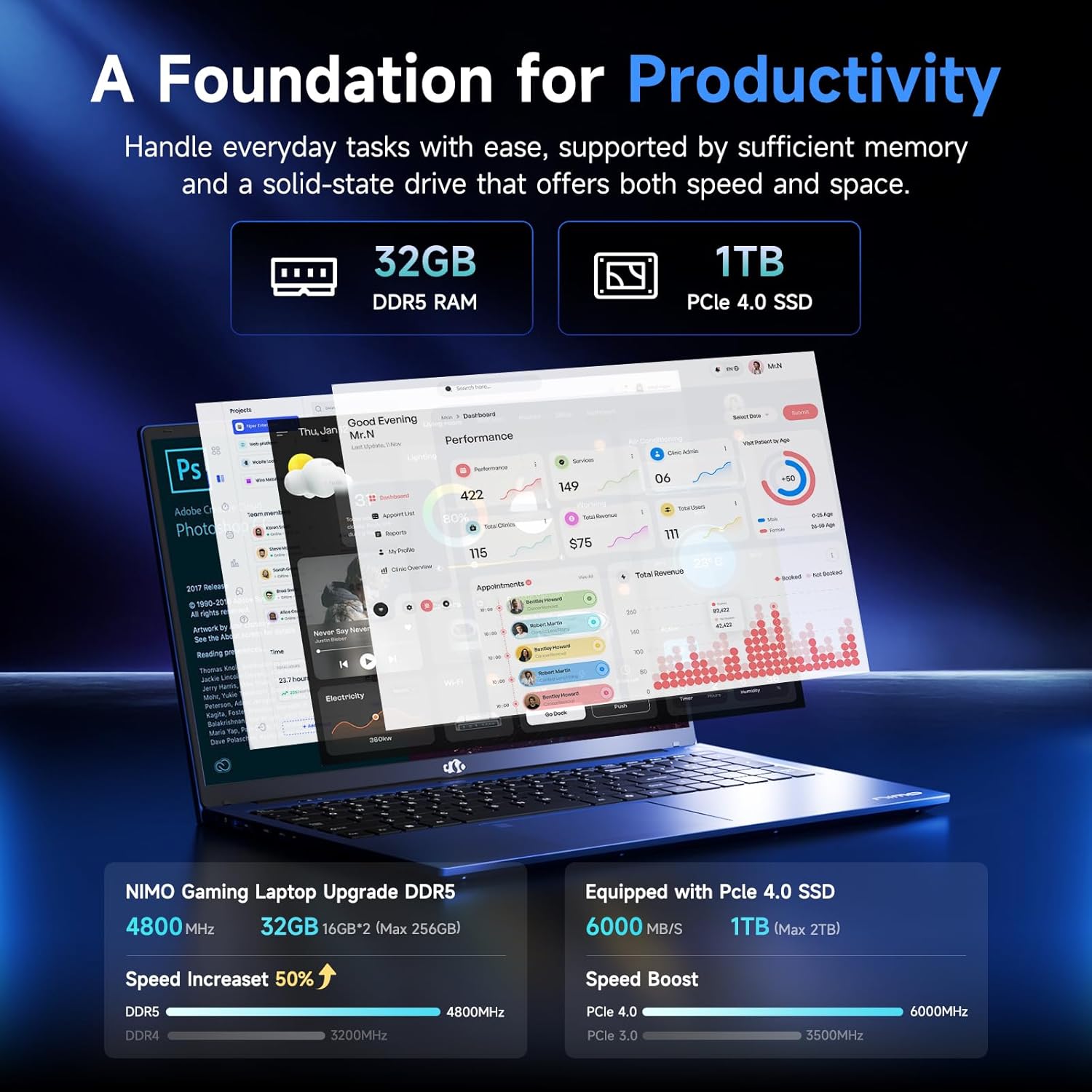
Figure 3.3: Illustration of the 32GB DDR5 RAM and 1TB PCIe 4.0 SSD, highlighting their speed and capacity.
3.2 პორტები და კონექტორები
The NIMO N159 laptop provides a variety of ports for connectivity:

სურათი 3.4: დეტალური view of the laptop's ports and their functions.
- მარცხენა მხარე: Kensington Lock, Audio Jack, USB 3.2 Gen 1, USB 2.0, Micro SD Reader.
- მარჯვენა მხარე: Type-C Gen2 (Multifunction), USB 3.2 Gen 1, HDMI 2.0, Type-C Gen2 (Multifunction).
3.3 კვება და აკუმულატორი

Figure 3.5: Battery and charging capabilities of the NIMO N159 laptop.
The laptop is equipped with a 54Wh smart battery. It supports fast charging via the included 100W Type-C PD charger, providing approximately 5 hours of usage from a 1-hour charge.
3.4 Keyboard and Fingerprint Unlock
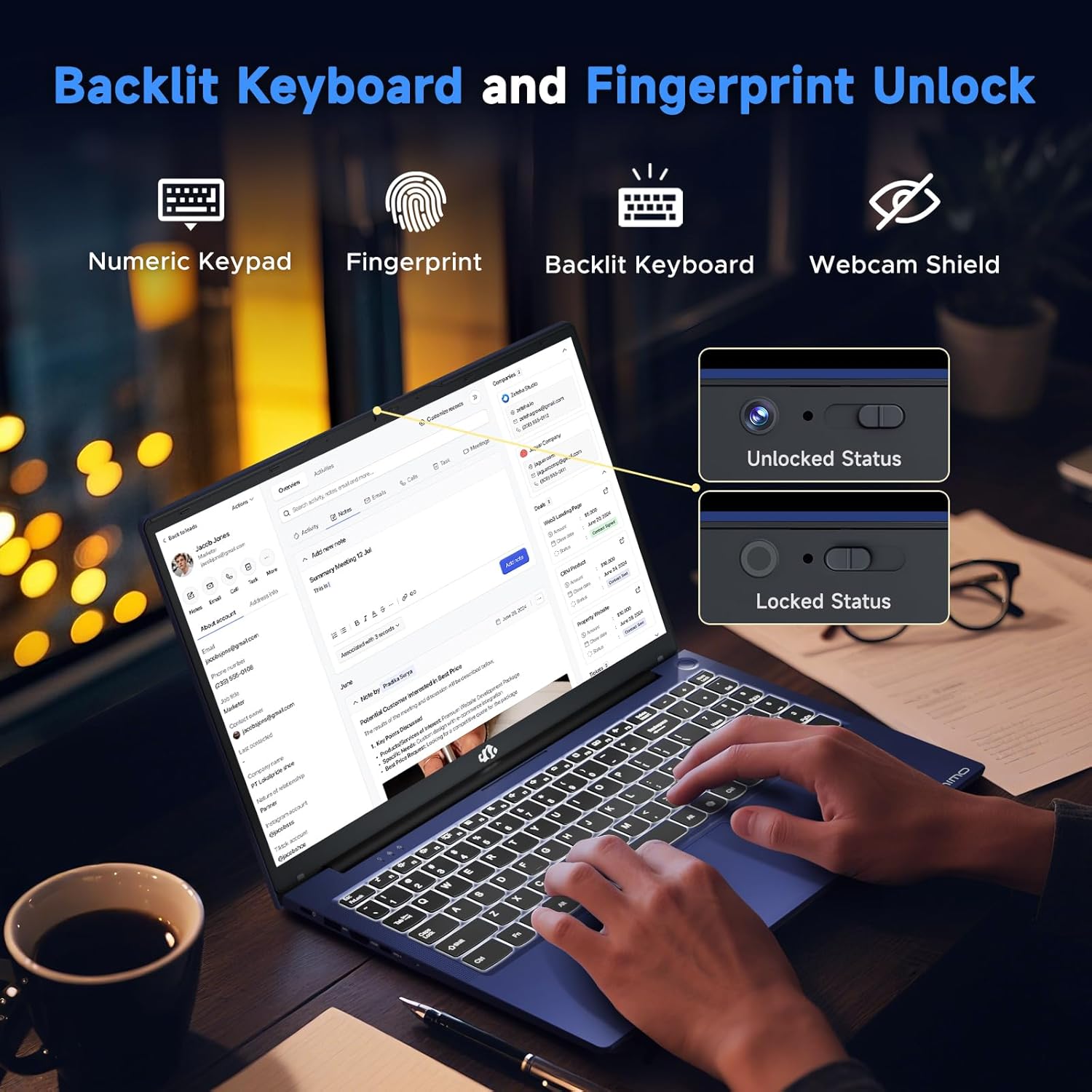
Figure 3.6: Features of the backlit keyboard, numeric keypad, fingerprint unlock, and webcam shield.
The keyboard features backlighting for use in low-light conditions and includes a numeric keypad. The fingerprint reader is integrated into the touchpad for secure and quick access.
3.5 ჩვენება
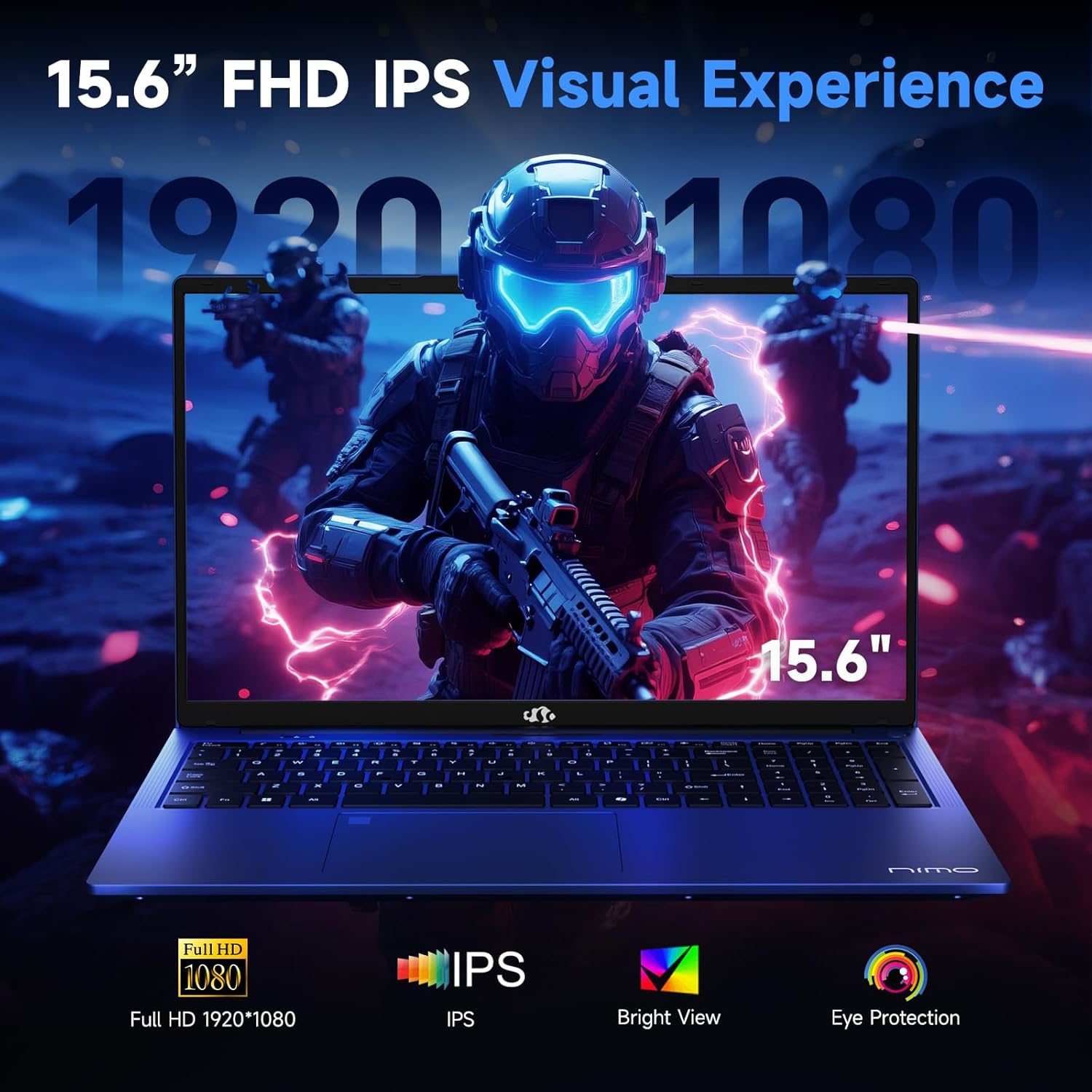
Figure 3.7: Visual representation of the 15.6-inch FHD IPS display quality.
The 15.6-inch Full HD (1920x1080) IPS Anti-Glare Display offers vibrant visuals and a wide viewing angle, suitable for various tasks from work to entertainment.
4. დაყენება
4.1 საწყისი ჩართვა
- შეფუთვა: ფრთხილად ამოიღეთ ლეპტოპი და ყველა აქსესუარი შეფუთვიდან.
- დაკავშირება ძალა: Plug the Type-C 100W PD Fast Charger into a power outlet and connect the Type-C connector to one of the multifunction Type-C ports on the laptop.
- პირველი ჩატვირთვა: გახსენით ლეპტოპის სახურავი და დააჭირეთ ჩართვის ღილაკს, რომელიც ჩვეულებრივ მდებარეობს კლავიატურის ზედა მარჯვენა კუთხეში ან გვერდითა მხარეს.
- Windows-ის დაყენება: Windows 11 Home-ის დაყენების დასასრულებლად, მათ შორის ენის, რეგიონის, ქსელური კავშირისა და მომხმარებლის ანგარიშის შესაქმნელად, მიჰყევით ეკრანზე მოცემულ ინსტრუქციებს.
4.2 ქსელთან დაკავშირება
- Wi-Fi: During Windows setup or later, select your Wi-Fi network from the available list and enter the password.
- Wired (Optional): If an Ethernet adapter (not included) is used with a USB port, connect an Ethernet cable to the adapter and then to your router/modem.
5. საოპერაციო ინსტრუქციები
5.1 ჩართვა/გამორთვა
- ჩართვა: დააჭირეთ დენის ღილაკს.
- გამორთვა: Windows-ში დააწკაპუნეთ დაწყების ღილაკზე, შემდეგ ჩართვის > გამორთვის ღილაკზე.
- ძილი: დახურეთ სახურავი ან დააჭირეთ ღილაკს „დაწყება“, შემდეგ ჩართვის > ძილის რეჟიმი.
5.2 კლავიატურის გამოყენება
- განათების კონტროლი: Press the designated function key (e.g., F9) to cycle through backlight brightness levels (off, low, medium, high).
- ფუნქციის გასაღებები: Use the Fn key in combination with F1-F12 for various shortcuts (e.g., volume, brightness, Wi-Fi toggle).
5.3 Using the Touchpad and Fingerprint Sensor
- სენსორული პანელი: ნავიგაციისთვის მრავალშეხებით ჟესტებს უჭერს მხარს. პერსონალიზაციისთვის იხილეთ Windows-ის პარამეტრები.
- თითის ანაბეჭდის განბლოკვა: Enroll your fingerprint through Windows Hello settings for secure login. Place your registered finger on the sensor located on the touchpad to unlock the device.
5.4 გარე მოწყობილობების დაკავშირება
Use the available USB-A, USB-C, and HDMI ports to connect peripherals such as external monitors, USB drives, mice, and keyboards. The Type-C Gen2 ports support multifunctionality, including data transfer and video output.
6. მოვლა
6.1 დასუფთავება
- ეკრანი: მსუბუქად გამოიყენეთ რბილი, უბინაო ქსოვილი დampწყლით ან ეკრანის საწმენდი საშუალებით გაწმინდეთ. არ შეასხუროთ სითხე პირდაპირ ეკრანზე.
- კლავიატურა და კორპუსი: გამოიყენეთ რბილი, მშრალი ქსოვილი. ჯიუტი ჭუჭყის შემთხვევაში, ოდნავamp შეგიძლიათ გამოიყენოთ ქსოვილი, რათა დარწმუნდეთ, რომ სითხე ღიობებში არ მოხვდება.
- პორტები: შეკუმშული ჰაერი გამოიყენეთ პორტებიდან მტვრის ნაზად მოსაშორებლად.
6.2 ბატარეის მოვლა
- მოერიდეთ ბატარეის ხშირ სრულ დაცლას.
- თუ ლეპტოპი დიდი ხნის განმავლობაში არ გამოიყენება, შეინახეთ გრილ, მშრალ ადგილას, სადაც ბატარეა დაახლოებით 50-60%-ით იქნება დატენული.
- Use only the provided NIMO charger or a compatible 100W Type-C PD charger.
6.3 პროგრამული უზრუნველყოფის განახლებები
Regularly check for and install Windows updates and driver updates to ensure optimal performance and security. These can typically be found in Windows Settings > Windows Update.
7. Დიაგნოსტიკა
This section addresses common issues you might encounter with your NIMO N159 laptop.
| პრობლემა | შესაძლო მიზეზი | გამოსავალი |
|---|---|---|
| ლეპტოპი არ ირთვება. | Low battery, power adapter issue, or hardware fault. | Ensure the charger is properly connected and the outlet is working. Try charging for at least 30 minutes. If the issue persists, contact support. |
| ეკრანი ცარიელი ან შავია. | ეკრანის პარამეტრები, გარე მონიტორის კონფლიქტი ან დრაივერის პრობლემა. | Press Fn + F7 (or relevant display toggle key) to cycle display modes. Disconnect any external monitors. Restart the laptop. |
| Wi-Fi კავშირის პრობლემები. | არასწორი პაროლი, როუტერის პრობლემა ან Wi-Fi ადაპტერის გამორთვა. | Verify Wi-Fi password. Restart your router. Check Windows settings to ensure Wi-Fi is enabled. |
| ლეპტოპი ნელა მუშაობს. | Too many applications open, low storage, or outdated drivers. | Close unnecessary applications. Check available storage. Update Windows and drivers. Run a malware scan. |
| თითის ანაბეჭდის სენსორი არ მუშაობს. | თითი არ არის სუფთა, სენსორი დაბინძურებულია ან პროგრამული უზრუნველყოფის პრობლემაა. | Ensure your finger and the sensor are clean and dry. Re-enroll your fingerprint in Windows Hello settings. |
8. სპეციფიკაციები
Detailed technical specifications for the NIMO N159 laptop:
| ფუნქცია | დეტალი |
|---|---|
| ბრენდი | ნიმო |
| მოდელის სახელი | NIMO N159B |
| ეკრანის ზომა | 15.6 ინჩი |
| ეკრანის გარჩევადობა | 1920 x 1080 პიქსელი (FHD IPS) |
| პროცესორი | AMD Ryzen 7 7735HS (8 Cores, up to 4.75 GHz) |
| ოპერატიული მეხსიერება | 32 გბ DDR5 (4800 მჰც) |
| მყარი დისკი | 1024 GB SSD (PCIe 4.0) |
| გრაფიკული კოპროცესორი | AMD Radeon 680M (ინტეგრირებული) |
| ოპერაციული სისტემა | Windows 11 მთავარი |
| უკაბელო ტიპი | 802.11a/b/g/n/ac |
| USB 2.0 პორტები | 1 |
| USB 3.0 პორტები | 4 |
| Type-C პორტები | 2 (Gen2, Multifunction) |
| HDMI პორტი | 1 (HDMI 2.0) |
| ბატარეის საშუალო ხანგრძლივობა | 5 Hours (54Wh) |
| ნივთის წონა | 3.8 ფუნტი |
| პროდუქტის ზომები | 14.07 x 8.98 x 0.76 ინჩი |
| ფერი | ლურჯი |
| განსაკუთრებული თვისებები | განათებული კლავიატურა, თითის ანაბეჭდის წამკითხველი, HD აუდიო, რიცხვითი კლავიატურა |
9. გარანტია და მხარდაჭერა
NIMO is committed to providing quality products and customer satisfaction.
- მწარმოებლის გარანტია: Your NIMO N159 laptop is covered by a 2-Year Manufacturer's Warranty from Nimo Direct Inc. This warranty covers defects in materials and workmanship under normal use.
- დაბრუნების პოლიტიკა: A 90-Day Hassle-Free Return Policy is offered by Nimo Direct Inc. from the date of purchase.
9.1 დაუკავშირდით მხარდაჭერის სამსახურს
For technical assistance, warranty claims, or product-related inquiries, please contact NIMO customer support:
- ელფოსტა: service@nimopc.com
- ონლაინ: Visit the official NIMO website for further support options and FAQs.
Our dedicated support team is available to assist you with any issues or replacements.


